More interesting news from Ignite 2018

Here are some more announcements from Microsoft Ignite 2018 that caught my eye:

Office 365 / Microsoft 365

Announcing new Microsoft Forms features at Microsoft Ignite – https://techcommunity.microsoft.com/t5/Microsoft-Forms-Blog/Announcing-new-Microsoft-Forms-features-at-Microsoft-Ignite/ba-p/263007

Introducing Multi-Geo in SharePoint and Office 365 Groups – https://techcommunity.microsoft.com/t5/Office-365-Blog/Introducing-Multi-Geo-in-SharePoint-and-Office-365-Groups/ba-p/263302

SharePoint powers teamwork in Office 365 – Ignite 2018 announcements – https://techcommunity.microsoft.com/t5/Microsoft-SharePoint-Blog/SharePoint-powers-teamwork-in-Office-365-Ignite-2018/ba-p/255465

What’s new in Microsoft Stream – Ignite 2018 announcements – https://techcommunity.microsoft.com/t5/Microsoft-Stream-Blog/What-s-new-in-Microsoft-Stream-Ignite-2018-announcements/ba-p/260334#

Beginning in October, employees can watch videos on the go with the Stream mobile app for iOS and Android, with support for offline viewing.

Passwordless phone sign-in with the Microsoft Authenticator app (public preview) – https://docs.microsoft.com/en-us/azure/active-directory/authentication/howto-authentication-phone-sign-in

Microsoft Whiteboard is now available for more devices – https://techcommunity.microsoft.com/t5/Office-365-Blog/Microsoft-Whiteboard-is-now-available-for-more-devices/ba-p/255431

Whiteboard on iOS – https://itunes.apple.com/us/app/microsoft-whiteboard/id1352499399

Azure

Private preview of Azure VM Image builder – https://azure.microsoft.com/en-us/blog/announcing-private-preview-of-azure-vm-image-builder/

Azure monitor alerting just got better – https://azure.microsoft.com/en-us/blog/azure-monitor-alerting-just-got-better/

Move Managed Disks and VMs now available – https://azure.microsoft.com/en-us/blog/move-managed-disks-and-vms-now-available/

Introducing Azure Functions 2.0 – https://azure.microsoft.com/en-us/blog/introducing-azure-functions-2-0/

Top learnings from Microsoft Ignite 2018–Day 1

Here’s what caught my attention on Day 1 of Ignite 2018:

1. Windows Virtual Desktop

Windows Virtual Desktop gives you a Windows 7 or 10 desktop on Azure – https://arstechnica.com/gadgets/2018/09/windows-virtual-desktop-gives-you-a-windows-7-or-10-desktop-on-azure/

https://azure.microsoft.com/en-us/services/virtual-desktop/#sign-up

“Access Windows Virtual Desktop for free if you’re a Microsoft 365 E3, E5, or F1 customer or a Windows E3 or E5 customer—you only need to setup or use an Azure free account to quickly deploy and manage your virtualization environment. Pay only for the virtual machines you use and take advantage of options such as Azure Reserved Virtual Machine Instances.”

2. File on demand for Mac

Try files on demand for Mac – https://support.office.com/en-us/article/try-files-on-demand-for-mac-529f6d53-e572-4922-a585-e7a318c135f0

3. Microsoft Learn

Microsoft Learn – https://docs.microsoft.com/en-us/learn/

4. OneDrive updates

Beginning later this year, automated transcription services will be natively available for video and audio files in OneDrive and SharePoint using the same AI technology available in Microsoft Stream. While viewing a video or listening to an audio file, a full transcript (improving both accessibility and search) will show directly.

and

Leverage intelligent search with the Microsoft Graph in OneDrive and SharePoint to find audio and video that contains specific words or phrases the same way you search across documents.

and

Use keywords found in transcribed audio and video can be used to kick off workflows in Microsoft Flow. For example, any content that contains a specific keyword can be copied to a marketing folder for that product.
<https://techcommunity.microsoft.com/t5/Microsoft-OneDrive-Blog/OneDrive-Announcements-at-Ignite-2018/ba-p/255201>

“We are pleased to announce that you’ll soon be able to sync folders from multiple Office 365 tenants on both PC and Mac.” – From <https://techcommunity.microsoft.com/t5/Microsoft-OneDrive-Blog/OneDrive-Announcements-at-Ignite-2018/ba-p/255201>

5. Staffhub to be retired

Microsoft Staffhub to be retired – https://support.office.com/en-us/article/microsoft-staffhub-to-be-retired-30ca17f3-5502-4bc9-bb0a-bed04bb362f0?ui=en-US&rs=en-AU&ad=AU

6. A mobile app for Microsoft Stream is coming

Beginning in October, employees can watch videos on the go with the Stream mobile app for iOS and Android, with support for offline viewing. From <https://www.microsoft.com/en-us/microsoft-365/blog/2018/09/24/10-new-ways-for-everyone-to-achieve-more-in-the-modern-workplace/>

7. Azure SMB files just gets better

A new era for Azure files – https://azure.microsoft.com/en-us/blog/a-new-era-for-azure-files-bigger-faster-better/

Today, we are pleased to announce the preview of Azure AD authentication for Azure Files SMB access. This feature allows the native preservation of Windows access control lists (ACLs) on Azure file shares. It also enables end users to access Azure file shares through an Azure AD Domain Services joined machine with Azure AD credentials.

Azure AD authentication for Azure SMB file access now in public preview – https://azure.microsoft.com/en-us/blog/azure-active-directory-integration-for-smb-access-now-in-public-preview/

8. New Azure exams

AZ-200 = Microsoft Azure Developer Core Solutions

AZ-201 = Microsoft Azure Developer Advanced Solutions

AZ-202 = Microsoft Azure Developer Certification Transition

9. New Office 365 (I suspect Microsoft 365) exam in March 2019

MS-100

MS-101

What will Day 2 bring?

Need to Know podcast–Episode 190

Brenton and I take an opportunity to get you up to date ahead of Microsoft Ignite on all the latest news in the Microsoft Cloud. We have some news about SharePoint and Outlook as well as some changes to Windows 7 support. Brenton also suggests that maybe we need a dedicated episode on PowerShell. What do you think? Let us know.

Take a listen and let us know what you think –feedback@needtoknow.cloud

You can listen directly to this episode at:

https://ciaops.podbean.com/e/episode-190-cloud-updates/

Subscribe via iTunes at:

https://itunes.apple.com/au/podcast/ciaops-need-to-know-podcasts/id406891445?mt=2

The podcast is also available on Stitcher at:

http://www.stitcher.com/podcast/ciaops/need-to-know-podcast?refid=stpr

Don’t forget to give the show a rating as well as send us any feedback or suggestions you may have for the show.

Resources

@contactbrenton

@directorcia

New Outlook on the web

Helping customers shift to a modern desktop

Microsoft Ignite

Microsoft Teams data residency

Windows 7 monthly update charge

PowerShell basics

Initial set up of an Office 365 PowerShell environment

CIAOPS Learn

CIAOPS Patron

Auditing Office 365 logins

Using Azure Automation to schedule mailbox checks

Ignite 2017 sessions on YouTube

With Microsoft Ignite 2018 just around the corner I know there is always going to be a huge amount of content and no way that I can be across all of it immediately. Luckily, Microsoft has been recording these sessions and posting them up to YouTube for later review. This has allowed me to work through many sessions over the year to improve my knowledge.

image

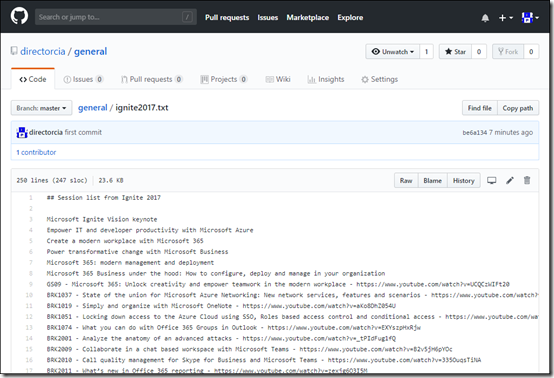
Unfortunately, there is not a single directory of all the session recordings in YouTube, at least not that I know of, so I have created and maintained a list of these sessions as I worked through them. I’ve now made my list of the Ignite 2017 sessions available via my GitHub repository at:

https://github.com/directorcia/general/blob/master/ignite2017.txt

Simply find the session that you are interested in a hopefully I’ve managed to capture the link to the session on YouTube. If you know of any sessions that aren’t listed let me and I’ll add to my catalogue.

Personally, watching the pre-recorded sessions gives me some benefits I don’t get attending in person. Firstly, I generally watch the sessions at 1.5 speed which allows me to get through more sessions. I’m also able to have my own Office 365 or Azure tenant up in another window and be following along with what I see being presented. I also get the ability to pause the session and come back later as YouTube keeps track of my history. Also, as I watch session YouTube suggest more sessions like the one I’m watching, so discovery of new relevant sessions becomes much easier once you start getting into it.

I plan to do the same for the Ignite 2018 sessions when they become available but I’ll start doing that immediately and posting into a new file in the same repository. So keep an eye out for that one coming soon.

Even after 12 months, I haven’t been able to get through everything but I do have to say thanks to Microsoft for making all this content freely available for those that couldn’t attend.

Office 365 Mobile Application Management basics

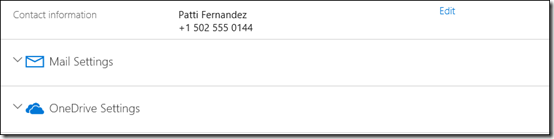
When you look at a licensed user in Office 365 you will see sections like this:

image

You’ll see there are no device settings as yet.

image

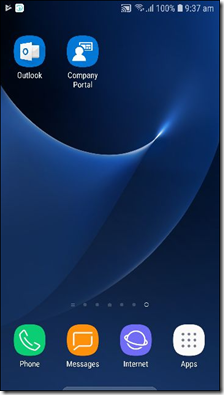
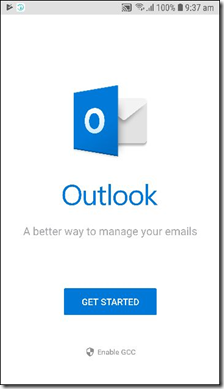
If a user now downloads and installs the Outlook app on their phone.

image

and then logs into it

image

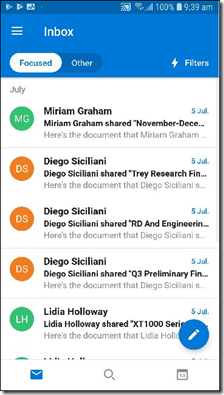
they will be able to receive the emails as expected.

image

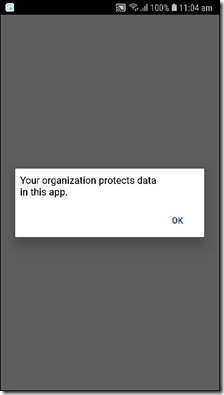
However, they will also see that the organization is protecting their device.

image

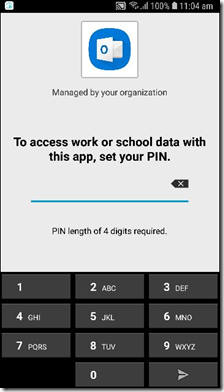
and thus, they will require a PIN for the Outlook application.

image

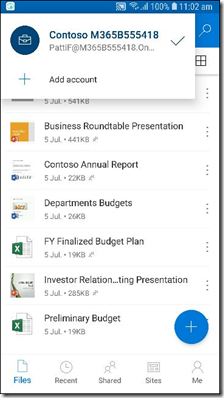
They can also download the OneDrive app and connect to their OneDrive for Business.

image

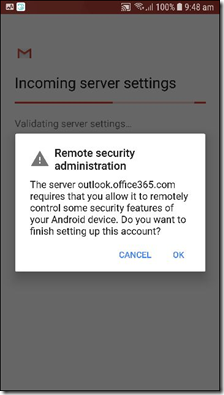
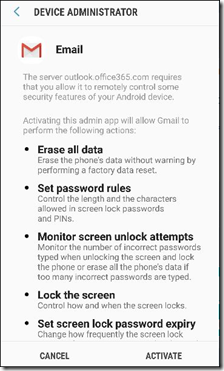
If they however use GMail to access their emails they will again see the prompt above letting them know that Office 365 will be controlling part of this account.

image

The user will see the things that will be possible via remote management.

image

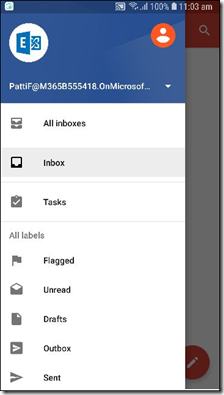
The users account can be connected via most mail clients using their login and password.

image

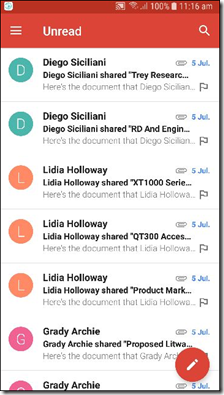
and they will be able to see their emails.

image

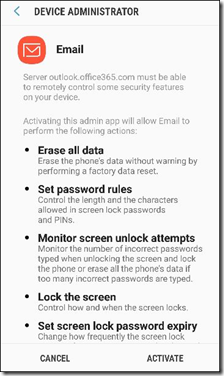
The same thing applies if they use the native mail client that comes with the device. That account will need to be put under management before it can be used as shown above.

image

Once done so, the user can read their emails.

image

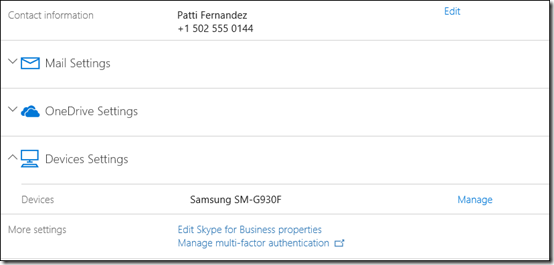
Now that a user has configured their device for an Office 365 service you will see an additional option in the list of items for their account in the administration center – Device Settings.

This item is Device Settings and you should see the devices they have configured.

image

If you select Device Settings you should see all the devices the user has configured, as shown above. You will notice that these devices are “App managed”, which basically means just the software on the device is managed, not the operating system or the anything else on the device.

image

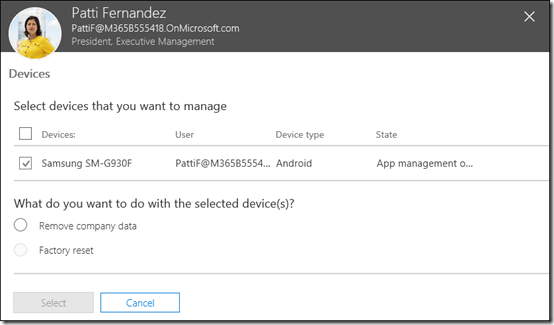
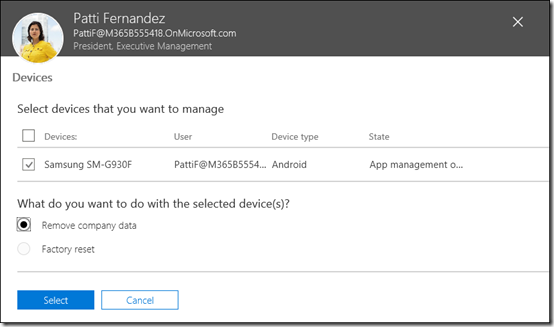
You can select the device and then select Remove company data, however, because the device is only “App managed” you’ll see that you can’t wipe the whole the device.

image

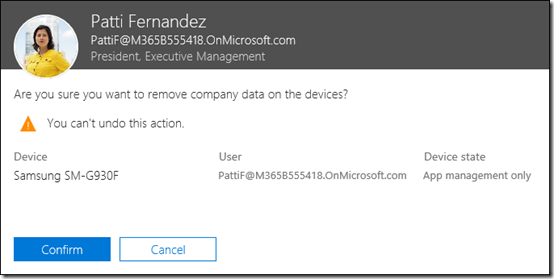
if you continue with the Remove company data option, you see the above confirmation screen.

image

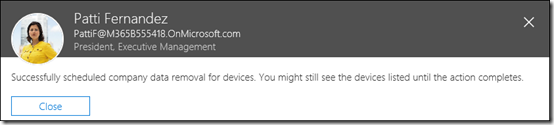
If you then select Confirm you will see the above confirmation that data removal from the device has commenced.

image

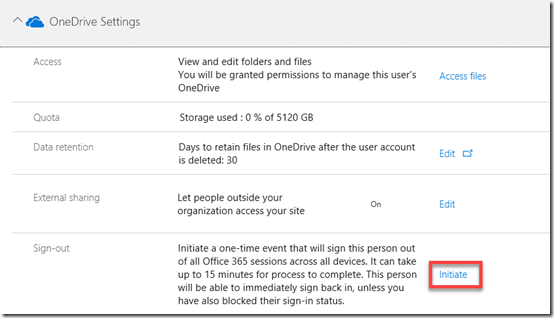
If you wish to remove the OneDrive data as well it is best practice to go into the OneDrive settings and Initiate a sign out as shown above.

image

You’ll then receive confirmation that this sign process has commenced.

This basic version of device management is available across all Office 365 plans, however if you are looking for more powerful management, with full device management, then you need to consider using Intune and actually enrolling the devices which I’ll cover in an upcoming update.

Auditing Office 365 user logins via PowerShell

image

One of the common audit requirements people have with Office 365 is to determine when their users successfully. and unsuccessfully logged into Office 365.

I’ve detailed how to do this in the web interface here:

Searching the Office 365 activity log for failed logins

but now you can find this script that I have made available that will report this via PowerShell:

https://github.com/directorcia/Office365/blob/master/o365-login-audit.ps1

In the variables area you will find three options for $operations like so:

$operation=”userloginfailed”,”userloggedin” ## use this line to report all logins

##$operation=”userloginfailed” ## use this line to report failed logins

##$operation=”userloggedin” ## use this line to report successful logins

Only one of these should be uncommented. (the ## designates everything after it as a comment in PowerShell, just so you know).

image

The first option “userloginfailed”,”userloggedin” will give you all users logins between the dates you nominate as shown above. Any failed logins will be highlighted in red, successful ones are in green.

image

The second option, “userloginfailed” will just so failed logins for the period as shown above

The third option, “userloggedin” will just show successful logins for the period.

Those are the main variable to change to get different outputs, but make sure you read the whole script and set the other variables appropriately for your environment.

I’ll be improving the script over time so remember to check bag regularly but now you should be able to easily audit all your user logins to Office 365 using PowerShell.

Need to Know Podcast–Episode 189

This is our follow up episode with Marcus Dervine from Webvine speaking about Digital Transformation. We continue with the transformation pillars that Marcus has outlined in his as the road to successful adoption of technologies like Office 365. Of course Brenton joins me again to catch you up on all the cloud news. We’ve tried to keep the update as short as we can as we noticed that the episodes are getting longer. We’ll do a deeper dive into updates in the next episode as we wanted to make sure there was plenty of time for our guest.

Take a listen and let us know what you think –feedback@needtoknow.cloud

You can listen directly to this episode at:

https://ciaops.podbean.com/e/episode-189-marcus-dervin/

Subscribe via iTunes at:

https://itunes.apple.com/au/podcast/ciaops-need-to-know-podcasts/id406891445?mt=2

The podcast is also available on Stitcher at:

http://www.stitcher.com/podcast/ciaops/need-to-know-podcast?refid=stpr

Don’t forget to give the show a rating as well as send us any feedback or suggestions you may have for the show.

Resources

@marcusdervin

@contactbrenton

@directorcia

Marcus’s book – Digital Transformation, from the inside out (use coupon code CIAOPS for 20% off)

Webvine

Azure outage

New file template management

Mass delete notification

Passwordless Login

Windows 10 sandboxing

Windows 10 Quality updates

Creating Office 365 Protection Alerts with PowerShell

I’ve previously covered off how to create a new Protection Alert in Office 365 using the web interface:

Setting an alert for file download in Office 365

I’d also tried doing this via PowerShell but ran into some issues:

I’m puzzled by new-protcetionalert

Luckily, after some chasing down, I have learned that I overlooked an important option in my scripting. It seems the option:

-aggregationtype none

needs to be included. This tells the script to only create a single alert at a time. Thus to create a Protection Alert that will tell you of malware in a file in OneDrive for Business or SharePoint you need to run:

New-protectionalert -category $category -name “Detected malware in files” -ThreatType activity –NotifyUser “user@domain.com” -Operation filemalwaredetected -AggregationType none -Severity High

You’ll first need to connect to the Security and Compliance center with PowerShell before you can run this command.

image

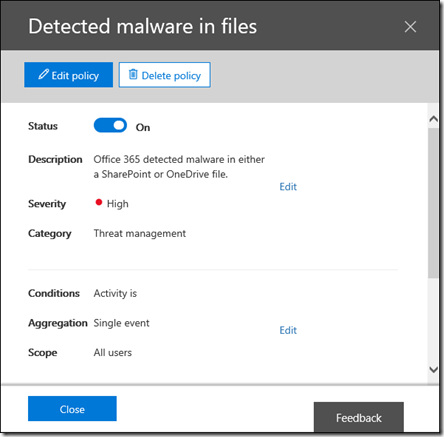
If you then at the Alert Policies you should see the above.

image

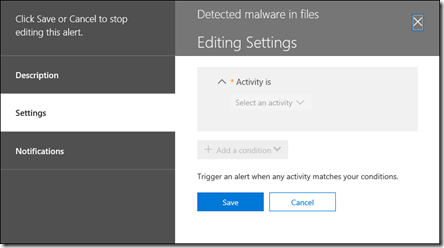
Interestingly, when you look at the activity that will trigger the alert you see the above, which doesn’t provide you any indication of what the activity for the alert actually is. You will also notice that I can’t edit the activity or much else on the alert once it has been created via PowerShell.

However, I do know that setting Protection alerts via PowerShell does work so I’m happy that I can do bulk add alerts via a script. I just that one option.