Setting up an iOS Intune device configuration policy

Before you set up any iOS device configuration policy in Intune it is best practice to ensure:

You have added an Apple management certificate to Intune

and

You have set up an iOS Intune device compliance policy

with those two tasks complete you can now create an iOS device configuration policy. A configuration policy applies settings and configurations to the iOS device joined to this environment.

image

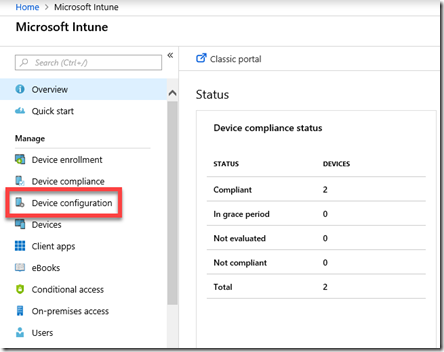
Open the Azure portal as an administrator and navigate to Intune. From the menu that appears on the left select Device configuration as shown above.

image

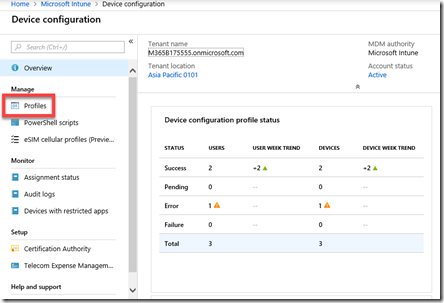
Next select Profiles from the menu on the left as shown above.

image

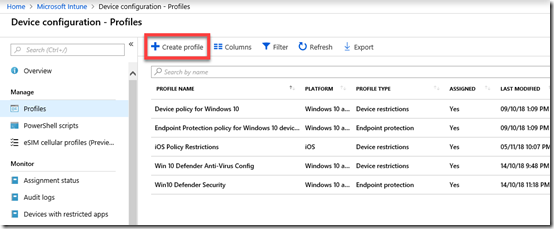
Here you will see any profiles that already exist. To create a new policy simply select Create policy from the menu bar across the top as shown.

image

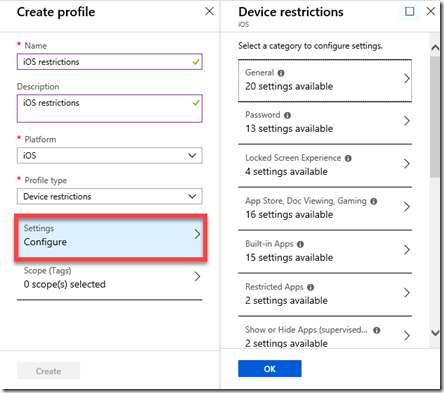
Gove the policy a Name and Description. Select iOS as the platform.

image

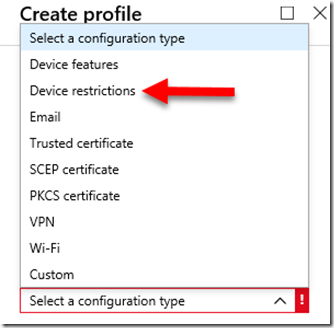
You’ll see that there are lots of different configuration types you can select to create configuration policies for. In this case we’ll select Device restrictions as an example of how to configure a policy, but remember there at least 9 options here you need to consider.

Remember, you can have multiple policies if you desire as well a number of the different configuration type policies if you want.

image

If you now select Settings towards the bottom of the window as shown above, you will see the numerous range of configuration options you can set for devices.

image

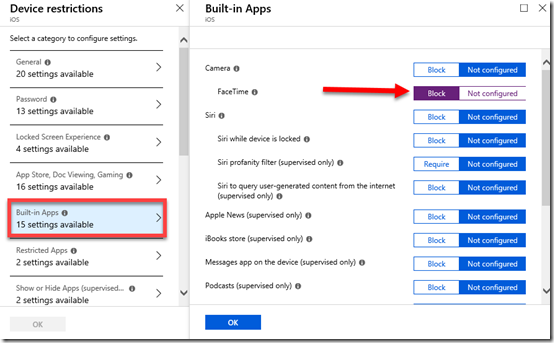
In this case I’ll simply illustrate changing one setting by selecting Built-in Apps and then Blocking Facetime as shown above.

Make sure you select OK at the bottom of any screen on which you make changes.

image

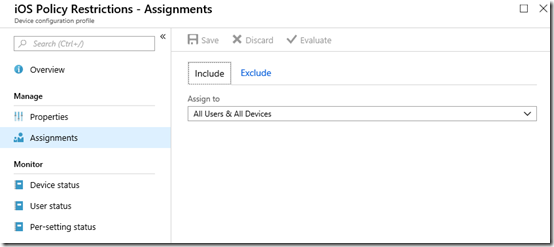
The final step once you have made all your selections and Saved the policy, is to assign the policy. Here I have assigned it to All Users & Devices as shown.

image

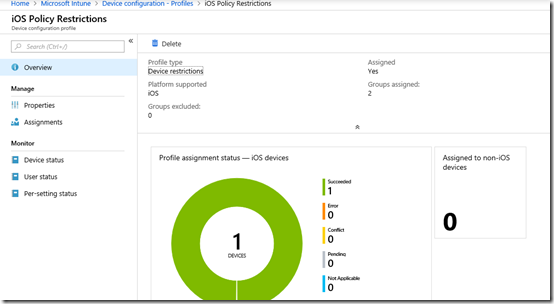
You can revisit and make changes to your policy at any time by navigating to it and selecting it.

The options at the bottom of the menu on the left above: Device status, User Status and Per-setting status will again give you a summary of how this policy has been applied to devices.

Once we have all this in place we can now start joining actual devices to this environment so they can be manged. When we do that, they will be checked against the compliance policy and then have any configuration policies applied.

I’ll cover the process of adding devices to this environment in an upcoming article.

Setting up an iOS Intune device compliance policy

Once you have added an Apple certificate to allow device management for iOS as I have detailed previously here:

Adding an Apple Certificate to Intune

the next step in the process to get your iOS device managed is to create a specific iOS compliance policy in Intune.

A compliance policy is basically a set of rules that the device must follow to be considered compliant. If the device fails these rules then it is considered noncompliant and you are able to take action on that such as excluding it from connecting to your corporate data. Compliance for all devices is checked regularly.

image

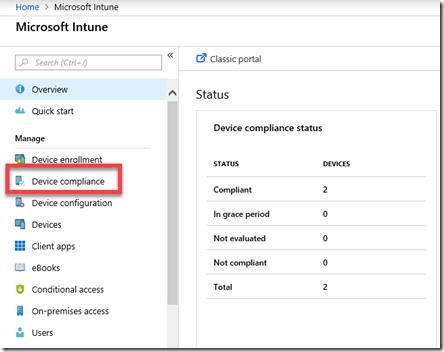
To create this compliance policy you’ll need to login to the Azure portal and navigate to the Intune service. Once there, you’ll find an option in the menu Device Compliance as shown above, that you’ll need to select.

image

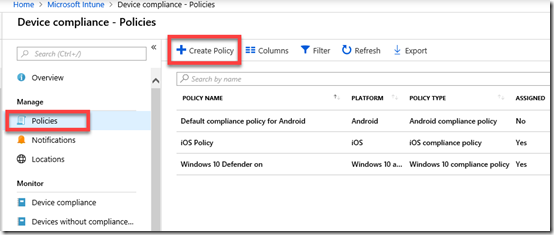
You’ll then need to select Policies on the left and the Create Policy option from the menu on the right that appears as shown above.

You may also see number of other existing policies here for different platforms. Note, that it is possible to have multiple compliance policies for the same platform if desired.

image

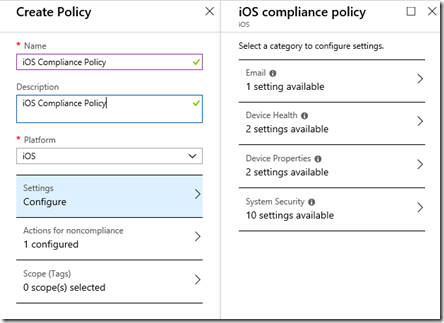
You’ll now need to give the new iOS compliance policy a Name, Description and select the Platform as iOS as shown above.

You’ll then need to select the Settings option below this to configure compliance rules. When you do so another blade will appear on the right with four categories: Email, Device Health, Device Properties and System Security as shown above.

image

You can configure as many options as you like here but I’m going to cover what I consider the basics for iOS compliance.

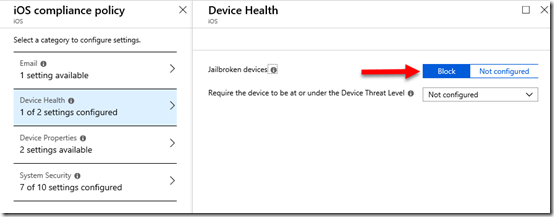
In Device Health, set Jailbroken devices to Block as shown above.

image

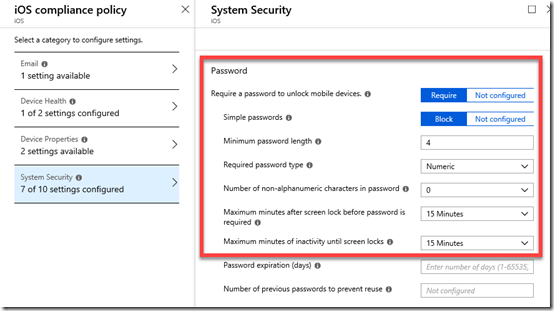
In System Security set the Password options as shown above.

Make sure you select OK at the bottom of each setting to update your preferences.

image

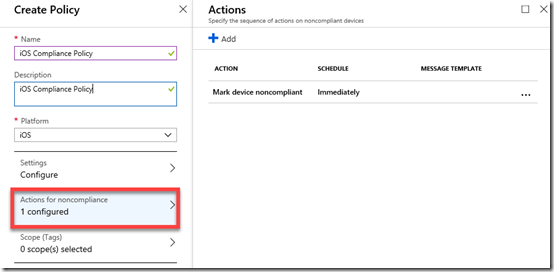
If you go into the Actions for noncompliance you’ll see there is currently a default option to Mark device noncompliant.

image

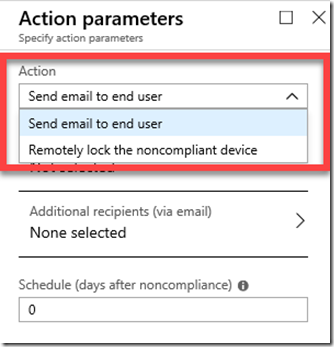
You can add more actions here, to Send email to end user and/or Remotely lock the noncompliant device if you wish.

When you have finished making your change, ensure that you Save the policy.

image

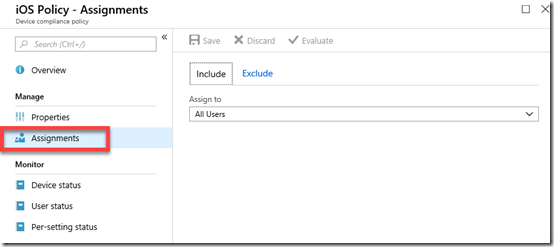
Now that the new iOS compliance policy has been created you’ll need to apply that policy to a group of users. To do this, select the policy you just created from the list of compliance policies. Then select the Assignments option from the menu on the left.

It is probably easiest to apply this new policy to all users but you can certainly select a group of users as well as exclude user if you wish.

Once again, when you have made you selection, ensure you Save any changes to have the policy applied to these users.

image

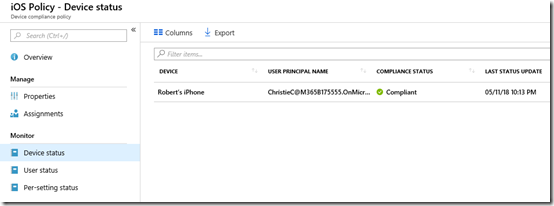
When devices connect to the tenant, they will be evaluated to be compliant or not. When this occurs, you can again examine the options at the bottom of the policy to see the device status as shown above. This will tell you whether connected devices are compliant (here they are).

image

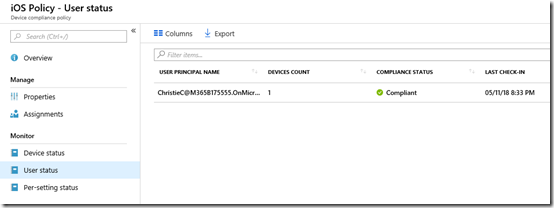
You can also get the status by user, because remember, some users may have multiple devices.

image

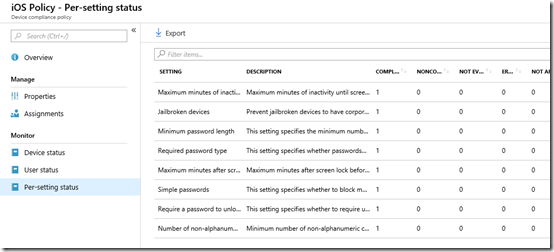
Finally, you can also examine the per-setting status. This is handy if a device has failed compliance and you want to know exactly what setting(s) have caused this failure.

image

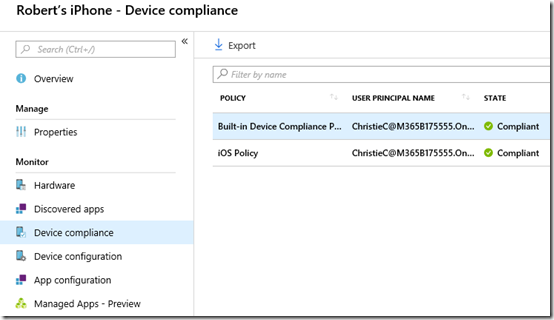
You can also see the compliance by examining the individual device in Intune as shown above.

You’ll see here that there is in fact a default compliance policy as well as any your have created.

Selecting the Built-in Device Compliance Policy will show you its settings like so:

image

Basically, the Built-in Compliance Policy simply checks whether device is active, the user exists in the tenant and another compliance policy has been assigned. Thus, the device won’t be considered compliant by default until we create at least one compliant policy for the platform.

image

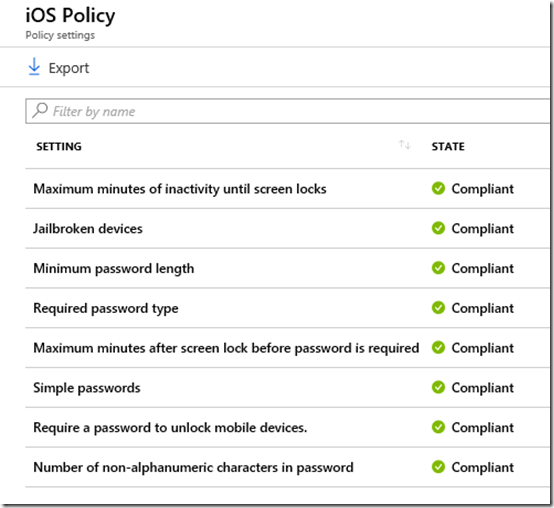
If you instead select any of the custom compliance policies that you created you will see whether each individual setting is considered compliant in that policy as shown above.

So, creating a device compliance policy is important when we wish to use Intune to manage devices. You need to create a compliance policy for each platform with the settings against which devices will be continually checked. This will ensure that devices connecting to your environment maintain the settings you desire.

The next step will be setting up device configuration policies to actually configure how the device operates. That will be covered in an upcoming article.

Need to Know podcast–Episode 194

=””>

More news this week from the Microsoft Cloud. Plenty of things that you need to know around Microsoft 365 and Azure so we bring it to you in another all news episode.

Take a listen and let us know what you think –feedback@needtoknow.cloud

You can listen directly to this episode at:

https://ciaops.podbean.com/e/episode-194-cloud-update/

Subscribe via iTunes at:

https://itunes.apple.com/au/podcast/ciaops-need-to-know-podcasts/id406891445?mt=2

The podcast is also available on Stitcher at:

http://www.stitcher.com/podcast/ciaops/need-to-know-podcast?refid=stpr

Don’t forget to give the show a rating as well as send us any feedback or suggestions you may have for the show.

Resources

@contactbrenton

@directorcia

7 things Steve Jobs can teach you about business

How to be Jason Bourne

Keeping up to date

Microsoft MCA and Acceptance wording

https://uptakedigital.zendesk.com/hc/en-us/articles/360000549816

Windows 10 Home on the new Surface PC line

Windows Server 2019 RDS will not support Office Pro Plus from Office 365

New Office deployment customisation tool

What’s new for Microsoft To-Do in October 2018

Office 365 soars to 155 million active users

Windows Defender now runs in a sandbox

Hardware OAUTH tokens in Azure MFA in the cloud now available

Outlook for Mac adds administrative controls

CIAOPS Patron program offer

Policy that prevents you from granting iOS Accounts the permissions

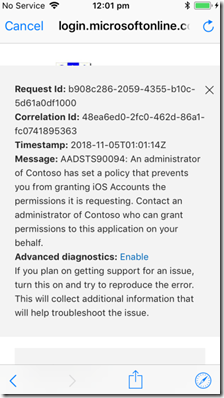
I was configuring an iPhone to access a Microsoft 365 Business tenant and when I attempted to add email to the native iOS email client I received the following error.

image

An administrator of Contoso has set a policy that prevents you from granting iOS Accounts the permissions it is requesting.

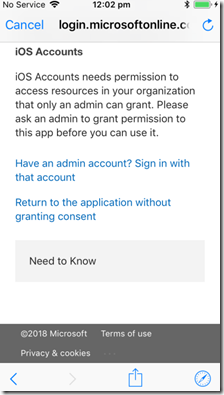
If I then closed that error message I was presented with:

image

Strange, haven’t seen this one before.

Turns out that one of the best practice recommendations I use on tenants is to disable users being able to Outlook plugins which I detailed here:

Thwarting the ransomware cloud

The down side to preventing this is that it also prevents iOS adding an Office 365 email account when you have modern authentication enabled, which again is best practice.

So, to allow iOS to add an Office 365 email account in the native iOS app you’ll need to allow users to “consent to apps accessing company data”.

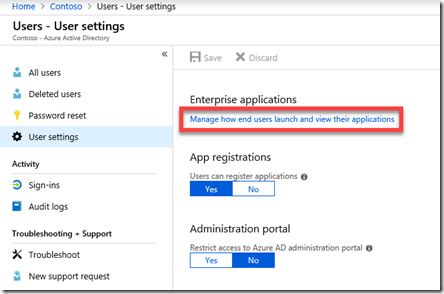
There are two methods to achieve this. You can firstly go to the Azure Portal as an administrator, locate Azure AD | Users | User settings as shown below:

image

Then select the hyperlink Manage how end users launch and view their applications as shown above.

image

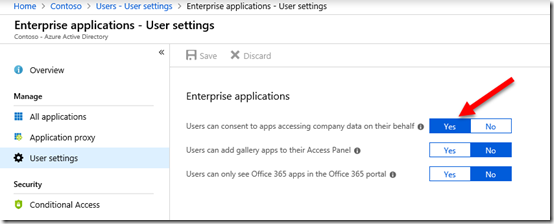
From here, set the option Users can consent to apps accessing company data on their behalf to Yes and Save the change.

The second method is to use PowerShell with the command:

set-MsolCompanysettings -UsersPermissionToUserConsentToAppEnabled $true

Remember, that enabling this option will also allow users to potentially accept malicious add-ins in their application like Outlook so you should disable it once your iOS devices have been configured.

It would be nice if there was a policy that could be configured to change this setting just for iOS, but alas that currently isn’t the case that I can see. You’ll therefore need to go through this disable-enable-disable sequence to maintain best practices and allow iOS devices to be added to your environment.

Adding an Apple Certificate to Intune

When you use Intune to manage your Apple devices you’ll need to add a push certification to allow control of the device. If you don’t do this, then you’ll get error messages about failing to join when you try and enrol the device using the Intune Company Portal App on the device.

image

To add a management certificate you’ll firstly need to login to the Azure portal as an administrator. You’ll then need to navigate to Intune.

Once there, select Device enrollment from the menu.

image

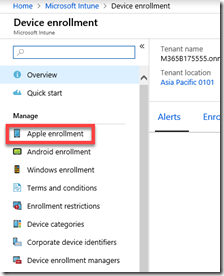
Next select Apple enrollment from the new menu that appears.

image

When you do this a new window should appear on the right. Select the top option, Apple MDM Push certificate.

image

You will see the enrolment status at the top of the page. If this is a new tenant, the status will show Not set up as shown above.

image

Scroll down the windows to commence the set up process.

Place a check in the I agree box in section 1.

Then select Download your CSR from section 2.

image

Save this certificate file on your local machine. Make a note of this location as you’ll need to upload it soon.

image

Scroll down to section 3 and select the hyperlink Create your MDM push Certificate.

image

This will open a new browser window and ask you to login using an Apple ID. if you don’t have one of these yet, you’ll need to create one. If you are doing this on behalf of a company it is best practice to use an Apple ID that is linked to the business rather than the individual.

image

Once you have logged in, you’ll see any certificates that you have already created.

Select the Create Certificate button in the top right.

image

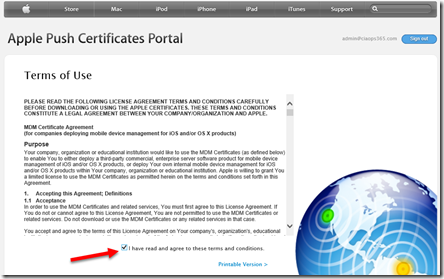
Accept the terms and conditions.

image

Browse to the location where you downloaded the certificate file from Intune previously. Select the file. Then select the Upload button.

image

In a moment you should now see that a new certificate has been created for you. It is important to note that certificate last for 12 months, after which time it will be required to be replaced or renewed.

Select the Download button to copy the new Apple management certificate to your machine.

image

Save this Apple management certificate on your local machine and remember where it is located.

image

Return to the Azure portal and the setup in Intune.

In section 4 enter the Apple ID that you used when you created the certificate.

In section 5 browse to the Apple management certificate you just downloaded.

When complete, select the Upload button at the bottom of the page.

image

In a few moments you see a message from the Azure portal indicating that the certificate has been successfully uploaded.

image

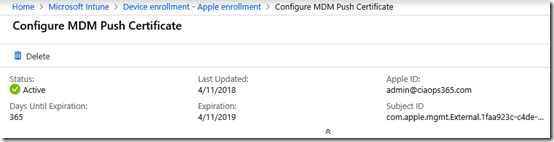
If you now scroll to the top of the page in Azure you should see that the status is now Active as shown above.

You have now successfully uploaded and configured an Apple management certificate into Intune. You can now proceed to enrol your Apple devices into Intune management. Just remember, that this certificate is valid for 12 months, after which time you’ll need to renew it.

Need to Know podcast–Episode 193

Join us in this episode as Brenton speak with Lorenzo Coppa from Gluh, which is clever way for IT Resellers to sell more hardware with less hassle and overhead. Brenton and I also bring you up to date with all the latest Microsoft Cloud news. Just because Ignite is over doesn’t mean that the news stops from the cloud. We’ll bring you up to date with everything you need to know.

Take a listen and let us know what you think –feedback@needtoknow.cloud

You can listen directly to this episode at:

https://ciaops.podbean.com/e/episode-193-it-gluh/

Subscribe via iTunes at:

https://itunes.apple.com/au/podcast/ciaops-need-to-know-podcasts/id406891445?mt=2

The podcast is also available on Stitcher at:

http://www.stitcher.com/podcast/ciaops/need-to-know-podcast?refid=stpr

Don’t forget to give the show a rating as well as send us any feedback or suggestions you may have for the show.

Resources

@contactbrenton

@directorcia

Gluh

Updated version of Windows 10 1803 rolling out

Ignite book of news

Create an organisation wide team in Microsoft Teams

New capabilities coming to the SharePoint Migration Tool

How Azure AD can help clean up data in your on-premises Active Directory

Reset passwords from all versions of Windows

Ignite 2018 session Youtube index from CIAOPS

ID Fix tool

Customising the top navigation bar in Office 365

image

You may not realise that you can customise the top navigation bar in Office 365 as a global administrator. This will give you some branding and navigation options across your tenant.

image

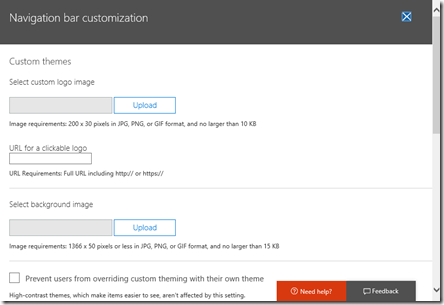
Navigate to Organizational profile in the Admin center and select to Edit the option Manage custom themes for your organization.

image

You now need to simply upload the required graphics but you will note that you can include a URL for the logo you add. This URL can basically be any web site address.

image

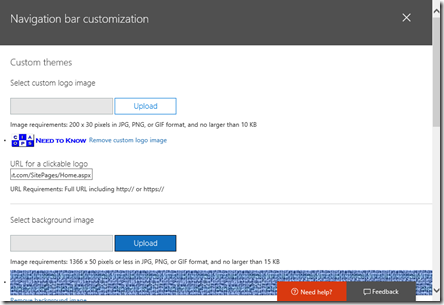
From the above, you can see that I’ve uploaded a logo, set the logo link to point to the default SharePoint site for the tenant and set a background image for the banner.

image

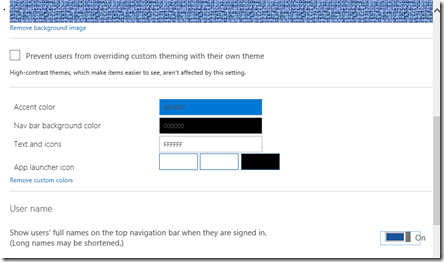
If you scroll further down the page you will a number of additional options, including the ability to display the full name for the logged in user, which I have selected.

Save you selections.

image

Without the banner background your navigation will appear like what you see above.

image

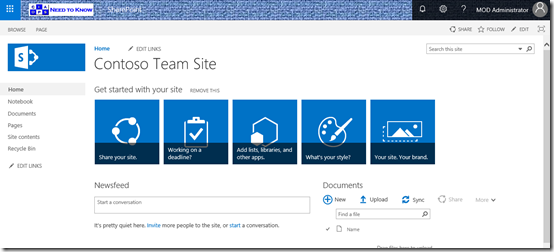
With the banner background your navigation will appear like what you see above.

image

If you then click on the logo you’ll be taken to the web site you entered during the configuration. In this case, to the default SharePoint site for the tenant.

Hopefully, you can now see a few more branding options for your Office 365, including the ability to link to any web location via a logo. That, I find is a very common request from many organisations.

Do you need to backup Office 365?

The question of whether you need to backup data (emails and files) stored in Office 365 is one of the most common questions I see. The best answer is that you need to have as many backups of your own data as you feel comfortable with. That comfort level will vary with each person and business, but in general, more is better.

Let’s start by defining what most people consider to be “traditional” backup. A “backup”, for this definition, is a full copy of your data at a point in time that allows you to easily do a single item restore (such as a single email or file) if required, to the original or alternate location, that is retained for an extended (greater than 30 days) period of time. If this is the type of backup you wish to have then you should look at using a third party tool to supplement the way Office 365 retains your data.

Microsoft is indeed able to restore your data if required but how they do is very different from what people may appreciate. Microsoft also does not publicly publish the specific process by which it backups up information in its data centers, however it certainly does backup your data as shown here:
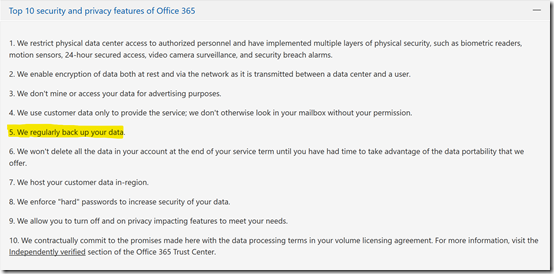
clip_image001

Which can be found at – https://products.office.com/en-au/business/office-365-trust-center-top-10-trust-tenets-cloud-security-and-privacy

Also in “Protecting Privacy and Data” – http://download.microsoft.com/download/2/0/A/20A1529E-65CB-4266-8651-1B57B0E42DAA/Protecting-Data-and-Privacy-in-the-Cloud.pdf (page 3) you will find the following statement about Microsoft Online Services:

“Additionally, each service has established a set of standards for storing and backing up data, and securely deleting data upon request from the customer.”

Office 365 is also certified to many industry standards which you can read about here:

https://products.office.com/en-au/business/office-365-trust-center-compliance-certifications

These contain standards around maintaining data within its services. With all this, you should then feel completely at ease with the fact that Microsoft is indeed protecting your data in many different ways, to industry leading standards or better, one of which is the process of backup. It is important to however understand how the common initial “traditional” definition of backup highlighted above may be different within Office 365.

If needed, Microsoft are not going to restore a single item, such as one email message back into a mailbox. They will however restore a full mailbox for you back to a point in time. Also, they will not be able to restore a whole mailbox from say 12 months ago because, as you can appreciate, the amount of data storage required to provide this across all mailboxes in Office 365 would be enormous. Thus, if you have a need to have Microsoft restore a whole mailbox, you’ll need to typically request that as soon after the event as possible and do so by logging a support ticket with Microsoft.

Likewise with SharePoint. Microsoft won’t generally restore a single file into a document library, they will restore the whole site collection or OneDrive for Business back to a point in time provided it is within a recent time window. To do this, you’ll need to once again raise a service ticket with Microsoft.

Another point to remember with restores completed by Microsoft, for mailboxes and SharePoint sites, is that the restore will be over what is already in place. That is, restored data will be to the original location. Restored data from Microsoft cannot be recovered into an alternate location for comparison.This means that this will erase any current information in that location and replace it with everything from the restore. Thus, the data will be rolled back to that moment in time for a whole mailbox or site collection.

Thus, if you are looking for single item recovery of deleted items like files and email messages and/or items that are beyond the default Office 365 retention periods (for example from 12 months ago), then you need to consider a third party backup tool that you purchase, configure, manage and maintain yourself. Also, if you are looking to restore a whole mailbox, SharePoint site collection or OneDrive for Business without logging a support ticket with Microsoft, then you need to consider a third party tool. Also, if you wish to control where the destination of the backed up data is, you will again need to consider a third party solution. Finally, if you want granular control over the schedule of when backups actually take place, then you need to look at a third party backup solution.

Office 365 typically maintains data using a retention process. This means that Office 365 will make sure the data is made available but it does not generally keep a copy of that data forever. In essence, old deleted data will be aged out and eventually purged from the service after a period of time. That period of time varies by service as well as the license assigned to that data. There are however features that are part of the more advanced licenses and available as add ins, such as Litigation Hold that can be used to retain data indefinitely. The important difference here is “traditional” backup versus retention. For an overview of Office 365 retention policies see:

https://docs.microsoft.com/en-us/office365/securitycompliance/retention-policies

The important thing people need to understand is what protection does Office 365 provide them out of the box and do they need to supplement that? Take OneDrive for Business and SharePoint for example. Every time you update a file in either of these two services a previous copy of the file is kept. This allows the user to easily roll back to a previous version of that file if needed. By default, and this can be changed, Office 365 will retain 500 copies of previous version of a file. Once it reaches that limit it will commence over writing the oldest version.

Having version history in SharePoint and OneDrive for Business means that you can “recover” older items quickly and easily. You can also recover a whole OneDrive for Business quickly and easily using this recent feature:

https://support.office.com/en-us/article/restore-deleted-files-or-folders-in-onedrive-949ada80-0026-4db3-a953-c99083e6a84f

That same feature will soon be available for SharePoint document libraries.

Next, let’s take a look a what happens when you delete a file in OneDrive for Business or SharePoint online. Once a file is deleted it goes to the user’s recycle bin where it can be recovered if needed. If it is removed from the user recycle bin it goes to an administrator recycle bin. The total time that a file is retained across these recycle bins is 93 days. After that the file is purged from the system. I have outlined this process in depth in this article:

https://blog.ciaops.com/2018/03/using-retention-policies-in-office-365.html

What about deleted emails? An email that is deleted from the inbox is sent to the deleted items folder for that mailbox and retained there indefinitely. If it is removed from the deleted items folder it can be recovered for up to 14 days by default, which can be extended to 30 days via PowerShell. After that the email is purged from the system. I have detailed how to extend the default period to 30 days using PowerShell here:

https://blog.ciaops.com/2018/03/extending-exchange-online-deleted-items.html

Now the time that both of these processes retain for can be extended. In the case of OneDrive for Business and SharePoint you can use labels and retention policies to effectively maintain that data forever. With emails you can add the Litigation Hold feature to achieve basically the same effect. Thus, with either some additional configuration or additional license, Office 365 can retain data for a very long time. However, you need to appreciate that this is retention not backup as we defined it earlier.

What’s the difference between retained and backed up data in this context? If you enable extended retention policies for file data in SharePoint Online and OneDrive for Business beyond the default period, the information is kept in something called a Preservation Library. The challenge with this is there is only one Preservation Library per site. This means all the retained data is lumped into this one location. That can make finding a single file to restore a challenge. Preservation Libraries are also generally only available to administrators not end users.

In the case of deleted emails an administrator would need to use a tool like eDiscovery search to recover the deleted items. The items will certain be available but the structure they resided in would not be. Thus, if you deleted a file from your inbox that was stored a number of sub folders below the inbox, those folders would not typically be recovered using this eDiscovery process typically.

As you can see, there is a difference between what many people consider backup and the way that Office 365 retains data and how it can be accessed. In many cases it can be as good as a backup, however if your requirement for backup is what was defined initially, then implementing a third party tool is probably recommended. The downside to implementing a third party tool is that you need to pay, configure and maintain this. This means the additional cost of this needs to be weighed up against how often it will actually be required and what situations it provides protection above and beyond what Office 365 does. That is a decision that each business needs to make for themselves. This is a risk management decision.

In all of this you’ll also need to consider that Office 365 is fast becoming more than simply emails and files. It is Teams with chat, it is Yammer with discussions, it is Sway with presentations, Planner with tasks, and so on. No third party tools I know of will in fact backup these Office 365 services in any way. As the use of these additional services continues to grow, this means that you are going to have to rely on the processes that Microsoft has in its back end to potentially recover your data if required. At this point in time, there is no other option.

Of course, some features like Litigation Hold require a more advanced license, like Exchange Online Plan 2 but generally you don’t just get the one feature with these advanced licenses, you get a range of additional features. Thus, if you want Litigation Hold and upgrade a mailbox to Exchange Online plan 2 not only do you get Litigation Hold but you also get unlimited archiving as part of that upgraded license. Compare this for paying for a third party backup solution which generally only gives you the option to backup data and doesn’t provide much in the way of end user functionality. Also, chances are that you will rarely need that backup however the added features of advanced license can improve productivity for your end user every day.

In a perfect world, yes, you would add additional backup capabilities to Office 365 because more backups are better. However, we live in a world where compromises need to be made for different business reasons. We need to make decisions based on business risk. Thus, you need to balance risk with the offset mitigation cost and return on investment. Personally, if I had to choose between having a third party backup solution or upgrading an existing Office 365 license to include more functionality, I’d fall into the camp of providing users with additional day to day functionality. This is because I understand what Office 365 does. I understand how to get the maximum retention and recovery from what is provided out of the box and by adding advanced licenses to Office 365 and I am happy with that. I don’t believe adding third party backup software provides more value than what Office 365 can provide. Yes, I understand there maybe circumstances that may not be optimal but given how likely that circumstance may be, I believe that choice to be circumspect.

In summary then, yes, Office 365 does backup your data. However, the way that backup takes place and how it can be used to recover information is probably different many people’s “traditional” concept of backup. It is therefore important to understand:

  1. What Office 365 provides out of the box
  2. What additional configurations can be made to Office 365 to improve that
  3. What Office 365 services can be added to improve or enhance what is provide by default

Only after completing these steps should you consider adding additional third party backup solutions if appropriate.