Configuring Office 365 DLP with PowerShell

Data Loss Prevention (DLP) is typically an outbound scanning technology in Office 365 that monitors and prevents sensitive information from leaving the organisation.

image

Previous, DLP was only part of Exchange Online. It is still possible to configure policies only in Exchange Online as you can see above, in the Exchange Online Admin console.

To do this in PowerShell you’d use the command:

new-dlppolicy
image

The new of way doing DLP in Office 365 is via the Security and Compliance Center as you see above. The benefits of using this new method is that it is possible to use policies to not only protect Exchange Online but SharePoint and OneDrive for Business from data leakage.

image

Office 365 DLP has a number of pre-canned policy templates you can use as shown above. It is always best practices to at least start with these since they cover the basics.

You’ll note above that I’m looking to configure a policy based on Australian Financial Data. This in effects scans material looking for SWIFT code, Australia Tax File Number, Australia Bank Account Number and Credit Card as you see in the lower right.

image

Proceeding with the GUI wizard then asks for the areas in Office 365 to protect. As you can see from the above, these locations include Exchange email, SharePoint sites and OneDrive accounts. You can modify the inclusion and exclusions to all these different areas if you wish.

image

You then determine what content you are looking for in the policy settings, as well as when to detect.

image

You can customise these rules if you wish, as shown above.

image

Finally, you can determine how this policy will operate and whether it is active.

Why is all this important for using PowerShell? The simple answer is, that with many options, knowing what everything does in the web interface is going to help when it comes to implementing via PowerShell.

So, to start the PowerShell configuration process you are going to need to connect to the Office 365 Security and Compliance center using PowerShell. You’ll find scripts to do that at my GitHub repo here:

https://github.com/directorcia/Office365

We don’t want to use the older, Exchange Online only cmdlets like:

new-dlppolicy

we’ll be using the newer Security and Compliance cmdlets like

new-dlpcompliancepolicy

The first thing I need to is create a new DLP policy called ‘Australian Privacy Act’ and do that with the commands:

$params = @{
‘Name’ = ‘Australian Privacy Act’;
‘ExchangeLocation’ =’All’;
‘OneDriveLocation’ = ‘All’;
‘SharePointLocation’ = ‘All’;
‘Mode’ = ‘Enable’
}
new-dlpcompliancepolicy @params

Now, this basically establishes the policy and the location that it applies to in Office 365. There are not any rules yet to check the content.

To do this. you need to create a variable that holds the sensitive data types you want to check. Yo can do that with the following:

$senstiveinfo = @(@{Name =”Australia Driver’s License Number”; minCount = “1”},@{Name =”Australia Passport Number”;minCount=”1″})

You’ll find information about the specific sensitive data types for you region here:

https://docs.microsoft.com/en-us/exchange/policy-and-compliance/data-loss-prevention/sensitive-information-types?view=exchserver-2019

With all that in place, the rule can be added to the existing policy using the following:

$Rulevalue = @{
‘Name’ = ‘Low volume of content detected Australia Privacy Act’;
‘Comment’ = “Helps detect the presence of information commonly considered to be subject to the privacy act in Australia, like driver’s license and passport number.”;
‘Policy’ = ‘Australian Privacy Act’;
‘ContentContainsSensitiveInformation’=$senstiveinfo;
‘BlockAccess’ = $true;
‘AccessScope’=’NotInOrganization’;
‘BlockAccessScope’=’All’;
‘Disabled’=$false;
‘GenerateAlert’=’SiteAdmin’;
‘GenerateIncidentReport’=’SiteAdmin’;
‘IncidentReportContent’=’All’;
‘NotifyAllowOverride’=’FalsePositive,WithJustification’;
‘NotifyUser’=’Owner’,’SiteAdmin’,’LastModifer’
}

New-dlpcompliancerule @rulevalue

You should recognise many of these settings from what is in the web interface. Don’t forget that DLP takes a while to crawl through all the different content areas you have selected and be applied.

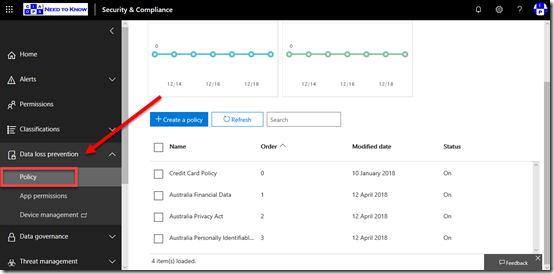
image

If all of that executes successfully, then you should see a new DLP policy in the web interface as shown above.

If you have an Office 365 or Microsoft 365 licenses that includes DLP, you should use the pre-existing templates that Microsoft provides you for you region and create a new policy for each.

You can, of course, customise these easily by changing the PowerShell parameters or creating your own rules to suit. The great thing is, once you have worked all of this out you now a configuration you can apply to every tenant quickly and easily.

That is the power of automation thanks to PowerShell!

Microsoft Cloud service descriptions

pexels-photo-408503

One of the common pain points that people are reporting in my recent Challenges with Microsoft Cloud survey here:

What is you biggest challenge with the Microsoft Cloud

is wanting a single location that compares all of the offerings side by side.

Unfortunately, given the huge number of options across different teams in Microsoft there really isn’t a single place. This stems back to an earlier article I wrote about

Why IT today is like coffee

which in short details how we live in a world were people want lots of choices rather than a single monolithic solution. This is so people can get EXACTLY what they want and not have to pay for things they don’t want or need. The price we pay for lots of choice is, lots of choice.

All is not lost however because there are few places you can go to get a pretty good overview what the Microsoft Cloud offers.

The first place to start is the Office 365 service descriptions. This will lay out in great detail all the plans side by side and features that each include. You can drill down beyond the suites into individual service like Exchange and SharePoint Online if you want.

Now for Azure the best option is probably Products by region. This will show you each Azure service as well the region that it is available in. To get an idea of all the abilities of Azure have a look at the list of Azure products as a reference guide.

If you are interested in what Microsoft 365 Business contains then look at the Microsoft 365 Business Service Description.

Of course, much of this gets updated regularly so how can you keep up with changes? Well, use the Recent services description changes to see what’s new in Office 365. There is also the new and updated Microsoft 365 Roadmap, which will help you plan what changes are down the pipe.

Azure has something similar over at Azure updates.

Many of these update locations have the ability for you to subscribe to via RSS or email so you can get prompted when things change. I have detailed previous how you can use Microsoft Teams, Office 365 and Yammer to stay up to date by pushing the change feeds into these services automatically.

With lots of options comes lots of detailed information. It is simply a fact of life these days. I would suggest that the services descriptions should be the source of truth for what is included in Office 365 and Microsoft 365. Everything else I have seen is a summary of this. Azure is a different kind of beast, so start with the list of Azure products and drill in from there.

Remember, as Clay Shirky says, it isn’t information overload, it is filter failure. You can’t ingest everything, so find the best stuff and consume that. Be selective with your information sources and always search for the highest quality. Hopefully, I’ve given you some quality places to start here.

What is your biggest challenge with the Microsoft Cloud

pexels-photo-356079

Tis the season for a survey I think. What I’d like to do is start off with this one question:

What is the biggest challenge you face with the Microsoft Cloud?

That’s it. Just one question. You can answer the question here:

http://bit.ly/mscloudsurvey

I’ll collate all the answers and report back on the results. I’ll try and group the issues into categories so you get a better of idea of what generally are the major challenges a majority of people have.

It doesn’t matter whether you are an end user, business, IT resellers, IT professional, whatever, please take a moment to share what you find most challenging about the Microsoft Cloud (Office 365, Microsoft 365, Azure, etc)

The more people that take a moment to answer the more results and information we’ll have to share. The results are anonymous.

Thanks in advance for completing the survey.

Need to Know podcast–Episode 197

In this episode we focus on security starting with our interview of Alex Wilson from Yubico talking all about multi factor authentication. We take the time to dive deep into the benefits of using devices like the Yubikey to protect identities an help prevent phishing attacks. Brenton and I also discuss a number of interesting security items before the interview as well as give you the latest updates from the Microsoft Cloud.

Take a listen and let us know what you think –feedback@needtoknow.cloud

You can listen directly to this episode at:

https://ciaops.podbean.com/e/episode-197-yubikey/

Subscribe via iTunes at:

https://itunes.apple.com/au/podcast/ciaops-need-to-know-podcasts/id406891445?mt=2

The podcast is also available on Stitcher at:

http://www.stitcher.com/podcast/ciaops/need-to-know-podcast?refid=stpr

Don’t forget to give the show a rating as well as send us any feedback or suggestions you may have for the show.

Resources

Alex Wilson – alex.wilson@yubico.com

Yubico

@contactbrenton

@directorcia

Join us for the 200th episode

Australia gets world-first encryption busting laws

Australia passes new law to thwart strong encryption

Microsoft adopts ethical principles aiming to bar misuse of facial recognition technology

New breakthrough in combating tech support scams

Mastercard and Microsoft join forces to Advance Digital Identity Innovations

New Office app icons

Outlook on iOS gets a redesign

CIAOPS Patron program

Unable to save attachments to SharePoint Online

One of the most important things when you implement adoption is to have a positive initial experience. This typically means ‘easing’ a user’s transition during the adoption process. If too many things are different, then there is much more likely to be a negative impression of the new processes. This slows adoption and at worst, can actually halt it in its tracks.

When moving to Microsoft 365, one of the most common things that a user needs to accomplish to be able to save and add attachments to emails. They have been performing this seamlessly using on premises file servers for years. They simply select to attach and then navigate to the file, attach it, then send. Easy.

Unfortunately, as I have documented before:

Saving attachments to SharePoint

it isn’t easily done with SharePoint Online. This is really strange, given that SharePoint Online is the place where users should save and access common files in the Microsoft Cloud. Let’s take a look at the issues I’m taking about.

image

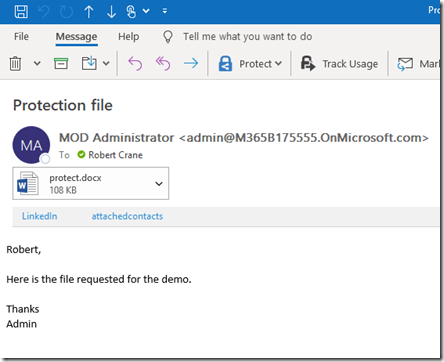
So an email arrives in my inbox on Outlook on the desktop, as shown above.

image

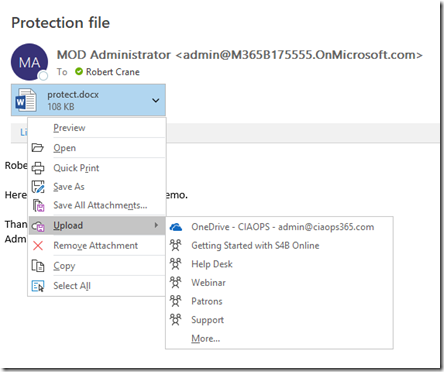
I want to upload this directly into an existing SharePoint stand alone Team Site, but as you can see the only option I have is my own personal OneDrive for Business or a range of Office 365 Groups and Teams that already exist.

Just to make sure I haven’t missed anything, I’ll select the More option at the bottom of the list.

image

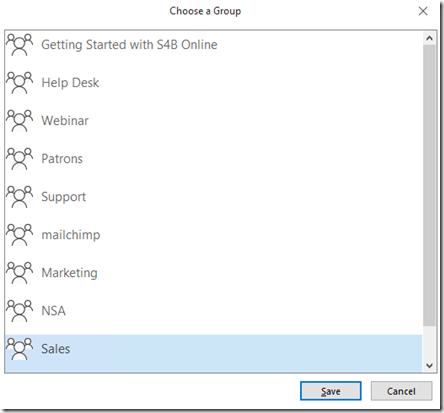
Now I only have the option to save to a Group (which includes Microsoft Teams). So, let’s say I select the Sales Group (which is actually a Microsoft Team).

I’m now returned to Outlook. Where did that attachment actually go?

image

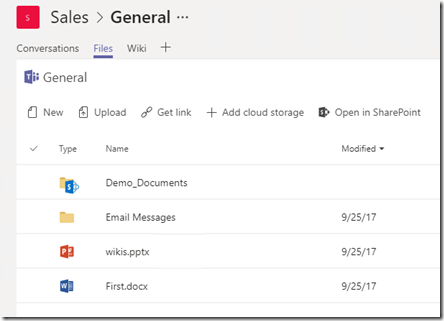
So, if I call up my Sales Team and rifle through all the file locations in Teams interface, I can’t find the file as you see above!

image

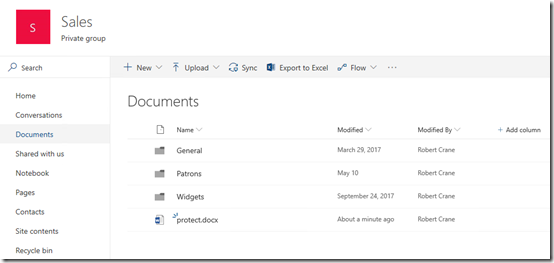
Turns out that the attachment I saved is placed into the root of the default Document Library in the Microsoft Team as you see above. But guess what? There is no way to actually see that unless I navigate to that location via SharePoint. I actually can’t see that attachment I just saved if I’m using the Microsoft Teams app! They all end up in the root of the Documents location, which isn’t accessible in the Teams app!

image

This means, that the only REAL solution for users to save the document to other locations in various SharePoint Document Libraries, is to firstly sync those destination locations to their desktop and then save the attachments the old fashioned way to the sync location so they will end up in SharePoint.

That means, to save or add attachments I firstly have to sync EVERY location I might want to save a file too!

image

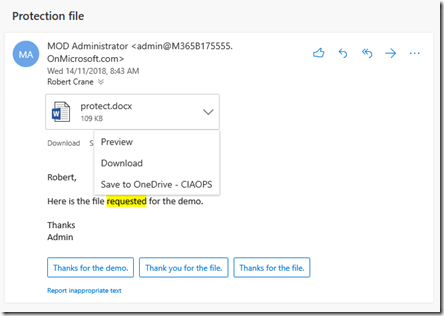
Outlook Web Access is actually worse than the desktop client as the only options you have are to download or save to OneDrive for Business as seen above.

image

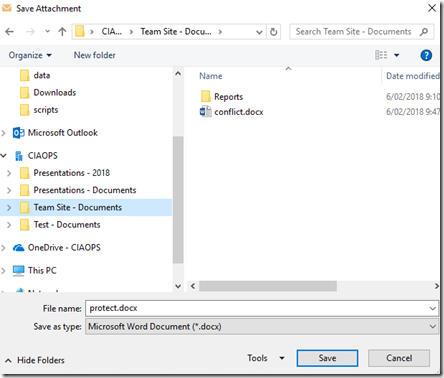
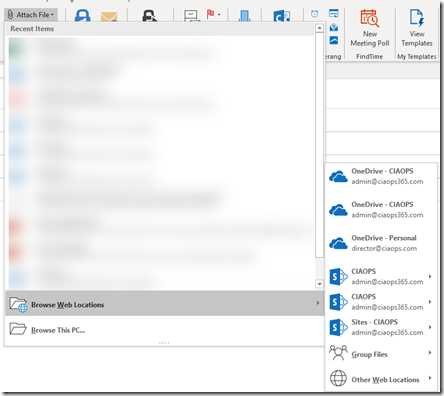
Interestingly, if I want to attach a file from a SharePoint site I can navigate to Browse Web Locations, select the Team Site I want

image

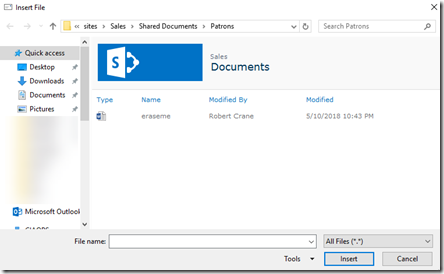
and I see a Windows Explorer pane where I can navigate to locate the file I wish to attach, just like on premises days. However, the look and feel here is pretty dated and requires Windows Explorer to be working and may pop up warning dialogs which will freak most users out.

image

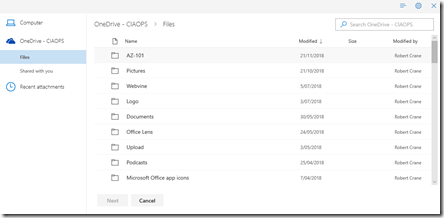
When I use Outlook Web Access I can Browse cloud locations for an attachment

image

I effectively only see my OneDrive for Business as shown above.

These experiences leave a bad taste in the mouth for users, especially first time users grasping with the ‘modern’ way of working. They need to have an experience which is pretty much identical to the one they had on premises. Why can’t we simply save and add attachments directly from SharePoint Online Team Sites like we have always been able to do from on premises network file shares?

I’m seeing this end user frustration more and more in the field and was prompted to write the article to hopefully rally the masses to get a change enacted. So the best thing you can do is visit this UserVoice request:

https://office365.uservoice.com/forums/264636-general/suggestions/18553747-please-enable-the-attachment-of-sharepoint-files-w

and vote it up.

Next, tweet about getting this enabled to the following accounts:

https://twitter.com/Outlook

https://twitter.com/SharePoint

https://twitter.com/Microsoft365

and

https://twitter.com/jeffteper

I will be!

Perhaps I’m missing something obvious here and if I am please let me know but I don’t think I am. Help me raise awareness and improve Outlook so it is easier for users to adopt Microsoft 365!

Organization doesn’t allow you to use work content

image

Let’s say you have a bright and shiny Microsoft 365 Business tenant that you have configured out of the box. This means you have set up the default policies, assigned licenses and installed the software for users.

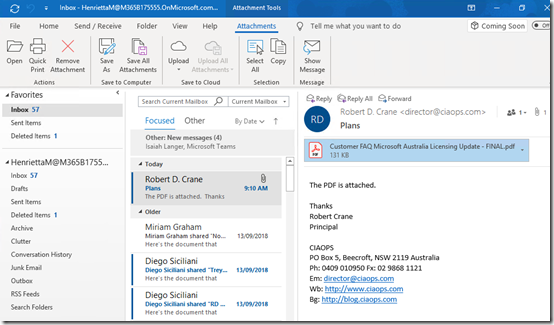
Your user now receives an email like the above with a PDF attachment. The system has Adobe Acrobat reader set as the default PDF reader.

image

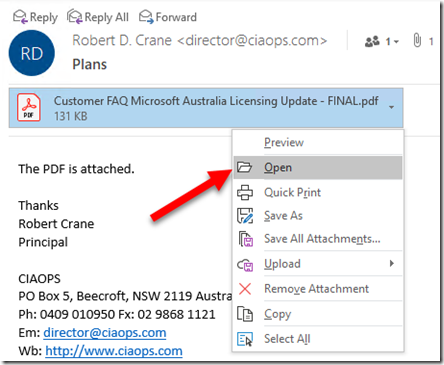
The user selects to open the attachment.

image

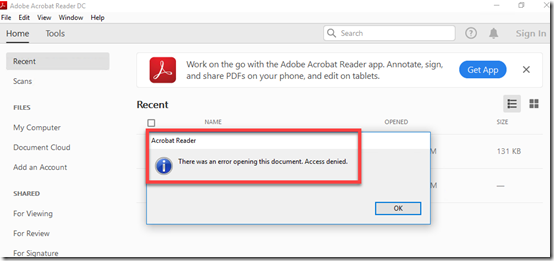
Adobe Acrobat launches as expected but you receive the above error:

There was an error opening this document. Access denied.

image

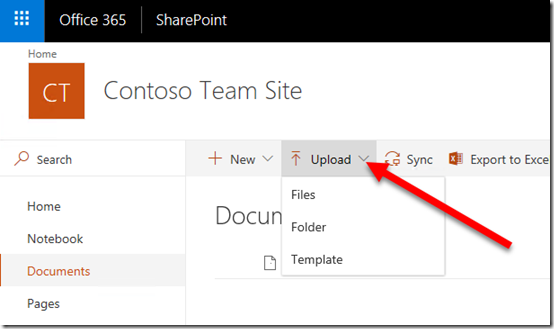
Instead, the user downloads the file to a local drive and then tries to upload it into a SharePoint Document Library as shown above.

image

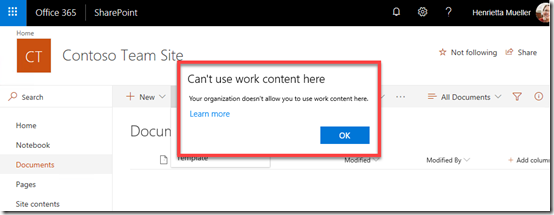
They are greeted by another error:

Can’t use work content here.

Your organization doesn’t allow you to use work content here.

What’s going on? Why can’t users save files? In short, the reason is Windows Information Protection (AIP). You can read more about what WIP is here:

Protect your enterprise data using Windows Information Protection (WIP)

By default Microsoft 365 Business has WIP enabled. This means there is now a distinction between ‘corporate’ and ‘personal’ data. Corporate data is data that is created using pre-defined ‘corporate’ apps like Word, Excel, PowerPoint etc. Personal data is EVERYTHING else i.e. PDFs, files from network shares, local files. Why? Because these files were NOT created by the apps authorised by the WIP policy that has been enacted by Microsoft 365 Business.

Is there are correct way to se up WIP so you don’t get these hassles? Yes, there sure is but in this article let’s keep it simple and cover off how to disable WIP for the time being so users can get on with their work.

image

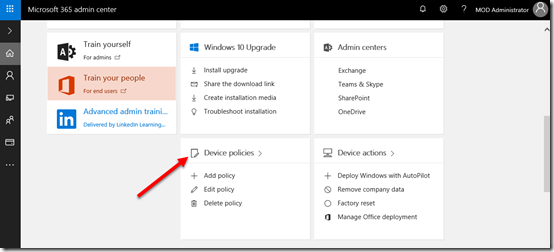
Locate the Microsoft 365 admin center and then select the Device Policies tile as shown above.

image

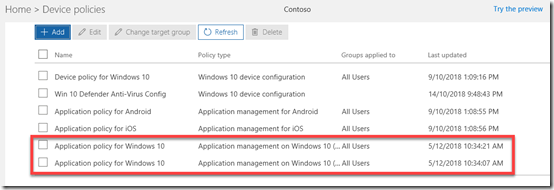
You should then see a list of policies as shown above. In this case, I have two Application Policies for Windows 10 (one for enrolled devices and another for non-enrolled devices).

If you have multiple Application Policies for Windows 10 you’ll need to take the following actions on each policy.

image

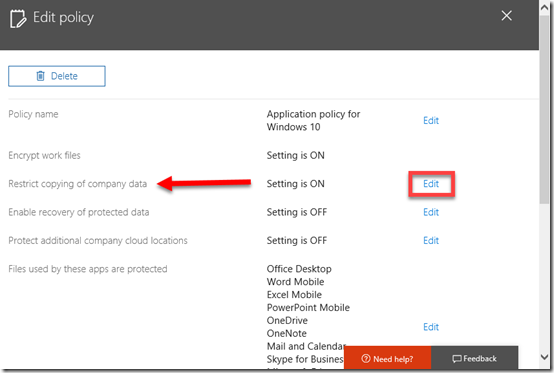
Select the policy to edit it. Details of the policy you select should appear on the right as shown above.

Locate the Restrict copying of company data line. Here you’ll see the Setting is ON, thus WIP is enabled. To change this setting, select the Edit hyperlink to the right as shown.

image

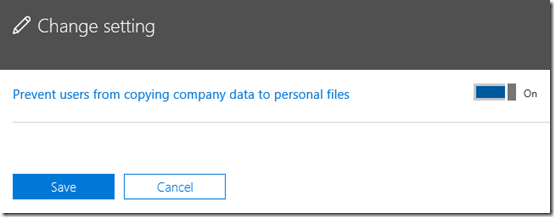
You should that that Prevent users from copying company data to personal files is ON as shown.

image

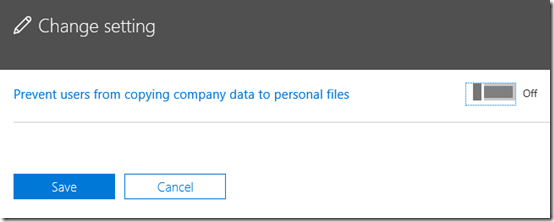
Change this setting to Off as shown and then select Save.

While you wait for that to sync to the Windows 10 desktops (which should only take a few moments) let’s go into the back end of Intune and see where this setting actually is.

image

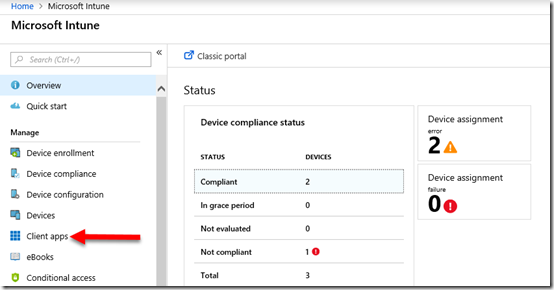
Navigate to Intune in the Azure portal and select Client apps from the main menu as shown above.

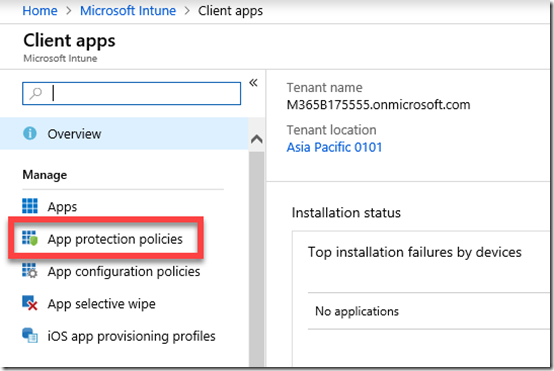
image

On the blade that appears, select App protection policies as shown.

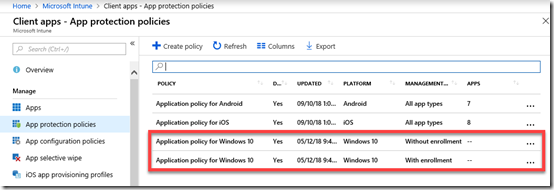
image

This should display the application policies with the same names as you see in the Microsoft 365 admin center. Here are only application policies, device policies are elsewhere in Intune.

Select your Application policy for Windows 10.

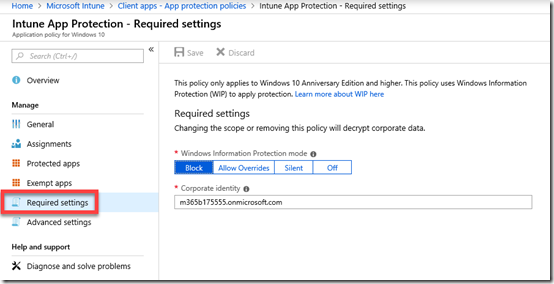
image

From the blade that appears select Required settings as shown. On the right will be displayed the state of Windows Information Protection.

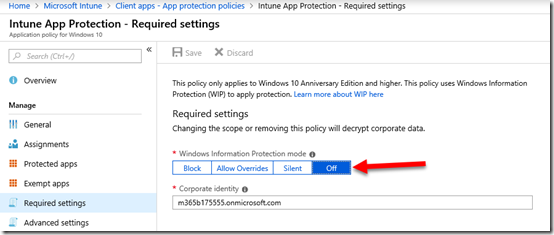
If WIP is enabled, the option here will be Block.

image

However, now you have changed the policy via the Microsoft 365 admin center the setting should be Off as shown above.

This confirms that WIP is now disabled in our environment.

image

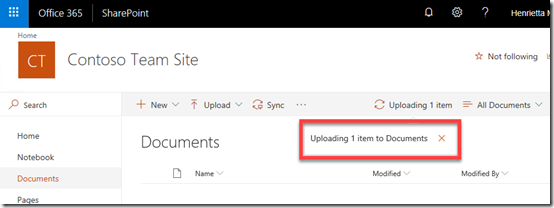
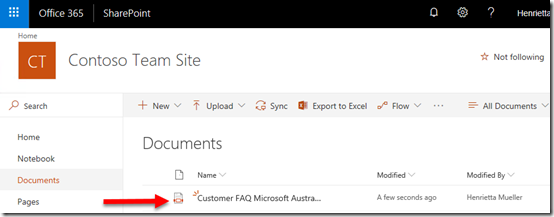
If you now return to SharePoint on the workstation, and assuming the policy has synced to the desktop, the upload of the file should work.

image

Along with everything else that was blocked, including viewing PDFs.

Thus, to overcome the WIP issues with Microsoft 365 Business out of the box, you will probably need to change the Application Policy for Windows 10  as shown above.

How do you correctly configure WIP for your environment to take advantage of all the protection it offers? Stay tuned for an upcoming article on just that.

CIAOPS Need to Know Office 365 Webinar–December

laptop-eyes-technology-computer

For the last webinar of 2018 we are going to take a look back at everything that’s changed with Office 365 and what we can expect to see in 2019. If you want a summary of what’s been and what’s to come then this is webinar for you! There’ll also be the usual detailed updates of everything that’s happened in the Microsoft Cloud for December as well.

You can register for the regular monthly webinar here:

December Webinar Registrations

The details are:

CIAOPS Need to Know Webinar – December 2018
Thursday 20th of December 2018
11am – 12am Sydney Time

All sessions are recorded and posted to the CIAOPS Academy.

There of course will also be open Q and A so make sure you bring your questions for me and I’ll do my best to answer them.

The CIAOPS Need to Know Webinars are free to attend but if you want to receive the recording of the session you need to sign up as a CIAOPS patron which you can do here:

http://www.ciaopspatron.com

or purchase them individually at:

http://www.ciaopsacademy.com/

Also feel free at any stage to email me directly via director@ciaops.com with your webinar topic suggestions.

I’d also appreciate you sharing information about this webinar with anyone you feel may benefit from the session.

Need to Know podcast–Episode 196

I am joined by a familiar guest to many, previous co-host of the Need to Know podcast, Marc Kean, who shares with us what he has been up to lately and his career journey to now being a full time Microsoft employee. Listen along and you’ll get some insight into one of the technical job roles at Microsoft.

Of course Brenton and I also bring you up to date with the latest Microsoft cloud news including recent a Azure AD multi factor outage and how Microsoft is now more valuable than Apple! Listen on for full details.

Take a listen and let us know what you think –feedback@needtoknow.cloud

You can listen directly to this episode at:

https://ciaops.podbean.com/e/episode-196-marc-kean/

Subscribe via iTunes at:

https://itunes.apple.com/au/podcast/ciaops-need-to-know-podcasts/id406891445?mt=2

The podcast is also available on Stitcher at:

http://www.stitcher.com/podcast/ciaops/need-to-know-podcast?refid=stpr

Don’t forget to give the show a rating as well as send us any feedback or suggestions you may have for the show.

Resources

@marckean

@askbrenton

@directorcia

Marc’s blog

Azure AD MFA outage analysis – look for event on 19th November

Microsoft now more valuable than Apple

Microsoft helps create a secure modern workplace

New management for Microsoft Teams

Windows 1809 rollout continues