Microsoft has introduced a new technology called Windows Autopilot that allows you to easily deploy Windows 10 Professional and Enterprise machines with nothing more than just an Internet connection.
A good way to get a feel of how all this works in practice is to use a Virtual Machine (VM) as a test bed which is what I’ll show you here.
The first thing is that you are going to need to get some information about the machine so that it can be recognised by Windows Autopilot when it is provisioned. Normally, this information will be provided directly by the manufacturer of the PC, but here’s how it actually works behind the scenes.
For this test process we start by running up a new clean virtual machine with Windows Professional installed.
Once the machine is running (we don’t need to worry about connecting to Azure or a domain just yet), we need to run PowerShell as an administrator so we can extract the required information.

The first PowerShell command that needs to be run is:
wmic bios get serialnumber
record the number that it produces.

Next, run the PowerShell command:
Get-ItemPropertyValue “hklm:\SOFTWARE\Microsoft\Windows NT\CurrentVersion\DefaultProductKey\” “ProductId”
once again, record the number that is output.

Finally, run these two commands:
$wmi = Get-WMIObject -Namespace root/cimv2/mdm/dmmap -Class MDM_DevDetail_Ext01 -Filter “InstanceID=’Ext’ AND ParentID=’./DevDetail’”
$wmi.DeviceHardwareData | Out-File “$($env:COMPUTERNAME).txt”
This will create a file containing machine identification information, basically a hash.

This file will be written to the location from which the PowerShell command was run. By default this will be c:\windows\system32.

If you open the text file created (which has the name of the machine) it should appear like that shown above.
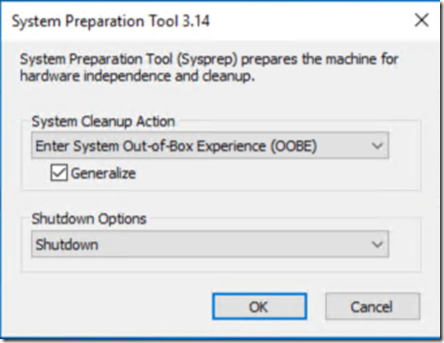
With all the information safely recorded, you can now run SYSPREP to generalise the machine and reboot or blow away the version of Windows (but not the actual VM. That needs to be retained so it is correctly identified during the coming provisioning process).
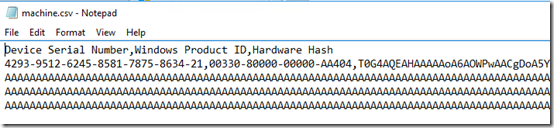
You need to now create a .CSV file to upload so that the machine can be identified at boot and provisioned. You can see the format of the file above.
Basically, the machine configuration file has at least 2 lines. The first is a heading line:
Device, Serial Number, Windows Product ID, Hardware Hash
The second line are the results from your PowerShell commands above separated by commas.
Ensure that you save the file as .CSV not .TXT!
You’ll now need to upload this file to the web. Navigate to:
https://businessstore.microsoft.com/
and login there with the Office 365 global administrator account for your tenant. This will typically be a tenant with Microsoft 365 licenses installed.

Once logged in the screen should appear like that shown above. Select the Manage option from the menu across the top of the page.

This should then take you to a screen like shown above. From the menu on the left hand side select Devices.
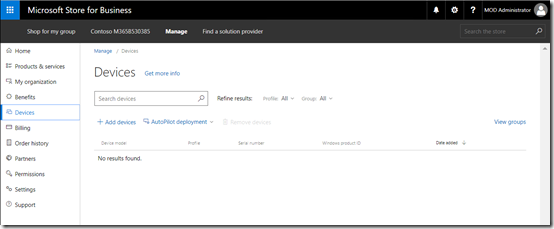
If this is the first device you’ve added to Windows Autopilot, you won’t see any existing devices.
Select the + Add devices menu option just under the Search devices box.

Navigate to the location of the .CSV file you created earlier that contains the information about your test VM. Select the file to upload it to the portal.

Since there are currently no deployment groups you’ll be asked to add a new one as shown above. Simply enter a group name and select Add.

The file should successfully upload to the portal and you’ll see a message telling you that it is being currently processed and you should refresh your screen to see the progress.

When the process is complete, you’ll get a happy green bar across the top and you’ll also see you machine listed below as shown above.

You’ll now need to create a profile for the deployment of Windows. Select the menu option AutoPilot deployment from the menu just above the list of devices as shown. From the menu that appears select Create new profile.
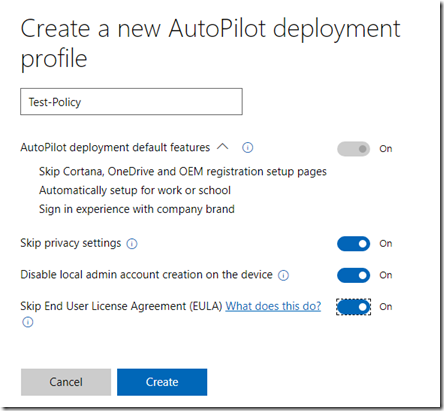
Give the new profile a name (here Test-Policy) and select any other desired settings.
Select the Create button when complete.

That will take you back to the list of devices. You’ll now need to apply the new profile you just created to the machine you have just added.
To do this, select the machine from the list.

Then select the option to Apply the appropriate policy.
Most of what we have just done will actually be done by the PC supplier down the track. They will basically get the details of each PC prior to shipment and upload that into the portal where you can then create and apply policies. We have stepped through the whole process here because we are using a virtual machine and to show you what actually happens.
The idea at this point is the new Windows 10 machine is shipped out to the end user. The only requirement the user needs to have is their Office 365 login details plus an Internet connection.

If we now re-provision the original machine it will boot to a point and ask the user to confirm their regional preference.
Make a select and press Yes.

They will then be prompted for a keyboard layout.
Make a selection and press Yes.
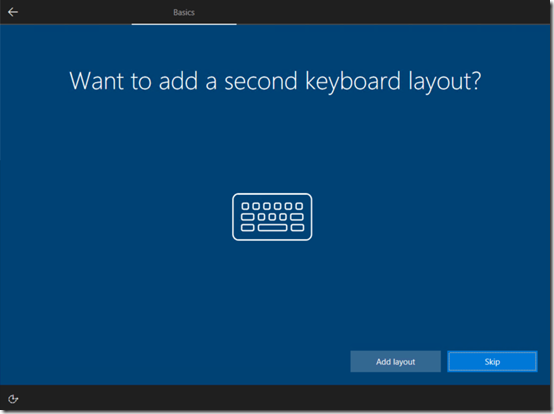
The use will also be prompted for any additional keyboard configuration. In most cases the user will select Skip here.
At this point the new machine will check to see whether it is connected to the Internet. If it detects a wifi network it will prompt the user to login. This means the machine can be provisioned ANYWHERE there is an internet connect (i.e.at home, at a coffee shop, etc). It doesn’t need to be connected to the corporate LAN.

The next prompt will ask the user to login with their Office 365 account. This is their Azure AD account which is the same as they use to login to the Office 365 portal.

The user will now be prompted for their password.

The machine will now add itself to the Office 365 Azure AD and apply any policies that have been configured. I’ll cover the deployment of custom policies and application deployment in another article.

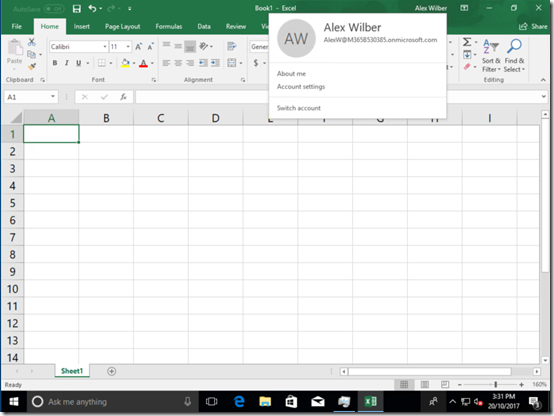
After a few moments the user will be logged into the Windows 10 machine and will display the information from their Office 365 account as shown above.

You will also find that the machine has been joined to Azure AD as shown above.
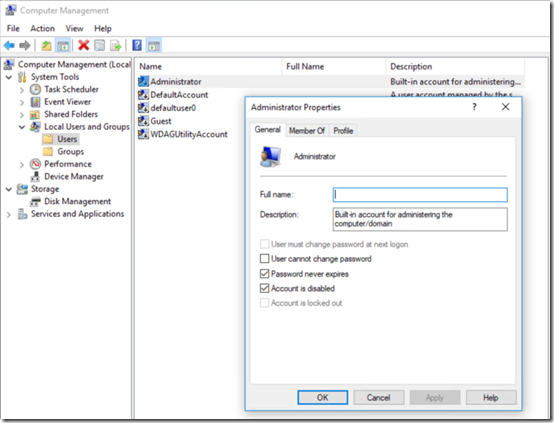
If you dig into the user accounts on the machine you will find that there are no local accounts enabled as we elected back when we set up the initial AutoPilot profile in the portal.
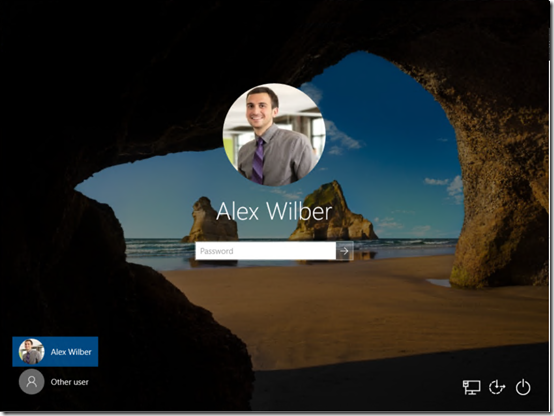
Now, thanks to Windows Autopilot, we have quickly and easily deployed a new Windows 10 machine without the need for administrative intervention (such as joining to a domain). This machine is now directly connected to Azure AD and any Office 365 user can now login.
Although this process has been done using a virtual machine it can be done with any Windows 10 Pro or Enterprise machine. The main requirement is to get the machine information into the web portal so that it can be identified and provisioned at boot. Obtaining that information is as simple as a few PowerShell commands so you can try it for yourself to get a feel of how well it works.
For more information on Windows Autopilot visit – https://docs.microsoft.com/en-us/windows/deployment/windows-10-auto-pilot






 CIAOPS