In today’s security environment it is really no longer possible for human beings to manage security, it typically needs to be out sourced to software. Signature based security is too slow to keep up with constantly changing attacks and the best way is to look for anomalies in behaviour patterns.
Office 365 Cloud App Security is service that is included in E5 licenses but also available as a separate stand alone purchase (called Microsoft Cloud App Security in the store). Unfortunately, you can’t add Office 365 Cloud App Security to Business plans only Enterprise plans.
Basically, Office 365 Cloud App Security allows you to configure policies that trigger alerts for specific activity as well as suspending accounts exhibiting suspicious activity. Let’s see how.
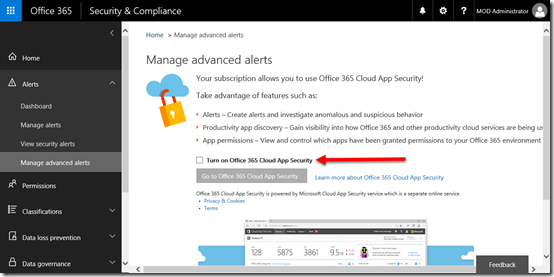
To get to Office 365 Cloud App Security you need to navigate to the Security & Compliance Center as an Office 365 administrator. Open the Alerts heading on the left and select Manage advanced alerts from the options that appear.
On the right you will see a check box to Turn on Office 365 Cloud App Security.
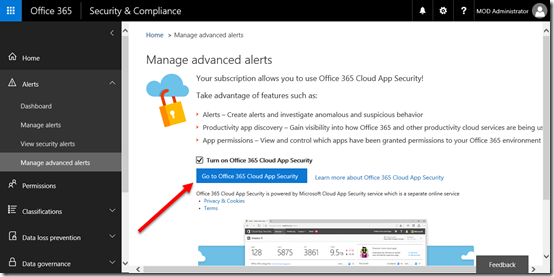
Once this has been selected you will be able to select the button to Go to Office 365 App Security.
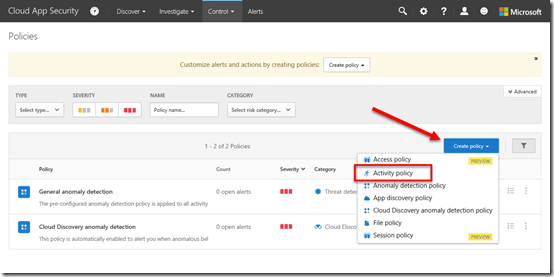
On this page you may see a number of policies in place already. Here, I’m going add a new policy. To get to this page again I select the Control option from the menu across the top of the page and then Policies from the items that appear.
To add a policy I now select the Create Policy button on the right as shown above, and then Activity policy from the items that appear. You may have less items in this list, it depends on what licenses you have in place for your tenant.
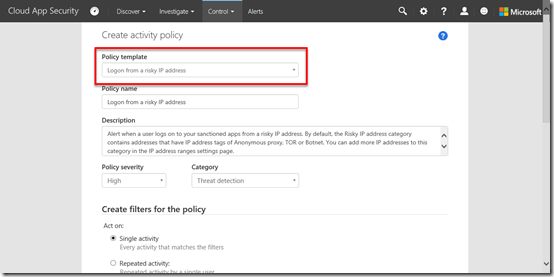
For the Policy Template option I am going to select from a list of pre existing templates and use the Logon from a risky IP address which is described as:
Alert when a user logs on to your sanctioned apps from a risky IP address. By default, the Risky IP address category contains addresses that have IP address tags of Anonymous proxy, TOR or Botnet. You can add more IP addresses to this category in the IP address ranges settings page.
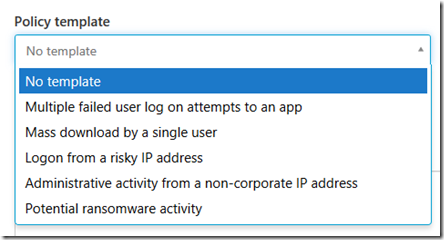
You can see the list of existing policy templates above and of course, you can create your own custom one.
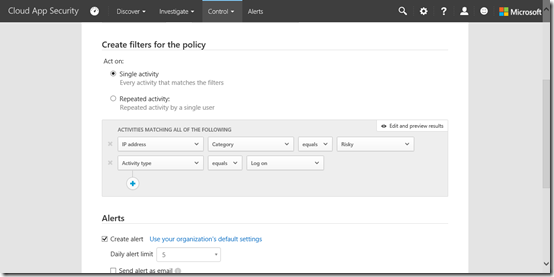
Once I have selected the policy I scroll down to the actual rules which appear in the Create filters for the policy section as shown above.
Basically you’ll see in this case that the rule looks at whether an IP is “risky” and the activity equals logon.
You can of course edit or define your own rules here if you want.
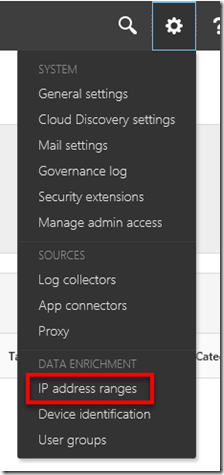
If you are wondering where the “risky” IP range is defined you’ll find these sorts of things in the upper left under the COG icon as shown above. In this case, look under the IP address ranges.
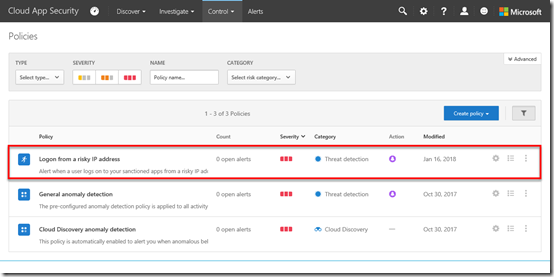
Once you save the settings you’ll be returned to the Policies page where you should now see the new policy as shown above.
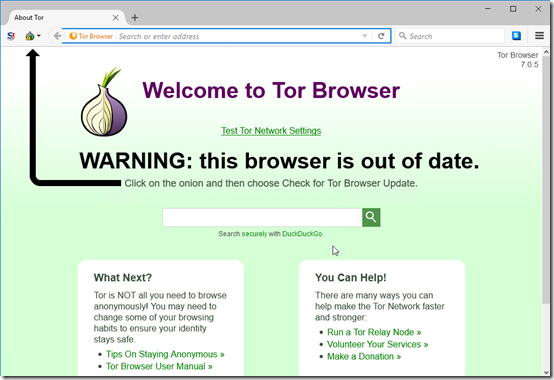
To test this policy, I’m going to fire up a Tor browser and login to Office 365.
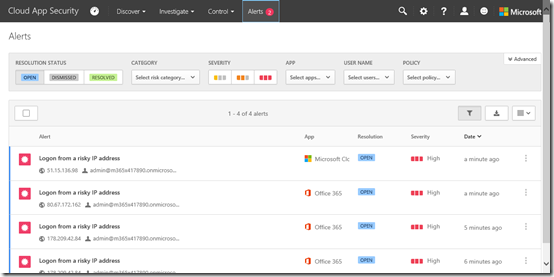
As expected, in a very short space of time (note it isn’t immediate. It may take a moment or two to appear) I get an alert and can view these by selecting the Alert option from the menu across the top of the page.
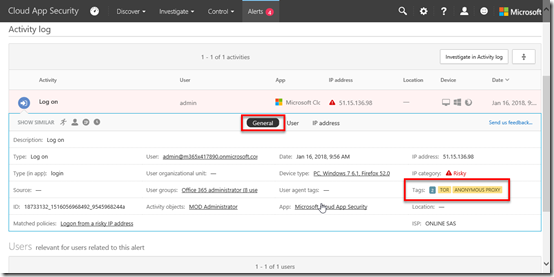
If I then click to open one of these alerts and select the General option in the middle of the page I get more information as shown above. You’ll see on the right that the IP category = “Risky” and this is because of a match to Tor and Anonymous proxy.
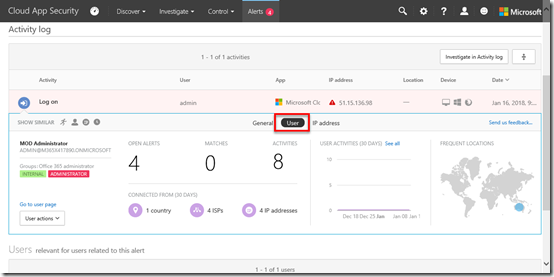
If I now select the User option in the middle of the page I get further information as to which user triggered this as shown above.
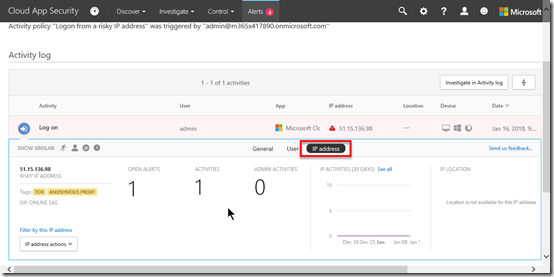
Likewise if I select the IP address option I get information about the networking in detail.
From here you can take actions on the alerts such as dismissing or digging deeper into the logs.
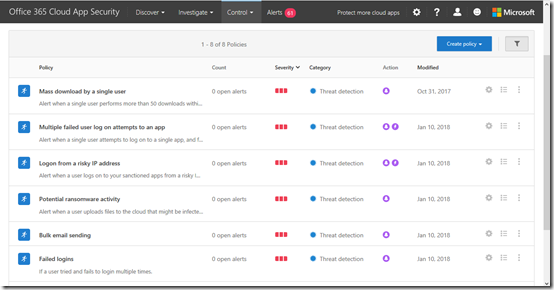
My advice would therefore be to enable all the default policy templates for your tenant as I have done for mine as shown above.
You’ll notice that I also have some custom policies in place as well. One of these is to provide an alert for repeated failed login attempts by a user.

Another policy is the one above that monitors logins by global administrators. You’ll see that I also restrict that policy to only apply when I am not on a corporate (i.e. office LAN) IP address.
My advice with custom policies is to start simply and broadly and tighten the rules up over time. There is nothing worse than setting a policy and getting deluged with alerts, so take it slow and increase restrictions over time to ensure you don’t overload yourself with false positives.
As I dig deeper into what is possible more I’m sure I’ll be adding additional policies to keep my tenant secure and provide a level of monitoring that no human could do. However, in today’s environment of increased attached I’d really recommend you look at adding Office 365 Cloud App Security to your tenant for enhanced protection.

![clip_image001[6]](https://lh3.googleusercontent.com/-yP4ENlj0AKI/WmF_B0bXa3I/AAAAAAAAfl4/V3C9v-AI1IMh0iwoRLbxjY5LD8g-zddcgCHMYCw/clip_image001%255B6%255D_thumb%255B1%255D?imgmax=800 "clip_image001[6]")
![clip_image001[8]](https://lh3.googleusercontent.com/-OqRa2KLk9nM/WmF_DknewfI/AAAAAAAAfmA/Fg1QqNp28KEwAH1ETUMRXud_H0TpsDwmgCHMYCw/clip_image001%255B8%255D_thumb%255B2%255D?imgmax=800 "clip_image001[8]")
![clip_image001[10]](https://lh3.googleusercontent.com/-lYhiGloVQYI/WmF_FJ2tTRI/AAAAAAAAfmI/PUSeiP5N5-QJYZeFQdHkpWcC39c7I4ndgCHMYCw/clip_image001%255B10%255D_thumb%255B1%255D?imgmax=800 "clip_image001[10]")
![clip_image001[12]](https://lh3.googleusercontent.com/-xRLkpOgMCg0/WmF_G1j0gwI/AAAAAAAAfmQ/hZSbHmZ3OT0R4KoOqRrjjNlNWtF9dd_3ACHMYCw/clip_image001%255B12%255D_thumb%255B2%255D?imgmax=800 "clip_image001[12]")
![clip_image001[14]](https://lh3.googleusercontent.com/-GcGN908_DQk/WmF_IYjw9tI/AAAAAAAAfmY/cYPToXEf5vUoiE5_maYhWAUjV9W626a2wCHMYCw/clip_image001%255B14%255D_thumb%255B1%255D?imgmax=800 "clip_image001[14]")
![clip_image001[16]](https://lh3.googleusercontent.com/-hlYJon_yiT4/WmF_L1vnwvI/AAAAAAAAfmo/PzLCWX5ExyEUUoh_wXkn0NuufcmCv9ghwCHMYCw/clip_image001%255B16%255D_thumb%255B1%255D?imgmax=800 "clip_image001[16]")
![clip_image001[18]](https://lh3.googleusercontent.com/-A5Fy-fzfW0g/WmF_N__6-zI/AAAAAAAAfmw/ovO4yUU3q_QKEufea_5IHnYjLOpG2gHawCHMYCw/clip_image001%255B18%255D_thumb%255B1%255D?imgmax=800 "clip_image001[18]")
![clip_image001[20]](https://lh3.googleusercontent.com/-Bj7_mLrJJz0/WmF_PlXDIJI/AAAAAAAAfm4/x1Nli1yEsJMoyPtEzbU_1glFkcECWCIdgCHMYCw/clip_image001%255B20%255D_thumb%255B1%255D?imgmax=800 "clip_image001[20]")
![clip_image001[22]](https://lh3.googleusercontent.com/-Dvz63ljq8UE/WmF_Q9R8I7I/AAAAAAAAfnA/qluePPbCzFIphd2X9PVPMw8G7gF2TnZ8wCHMYCw/clip_image001%255B22%255D_thumb%255B1%255D?imgmax=800 "clip_image001[22]")
![clip_image001[24]](https://lh3.googleusercontent.com/-7ZkZJFM9c4Y/WmF_SFry8XI/AAAAAAAAfnI/fUmOtRGn4ZwkI5ZTNNi6bS3zmmgy012NACHMYCw/clip_image001%255B24%255D_thumb?imgmax=800 "clip_image001[24]")



 CIAOPS