
Stop Paying for Software You Don’t Use — A Licensing Reality Check

MAI_c307c68ded5cfa37

I had a conversation with a business owner a few weeks back that I keep thinking about. We were going through his monthly expenses, and when we got to software, he genuinely couldn’t tell me what half of it was for. There was a project management tool nobody had logged into since the bloke who set it up had left. A standalone video conferencing subscription, paid annually, sitting right beside the Microsoft 365 licences that already included Teams. A note-taking app the marketing person swore by, except marketing had moved on eighteen months ago.

None of these were big numbers on their own. Twelve dollars here, forty there. But added up across a year, he was handing over the cost of a part-time wage for software that was doing precisely nothing. And the part that stung wasn’t the money. It was that he had no idea it was happening.

The quiet leak nobody’s watching

Software waste doesn’t announce itself. There’s no alarm when a tool stops being used. The direct debit just keeps going, month after month, long after the person who championed it has gone or the project it supported has wrapped up. We call it shelfware, and almost every small business I look at has more of it than the owner expects.

The trouble is that nobody actually owns the question “are we still using this?” The person who signed up has moved on. Finance sees a line item but not a behaviour. And because each subscription feels small, it never quite makes it to the top of anyone’s to-do list. So it sits there, quietly compounding.

What makes it worse is duplication. You’d be amazed how often I find a business paying for a separate tool to do something Microsoft 365 already does. A third-party file-sharing service running alongside SharePoint and OneDrive. A standalone form builder when Microsoft Forms is sitting right there. A digital signature product when the basics are already covered. You’re not just paying for shelfware β€” you’re paying twice for the same job.

Do the audit you keep putting off

Here’s the good news: finding the waste is far easier than people assume, and you’ve already paying for the tools to do it.

Start in the Microsoft 365 admin centre. The usage reports will show you, plainly, who has signed into what and when. If you’ve got people assigned licences they haven’t touched in ninety days, that’s a conversation worth having. If you’ve got Copilot or premium licences sitting on accounts that don’t need them, that’s money you can claw back this afternoon.

Then turn Copilot loose on the question. Drop your last twelve months of software invoices into a folder and ask Copilot to pull every recurring software charge into a single list, grouped by vendor, with the annual cost beside each one. What used to be a tedious afternoon of scrolling through bank statements becomes a five-minute job. Ask it to flag anything that looks like it overlaps with a capability you already have in Microsoft 365, and you’ll have your shortlist of suspects before your coffee’s gone cold.

The point isn’t to cancel everything. Some of those subscriptions earn their keep. The point is to make a deliberate decision about each one, rather than letting inertia decide for you.

Consolidation is the real saving

Once you can see the full picture, the pattern usually becomes obvious. A handful of scattered tools, each solving one small problem, most of which the stack you already pay for could handle. Trimming the dead subscriptions feels good. But folding three overlapping tools back into Microsoft 365 is where the real money is β€” and you get the bonus of everything living in one place, with one login and one support number instead of five.

I’m not suggesting you rip everything out tomorrow. Specialist tools exist for good reasons, and sometimes the dedicated product genuinely is the better fit. But “we’ve always paid for it” is not a reason. Neither is “someone set it up once.”

The habit, not the one-off

The owner I mentioned trimmed his software spend by nearly a third in an afternoon. The bigger win was the habit. Now he runs the same check every quarter β€” a recurring task in Planner, fifteen minutes, no drama.

Your software bill is one of the few costs you can cut without touching a single person or a single customer. That’s rare. Go and have a look at what you’re actually paying for. I suspect you’ll be surprised.

Copilot Agents licensing usage update


Things have changed recently when it comes to licensing Coilot Agents. Here is the latest information I can find. In short, every user that needs access to tenant information for use with Copilot, requires a license.


πŸ”’ Confirmed Licensing Requirements

1. No Included Message Capacity with a Single M365 Copilot License

Confirmation: Correct. Your individual Microsoft 365 Copilot license does not include a pool of Copilot Studio message capacity that can be used by other users in the tenant who are unlicensed.

  • Your License Rights: Your M365 Copilot license grants you the right to:

    • Create and manage Copilot Studio agents for internal workflows at no extra charge for your own usage.

    • Access and use those agents yourself without incurring additional usage costs.

  • The Consumption: The consumption of your unlicensed colleagues is considered an organizational-level cost that must be covered by a separate organizational subscription for Copilot Studio.

2. Unlicensed Users Cannot Use Tenant-Grounded Agents Without Organizational Metering

Confirmation: Correct. Unlicensed users will not be able to use an agent that grounds its answers in shared tenant data (like SharePoint or OneDrive) unless the organization has set up a Copilot Studio billing subscription.

  • Agents that Access Tenant Data (SharePoint/OneDrive):

    • These agents access Graph-grounded data, which is considered a premium function and is billed on a metered basis (using “Copilot Credits”).

    • This metered consumption must be paid for by the organization.

  • The Required Organizational Licensing: To enable the unlicensed users to chat with your agent, the tenant administrator must set up one of the following Copilot Studio subscriptions:

    • Copilot Studio Message Pack (Pre-paid Capacity): Purchase packs of Copilot Credits (e.g., 25,000 credits per pack/month). The unlicensed users’ interactions are consumed from this central pool.

    • Copilot Studio Pay-As-You-Go (PAYG): Link a Copilot Studio environment to an Azure subscription. The interactions from the unlicensed users are billed monthly based on actual consumption (credits used) through Azure.

Official Licensing References

SharePoint / OneDrive Agent β€” Licensing & Usage Summary

Quick reference table describing what licenses and costs are required for users to access an agent that integrates with SharePoint or OneDrive.

Scenario User’s License Licensing Requirement to Access SharePoint/OneDrive Agent Usage Cost
Licensed User (You) Microsoft 365 Copilot (Add-on License) No additional license required. No additional charges for using the agent you created.
Unlicensed User (Colleague) Eligible M365 Plan (e.g., E3/E5) WITHOUT M365 Copilot Organizational Copilot Studio subscription (Pay‑As‑You‑Go or Message Pack) must be enabled in the tenant. Metered charges (Copilot Credits) are incurred against the organizational capacity / Azure subscription.

Key Reference: Microsoft documentation explicitly states: “If a user doesn’t have a Microsoft 365 Copilot license… if their organization enables metering through Copilot Studio, users can access agents in Copilot Chat that provide focused grounding on specific SharePoint sites, shared tenant files, or third-party data.” This confirms the unlicensed users’ access is contingent on the organizational metering being active.

Summary of Action Required

To make your agent available to your unlicensed colleagues, you need to inform your IT/licensing administrator that they must procure and enable Copilot Studio capacity (either Message Packs or Pay-As-You-Go metering) in your tenant. Your personal M365 Copilot license covers your creation and use, but not the consumption of others who are accessing premium, tenant-grounded data.

Microsoft agent usage estimator

The organizational consumption for agents created in Copilot Studio is measured in Copilot Credits.


πŸ’° Copilot Studio Organizational Pricing (USD)

Microsoft offers two main ways for the organization to purchase the capacity consumed by unlicensed users accessing tenant-grounded data:


Copilot Credits β€” Pricing

Pricing Model Cost Capacity Provided Best For
Prepaid Capacity Pack USD $200.00 per month (per pack) 25,000 Copilot Credits per month (tenant-wide pool) Stable/predictable, moderate usage, budget control (lower cost per credit).
Pay-As-You-Go (PAYG) USD $0.01 per Copilot Credit No upfront commitment. Billed monthly based on actual usage. Pilots, highly variable usage, or as an overage safety net for the Prepaid Packs.

Note: All prices are Estimated Retail Price (ERP) in USD and are subject to change. Your final price will depend on your specific Microsoft agreement (e.g., Enterprise Agreement) and local currency conversion.


πŸ“Š Copilot Credit Consumption Rates

The cost is based on the complexity of the agent’s response, not just the number of messages. Since your agent uses SharePoint/OneDrive data, the key consumption rate to note is for Tenant Graph grounding.


Copilot credit consumption per agent action / scenario
Agent Action/Scenario Copilot Credits Consumed (Per Event)
Tenant Graph Grounding (Accessing SharePoint/OneDrive data) 10 Copilot Credits
Generative Answer (Using an LLM to form a non-grounded answer) 2 Copilot Credits
Classic Answer (Scripted topic response) 1 Copilot Credit
Agent Action (Invoking tools/steps, e.g., a Power Automate flow) 5 Copilot Credits

Example Cost Calculation

Let’s assume an unlicensed user asks the agent a question that requires it to search your SharePoint knowledge source (Tenant Graph Grounding) and generate a summary answer (Generative Answer)The Prepaid Pack option is more economical for this level of steady, high usage. Your IT team will need to monitor usage and choose the appropriate mix of Prepaid Packs and PAYG overage protection.

Total Credits = (Credits for Grounding) + (Credits for Generative Answer)
Total Credits = 10 + 2 = 12 Credits per conversation

If 100 unlicensed users each have 5 conversations per day:

Daily Conversations: 100 users Γ— 5 conversations = 500
Daily Credits: 500 conversations Γ— 12 credits/conversation = 6,000 credits

Monthly Credits (approx): 6,000 credits/day Γ— 30 days = 180,000 credits

Monthly Cost Estimate:

Using Prepaid Packs:
180,000 credits / 25,000 credits per pack β‰ˆ 7.2 packs
The organization would need to buy 8 packs per month.

Monthly Cost: 8 packs Γ— $200 = USD $1,600

Using Pay-As-You-Go (PAYG):
Monthly Cost: 180,000 credits Γ— $0.01/credit = USD $1,800

The Prepaid Pack option is more economical for this level of steady, high usage. Your IT team will need to monitor usage and choose the appropriate mix of Prepaid Packs and PAYG overage protection.

Here are the sources that were used to compile the information, each with a direct hyperlink:

  1. Copilot Studio licensing – Microsoft Learn

  2. Billing rates and management – Microsoft Copilot Studio

  3. Microsoft 365 Copilot Pricing – AI Agents | Copilot Studio

  4. Copilot Studio pricing & licensing (2025): packs and credits

  5. Copilot Credits consumption – LicenseVerse – Licensing School

  6. Get access to Copilot Studio – Microsoft Learn

  7. Manage Copilot Studio credits and capacity – Power Platform | Microsoft Learn


Defender for Endpoint server licensing

I will preface this with the β€˜standard’ disclosure here that:

1. I am not a licensing expert

2. You should speak with a licensing expert to obtain clarification and verification of anything here

3. I have done my best in regards the information presented here but it may change over time, so again see point 2.

With that out of the way, a very common question I receive is around the licensing of servers with Defender for Endpoint. The summary I have found, taken from a reply from Microsoft licensing I found is the following:

In order to be eligible to purchase Microsoft Defender for Endpoint Server SKU, you must have already purchased a combined minimum of any of the following, Windows E5/A5, Microsoft 365 E5/A5 or Microsoft 365 E5 Security subscription licenses. Microsoft Defender for Endpoint Server is an add-on for customers with a combined minimum of 50 licenses of eligible Microsoft Defender for Endpoint SKUs.

Microsoft Defender for Endpoint (Server)

When you have acquired a separate Microsoft Defender for Endpoint (Server) license, you cannot assign them to a specific server or whatsoever. You need to make sure you own the number of licenses with the amount of Windows Servers you want to provision with Microsoft Defender for Endpoint (Server). If you don’t have the right amount of licenses in your Microsoft 365 tenant, then you can still roll out MDE for Server because there is no technical limitation to it, you are just not compliant at that moment in an audit.

Microsoft Defender for Cloud

If you do have not enough licenses of the products from above, you cannot license your Windows Serves with a separate MDE for Server license. Then you have to use Microsoft Defender for Cloud.

When your Windows Servers are already running within Azure, it’s just enabling the Defender Standard license and enabling your server protection. When your Windows Servers are running On-Premise (e.x. VMware ESXi/Hyper-V) you have to install the Arc Agent on your servers and then they are visible as Virtual Machines in your Microsoft Azure Portal.

Conclusion

You got two ways of licensing your Windows Servers with MDE for Servers. Through Microsoft Defender for Cloud, then you do not have to acquire at minimum 50 Windows E5/A5, Microsoft 365 E5/A5, and Microsoft 365 E5 Security User SLs licenses. Or acquire a separate MDE for Server license when you have at least 50 Windows E5/A5, Microsoft 365 E5/A5, and Microsoft 365 E5 Security User SLs licenses.

More info:

For most, this boils down to the fact that if you don’t have at least 50 x Microsoft 365 E5 (and I also assume, or Defender for Endpoint P2), then you need to purchase Microsoft Defender for Cloud using the Azure portal to cover any servers for Defender for Endpoint.

This would seem to imply that if you implement Defender for Business, when it becomes fully available, you’ll need to use Defender for Cloud even if you have 50 or more licenses. That may of course change when Defender for Business goes GA but my guess at this stage would be it won’t.

Now, even if you have 50 or more licenses of Microsoft E5 (or again I assume, or Defender for Endpoint P2), then you’ll need to purchase the Defender for Endpoint (Server) license for each server you wish to cover. That license is available in 2 versions, monthly and annually:

Monthly Billing

MS SKU = 350158A2-F253-4EA3-988E-EEF9D1B828CF
MICROSOFT CSP MICROSOFT DEFENDER FOR ENDPOINT SVR MTH SUB – AU$7.10 ex


Annual Billing

MICROSOFT CSP MICROSOFT DEFENDER FOR ENDPOINT SVR ANL SUB – AU$85.20 ex


As I also understand it, this Defender for Endpoint (Server) SKU can also only be purchased via CSP not direct. That means, it has to be purchased through a reseller not via the Microsoft 365 administration portal using just a credit card.

The more common option I suspect, given the limitations, is going to be Microsoft Defender for Cloud, which is purchased via Azure.

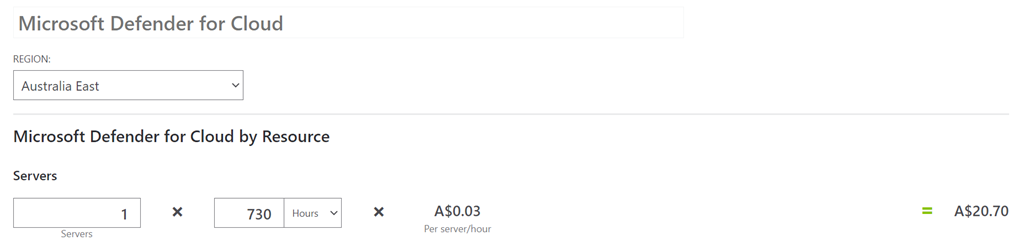
image

Which means you fire up the Azure pricing calculator and plug in the details to obtain a price. That should result in the above result of around A$21 per month, per server.

Hopefully, all this answers most questions and I’ve done my best to ensure it is correct but as always, please check for yourself. For most, the solution to licensing servers for Defender for Endpoint will mean obtaining Microsoft Defender for Cloud and the cost for that will be about A$21 per server per month.

Need to Know podcast–Episode 267

I speak with Aaron Dinnage from Microsoft who is the author of the great licensing resource Microsoft 365 maps. Aaron shares the history of this project and it takes to update it every month. We also get some great insights and suggestions when it comes to Microsoft 365 licensing.

This episode was recorded using Microsoft Teams and produced with Camtasia 2020.

Brought to you by www.ciaopspatron.com

Take a listen and let us know what you think – feedback@needtoknow.cloud

You can listen directly to this episode at:

https://ciaops.podbean.com/e/episode-267-aaron-dinnage/

Subscribe via iTunes at:

https://itunes.apple.com/au/podcast/ciaops-need-to-know-podcasts/id406891445?mt=2

The podcast is also available on Stitcher at:

http://www.stitcher.com/podcast/ciaops/need-to-know-podcast?refid=stpr

Don’t forget to give the show a rating as well as send us any feedback or suggestions you may have for the show.

Resources

Aaron Dinnage – Linkedin, Twitter

https://m365maps.com/

https://m365maps.com/guide.htm

Office 365 Platform Service Descriptions

Microsoft Teams now brings family and friends together to call, chat, and make plans

OneDrive Roadmap Roundup

Announcing Public Preview of OneDrive Sync Admin Reports

New Azure AD Capabilities for Conditional Access and Azure VMs

Introducing Webinars in Microsoft Teams: Easy, professional webinars to engage customers

A fluent new look for the Azure icon

Business email compromise: How Microsoft is combating this costly threat

Forrester names Microsoft a Leader in the 2021 Enterprise Email Security Wave