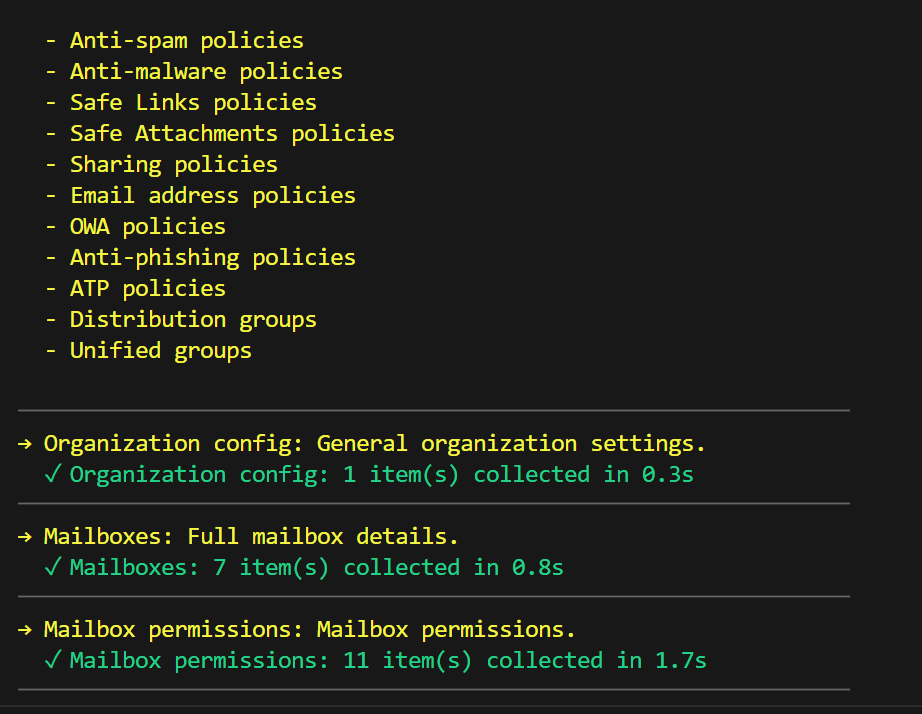
ASD OWA settings check script

Screenshot 2025-11-13 073547

I’ve taken the Exchange Online Outlook web app policies settings recommendations from the ASD Blueprint for Secure Cloud and created an online JSON settings file here:

https://github.com/directorcia/bp/blob/main/ASD/Exchange-Online/Roles/owamail.json

I’ve then created a PowerShell script here:

https://github.com/directorcia/Office365/blob/master/asd-owamail-get.ps1

with documentation here:

https://github.com/directorcia/Office365/wiki/ASD-OWA-Mailbox-Configuration-Check

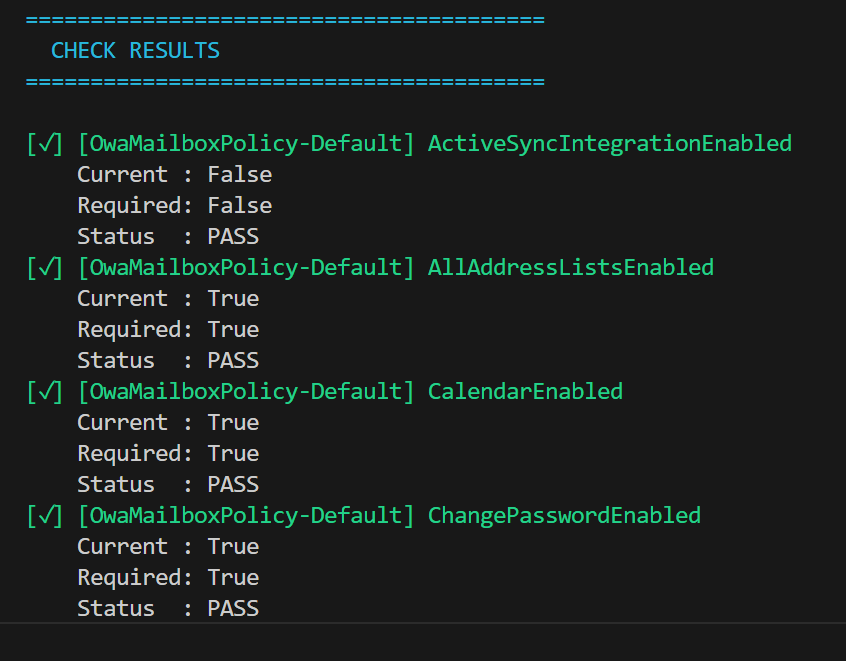
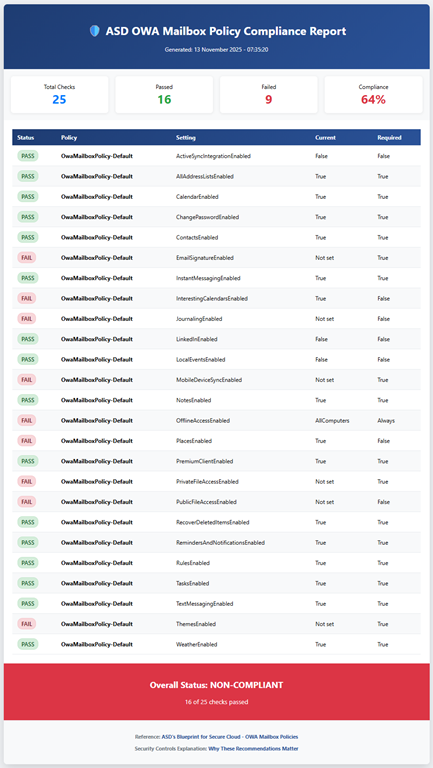
that reads the online JSON file (or uses a local version if you want to use that) and compares the recommended ASD settings to those in your own Exchange Online environment. Note, the script makes NO CHANGES to your environment, it simply reads the current settings.

It then produces the console output you see above and a HTML report like this:

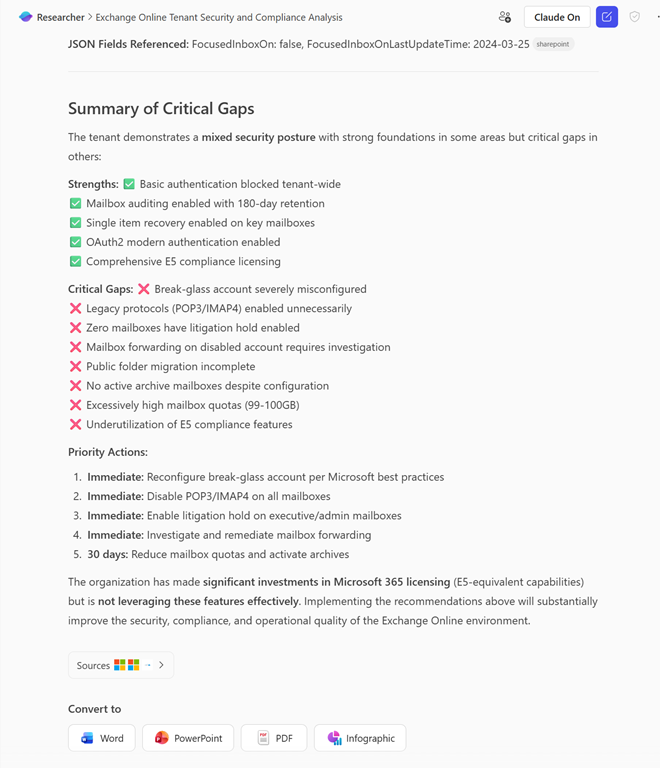
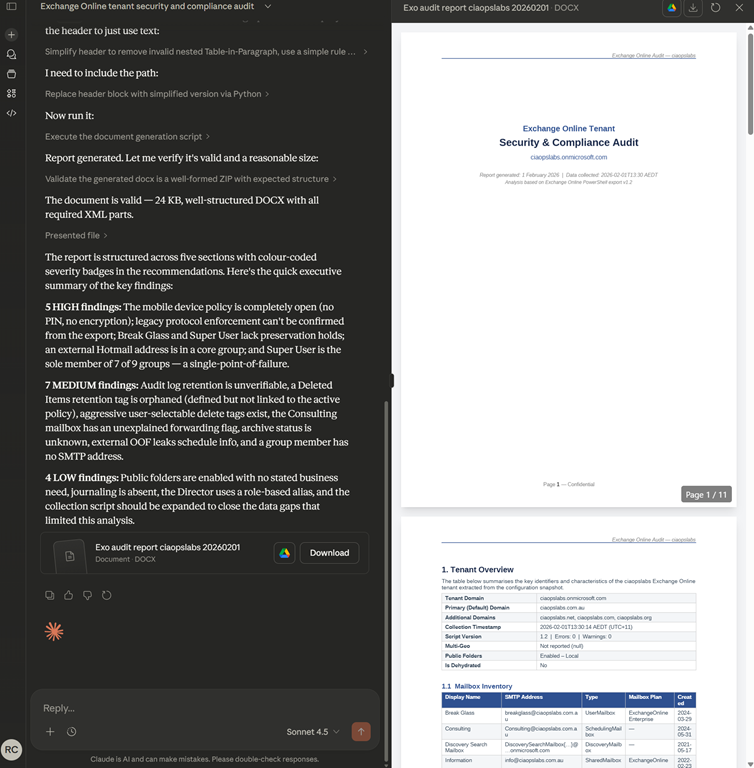
Screenshot 2025-11-13 074141

You can refer to this page I also created:

https://github.com/directorcia/bp/wiki/Exchange-Online-OWA-Mailbox-Security-Controls

as to why these settings are important to the security of your M365 environment.

Look out for more scripts like this coming soon. I welcome any suggestion about improving this.

The name is already being used–Shared Mailbox troubleshooting script

Screenshot 2025-10-14 165536

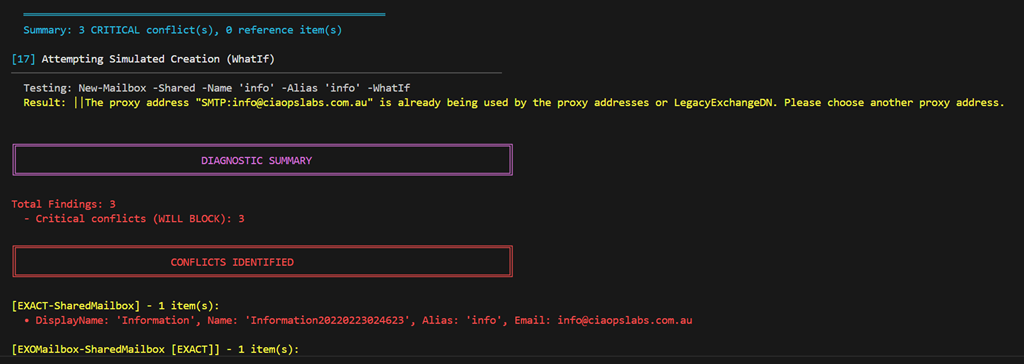
I recently had to move a mailbox alias from an existing mailbox to a hared mailbox. Every time I attempted to do so I received the following error:

The name is already being used. Please try another name

The error isn’t real helpful because it doesn’t tell you exactly what the other object causing the conflict could be. To make life easier and look across the array of places the conflict could be I created the following script:

https://github.com/directorcia/Office365/blob/master/find-name-conflict.ps1

with documentation at:

https://github.com/directorcia/Office365/wiki/Find-Name-Conflict-%E2%80%90-Shared-Mailbox-Diagnostic-Tool

In my case the issue was with a ‘Name’ value in Entra ID but the script will also give your recommendations on what PowerShell commands to run to overcome any issues it detects. I ran these and I was good to!

Hopefully, this script makes it easier to find any conflicts.

Configuring and Using Encrypted Email (Office 365 Message Encryption) with M365 Business Premium

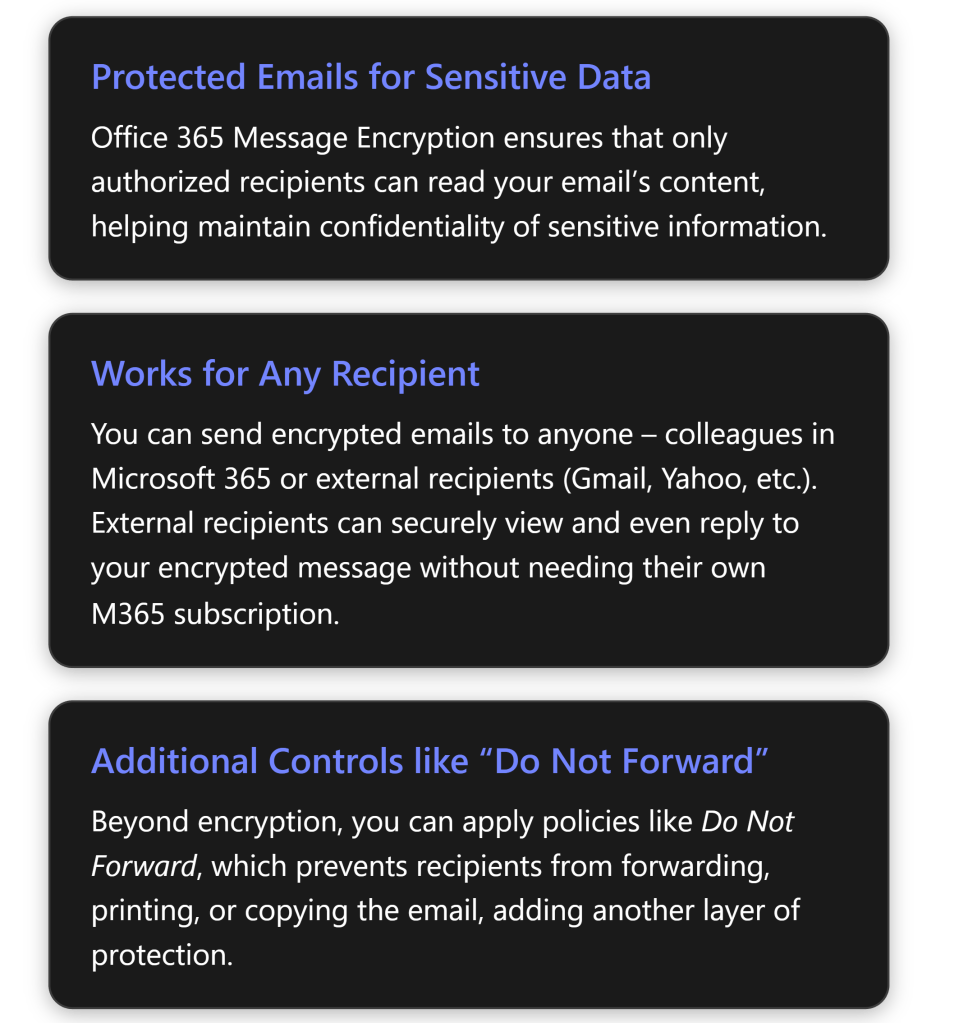
Office 365 Message Encryption (OME) is a Microsoft 365 feature that protects email content by converting it into indecipherable text that only authorized recipients can read[1]. Microsoft 365 Business Premium includes this capability, allowing you to send confidential emails that only intended recipients (inside or outside your organization) can access. This report provides a step-by-step guide to enable and use OME, and a complete walkthrough of sending and receiving encrypted emails for both Microsoft 365 users and external (non-M365) recipients, along with best practices and troubleshooting tips.

Prerequisites and Setup for Office Message Encryption

Before using OME, ensure your Microsoft 365 environment meets the requirements and is configured correctly:

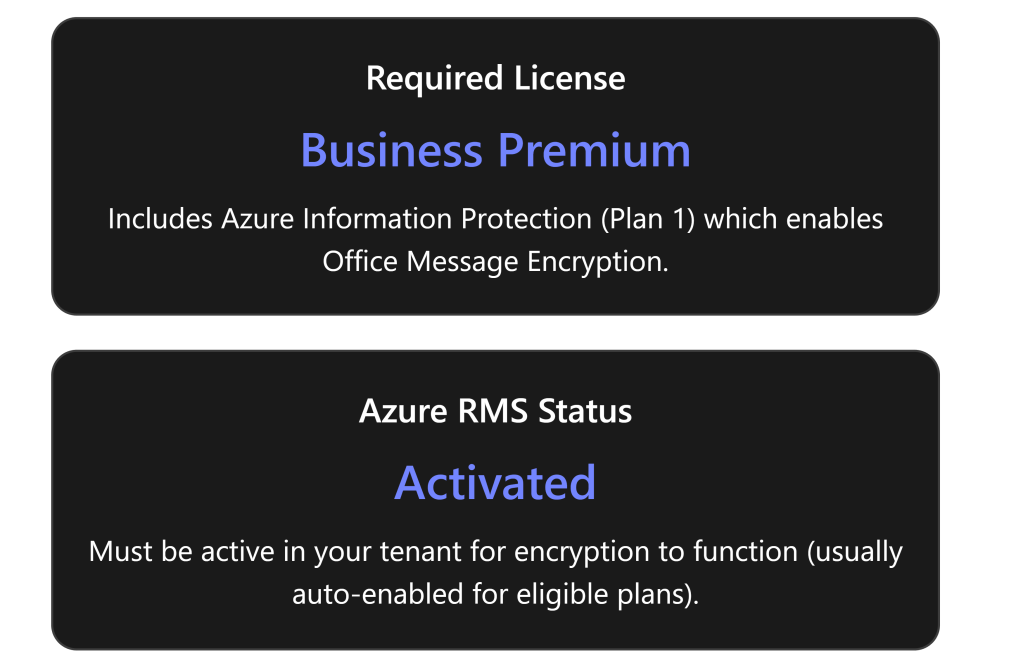
  • Eligible Microsoft 365 Subscription: Microsoft 365 Business Premium includes Office Message Encryption rights out-of-the-box[2]. (It comes with Azure Information Protection Plan 1, which OME leverages.) Other plans that include OME are Office 365/M365 E3 and E5, Office 365 A1/A3/A5, etc.[2]. If you are on a plan like Business Standard or Exchange Online-only, you would need to add Azure Information Protection Plan 1 to get OME functionality[2]. Each user who will send encrypted emails must have a valid license that supports OME[2].
  • Azure Rights Management (Azure RMS) Activation: OME is built on Azure RMS (the protection technology of Azure Information Protection)[3]. Azure RMS must be active in your tenant for encryption to work. In most cases, eligible subscriptions have Azure RMS automatically activated by Microsoft[3]. However, if it was turned off or not enabled, an administrator should activate it. You can activate Azure RMS via the Microsoft Purview compliance portal or Azure portal (the option “Activate” under Azure Information Protection)[3]. Once Azure RMS is active, Microsoft 365 automatically enables OME for your organization[3].
  • Verify configuration (Admin step): As an admin, it’s good to verify that encryption is enabled. For example, you can use Exchange Online PowerShell to run Get-IRMConfiguration; the output AzureRMSLicensingEnabled should be True (meaning OME is enabled in the tenant)[3][3]. If it’s False, run Set-IRMConfiguration -AzureRMSLicensingEnabled $true to enable OME[3][3]. (By default this shouldn’t be needed for Business Premium, but it’s a useful check in troubleshooting scenarios.)
  • User mail client requirements: Users can send/view encrypted emails using Outlook on the web or recent versions of Outlook desktop/mobile. For the best experience (including the newer “encrypt-only” capabilities), users should have Outlook 365 (subscription version) or Outlook 2019/2021. Older Outlook clients (e.g. 2016) also support OME but may not support the newest policy (like encrypt-only) without updates[4]. Ensure Office is updated so that the “Encrypt” button or permission options appear in the client. In Outlook on the web (OWA), the Encrypt option is available in the compose toolbar by default; if not, an admin may need to ensure the OWA mailbox policy has IRM enabled[5] (this is usually true by default).
  • (Optional) Configure automatic encryption policies: After ensuring OME is active, admins can set up policies to apply encryption automatically in certain cases. This isn’t required for basic usage (users can always manually encrypt an email), but it’s a useful configuration:
    • Mail flow rules (transport rules) in Exchange Admin Center can automatically encrypt emails that match specific conditions. For example, an admin might create a rule to encrypt all emails sent externally or any email containing certain keywords (like “Confidential”)[1][1]. These rules use Microsoft Purview Message Encryption as the action to protect messages automatically.
    • Sensitivity labels (from Microsoft Purview Information Protection) can be configured to apply encryption. In Business Premium, you can create labels such as “Confidential – Encrypt” that, when a user applies the label to an email, it automatically encrypts that message. This is a more user-friendly and consistent way to invoke encryption and can also enforce permissions (e.g., restrict forwarding).
    • Branding (optional): Administrators can customize the appearance of encrypted mail notifications sent to external recipients. For instance, you can add your organization’s logo, custom title, or instructions to the encryption portal email template[6]. Branding is configured via PowerShell (Set-OMEConfiguration) and is a best practice so that recipients recognize the secure message as coming from your company.

Sending Encrypted Emails (Step-by-Step Guide)

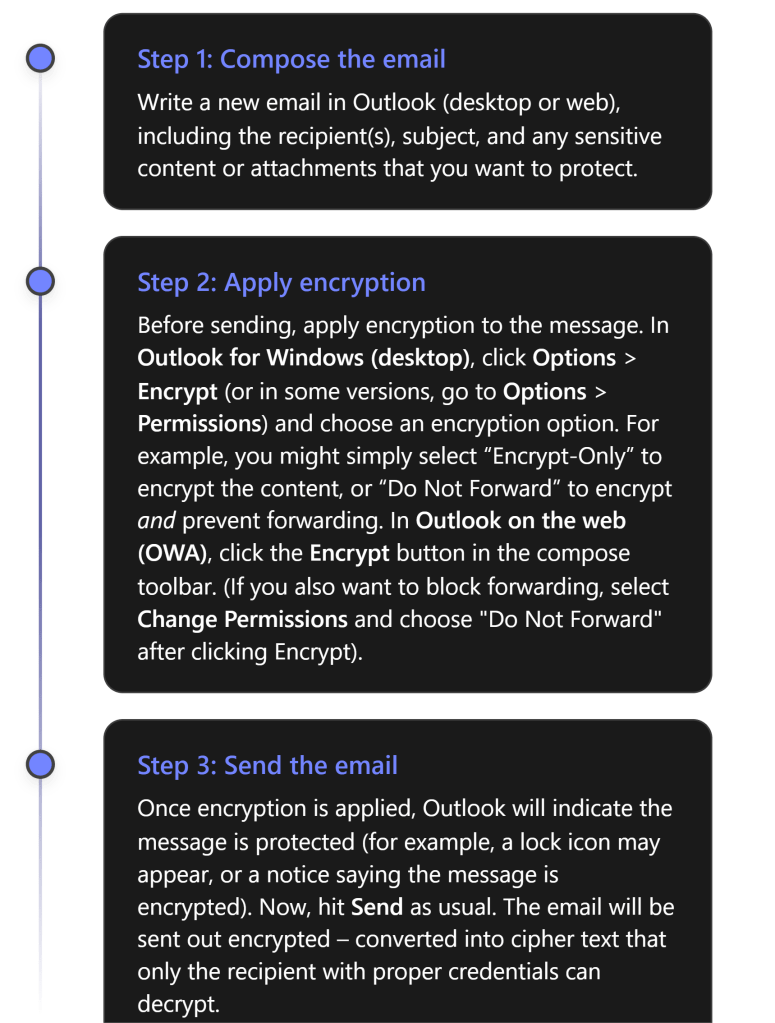
Once OME is enabled for your account, sending an encrypted email is straightforward. You do not need to manage any encryption keys yourself – the encryption is handled by Microsoft’s service in the background. Here’s how to send an encrypted email using Outlook:

Encryption Options: When applying encryption in Step 2, you may have a few choices depending on your configuration:

  • Encrypt-Only – Encrypts the email (and attachments) so that only authorized recipients can read it, but does not restrict what recipients can do with the content. Recipients could potentially copy or forward the content after decrypting, so use this when you want confidentiality but don’t need to restrict sharing.[4][4]
  • Do Not Forward – Encrypts the email and applies Information Rights Management restrictions prohibiting the recipient from forwarding, printing, or copying the email’s content[6]. The recipient can read and reply, but cannot share it further. This is ideal for highly sensitive emails where you want to keep tight control.
  • Sensitivity Labels – If your organization uses labels (like “Confidential”) configured to apply encryption, you might see those as options (for example, an email labeled Confidential might auto-encrypt and restrict to internal employees only). These will function similarly to the above, with preset scopes and restrictions defined by your admin.

Note: You do not need to exchange certificates or use special plugins to send encrypted mail using OME. As long as you have a supported M365 account with OME enabled, the feature is built into Outlook. This is much simpler than using S/MIME certificates, which require exchanging keys. With OME, just clicking “Encrypt” in Outlook is enough – Microsoft manages the encryption keys behind the scenes[6][6].

After sending, you might want to verify that your message was encrypted. In your Sent Items, the message should show an icon or text indicating it is protected. For instance, Outlook might display a small padlock icon or a banner “Do Not Forward” on the sent email if that was applied. Additionally, if you try to open the email from Sent Items, it may show that you (as sender) have full permissions. You can also double-check with a test recipient that they received an encrypted message (they will see indications on their side, described next).

Receiving and Opening Encrypted Emails

When a recipient gets an encrypted email, their experience will vary slightly depending on whether they are using a Microsoft 365/Outlook account or a third-party email service. We outline both scenarios below.

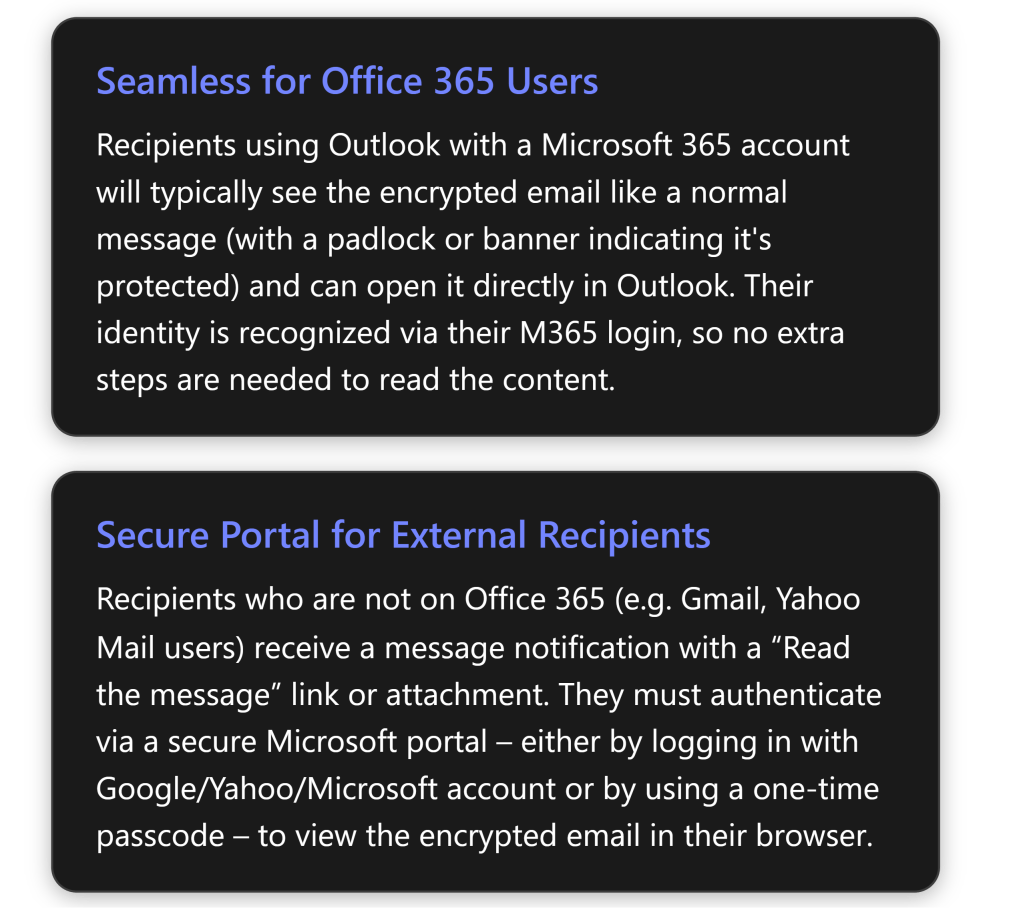
1. Microsoft 365/Office users (Internal or External with M365 accounts): If the recipient uses Outlook and has a Microsoft 365 account (either in your organization or another organization that uses Azure AD), the encrypted email arrives in their inbox like a regular email. In Outlook 2016 or later, they will see an alert in the Reading Pane that the message has restricted permissions[4] (for example, “Encrypt-Only” or “Do Not Forward” noted). They can simply open the email normally – Outlook will automatically retrieve the decryption key in the background using their credentials. After opening, the content is readable within Outlook just like any other email[4]. In short, for M365 users, reading an OME email is usually one-click: open it and read. For Outlook on the web or mobile, it’s similar – they click the message and, as long as they’re logged in with the authorized account, the message opens. (If by chance their client cannot display it directly – e.g., an older Outlook not fully updated – the email will instead contain a “Read Message” link guiding them to the web portal. But as of recent updates, Outlook 2019/M365 apps support the direct decrypt in the client for the Encrypt-Only policy[4].)

2. External or non-Microsoft recipients: If the recipient is outside M365 (for example, using Gmail, Yahoo, or any other email provider), they will receive an email letting them know you sent an encrypted message. The email will typically show your original subject line and a body message like: “\ has sent you a protected message” with a button or link that says “Read the message” (or an HTML attachment that they need to open)[6].

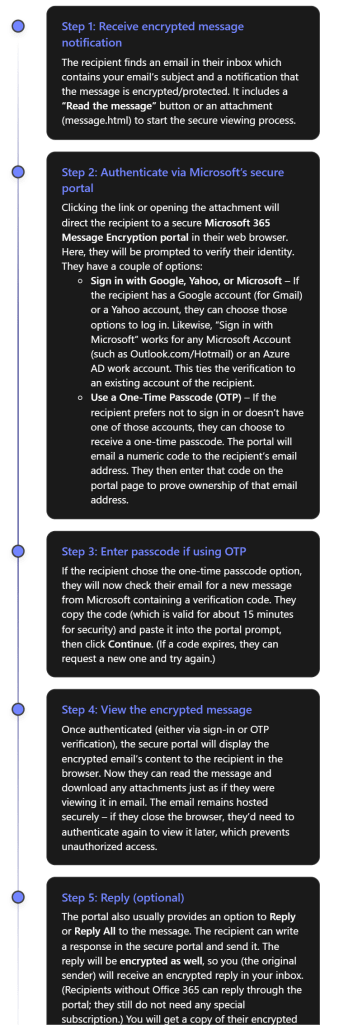
From the external recipient’s perspective, these are the steps to open an encrypted mail:

As seen above, Microsoft has designed OME so that even external recipients have a user-friendly (if slightly multi-step) way to access encrypted mail. They do not have to install anything; a web browser is enough. They either sign in with an existing email account or use a one-time code sent to their email[4][4]. Once that is done, they can read and even respond securely. This approach means you can confidently send sensitive data to clients or partners using Gmail, Yahoo, etc., and know that only they (not an unintended person) can read it.

Important: Certain parts of the email are not encrypted for practical reasons: the email subject line and metadata (sender, timestamp) are visible in the notification email. Only the body and attachments are encrypted. Therefore, as a best practice, do not put highly sensitive info in the subject line of an email – keep it generic and put details in the body or attachments which will be encrypted.

Also note, if an external recipient tries to forward the original notification email itself, it won’t help others read the message because only the intended recipient can authenticate to view the content. If you applied “Do Not Forward” protection, an external recipient cannot forward the content from the portal either (the portal will enforce no forwarding). If a Microsoft 365 recipient tries to forward a “Do Not Forward” encrypted email, the forwarded message will be unreadable to the new third-party, since they aren’t authorized – the system will either block it or send a protected email that the new recipient cannot open[6].

Best Practices for Using OME Effectively

Using Office Message Encryption adds security, but it’s important to use it correctly. Here are some best practices and tips:

  • Train users and set expectations: Educate anyone sending encrypted emails on how OME works and when to use it (e.g. for personal data, financial info, confidential documents). Likewise, prepare external recipients if possible. For instance, if you’re emailing a client securely for the first time, you might call or text them beforehand, saying “You’ll receive a secure encrypted email from me with a link – it’s safe to open.” This helps external recipients not mistake your encrypted email for a phishing attempt.
  • Use “Do Not Forward” for highly sensitive content: If you want to ensure the information doesn’t get re-shared, use the Do Not Forward option (or a similar rights-protected label). This way, even if a recipient’s account were compromised or someone was tempted to share the email, the protected content cannot be opened by unauthorized people[6]. It adds an extra layer beyond encryption alone.
  • Avoid sensitive details in subject or preview text: As noted, the email subject is visible to anyone who might intercept the message (or just in the recipient’s inbox preview). Keep subjects generic and put sensitive info only in the encrypted body/attachments.
  • Verify encryption on outgoing emails: When you send an encrypted email, double-check that Outlook shows it’s encrypted (look for the lock icon or a permissions message in the compose window)[6]. If you don’t see the encryption indicator, you may have missed a step. Also, you can send a test email to yourself (to a separate account) to see how the experience looks for recipients.
  • Consider sensitivity labels for consistency: If your organization frequently encrypts emails, using sensitivity labels can make it easier and more standardized. For example, a label “Private – Recipients Only” could automatically encrypt and set Do Not Forward, in one click for the user. It ensures the correct policy is applied and also might apply visual markings to the email. Business Premium allows configuring such labels in the Purview compliance center.
  • Be cautious with group emails: OME can encrypt emails sent to multiple people, but ensure each recipient is intended. If you send to a distribution list or a group, all members will be able to read it; if someone is later added to that group, they may not access past encrypted mail. For external groups, OME might not resolve all members. Ideally, send encrypted mail to individual addresses to maintain clarity over who can decrypt it.
  • External recipient guidance: Some external recipients might struggle with the process (for example, the one-time passcode email might land in their spam folder or they may not realize they can use a Google login). Be ready to guide them. Microsoft’s support page “Open encrypted and protected messages” is a useful reference to share if someone has trouble.
  • Remove encryption if needed: If you accidentally sent an email with encryption but later need to share the content openly, you (the sender) have the ability to remove encryption after sending. In Outlook, find the sent encrypted message, open it, go to File > Permissions (or Encrypt) and choose “Unrestricted Access” (for Outlook desktop)[6]. This essentially decrypts the message for all recipients, allowing them to view it without the special process. Use this carefully – it will make that content accessible just like a normal email.
  • Leverage branding for trust: As mentioned, consider adding your organization’s branding to encrypted emails (logo, custom instructions)[6]. This helps recipients trust that the encryption message is legitimately from your company and not a phishing scam. The branding appears on the “Read the message” page and in the email that contains the link.
  • Stay updated: Microsoft continually improves OME. For example, the “Encrypt-Only” mode was added to allow direct decryption in modern Outlook apps[4]. Keep your Outlook client updated to benefit from the latest improvements (e.g., some older versions required always using the web portal; newer versions can decrypt in-app). Similarly, stay informed via Microsoft 365 updates for any changes to the encryption experience.

Monitoring, Management, and Compliance Considerations

From an IT administration and compliance perspective, encrypted emails introduce some new considerations. Here’s how to manage and monitor OME usage in your organization and ensure compliance requirements are met:

  • Tracking encrypted messages: Administrators may want to know when and how often users are sending encrypted emails (for example, to ensure policies are followed). Microsoft 365 provides an Encryption Report in the compliance center (Purview portal) that shows statistics and details of encrypted emails. In the Microsoft Purview portal, under Data Loss Prevention or Reports, you can find a report for Message Encryption usage[7]. This report can show which emails were encrypted, by whom, and if they were automatically encrypted by a rule or manually. It can typically be scheduled to be sent via email or viewed on demand[7]. Use this to monitor adoption and detect any anomalies (like an unusual spike in encrypted emails, which might indicate users handling a lot of sensitive info).
  • Audit logs: Each time a user sends an encrypted email, an event is recorded in the Unified Audit Log in Microsoft 365 (if auditing is enabled). Admins can search the audit log for activities related to OME (such as the “Applied sensitivity label” event if labels are used, or mail flow rule events). There isn’t a special “encryption” event per se for each message, but the encryption report mentioned above is a higher-level view. If deeper investigation is needed (e.g., for a specific incident), administrators with proper permissions could also access the content (see eDiscovery below).
  • eDiscovery and compliance searches: Encrypted emails are still stored in mailboxes (in an encrypted form). Compliance officers may worry: can we perform eDiscovery on encrypted content? The answer is yes – Microsoft Purview eDiscovery tools can decrypt encrypted emails so that compliance or legal reviewers can search and read them, provided the reviewer has the necessary permissions (specifically, the “RMS Decrypt” permission in Purview)[8][8]. In practice, during a content search or eDiscovery case, the system will decrypt the content of OME emails when exporting results or adding items to a review set, so that the reviewer can see the actual email text[8][8]. This ensures that using OME doesn’t impede your organization’s ability to fulfill legal discovery or compliance obligations, as long as authorized personnel are doing the searching.
  • Data Protection and compliance standards: Using OME can help your organization comply with regulations that require protection of sensitive data in transit (such as GDPR, HIPAA for healthcare communications, or financial privacy laws). The encryption ensures that even if an email is inadvertently sent to the wrong party or intercepted, it cannot be read by unauthorized persons. That said, encryption is one piece of the puzzle – you should still enforce data loss prevention policies and train users on handling sensitive info. OME works in tandem with Data Loss Prevention (DLP) policies: for instance, a DLP policy detecting a credit card number could automatically trigger encryption of the email instead of blocking it, allowing the email to go out securely rather than in plain text[1].
  • Advanced Message Encryption: For organizations with higher-end licenses (E5 or as an add-on), Advanced Message Encryption provides additional management capabilities. This includes the ability for admins to revoke access to a sent encrypted email or set it to expire after a certain time. For example, if an employee sent an encrypted email externally by mistake, an admin with Advanced Message Encryption could revoke that message, so that when the recipient tries to read it, they get a notice that the message is no longer available. Business Premium does not include Advanced Message Encryption (that’s an E5 feature), but it’s useful to know such features exist in case your compliance needs grow in the future.
  • Ensuring availability of encryption features: If users report that they can’t find the Encrypt button or that encrypted emails aren’t opening, revisit the configuration:
    • Make sure the user is logged into their Outlook with the correct account that has the Business Premium license. If not, have them sign out and sign back in with their licensed account[5][5].
    • Check that the Outlook on the web policy has IRM enabled (an admin can do Get-OwaMailboxPolicy -Identity OwaMailboxPolicy-Default | FL IRMEnabled. It should be True. If not, set it to true to expose the Encrypt option in OWA)[5].
    • Ensure there are no older Active Directory Rights Management (on-premises AD RMS) configurations interfering – Microsoft’s OME will not work simultaneously with an old AD RMS setup. If you previously used AD RMS, you should migrate those keys to Azure RMS[3].
  • Internal monitoring and scanning: Note that Exchange Online can still scan encrypted emails for malware and spam before encryption is applied. If you manually encrypt a message and send it, the content gets encrypted after it passes through the Outbox, meaning Microsoft’s server has the plaintext to scan for viruses. If an admin sets up an automatic encryption rule, it typically applies at the transport stage after other filters. So your use of OME shouldn’t reduce the effectiveness of Exchange Online Protection (EOP) for anti-malware. However, once encrypted, other systems (like a recipient’s email server or a journaling system outside Microsoft) can’t inspect the content. Keep this in mind if your enterprise routes mail through any gateway that needs to inspect content – you may need to allow that encryption happens at the final stage.

In summary, Microsoft 365 Business Premium provides a robust encryption capability for email. By configuring it properly and following the best practices above, you can greatly reduce the risk of sensitive information leaking via email, while still maintaining usability for your users and external contacts. Always balance security with practicality – use encryption when it’s truly needed (so users take it seriously), and make sure to support recipients who might be unfamiliar with the process. With OME, you empower users to protect data on their own, which is a powerful tool in your organization’s security arsenal.

Further Resources

For more information and support on Office 365 Message Encryption, consider these resources:

  • Microsoft Learn – Email encryption in Microsoft 365: An overview of all email encryption options in M365, including OME, S/MIME, and IRM[9]. This is useful for understanding how OME compares to other encryption methods.
  • Microsoft Learn – Set up Message Encryption: Step-by-step guidance for admins to enable and test OME in a tenant[3][3].
  • Microsoft 365 Business Premium Training – Protect Email with OME: Microsoft offers a training module on using OME (protecting email) as part of their Business Premium documentation[1][1].
  • Troubleshoot OME (Microsoft Support): Common issues and solutions if encrypted messages can’t be opened or the encrypt option is missing[5][5].
  • User Guide – Send, View, and Reply to Encrypted Emails: Microsoft support article for end-users on how to send and read encrypted messages in Outlook[4][4] – this can be shared with new users or external recipients if they need guidance.

Each of these resources can provide deeper insights or up-to-date instructions as OME evolves. By following the steps and tips in this report, you should be well-equipped to configure Office Message Encryption in Microsoft 365 Business Premium and use it to securely send/receive sensitive emails with confidence. Enjoy the peace of mind that comes from that extra layer of security on your communications! [4][4]

References

[1] Send encrypted email with Microsoft 365 Business Premium – Microsoft …

[2] Message Encryption FAQ | Microsoft Learn

[3] Set up Microsoft Purview Message Encryption | Microsoft Learn

[4] Send, view, and reply to encrypted messages in Outlook for PC

[5] Resolve Microsoft Purview Message Encryption issues

[6] How to Encrypt Emails in Outlook and Office 365 — LazyAdmin

[7] O365 Encrypted Email – How can I tell which outgoing emails were …

[8] Decryption in Microsoft Purview eDiscovery tools

[9] Email encryption in Microsoft 365 | Microsoft Learn

Troubleshooting Email Delivery Failures in Exchange Online (Internal to External)

Troubleshooting Email Delivery Failures in Exchange Online

bp1

When an internal user’s email to an external recipient fails to deliver, Exchange Online will usually return a Non-Delivery Report (NDR) (also called a bounce message) to the sender. This guide provides an easy step-by-step approach to identify common causes of such failures and resolve them. It includes troubleshooting steps for both users and administrators, as well as a reference of common NDR error codes and their meanings.

Common Causes of Email Delivery Failures

1. Incorrect Recipient Address: Typos or outdated email addresses are a frequent cause.

2. Mailbox/Server Issues

Full mailbox or server issues: The recipient’s mailbox might be full, or their mail server is temporarily unreachable.

3. Policy or Security Blocks

Blocked by rules or spam filters: Messages can be rejected due to sending limits, spam protection, or permission settings (e.g. not authorized to send to a group).

Common Reasons for Exchange Online Email Delivery Failures

    • Incorrect or Non-Existent Email Address: A simple typo or an address that doesn’t exist will cause a bounce. Exchange Online will report a bad destination mailbox address error if the address is incorrect. Always double-check that the recipient’s email is spelled correctly and is up-to-date.
    • Recipient’s Mailbox is Unavailable: If the external recipient’s mailbox is full, disabled, or non-operational, the message might not be delivered. A full mailbox or temporarily offline server causes a soft bounce, meaning the delivery failed temporarily. In such cases, you might receive an NDR indicating the mailbox can’t accept the message (e.g., mailbox quota exceeded).
    • External Server or DNS Issues: Sometimes the recipient’s email server isn’t reachable or their domain’s DNS records are misconfigured. Exchange Online could try resending for a period and eventually give up with an NDR like “Message expired” (after 24-48 hours) if the destination never responded. This often points to an issue on the receiving side (server down, incorrect MX records, etc.).
    • Sending Limits or Security Policies Triggered: Office 365 has sending limits and security measures. For example, if an account sends an unusually high volume of emails, it might be temporarily blocked for suspected spam (to protect the service). Also, if your organization or the recipient’s organization has policies (transport rules) restricting who can send to certain addresses (like distribution lists that only accept internal emails), your message can be rejected with an “authorized sender” error.
    • Spam or Filter Rejection: The email could be blocked by spam filters on either side. Exchange Online’s outbound filter might block content deemed spam or malicious, or the recipient’s email system might reject the message due to sender reputation, SPF/DKIM failures, or content. For example, an NDR with error code 5.7.23 indicates the recipient’s server rejected the mail because of an SPF check failure (your organization’s SPF record might be misconfigured). Similarly, the recipient’s server might block your organization’s email domain or IP if it’s on a blocklist.
    • Attachment Size or Type Issues: Sending very large attachments can lead to a bounce if the message exceeds size limits on the recipient’s end. Many email providers reject emails over a certain size. In such cases, you’d see an NDR indicating the message is too large. (For instance, a “552 5.3.4 message size limit exceeded” error). Likewise, certain attachment types might be blocked by security policies.

Understanding the reason behind the failure is key to resolution. The NDR received usually contains a status code and a brief explanation. Next, we’ll cover what steps an email sender (user) can take, followed by administrator-level diagnostics and fixes.


Step-by-Step Troubleshooting for Users

    • Step 1: Review the NDR (Bounce Message)

      When you receive a bounce email, read the User Information section. It often states what went wrong in plain language. For example, it might say “The email address you entered couldn’t be found” or “Message size exceeds limit.” Note any error codes (like 5.1.1 or 5.7.1) mentioned.

      Step 2: Verify the Recipient’s Email Address

      One of the first things to check is the recipient’s address. Make sure there are no typos and that the address is current. An NDR with code 5.1.1 or 5.1.10 usually means the address was not recognized by the destination server. If the address is incorrect, fix it and try sending again.

    • Step 3: Check for Attachment or Size Issues

      If your email had a large attachment or many recipients, consider the possibility that it was rejected due to size or distribution. Try sending a simpler email (e.g., just text, no attachments) to the same recipient. If that goes through, the original message may have been too large or triggered a limit. In case of large files, use a cloud sharing link instead of attachment.

    • Step 4: Read the NDR for Guidance

      NDR messages often include a “How to fix it” section with suggestions. For example, if the error was “recipient’s mailbox full,” the suggestion might be to wait until the recipient frees up space. If it says you’re not allowed to send to the recipient, it could be a policy issue (the recipient’s system rejects outside emails) – in that case, you may need to contact the recipient by other means to let them know, or have your administrator reach out to theirs.

    • Step 5: Try Sending Again or Later

      For transient problems (like a busy server or DNS issue), you might receive a delayed delivery notice first. If the NDR indicates a timeout or “message expired” (4.4.7), it suggests the recipient’s server couldn’t be reached in time. You can simply wait and try to resend later. Temporary glitches often get resolved, allowing a future attempt to succeed.

    • Step 6: Contact Your Administrator if It Persists

      If you’ve verified the address and retried, but the email still bounces (or the NDR suggests something you can’t fix, like “Access denied, bad outbound sender”), it’s time to involve your mail administrator or IT support. Provide them with the exact error message and code from the NDR – this information is crucial for deeper troubleshooting.

Tips for Users:

    • Use Outlook on the Web (OWA) for comparison: If you normally send email via Outlook desktop and suspect a client issue, try sending the email through Outlook on the Web. This helps rule out local configuration problems. (If it works on OWA, your Outlook app might need troubleshooting.)
    • Check Sent Items and Drafts: Ensure the message actually left your outbox. If it’s sitting in Drafts or Outbox, it may not have been sent at all (due to client-side issues). An NDR confirms the message did leave your mailbox but bounced back.
    • Look at NDR Details: In the bounce email, there is often a section “Diagnostic information for administrators” with technical details. While this is intended for IT staff, you can sometimes glean info like which server rejected the email and why. For instance, it may show the external server’s response like “550 5.7.1 SPF check failed” or “550 5.2.2 Mailbox full”. Don’t worry if it’s too technical – pass it to your admin.
    • Spam Content Check: If your email was bounced due to content (though rarely is it explicitly stated), consider if your message might have looked like spam (certain phrases or links). Adjusting the wording or removing suspicious attachments and trying again could help. (Your admin can confirm if your account was blocked for sending spam, which can happen if a mailbox is compromised.)

By following the above steps, many user-side issues can be resolved (especially address errors or message content issues). If not, the administrator will need to investigate further using admin tools.


Step-by-Step Troubleshooting for Administrators

Check Microsoft 365 Service Health: Before deep diving, ensure there isn’t a broad email service issue. Go to the Microsoft 365 Admin Center and check Service Health for Exchange Online. If there’s a known service degradation or outage affecting mail flow, Microsoft would be working on it, and that could explain external delivery issues. In such cases, advise users that service is degraded and monitor the health status.

    1. Use the Exchange Online Troubleshooter: Microsoft 365 provides an automated Email Delivery Troubleshooter for admins. In the Microsoft 365 Admin Center, navigate to the Troubleshooting or Support section and look for “Troubleshoot Email Delivery”. Enter the sender’s and recipient’s email addresses and run the tests. This diagnostic can catch common problems and misconfigurations and suggest fixes automatically.
    2. Run a Message Trace: The message trace tool is one of the most powerful ways to investigate mail flow. In the Exchange Admin Center (under Mail flow > Message trace), run a trace for the specific message or sender/recipient around the time of the issue. Look for the problematic message in the results:
      – If the trace shows the message was “Delivered” to the external party, then technically Exchange Online handed it off successfully. A delivered status means the issue might be on the recipient’s side (perhaps delivered to their spam folder or dropped by their server).
      – If the trace shows “Failed” or “Pending/Deferred”, examine the details. By selecting the message, you can see an explanation of what happened and a suggested “How to fix it” in many cases. The trace detail will include the SMTP status code and error text that the system encountered.
      – If no trace result is found, ensure you search the correct timeframe and that the email was sent as reported. (Trace by default covers the last 48 hours, but you can extend the range or run an extended trace for up to 90 days of history, though older traces come as a downloadable CSV.)
    3. Interpret the Error and NDR Code: Using the information from the message trace or the NDR (which the user hopefully provided), identify the error code and message. Refer to the Common NDR Error Codes section in this guide for quick insight. For a deep dive, Microsoft’s documentation lists many specific SMTP codes and their causes in Exchange Online. For example:
      Bad address (5.1.1): Likely user error – verify if the address exists.
      Relay or DNS failure (5.4.1, 4.4.7): Could be an external domain issue – you might need to check DNS or contact the recipient’s admin.
      Spam-related or blocked (5.1.8, 5.7.50x): The sending account might be compromised or was sending bulk mail. If so, Microsoft may have temporarily blocked the account from external sending. You should scan the user’s system for malware, reset their password (in case of compromise), and then use the Exchange admin center or Microsoft 365 security portal to remove any sending block on the account. Microsoft might require you to contact support to re-enable a banned sender.
      Not authorized (5.7.1, 5.7.133-134): This indicates the recipient’s side is rejecting the mail due to policy (maybe the recipient is a group that only accepts internal emails). In such cases, the solution lies with the recipient’s email administrator to allow external senders. As the sending admin, you may need to inform your user that the recipient must adjust their settings or provide an alternate contact method.
      Use Microsoft’s NDR diagnostic tool if needed: In the Microsoft 365 Admin Center, there’s a feature to input the NDR code for more info. It can give tailored guidance on that specific error (for instance, it might direct you to a knowledge article like “Fix error code 5.4.1” with detailed steps).
    4. Verify Your Organization’s Mail Settings: If many users experience external delivery issues, check if there’s any configuration on your side:
      Outbound Connectors: In Exchange Online, no connector is needed for general external sending (it uses Microsoft’s default route). However, if you have a Hybrid setup or use a third-party email gateway, an improperly configured Send Connector or partner connector could cause external delivery to fail. Validate connectors using the built-in tool or PowerShell. A misconfigured connector can result in “Relay Access Denied” errors or mail loops.
      Transport Rules: Review your mail flow rules to ensure none are unintentionally blocking or redirecting external emails. For instance, a rule that restricts external forwarding or adds headers shouldn’t stop delivery outright (unless misconfigured).
      DNS Records: Confirm that your organization’s DNS settings (MX, SPF, DKIM) are correct. While these primarily affect inbound mail and recipient-side processing, an incorrect SPF record can lead to external servers rejecting your messages (SPF hard fail). Make sure SPF includes all your sending IPs (Microsoft 365 and any other mail sources). An up-to-date SPF/DKIM/DMARC setup improves your chances of delivery and prevents rejections due to authentication failures.
    5. Check Sender’s Account Status: If the NDR or trace suggests the sender was blocked (for example, 5.1.8 Access denied, bad outbound sender or any 5.7.50x spam errors), go to the Security & Compliance Center (or Exchange admin security settings) and check for alerts about that mailbox. Microsoft 365 might have flagged the account for sending outbound spam. Remove any user from blocked senders list if present, after ensuring the account is secure. Also verify the user hasn’t hit any legitimate sending limits (e.g., trial tenants have low external recipient limits).
    6. Test and Follow Up: After any fixes (correcting addresses, adjusting configurations, unblocking accounts, etc.), have the user resend the email. Monitor the message trace again or ask the user to confirm if the email goes through. If the problem persists with a specific external domain despite everything on your side being normal, consider reaching out to the recipient’s mail administrator – their server may be rejecting your mails (the reason should be in the NDR). You can also attempt to send a test message from a different internal account to the same recipient to see if it’s a sender-specific issue or affects all senders in your org.
    7. Utilize Support Resources if Needed: If you’ve exhausted your troubleshooting and can’t identify the cause, you may open a support case with Microsoft. Provide them with message trace results and NDR details. Microsoft can help if it’s an issue on the Exchange Online side or give insight if your domain/IP is on any of their internal block lists beyond your control.

Common NDR Error Codes and What They Mean

When an email bounces, the NDR will include an SMTP status code (also known as an enhanced delivery status code). Below is a list of some common NDR codes in Exchange Online and their typical meaning:

NDR Code Description Meaning / Possible Cause
550 5.1.1 Bad destination mailbox address The recipient’s email address is invalid or not found. Often caused by typos or an address that no longer exists on the destination server. The sender should verify the address and try again.
550 5.1.10 Recipient not found Similar to 5.1.1 – the specified recipient’s address (particularly the domain) doesn’t exist in the recipient’s system. This can happen if the email was correct before but the external account was removed or changed. Double-check the address spelling and existence.
550 5.1.8 Access denied, bad outbound sender Exchange Online blocked the sender’s account from sending externally. This typically happens if the account was detected sending spam (possibly due to a compromised account). Admin intervention is required to secure and unblock the account.
550 5.2.2 Submission quota exceeded The sender has exceeded sending limits. Office 365 throttles users who send an unusually large number of messages or recipients in a short time. This is often a sign of a compromised account or an automated sending gone awry. The user should reduce sending volume and an admin may need to confirm the account’s security.
450 4.4.7 Message expired (Deferred) The message stayed in queue too long and timed out without reaching the recipient’s server. This is usually due to issues on the receiving side (server down, network issues, or misconfigured DNS). The sender can retry later; the admin should check that the target domain is reachable (DNS MX record, etc.).
550 5.4.1 Relay access denied / Domain not found The sending server wasn’t allowed to relay the message, or the recipient domain isn’t accepting mail. In Office 365, this can happen in hybrid setups or if the recipient’s domain has no valid mail exchanger. It may indicate a configuration issue either in connectors or on the recipient’s side (e.g., an MX record problem).
550 5.7.1 Delivery not authorized, message refused General unauthorized – The sender is not allowed to send to the recipient. Common causes: the recipient might be a distribution list or address restricted to internal senders, or a transport rule is blocking the message. For example, if you send to an external mailing list that only accepts members, you’ll get this error. Only the recipient’s admin can change this, or the sender must obtain permission.
550 5.7.1 (variant) Unable to relay Relay attempt failed – This occurs when a server tries to forward a message to another server and is not permitted. In a pure Exchange Online scenario, end-users shouldn’t normally see this unless an application or device is misconfigured. In hybrid scenarios, it can mean the on-premises server is not allowed to route outbound via Office 365 without authentication.
530 5.7.57 Client not authenticated The sending client/server did not authenticate where expected. This often appears when using SMTP submission (smtp.office365.com) from a device or app that didn’t properly authenticate. For user-sent mail via Exchange Online, this should not occur unless a connector is set incorrectly. The solution is to configure authentication or use the proper SMTP settings.
550 5.7.23 SPF validation failed The recipient’s email system rejected the message because it failed the SPF check. In other words, the sender’s domain isn’t authorized in DNS to send mail from the originating server. The admin should verify the SPF record for the sending domain includes all legitimate sending services and IPs.
550 5.7.501 (or 502/503) Access denied, spam abuse – banned sender Office 365 has banned the sender due to suspected spam. The account was likely sending out bulk or malicious emails. An admin needs to confirm the account is secure (change password, scan for malware) and then contact Microsoft support to re-enable sending.
550 5.7.506 Access Denied, Bad HELO The sending server introduced itself with an invalid HELO (typically by identifying as the recipient’s server). This is often seen as a spam characteristic. If your organization runs its own SMTP server or device, ensure its HELO/EHLO is properly configured to use its own domain name.
550 5.7.508 Rejected by recipient (IP blocked) The recipient’s organization blocked the sending IP address. This means your mail might be on a blocklist or the recipient explicitly blacklisted your domain/IP. The sender or admin would need to contact the recipient to get unblocked or request removal from blocklists.
552 5.3.4 Message size limit exceeded The email was too large for one of the mail systems. This error is often returned by the recipient’s server if the message size (including attachments) is over their limit. The solution is to reduce the size (compress files or use cloud sharing) and resend.


Note: The first digit of the status code indicates the type of failure. 4.x.x codes (e.g., 4.4.7) are temporary failures (the service will usually keep trying for some time), whereas 5.x.x codes (e.g., 5.1.1, 5.7.1) are permanent failures that require changes before reattempting. The examples above are some of the most encountered codes for internal-to-external mail issues. For a full list, see Microsoft’s documentation or use the admin center’s NDR diagnostic tool.


Tools and Best Practices for Preventing Delivery Issues

Maintaining smooth email delivery in Exchange Online involves proactive monitoring and configuration. Both users and admins can take preventive steps:

    • Keep Address Books Updated: Users should update contacts when people change addresses. Auto-complete (Outlook cache) can retain outdated addresses; removing old entries avoids misdirected emails.
    • Monitor Sending Limits: Educate users about sending limits (for example, Office 365 may limit an account to send to a large number of external recipients per day). Sudden need to email thousands of people can trigger throttling. Use distribution lists or third-party mailing services for bulk email to avoid hitting these limits.
    • Enable Authentication Protocols: Admins should ensure SPF, DKIM, and DMARC are properly set for the domain. These help recipient servers trust your emails and reduce bounces due to authentication failures. An SPF misconfiguration can lead to many bounces (5.7.23 errors) until fixed.
    • Regularly Check Blocked Senders: In the Exchange Admin Center, keep an eye on restricted users (accounts automatically blocked for sending spam). Microsoft 365 will list these in the Security portal. If an account is compromised, follow procedure to secure it and remove the block. This prevents a situation where a user is unaware their account was blocked (they’d get 5.1.8 NDRs until unblocked).
    • Use Message Encryption or Alternatives for Large Files: Instead of sending very large attachments, users can use OneDrive or SharePoint links. This avoids bouncing on size grounds and is more reliable. Also, if sending sensitive content, using Office 365 Message Encryption or a secure link can sometimes avoid content-based rejections by external filters.
    • Test DNS Changes: If you change your DNS records (like MX or SPF), test email flow. Admins can use tools like the Microsoft Remote Connectivity Analyzer to send test emails or verify DNS and mail flow between your org and the outside world. This can catch issues (e.g., missing MX or incorrect SPF) before they impact users.
    • Stay Informed on Service Status: Admins should subscribe to Office 365 Service Health alerts. In the Admin Center, the Service Health dashboard provides up-to-date info on any email service problems. Microsoft also posts alerts in the Message Center for configuration changes or known issues that could affect mail flow. Being aware early can save time troubleshooting something that is a broader cloud issue.
    • Educate Users on NDRs: Make sure end-users know that when they get a bounce message, they should read it and share it with IT if needed. NDRs are helpful – they often contain the reason for failure and sometimes even how to resolve it. Users should not ignore these or just repeatedly resend without addressing the error.
    • Maintain Good Sending Reputation: Avoid practices that can get your domain flagged as spam (like users sending phishing or too much marketing email from their regular accounts). If your organization needs to send bulk emails (newsletters, etc.), consider using dedicated services or distinct IP pools. A good reputation means external servers won’t block you as often, resulting in fewer bounces (less “550 5.7.508 rejected by recipient” situations).

Additional Resources and Support

If you need more help, here are resources and next steps:

    • Microsoft Support and Recovery Assistant (SaRA): Microsoft offers a Support and Recovery Assistant tool that end-users can run for Outlook and email issues. While it’s more often used for client issues (like not receiving emails in Outlook), it’s a good first step for a user to self-diagnose common problems.
    • Office 365 Community and Q&A: You can ask questions on Microsoft Q&A forums or the Tech Community for Exchange. Often, other admins have encountered similar issues (for example, specific NDR codes in hybrid setups) and can offer guidance.
    • Contacting Microsoft Support: For persistent or unclear issues, don’t hesitate to reach out to Microsoft 365 Support. Provide them with the NDR details, message trace results, and what troubleshooting you have done so far. They have deeper tools to investigate mail flow logs and can determine if the issue lies within Exchange Online or advise on external causes.
    • Staying Updated: Keep an eye on the Message Center in your M365 Admin portal for any updates related to mail flow, spam filtering changes, or new features that could affect how emails are delivered. Microsoft regularly updates Exchange Online, and new security features (like enhanced spam protections or stricter compliance rules) can sometimes lead to delivery questions – announcements in Message Center will prepare you for these.

By systematically following the steps in this guide, most internal-to-external email delivery problems can be identified and resolved. Remember to use the tools available (like message trace and NDR diagnostics) and leverage the error information provided. With careful verification of settings and attentive monitoring, you can ensure reliable email delivery for your organization’s users.

Exchange Online PowerShell configuration rules and policy relationship

bp1

In the context of configuring anti-spam settings in Exchange (particularly Exchange Online, which uses Exchange Online Protection or EOP), “rules” and “policies” work together to define how email is processed and protected. PowerShell is the primary tool for granular control over these settings.

Here’s a breakdown of their relationship:

1. Policies (Anti-Spam Policies):

  • What they are: Policies are the core configuration containers that define the overall anti-spam settings. They specify what actions to take when a message is identified with a certain spam confidence level (SCL) or other anti-spam verdict (e.g., spam, high-confidence spam, phishing, bulk email).

  • Key settings within policies:

    • Spam Actions: What to do with messages identified as spam (e.g., move to Junk Email folder, quarantine, add X-header, redirect).

    • High-Confidence Spam Actions: Similar to spam actions, but for messages with a very high probability of being spam.

    • Phishing Actions: Actions for phishing attempts.

    • Bulk Email Thresholds (BCL – Bulk Complaint Level): How to treat bulk mail (e.g., newsletters, marketing emails) that isn’t necessarily spam but users might not want.

    • Allowed/Blocked Senders and Domains: Lists of specific senders or domains that should always be allowed or blocked, bypassing some or all spam filtering.

    • Advanced Spam Filter (ASF) settings: More granular options like increasing spam score for specific characteristics (e.g., certain languages, countries, or specific URLs/patterns).

  • Default Policies: Exchange/EOP comes with built-in default policies (e.g., “Default,” “Standard Preset Security,” “Strict Preset Security”) that provide a baseline level of protection.

  • Custom Policies: You can create custom anti-spam policies to apply different settings to specific users, groups, or domains within your organization.

  • PowerShell Cmdlets:

    • Get-HostedContentFilterPolicy: Views existing anti-spam policies.

    • New-HostedContentFilterPolicy: Creates a new custom anti-spam policy.

    • Set-HostedContentFilterPolicy: Modifies an existing anti-spam policy.

    • Get-HostedOutboundSpamFilterPolicy, Set-HostedOutboundSpamFilterPolicy, New-HostedOutboundSpamFilterPolicy: Manage outbound spam policies.

2. Rules (Anti-Spam Rules / Mail Flow Rules / Transport Rules):

  • What they are: Rules are used to apply policies to specific recipients or groups of recipients, or to implement more dynamic and conditional anti-spam actions. While “anti-spam rules” are directly linked to anti-spam policies, “mail flow rules” (also known as “transport rules”) offer a broader range of conditions and actions, including those that can influence spam filtering.

  • Relationship to Policies:

    • Anti-Spam Rules (specifically): An anti-spam rule (e.g., created with New-HostedContentFilterRule) links an anti-spam policy to specific conditions (e.g., applying the policy to members of a certain distribution group). A single anti-spam policy can be associated with multiple rules, but a rule can only be associated with one policy. This allows you to apply different policies to different sets of users.

    • Mail Flow Rules (broader impact): Mail flow rules can also be used to influence anti-spam behavior, even if they aren’t strictly “anti-spam rules.” For example:

      • Bypassing spam filtering: You can create a mail flow rule to set the Spam Confidence Level (SCL) of a message to -1 (Bypass spam filtering) if it meets certain conditions (e.g., from a trusted internal system, or specific external partners).

      • Increasing SCL: You can increase the SCL of messages that contain specific keywords or come from particular sources, forcing them to be treated more aggressively by anti-spam policies.

      • Redirecting/Quarantining: Mail flow rules can directly redirect suspicious messages to a quarantine mailbox or add specific headers for further processing, often based on content or sender characteristics that might indicate spam or phishing.

  • PowerShell Cmdlets:

    • Get-HostedContentFilterRule: Views existing anti-spam rules.

    • New-HostedContentFilterRule: Creates a new anti-spam rule and links it to an anti-spam policy.

    • Set-HostedContentFilterRule: Modifies an existing anti-spam rule.

    • Get-TransportRule, New-TransportRule, Set-TransportRule: Manage general mail flow (transport) rules, which can include anti-spam related actions.

How they work together (with PowerShell in mind):

  1. Define the “What”: You use New-HostedContentFilterPolicy or Set-HostedContentFilterPolicy to define the core anti-spam behavior (e.g., “quarantine spam, move high-confidence spam to junk, block these specific senders”).

  2. Define the “Who/When”: You then use New-HostedContentFilterRule to create a rule that applies that specific policy to certain users or under specific conditions. You can prioritize these rules using the -Priority parameter on the Set-HostedContentFilterRule cmdlet, where a lower number means higher priority.

  3. Advanced Scenarios: For more nuanced control, or to handle edge cases not covered directly by anti-spam policies, you leverage New-TransportRule or Set-TransportRule. These allow you to:

    • Exempt certain senders/domains from all spam filtering (SCL -1).

    • Apply custom actions based on message headers (e.g., from a third-party spam filter).

    • Implement more sophisticated content-based filtering using keywords or regular expressions before the message hits the main anti-spam policies.

Example Scenario and PowerShell:

Let’s say you want to:

  • Apply a strict anti-spam policy to your “Executives” group.

  • Allow a specific partner domain to bypass most spam filtering.

Using PowerShell, you might:

  1. Create a custom anti-spam policy for executives:

    PowerShell

    New-HostedContentFilterPolicy -Name "ExecutiveSpamPolicy" -HighConfidenceSpamAction Quarantine -SpamAction Quarantine -BulkThreshold 4 -MarkAsSpamBulkMail $true
    
  2. Create an anti-spam rule to apply this policy to the “Executives” group:

    PowerShell

    New-HostedContentFilterRule -Name "ApplyExecutiveSpamPolicy" -HostedContentFilterPolicy "ExecutiveSpamPolicy" -SentToMemberOf "ExecutivesGroup" -Priority 1
    
  3. Create a mail flow rule to bypass spam filtering for the partner domain:

    PowerShell

    New-TransportRule -Name "BypassSpamForPartner" -FromScope OutsideOrganization -FromDomainIs "partnerdomain.com" -SetSCL -1 -Priority 0 # Higher priority to ensure it's processed first
    

In summary:

  • Policies define the actions for different spam verdicts and general anti-spam behavior.

  • Rules (both anti-spam rules and broader mail flow/transport rules) define the conditions under which those policies or other anti-spam actions are applied.

PowerShell gives administrators the power to create, modify, and manage these policies and rules with a high degree of precision and automation, which is crucial for effective anti-spam protection in Exchange environments.

Exchange Online Mail Flow rules basics

bp1

In Exchange Online, mail flow rules (formerly known as transport rules) are a powerful tool that IT administrators can use to fine-tune how emails are handled, and they are intricately tied to an organization’s overall spam policies within Microsoft 365.

Here’s how they are connected in non-technical terms:

1. Exchange Online Protection (EOP) as the Foundation:

  • **EOP is your first line of defense: Think of Exchange Online Protection (EOP) as the core spam filtering engine built into Microsoft 365. It automatically scans all incoming and outgoing emails for known spam, malware, phishing attempts, and other threats. EOP uses a variety of technologies, including:

    • Connection Filtering: Checks the sender’s IP address reputation.
    • Spam (Content) Filtering: Analyzes the message content for characteristics of spam. This assigns a Spam Confidence Level (SCL), a numeric score (0-9, higher means more likely spam).
    • Anti-Malware and Anti-Phishing: Detects malicious attachments, links, and spoofing attempts.
  • Anti-Spam Policies: Within EOP, you have “Anti-spam policies” (also called spam filter policies). These policies define what actions EOP should take based on the spam verdict (e.g., if an email is “Spam,” “High Confidence Spam,” or “Bulk Email”). Actions can include:

    • Moving the message to the Junk Email folder.
    • Quarantining the message (holding it in a safe place for review).
    • Rejecting the message.
    • Redirecting the message to an administrator.
    • Adding an X-header to the message for further processing.
  • Default Policy: There’s a default anti-spam policy that applies to everyone in your organization, but you can create custom policies for specific users, groups, or domains.

2. Mail Flow Rules (Transport Rules) as the Customization Layer:

  • Mail flow rules work with EOP policies: While EOP and its anti-spam policies provide a robust baseline, mail flow rules allow you to create custom, highly specific conditions and actions that can interact with, bypass, or enhance the default spam filtering behavior.
  • How they’re tied to spam policies:
    • Setting the SCL: A primary way mail flow rules tie into spam policies is by allowing you to set the Spam Confidence Level (SCL) for messages that meet certain criteria. For example:

      • If you receive legitimate newsletters that are frequently marked as “Bulk,” you can create a rule that says: “If an email is from newsletter@example.com, set its SCL to -1 (Bypass Spam Filtering).” This tells EOP to treat that specific sender’s emails as non-spam, effectively allowing them to bypass the regular spam filters and directly reach the inbox.
      • Conversely, if you notice a new type of spam getting through that contains specific keywords or phrases, you can create a rule that says: “If the subject or body contains ‘Urgent crypto investment opportunity,’ set the SCL to 9 (High Confidence Spam).” This will ensure that anti-spam policies apply their “High Confidence Spam” action (e.g., quarantine or delete) to those messages, even if EOP’s default content filters haven’t yet caught up.
    • Overriding or Enhancing Actions: Mail flow rules can also take actions independently or in conjunction with anti-spam policies. For instance:

      • You might have an anti-spam policy that quarantines “high confidence spam.” A mail flow rule could say: “If an email is from badspammer.com AND it’s marked as ‘High Confidence Spam,’ also send a notification to the security team.”
      • You can create rules to completely bypass spam filtering for certain trusted senders or internal communication, preventing false positives (legitimate emails being mistaken for spam).
      • You can block messages outright based on criteria like sender domain, specific keywords, or attachments, even before EOP fully processes them for spam, providing a very direct defense.
      • You can tag messages with custom headers that can then be used by other systems or for further processing.
  • Order of Processing: It’s important to understand that mail flow rules have a priority, and they are processed before or alongside the standard anti-spam policies. This allows administrators to ensure critical rules are applied first.

In essence:

  • EOP and Anti-Spam Policies provide the automated, intelligent, and broad-spectrum defense against spam.
  • Mail Flow Rules are your administrative scalpel, allowing you to fine-tune, customize, override, or supplement that broad defense for specific scenarios unique to your organization. They let you proactively respond to new threats, ensure delivery of critical legitimate mail, and implement your own nuanced email handling policies beyond the default spam filtering.

Exchange Online Email Flow: End-to-End Process and Security Measures

bp1

Exchange Online handles email delivery through a series of well-defined steps and security checks to ensure messages are delivered correctly and safely. This report provides a detailed technical walkthrough of how an email is sent and received in Exchange Online, covering each stage of the journey, the security evaluations at each step, and the policies that govern them. It also explains the role of Exchange Online Protection (EOP) and Microsoft Defender for Office 365 in securing email, how attachments and links are handled, and what logging and monitoring is available for security and compliance.


Overview of Exchange Online Mail Flow

Exchange Online is Microsoft’s cloud-hosted email service, which uses a multi-layered transport pipeline and filtering system to route and secure emails[1][2]. All email – whether incoming from the internet or outgoing from a user – passes through Exchange Online Protection (EOP), the built-in cloud filtering service. EOP applies default security policies (anti-malware, anti-spam, anti-phishing) to all messages by default[2]. Administrators can customize these with organization-specific rules and advanced protection features. Microsoft Defender for Office 365 (Plan 1 or 2) augments EOP with additional layers like Safe Attachments and Safe Links for advanced threat protection.

At a high level, the email flow in Exchange Online involves the following components and stages:

  • Client Submission – The sender’s email client (e.g. Outlook) submits the message to Exchange Online’s service.

  • Transport Pipeline – Exchange Online routes the message through its transport services where various checks (policies, spam/malware filters, rules) are applied[1][1].

  • Exchange Online Protection (EOP) – Core filtering including connection filtering, malware scanning, spam/phishing detection, and policy enforcement[2][2].

  • Microsoft Defender for Office 365 – Advanced threat protection (if enabled), such as detonating attachments and scanning links for malicious content.

  • Mailbox Delivery – If the message is deemed safe (or after appropriate filtering actions), it is delivered to the recipient’s mailbox. If not, it may be quarantined or routed to Junk email as per policy[2].

  • Logging & Monitoring – Throughout this process, Exchange Online logs message events and outcomes for traceability, and administrators can monitor mail flow through reports and message traces for compliance[3].

The subsequent sections describe the outbound (sending) and inbound (receiving) email processes in detail, along with all security checks and policies at each stage.


Outbound Email Flow (Sending an Email via Exchange Online)

When a user sends an email using Exchange Online, the message goes through several steps before reaching the external recipient. Below is a detailed breakdown of the outbound process and the security measures applied at each step:

1. Submission from Client to Exchange Online
  1. User Composes and Sends: The process begins with the user composing an email in an email client (e.g. Outlook, Outlook on the web) and clicking Send. The email client connects to Exchange Online (over a secure channel) to submit the message. The client uses either a direct MAPI/HTTPS connection (in the case of Outlook) or SMTP submission (for other clients) with the user’s authentication.

  2. Exchange Online Reception: Exchange Online’s servers receive the message into the service. Internally, the message is handed off to the Exchange Online transport pipeline on a Mailbox server. In Exchange’s architecture, a component called the Mailbox Transport Submission service retrieves the message from the user’s outbox in the mailbox database and submits it to the transport service over SMTP[4]. This begins the journey through Exchange Online’s mail flow pipeline.

2. Transport Processing and Policy Checks (Outbound)

Once the Exchange Online transport service has the message, it processes it through various checks before allowing it to leave the organization:

  1. Initial Categorization: The transport service categorizes the message (identifying the sender, recipients, message size, etc.) and prepares it for filtering. It determines if the recipient is external (requiring outbound routing) or internal (for intra-organizational email).

  2. Mail Flow Rules (Transport Rules): Exchange Online evaluates any custom mail flow rules (also known as transport rules) that apply to outgoing messages[2]. Administrators create these rules to enforce organization-specific policies. For example, a rule might prevent certain sensitive data from being sent out (Data Loss Prevention, DLP) or add a disclaimer to outbound emails. At this stage, any rule that matches the message can take action (such as encrypt the message, redirect it, or block it). If a DLP policy is triggered (for organizations licensed for Microsoft Purview DLP), it can also take action here in the transport pipeline[2].

  3. Anti-Malware Scan: All outgoing mail is scanned by Exchange Online’s anti-malware engines (just as with incoming mail)[5]. Exchange Online Protection’s anti-malware policy checks the message body and attachments for known malware signatures and heuristics[5]. This is to ensure no virus or malicious code is being sent from your organization (which could harm recipients or signal a compromised account). If malware is detected in an outgoing message, the message is typically quarantined immediately, preventing it from being sent out[2]. By default, malware-quarantined messages are accessible only to admins for review[2]. Administrators manage malware filtering through anti-malware policies (which include settings like the common attachment types filter to block certain file types automatically)[4][4].

  4. Content Inspection: Exchange may also perform policy-based content inspection on outbound mail. This includes checking for spam-like characteristics (to protect the reputation of your mail domain) and applying outbound Data Loss Prevention policies if configured. For example, if an organization has DLP rules to detect credit card numbers or personal data in outgoing emails, those rules are evaluated at this point (within the transport rules/DLP check mentioned above). If a policy violation is found, the action could be to block the email or notify an admin, depending on policy configuration.

  5. Authentication and DKIM Signing: For outbound messages, Exchange Online will apply any domain keys or signing policies configured. If the organization has set up DKIM (DomainKeys Identified Mail) for their custom domain, Exchange Online will attach a DKIM signature to the email at this stage, which allows recipient servers to verify that the message was truly sent by your domain and not tampered with[4]. Exchange Online also ensures the outbound message meets SPF requirements by sending it from Microsoft’s authorized mail servers. (Note: Outbound SPF is mainly relevant to the recipient side – your DNS SPF record must include Microsoft 365 to prevent failures. Exchange Online itself doesn’t “check” SPF on send, but it ensures compliance by using Microsoft 365 IPs.)

3. Outbound Spam Filtering and Throttling

Exchange Online Protection applies outbound anti-spam controls to mitigate spam or abuse from within your tenant, which protects your organization’s sending reputation:

  • Scan for Spam Characteristics: Every outbound message is scanned by EOP’s outbound spam engine. If the system determines that the message looks like spam (for example, bulk emailing patterns or known spam content), it will flag it. Identified outbound spam is redirected to a special “high-risk delivery pool” of IP addresses for sending[1]. The high-risk pool is a separate set of sender IPs that Microsoft uses for suspected spam, so that if those IPs get blocked by external receivers it doesn’t impact the normal pool of legitimate mail servers[1]. This means the message is still sent, but from a less reputable IP, and it may be more likely to land in the recipient’s spam folder.

  • Sending Limits and User Restrictions: If a user in the organization is sending an unusually large volume of email or sending messages that are consistently flagged as spam, EOP will trigger thresholds to protect the service. Exchange Online can automatically throttle or block a sender who exceeds certain sending limits or spam detection rates[1]. For instance, if an account is compromised and starts a spam campaign, EOP may place a restriction on that account to stop any further sending[1]. Administrators receive alerts (via security alert policies) when a user is restricted for sending spam[1]. They can then investigate the account for compromise. The default alert policy “User restricted from sending email” is one example that notifies admins in such cases[1].

  • Review and Remediation: Admins can review outbound spam incidents in the security portal. If a legitimate bulk mailing needs to be sent (such as a customer newsletter), Microsoft recommends using specialized services or ensuring compliance with bulk mailing guidelines, since using normal Exchange Online for mass email can trigger outbound spam controls. Outbound spam policies are configurable to some extent, but they are mainly managed by Microsoft to protect the service’s overall reputation.

4. Routing and Delivery to External Recipient

After passing all checks, the email is ready to leave Microsoft’s environment:

  1. DNS Lookup: The Exchange Online transport will perform a DNS lookup for the recipient’s domain to find the MX record (Mail Exchange record) of the destination. This MX record tells Exchange Online where to deliver the email on the internet. For example, if you send an email to user@partnercompany.com, your Exchange server will find the MX record for “partnercompany.com” which might be something like partnercompany-com.mail.protection.outlook.com if they also use EOP, or another third-party/own mail server.

  2. Establish SMTP Connection: Exchange Online’s frontend transport service (in the cloud) will establish an SMTP connection from Microsoft’s datacenter to the target mail server listed in the MX record. Exchange Online always tries to use a secure connection (TLS) if the receiving server supports TLS encryption for SMTP – this is by default, ensuring confidentiality in transit.

  3. Transfer Outbound Mail: The email is transmitted over SMTP to the external mail system. If TLS is used, the transmission is encrypted. Exchange Online’s sending servers identify themselves and transfer the message data. At this point, the email has left the Exchange Online environment and is in the hands of the external recipient’s email system.

  4. External Handling: The external recipient’s mail server will perform its own set of checks (which is outside Exchange Online’s control). However, because Exchange Online applied outbound hygiene, the message has been DKIM-signed (if configured) and sent from known IP ranges that correspond to your SPF record. The recipient server may verify the DKIM signature and do an SPF check against your domain’s DNS; if those pass and no other spam indicators are present, the message is accepted. (If your domain has a DMARC policy published, the recipient server will also check that SPF and/or DKIM pass and align, and take the appropriate action if they fail).

  5. Confirmation: If the delivery is successful, Exchange Online logs a delivery confirmation event. If delivery fails (e.g., the recipient server is down or rejects the message), Exchange Online will generate a Non-Delivery Report (NDR) back to the sender or will retry for a certain period depending on the failure reason.

Summary: For outbound mail, Exchange Online ensures that the message is compliant with policies and free of malware. It also monitors for spam-like behavior. Only after passing these checks does it hand off the email to the external network. These measures prevent outbound threats and help maintain the sender’s reputation and deliverability.


Inbound Email Flow (Receiving an Email in Exchange Online)

When an external party sends an email to an Exchange Online mailbox, the message must travel from the sender’s server, across the internet, into Microsoft’s cloud. Exchange Online applies a series of filters and checks before delivering it to the user’s inbox. The following steps outline the inbound mail flow and security evaluations at each stage:

1. Sender’s Server to Exchange Online (Connection and Acceptance)
  1. DNS and MX Routing: The external sender’s mail server determines where to send the email based on the recipient’s domain MX record. For a company using Exchange Online, the MX record typically points to an address at the Microsoft 365 service (for example, .mail.protection.outlook.com). This entry directs all incoming mail for your domain to Exchange Online Protection (EOP), which is the gateway for Exchange Online.

  2. SMTP Connection to EOP: The sender’s mail server opens an SMTP connection to the Exchange Online Protection service. This is the first point of entry into Microsoft’s infrastructure. Exchange Online’s Front-End Transport service receives the connection on a load-balanced endpoint in a Microsoft datacenter.

  3. TLS and Session Setup: Exchange Online supports TLS encryption for inbound email. If the sending server offers TLS, the session will be encrypted. The two servers perform an SMTP handshake, where the sender’s server introduces the message (with commands like MAIL FROM, RCPT TO, etc.).

  4. Recipient Verification: Before fully accepting the message data, Exchange Online checks whether the recipient email address is valid in the target organization. Exchange Online can use Directory Based Edge Blocking (DBEB) to reject messages sent to invalid addresses at the network perimeter, saving resources[6]. If the recipient address does not exist in your tenant (and you haven’t allowed catch-all or similar), EOP will return a 550 5.4.1 Recipient not found error and drop the connection. This ensures Exchange Online only processes emails for known recipients[6].

  5. Connection Filtering (IP Reputation): If the recipient is valid, EOP then evaluates the sending server’s IP address through connection filtering. Connection filtering is the first layer of defense in EOP, checking the sender’s IP against known blocklists and allowlists[5]. If the IP is on the Microsoft blocked senders list (RBL) or on your tenant’s custom block list, EOP may reject the connection outright or mark the message for dropping, thereby stopping most spam at the doorstep[2][5]. Conversely, if the IP or sender is on your allow list (tenant allow), EOP will bypass some spam filtering for this message (though it will still scan for malware). Through connection filtering:

    • Blocked Senders/IPs: e.g. known spam networks are blocked at this stage[5].

    • Allowed IPs: If configured, those sources skip to the next steps with less scrutiny.

    • Throttling of Bad Senders: EOP can also tarpitting or slow down responses for suspicious connections to deter spammers.
  6. HELO/SMTP checks: Exchange Online also performs some protocol-level checks here (e.g., does the sending server greet with a valid HELO, is the MAIL FROM address syntactically correct). However, these are standard SMTP hygiene checks.

At this point, if the connection and basic checks are passed, Exchange Online will issue an SMTP 250 OK to accept the incoming message data for processing. The email now enters the filtering pipeline within EOP/Exchange Online.

2. Message Filtering in Exchange Online Protection (Inbound Security Checks)

Once the message content is accepted, Exchange Online Protection (EOP) applies multiple layers of filtering. The filtering process for inbound mail occurs in a specific order to efficiently eliminate threats[2][2]:

Stage 1: Anti-Malware Scanning
Immediately after acceptance, the message is scanned for malware by EOP’s anti-malware engines
[2]. This includes checking all attachments and the message body against known virus signatures and algorithms. Key points about this stage:

  • EOP uses multiple anti-malware engines to detect viruses, spyware, ransomware, and other malicious software in emails[4].

  • If any malware is found (either in an attachment or the message content), the message is stopped and quarantined. The malware-infected email will not be delivered to the recipient’s mailbox. Instead, it is placed in the quarantine where (by default) only admins can review it[2]. Quarantined malware emails are effectively removed from the mail flow to protect the user.

  • The sender is typically notified of non-delivery via a Non-Delivery Report (NDR) stating the message was not delivered. (Admins can customize anti-malware policy actions to notify senders or not.)

  • Admins can configure anti-malware policies in the Microsoft 365 Security Center. For example, they can enable the “Common Attachment Types Filter” which blocks files like .exe, .bat, .js, etc., which are often malicious[5]. By default, this common attachment filter is enabled and blocks several dozen file types that are high-risk[4].

  • EOP also has a feature called Zero-Hour Auto Purge (ZAP) which is related to malware/phish: if a message was delivered but later a malware signature or threat intelligence identifies it as malicious, ZAP will automatically remove the email from the mailbox post-delivery (moving it to quarantine)[4]. This is a post-delivery safety net in case new threats emerge.

If the message clears the malware scan (no viruses detected), it proceeds to the next stage.

Stage 2: Policy-Based Filtering (Mail Flow Rules & DLP)
After confirming the message is malware-free, Exchange Online applies any custom organization policies to the message:

  • Mail Flow (Transport) Rules: These are administrator-defined rules that can look for specific conditions in messages and take actions. For inbound mail, a transport rule might be used to flag or redirect certain messages. For example, a rule could add a warning email header or prepend text to the subject line if the email originates from outside the organization, or it could block messages with certain keywords or attachments (like blocking all .ZIP files to specific recipients)[2]. Mail flow rules are very flexible; they can check sender domain, recipient, message classification, message size, presence of attachments, text patterns, etc., and then perform a variety of actions (delete, quarantine, forward, notify, apply encryption, etc.).

  • Data Loss Prevention (DLP) Policies: If the organization has advanced compliance features (often in E5 licenses or using Purview DLP), inbound emails can also be subjected to DLP checks at this point. In a hybrid scenario, if EOP is protecting on-prem mailboxes, it can stamp a header for spam verdict that on-prem Exchange recognizes to move mail to Junk[6]. But specifically for DLP, Exchange can detect sensitive info types even in inbound mail. (Inbound DLP is less common than outbound, but for example, you might want to quarantine any incoming email that contains credit card numbers to protect your users.) For on-prem Exchange Enterprise with certain licenses, Microsoft Purview DLP checks are integrated into transport and would run at this stage in EOP for inbound mail[2].

  • Policy Actions: If a mail flow rule triggers, it can alter the path. For instance, a rule might quarantine a message that matches a forbidden content pattern (like a phishing simulation from outside), or it might append a banner to warn users. If no rules match, the mail goes on unchanged.

Stage 3: Content Filtering (Anti-Spam and Anti-Phishing)
This is a critical layer where EOP assesses the content and context of the message to identify spam or phishing. The content filter utilizes Microsoft’s spam detection algorithms, machine learning models, and sender intelligence:

  • Spam Detection: The message is analyzed for characteristics of spam (unsolicited/bulk email). This includes examining the message’s headers and content for spam keywords, suspicious formatting, and known spam signatures. It also considers sender reputation data (from Microsoft’s global telemetry) that wasn’t already handled by connection filtering.

  • Phishing and Spoofing Detection: Exchange Online checks if the message might be a phishing attempt. This includes verifying the sender’s identity through authentication checks:

    • SPF (Sender Policy Framework): EOP checks the SPF result that was obtained during the SMTP session. If the message’s sending server is not authorized by the domain’s SPF record, that SPF failure is noted. An SPF failure can contribute to a spam/phish verdict, especially if the domain is known to send fraud or has a DMARC policy of reject/quarantine[4][4].

    • DKIM (DomainKeys Identified Mail): If the sending domain signs its emails with DKIM, Exchange Online will verify the DKIM signature using the domain’s public key (fetched via DNS). A valid DKIM signature means the message was indeed sent by (or on behalf of) that domain and wasn’t tampered with. Failure or absence of DKIM doesn’t automatically equal spam, but it’s one of the signals.

    • DMARC (Domain-based Message Authentication Reporting & Conformance): If the sending domain has a DMARC policy, once SPF and DKIM are checked, EOP will honor the DMARC policy. For example, if both SPF and DKIM fail alignment for a domain that publishes p=reject, EOP will likely quarantine or reject the message as instructed by DMARC[4][4]. This helps prevent domain spoofing. (Microsoft 365 complies with DMARC to mitigate incoming spoofed emails.)

    • Anti-Spoofing Measures: Even for domains without DMARC, Microsoft employs spoof intelligence. If an email claims to be from your own domain or a domain that rarely sends to you, and it fails authentication, EOP’s anti-phishing policies might flag it as a spoof attempt and handle it accordingly.
  • Phishing content analysis: The content filter also looks at the body of the email for phishing indicators. This can include suspicious URLs (links). If a URL is found, EOP might scan it against known bad domains or use machine learning to judge if it’s a phishing link. (If Defender for Office 365 Safe Links is enabled, there’s a dedicated step for URLs—discussed in the next section.)

  • Bulk Mail and Promotional Mail: Microsoft’s filters can classify some mail as “bulk” (mass marketing email) which is not outright malicious but could be unwanted. These get a lower priority and often are delivered to Junk Email folder by default rather than inbox to reduce clutter, unless the user has opted into them.

  • Spam Scoring: Based on all these factors, the system assigns a Spam Confidence Level (SCL) to the message. For example, an SCL of 5 might indicate spam, 9 indicates high confidence spam, etc. It also tags if it’s phishing or bulk. Internally, EOP might categorize the message as:

    • Not spam – passed content filter.

    • Spam – likely unsolicited.

    • High confidence spam – almost certainly spam.

    • Phish – likely malicious phishing.

    • High confidence phish – confirmed phish.

    • Bulk – mass mail/marketing.

    • Spoof – spoofing detected (a subset of phish/spam verdicts).
  • Policy Actions for Spam/Phish: Depending on the anti-spam and anti-phishing policy settings configured by the admin, EOP will take the configured action for the detected threat level[2]:

    • By default, Spam is delivered to the recipient’s Junk Email folder (with an SCL that Outlook or OWA uses to put it in Junk).

    • High Confidence Spam might be quarantined by default (or also sent to Junk, admin configurable)[2].

    • Phish and High Confidence Phish are usually quarantined, since phishing is higher risk. Microsoft’s Preset Security Policies (Standard/Strict) will quarantine high confidence phish to prevent user exposure.

    • Bulk mail often goes to Junk by default as well.

    • Spoofed mail (failed authentication from a domain that shouldn’t be sending) will often be quarantined or rejected depending on severity.

    • These actions are part of the Anti-spam policy in EOP, which admins can customize. For instance, an admin might choose to quarantine all spam rather than send to Junk, or send an alert for certain phishing attempts. Anti-phishing policies (part of Defender for Office 365 Plan 1/2) allow finer control, such as impersonation protection: you can specify protection for your VIP users or domains, and set whether a detected impersonation gets quarantined.
  • End-User Notifications: If a message is quarantined as spam/phish, users can optionally get a quarantine notification (usually sent in a summary once a day) listing messages EOP held. Admins can enable these notifications so users know to check the quarantine portal for legitimate messages mistakenly caught. For malware quarantines, by default, no user notification is sent because those are admin-only.

By the end of content filtering, the system has decided the message’s fate:

  • It’s either clean enough to deliver,

  • or it’s flagged as spam/phish (to junk or quarantine),

  • or malicious (to quarantine or drop).

If the message successfully passes all these filtering layers (or is only classified as something that still permits delivery, like “Normal” or “Bulk” to Junk), it proceeds to the final stage.

Stage 4: Advanced Threat Protection (Defender for Office 365)
If the organization has Microsoft Defender for Office 365 (Plan 1 or 2) enabled and properly configured, two additional security features come into play for inbound mail: Safe Attachments and Safe Links. These occur alongside or just after the EOP filtering:

  • Safe Attachments (ATP Attachment Sandboxing): For unknown or suspicious attachments that passed the initial anti-malware scan (i.e., no known virus was detected), Defender for Office 365 can perform a deeper analysis by detonating the attachment in a virtual environment. This process, called Safe Attachments, opens the attachment in a secure sandbox to observe its behavior (for example, does a Word document try to run a macro that downloads malware?). This happens before the email reaches the user.

    • If Safe Attachments is enabled in Block mode, potentially unsafe attachments will cause the entire email to be held until the sandbox analysis is done. If the analysis finds malware or malicious behavior, the email is quarantined (treated as malware) instead of delivered[4]. If the attachment is deemed safe, then the message is released for delivery.

    • If Safe Attachments is in Dynamic Delivery mode, Exchange delivers the email without the attachment immediately, with a placeholder notifying the attachment is being scanned. Once the scan is complete, if it’s clean, the attachment is re-inserted and delivered; if not, the attachment is replaced with a warning or the email is quarantined per policy.

    • This feature adds a short time delay for emails with attachments (typically under a few minutes) to significantly increase protection against zero-day malware (new, previously unseen malware files).

    • Admins manage Safe Attachments policies where they can set the mode (Off, Monitor, Block, Replace, Dynamic Delivery) and scope (which users/groups it applies to).

    • Outcome: Safe Attachments provides an extra verdict. If it finds an attachment to be malicious, it will override prior decisions and treat the email as malware (quarantine it). If clean, the email goes on to delivery. This helps catch malware that signature-based scanning might miss.
  • Safe Links: This feature protects users when they click URLs in emails. Safe Links works by URL rewriting and time-of-click analysis[7]. Here’s how it functions in the mail flow:

    • When an email that passed spam/phish checks is being prepared for delivery, the Safe Links policy (if active) will modify URLs in the email to route through Microsoft’s safe redirect service. Essentially, each URL is replaced with a longer URL that points to Microsoft’s Defender service (with the original URL embedded).

    • At the moment of email delivery, Safe Links does not yet determine if the link is good or bad; instead, it ensures that if/when the user clicks the link, that click will first go to Microsoft’s service which will then check the real target. This is known as “time-of-click” protection[7].

    • When the user eventually clicks the link in the email, the Safe Links system will check the latest threat intelligence for that URL: it can decide to allow the user to proceed to the site, block access with a warning page if the URL is malicious, or perform dynamic scanning if needed. Safe Links thus accounts for the fact that some URLs are “weaponized” after an email is sent (changing to malicious later) or that new phishing sites may appear – it provides protection beyond the initial email receipt.

    • Safe Links policies can be configured to not allow the user to click through to a malicious site at all, or to let them bypass the warning (admin’s choice). They also can optionally track user clicks for audit purposes.

    • Within the scope of mail flow, the main effect is the URLs in the delivered email are rewritten (which users might notice hover over). There is minimal delay in delivery due to Safe Links; it’s mostly about protecting the click.

    • Note: If an email was going to be junked or quarantined by spam filters, Safe Links generally doesn’t get applied because the user never sees the message. It’s applied to emails that are actually delivered to inbox (or potentially to Junk folder emails as well, since a user might still click links in Junk).

These Defender features complement the earlier filtering: Safe Attachments catches what the regular anti-malware might miss, and Safe Links adds protection against malicious URLs used in phishing[7]. They are especially valuable for targeted attacks and new threats.

3. Final Delivery to Mailbox

After all filtering is done and any modifications (like attachment detonation or link wrapping) are applied, the message is ready for delivery to the user’s mailbox:

  1. Mailbox Lookup: Exchange Online determines the mailbox database where the recipient’s mailbox is located. In Exchange Online, this is handled within Microsoft’s distributed architecture – the directory service will have mapped the recipient to the correct mailbox server.

  2. Mailbox Transport Delivery: The message is handed off to the Mailbox Transport Delivery service for final delivery on the mailbox server[4]. This service takes the message and stores it in the recipient’s mailbox (inside the appropriate folder). It uses an internal protocol (RPC or similar) to write the message to the mailbox database[4]. Essentially, at this point the email appears in the user’s mailbox.

  3. Inbox or Junk Folder Placement: Based on the spam filtering verdict:

    • If the message was clean (no spam/phish detected), it will be placed in the user’s Inbox by default.

    • If the message was classified as Spam (SCL indicating spam) and the policy action is to send to Junk, Exchange will stamp the message in a way that the Outlook client or OWA will put it into the Junk Email folder. In fact, Exchange Online adds an header (X-Forefront-Antispam-Report and SCL) and also often fill the Spam Confidence Level (SCL) MAPI property. Outlook’s Junk Email rule (which runs on the client or mailbox) sees SCL=5 (for example) and moves it to Junk folder automatically. The user will find it in Junk Email.

    • If the message was quarantined (e.g., for high-confidence phishing or malware), it is not delivered to the mailbox at all. The user will not see it in Inbox or Junk. Instead, it resides in the quarantine held in the cloud. The user may get a quarantine notification email listing it (if enabled).

    • If the message is delivered to Junk, users can review it and if it’s legitimate, they can mark it as not junk which helps train filters.

    • If delivered to Inbox, any client-side rules or mailbox rules the user set (like Outlook rules) might then apply, but those are after delivery and out of scope of server-side flow.
  4. Post-Delivery Actions: As mentioned, Exchange Online has Zero-Hour Auto Purge (ZAP) which continually monitors messages even after delivery. If later on a message is determined to be malicious (perhaps via updated threat intelligence), ZAP will move the message out of the mailbox to quarantine retroactively[4]. For example, if an email with a link was delivered as normal but a day later that link is confirmed as phishing, the message can disappear from the user’s inbox (or junk) and end up in quarantine. This helps mitigate delayed detection.

  5. User Access: Finally, the user can access the email via their mail client. If in Inbox, they’ll read it normally. If it went to Junk, they can still read it but with a warning banner indicating it was marked as spam. If it was quarantined, the user would only know if they check the quarantine portal or got a notification; otherwise, the email is essentially hidden unless an admin releases it.

Thus, the inbound email has either been delivered safely or appropriately isolated. Exchange Online has applied all relevant policies and checks along the way to protect the user and the organization.

For clarity, the diagram below summarizes the inbound email filtering steps in order:

Filtering Stage
Description
Service/Policy Involved

Connection Filtering
Checks sender’s IP against allow/block lists; blocks known spammers at the network edge
[5].
EOP Connection Filter (IP reputation and blocklists)
[5].

Recipient & SMTP Checks
Verifies recipient address exists (DBEB) and that SMTP protocol is correctly followed. Drops invalid recipients early
[6].
Exchange Online frontend transport (recipient lookup)
[6].

Anti-Malware Scanning
Scans email content and attachments for viruses/malware. Quarantines message if malware found
[2].
EOP Anti-Malware Policy (multiple AV engines)
[2].

Mail Flow Rules / DLP
Applies admin-defined transport rules and DLP policies (e.g., block, modify, or reroute messages based on content).
Exchange Transport Rules (configured by admin)
[2]; DLP policies.

Content Filter (Spam/Phish)
Analyzes message content and sender authenticity. Determines spam/phishing verdict (spam confidence level)
[2]. Takes action per policy (Junk, quarantine, etc.)[2].
EOP Anti-Spam and Anti-Phishing Policies (configurable actions)
[2]; SPF/DKIM/DMARC checks[4].

Safe Attachments (ATP)
detonates attachments in a sandbox to detect unknown malware before delivery. Malicious findings lead to quarantine.
Defender for Office 365 Safe Attachments Policy.

Safe Links (ATP)
Rewrites URLs and scans them at click time for malicious content
[7]. Protects against phishing links.
Defender for Office 365 Safe Links Policy
[7].

Delivery/Store Email
Delivers message to mailbox (Inbox or Junk folder) if not quarantined. Final storage in mailbox database
[1].
Exchange Mailbox Transport Delivery service
[1]; Outlook Junk Email rule.

Quarantine (if applied)
Holds email out of user’s mailbox if quarantined by policy (malware, phish, etc.). Admin/user can review in quarantine portal.
EOP Quarantine (access per Quarantine Policy settings)
[2].

Zero-Hour Auto Purge
Post-delivery, automatically removes emails later found dangerous (moves to quarantine)
[4].
EOP/Defender ZAP feature (enabled by default)
[4].

(Table: Inbound email filtering pipeline in Exchange Online, with key stages and policies.)


Security Policies and Management of Email Flow

Numerous policies control the behavior of each filtering step in Exchange Online. These policies allow administrators to configure how strict the filters are, what actions to take on detected threats, and exceptions or special rules. Below we discuss the main policy types and how they manage the mail flow steps:

  • Anti-Malware Policy: Governs how Exchange Online scans and handles viruses and malware. By default, EOP’s anti-malware protection is enabled for all mails with a Default policy[2]. Admins can edit or create policies to:

    • Quarantine or reject messages with malware (default is quarantine)[2].

    • Enable the common attachments filter to block file types like .exe, .bat, .vbs (this is usually on by default with a preset list)[4].

    • Configure notifications (e.g., send a notification to the sender or admin when malware is found).

    • Example: If a virus is found, the policy can send an NDR to the sender saying “Your message contained a virus and was not delivered.”
  • Anti-Spam Policy (Spam Filter Policy): Controls the spam filtering thresholds and actions. Exchange Online comes with a Default anti-spam policy (which is always on) and allows custom policies. Key settings include:

    • What to do with messages marked as Spam, High Confidence Spam, Phish, High Confidence Phish, and Bulk[2].

    • Common actions: move to Junk folder, quarantine, delete, or add X-header. By default: Spam -> Junk, High confidence spam -> Quarantine, Phish -> Quarantine.

    • Allowed and Blocked sender lists: Admins can specify allowed senders or domains (bypass spam filtering) and blocked senders or domains (always treated as spam).

    • International spam settings: Filter by languages or regions if needed.

    • Spoof intelligence: EOP automatically learns when a sender is allowed to spoof a domain (for example, a third-party service sending as your domain). Admins can review spoofed sender allow/block decisions in the Security portal. This ties into anti-phishing policies as well.

    • Anti-spam policies can be set at the org level or targeted to specific user/groups (custom policies override the default for those users, and have priority orders if multiple).
  • Anti-Phishing Policy: (Part of Defender for Office 365, though some baseline anti-spoof is in EOP).

    • Impersonation protection: You can configure protection for specific high-profile users (e.g., CEO, CFO) so that if an inbound email purports to be from them (display name trick) but isn’t, it will be flagged.

    • User and domain impersonation lists: e.g., block emails that look like they’re from your domain but actually aren’t (punycode domains or slight name changes).

    • Actions for detected phishing can be set (quarantine, delete, etc.).

    • While EOP has built-in anti-phishing (like SPF/DKIM and some impersonation checks), the Defender anti-phishing policy is more advanced and configurable. Admins can also manage the tenant allow/block list for spoofed senders here.

    • These policies also integrate with machine learning (mailbox intelligence, which learns user communication patterns to better spot unusual senders).
  • Mail Flow Rules (Transport Rules): These are custom rules admins can create in the Exchange Admin Center (EAC) or via PowerShell. They are extremely flexible and can override or supplement the default behavior.

    • For example, a mail flow rule can be created to override spam filtering for certain types of messages (perhaps if you have an application that sends bulk email that EOP would classify as spam by content, you can set a rule to set the spam confidence to 0 for those messages by recognizing a header or specific trait).

    • Conversely, a rule could manually quarantine any message that meets certain conditions, even if spam filtering doesn’t catch it. E.g., quarantine any message with a .zip attachment and coming from outside to specific recipients.

    • Mail flow rules can also route mail (e.g., forward a copy of all mail to legal for compliance journaling, though Exchange Online offers separate Journaling too).

    • They are managed by admin and need careful planning to not conflict with other policies. They execute in a certain order relative to built-in filters (generally after malware scan, before spam verdict as shown above).

    • There are templates for common rules (DLP templates, etc.). Also, rules can add disclaimers, or encrypt messages using Microsoft Purview Message Encryption.
  • Defender for Office 365 Safe Attachments Policy: This controls the behavior of the Safe Attachments feature:

    • Admins can set whether Safe Attachments is on for incoming (and internal) emails, and what action to take: Off (no attachment sandboxing), Monitor (just log but don’t delay mail), Block (hold message until scan complete – ensures no risky attachment is delivered), Replace (remove attachment if malicious, deliver email with a notice), or Dynamic Delivery (deliver email immediately without attachment, then follow up) as described earlier.

    • Scope: can apply to all or specific users/groups. Possibly you might not enable it for certain mailboxes if they only get internal mail, etc., but typically you protect everyone.

    • By default, there is no Safe Attachments policy until you create one or turn on a Preset Security Policy that includes it. The Preset “Standard/Strict” in Defender for Office 365 can enable Safe Attachments in Block mode for all users easily.

    • Safe Attachments policies also allow admins to set organization-wide preferences, like letting users preview quarantined attachments or not.
  • Defender for Office 365 Safe Links Policy: For managing Safe Links:

    • Here you define which users get Safe Links protection (again often all, via preset or custom).

    • You can choose to uniformly wrap all URLs or only apply to certain scenarios.

    • Options like: Do you want to track user clicks? Do you want to allow users to click through to the original URL if it’s detected as malicious (a toggle for “do not allow click through” for strict security)?

    • Safe Links policies cover not just email, but can also cover Microsoft Teams, and Office apps if enabled, but in this context the email part is key.

    • Like Safe Attachments, no default policy covers Safe Links until you use a preset or define one, but Built-in-Protection (a default security preset available) might enable it for all by default with lower priority than custom policies[7].
  • Outbound Spam Policy: While much of outbound spam handling is automated, admins do have settings:

    • You can configure notification preferences for when users are blocked for sending spam, etc. (As mentioned, by default global admins get alerts).

    • You also have the ability to manually release a user from a send restriction (via admin center or by contacting support) if a user was mistakenly flagged.

    • Microsoft doesn’t allow turning off outbound spam filtering, but you can mitigate false positives by understanding the sending limits. It’s not typically something with many knobs for the admin; it’s more of a built-in safeguard.
  • Quarantine Policies: A newer addition, quarantine policies allow admins to control what users can do with quarantined messages of different types:

    • For example, you may allow end-users to review and release their own spam-quarantined messages (perhaps via the quarantine portal or from the quarantine notification email) but not allow them to release malware-quarantined messages (which is the default – only admins can release those)[2].

    • Quarantine policies can also define if users receive quarantine notification emails and how frequently.

    • By default, there are baseline rules (malware quarantine is strict: admin only; spam quarantine might allow user to release or request release based on config).
  • Other Policies: There are additional settings that impact mail flow:

    • Accepted Domains and Email Address Policies: This defines which domains your Exchange Online will accept mail for (important for recipient filtering)[6].

    • Connector Policies: If you set up connectors (for hybrid scenarios or specialized routing), those connectors can enforce TLS encryption or partner-specific rules.

    • Junk Email Settings for mailboxes: Microsoft recommends leaving the per-mailbox junk email setting at default (“No automatic filtering”) so as not to conflict with EOP’s decisions[1]. Outlook’s client-side filter is secondary to EOP.

    • User Safe Senders/Blocked Senders: Users can add entries to their safe senders list in Outlook, which Exchange Online will honor by not filtering those as spam. Conversely, blocked senders by a user will go to Junk.

Policy Management: All these policies are typically managed in the Microsoft 365 Defender Security Portal (security.microsoft.com) under Policies & Rules for threat policies, or in the Exchange Admin Center (admin.exchange.microsoft.com) under Mail Flow for rules and accepted domains. Microsoft provides preset security templates (Standard and Strict) to help admins quickly configure recommended settings for EOP and Defender for Office 365[5]. The presets bundle many of the above policies into a hardened configuration.

Administrators should regularly review these policies to keep up with evolving threats. Microsoft also updates the backend (for example, spam filter definitions, malware engine updates) continuously, but how those are handled (quarantine vs deliver) is in your control via policy. EOP’s default is to secure by default – it’s enabled when you start with Exchange Online and will catch most junk[5][2], but tuning policies (and reviewing quarantine/mail logs) can further improve security and reduce false positives.


Logging, Monitoring, and Compliance

Exchange Online provides robust logging and reporting capabilities that allow organizations to monitor email flow, investigate issues, and meet compliance requirements regarding email communications.

1. Message Tracking and Trace Logs:
Every email that flows through Exchange Online is recorded in message tracking logs. Administrators can use the Message Trace feature to follow an email’s journey. For example, if an email is not received as expected, a message trace can show whether it was delivered, filtered, or bounced (and why). In Exchange Online (accessible via the Exchange Admin Center or via PowerShell), you can run traces for messages up to 90 days in the past
[3] (traces for last 7 days are near-real-time, older ones take a few hours as they pull from historical data). The trace results will show events like “Received by transport”, “Scanned by malware filter, status Clean”, “Spam filter verdict: Spam, moved to Junk”, “Delivered to mailbox” or “Quarantined (Phish)”, etc., along with timestamps and server details. This is invaluable for troubleshooting mail flow issues or confirming policy actions.

2. Reports and Dashboards:
Exchange Online and Microsoft 365 offer several built-in reports for email traffic:

  • Email Security Reports: In the Microsoft 365 Defender portal, admins can view dashboards for things like Spam detection rates, Malware detected, Phishing attempts, and Trend charts. There are specific reports such as Top senders of spam, Top malware, and Spam false positive/negative stats. These help gauge the health of your email system – e.g., what volume of mail is being filtered out versus delivered.

  • Mail Flow Reports: In the Exchange Admin Center, the mail flow dashboard can show statistics on sent/received mails, counts of spam, etc.

  • DLP and Compliance Reports: If using DLP, there are reports for DLP policy matches, etc., in the Compliance Center.

  • User-reported messages: If users use the Outlook “Report Phishing” or “Report Junk” buttons (with the report message add-in), those submissions are tracked and can be reviewed (to improve the filters and also to see what users are reporting).

  • Microsoft provides recommended practices and preset queries; e.g., an admin can quickly see how many messages were blocked by DMARC or how many were auto-forwarded outside (useful for detecting potential auto-forward rules set by attackers).

3. Auditing:
Exchange Online supports audit logs that are important for compliance:

  • Mailbox Audit Logging: This tracks actions taken on mailboxes (like mailbox access by delegates or admins, deletion of emails, moves, etc.). By default in newer tenants, mailbox auditing is enabled. This is more about user activity on mail items rather than the transport events.

  • Admin Audit Logging: Any changes to the configuration (like changes to a transport rule or policy) are logged so you can see who changed what and when.

  • In the Microsoft Purview Compliance Portal, you can search the Unified Audit Log which includes events from Exchange (and other M365 services). For example, you can search for “MailItemsAccessed” events to see if someone accessed a lot of mailbox items (possible data theft indicator) or search for transport rule edits.

  • These logs help in forensic analysis and demonstrate compliance with policies (e.g., proving that certain emails were indeed blocked or that no one read a particular mailbox).

4. Compliance Features:
Beyond just logging:

  • Retention and EDiscovery: Exchange Online can be set up with retention policies or litigation hold to retain copies of emails for compliance for a specified duration (even if users delete them). This ensures any email can later be retrieved for legal purposes. This ties into compliance but is not part of the active mail flow – rather, it’s a background process that preserves messages.

  • Journaling: Some organizations use journaling to send a copy of all (or specific) emails to an external archive for compliance. Exchange Online can journal messages to a specified mailbox or external address, ensuring an immutable copy is kept. Journaling rules can be set to target certain users or criteria.

  • Data Loss Prevention Reports: If DLP policies are used, admins can get incident reports when a DLP rule is triggered (like if someone sent a message with sensitive info that was blocked, etc.), and these incidents are logged.

5. Monitoring and Alerting:
Microsoft 365 has a variety of alerts that assist admins:

  • Security Alerts: as mentioned, alerts like “User Restricted from sending (spam)” or “Malware campaign detected” will flag unusual scenarios.

  • Mail Flow Insights: The portal might give recommendations or insights, for example, if a lot of mail from a particular sender is getting blocked, it might surface that.

  • Queue Monitoring: Admins can also monitor the service health; if Exchange Online is having an issue, or if messages are queued (e.g., because the on-prem server is down in a hybrid setup), the admin center indicates that.

6. Protocol and Connectivity Logging:
For advanced troubleshooting, Exchange Online (being a cloud service) doesn’t expose raw SMTP logs to tenants, but tools like the Message Header Analyzer can be used. When you have a delivered email, you can look at its internet headers (which contain time stamps of each hop, spam filter results like X-Forefront-Antispam-Report including SPF, DKIM, DMARC results, SCL, etc.). Microsoft provides an analyzer tool in the Security portal to parse these headers, which helps understand why something went to Junk, for instance
[1].

7. Summaries in Admin Center:
In the Microsoft 365 admin center, usage analytics show overall mail volume, active users, etc. While not security-focused, it’s part of monitoring the email service’s usage.

In summary, Exchange Online offers comprehensive reporting to monitor the health and security of mail flow[3]. Administrators can trace messages end-to-end, view real-time dashboards of threats blocked, and ensure compliance through audit logs and retention policies. Microsoft’s continuous updates to EOP and Defender are reflected in these logs (for instance, if a new malware campaign is blocked, it will show up in malware reports). By regularly reviewing these logs and reports, organizations can adjust their policies (e.g., whitelist a sender that is falsely marked as spam, or tighten policies if too much spam is reaching users) and demonstrate that controls are working.

Finally, all these capabilities work together to manage risk: the multi-layered filtering (EOP + Defender), the admin policies, and the monitoring tools create a feedback loop – where monitoring can reveal new threats or policy gaps, allowing admins to fine-tune configurations, which then feed back into better filtering outcomes.


Conclusion

Exchange Online’s mail flow is engineered to deliver emails reliably while enforcing robust security at every step. From the moment an email is sent or received, it traverses a sequence of transport services and rigorous checks – including sender authentication, malware scanning, spam/phishing detection, and custom organization policies – before it reaches its destination. Exchange Online Protection (EOP) serves as the first line of defense, blocking threats like spam, viruses, and spoofing attempts by default[2][2]. Organizations can extend this with Microsoft Defender for Office 365 to gain advanced protection through features like Safe Attachments and Safe Links, which neutralize unknown malware and phishing URLs in real time[7].

Crucially, every stage of this pipeline is governed by configurable policies, giving administrators control over how to handle different types of threats and scenarios – from quarantining malware to allowing trusted partners to bypass spam filters. The policies and filters work in concert: connection filtering stops known bad actors early, anti-malware catches dangerous payloads, transport rules enforce internal compliance, content filters separate spam/phish, and Defender add-ons provide deep analysis for stealthy threats. Legitimate email is delivered to users’ mailboxes, often within seconds, whereas malicious content is safely defanged or detained for review.

Throughout the process, extensive logging and reporting ensure visibility and accountability, enabling admins to trace message flow, verify policy enforcement, and collect evidence for security audits[3]. Whether it’s an outbound message being scanned to protect the organization’s reputation or an inbound email undergoing multi-factor authentication verification and inspection, Exchange Online meticulously evaluates each email against a variety of checks and balances.

In summary, the journey of an email through Exchange Online is not just about moving bits from sender to recipient – it’s a managed, secure pipeline that exemplifies the zero-trust principle: never trust, always verify. By understanding and leveraging the full range of steps and security checks outlined in this report, organizations can ensure their email communications remain reliable, confidential, and safe from evolving threats. [2][2]

References

[1] How Exchange Online Email Flow Works – Schnell Technocraft

[2] Exchange Online Protection (EOP) overview – Microsoft Defender for …

[3] Monitoring, reporting, and message tracing in Exchange Online

[4] Email authentication in Microsoft 365 – Microsoft Defender for Office …

[5] Exchange Online Protection – What you need to know – LazyAdmin

[6] Mail flow in EOP – Microsoft Defender for Office 365

[7] Safe Links in Microsoft Defender for Office 365

Recovering Missing or Deleted Items in an Exchange Online Mailbox (M365 Business Premium)

bp1

Overview:
In Microsoft 365 Business Premium (Exchange Online), data protection features are in place to help recover emails or other mailbox items that have been accidentally deleted or gone missing. When an item is deleted, it passes through stages before being permanently removed. By default, deleted items are retained for 14 days (configurable up to 30 days by an administrator). During this period, both end users and administrators have multiple methods to restore deleted emails, contacts, calendar events, and tasks. This guide outlines all recovery methods for both users and admins, assuming the necessary data protection settings (like retention policies or single item recovery) are already enabled.

Deletion Stages in Exchange Online

Understanding how Exchange Online handles deletions will inform the recovery process:

  • Deleted Items Folder (Soft Delete): When a user deletes an email or other item (without using Shift+Delete), it moves to the Deleted Items folder[1]. The item stays here until the user manually deletes it from this folder or an automatic policy empties the folder (often after 30 days)[2].

  • Recoverable Items (Soft Delete Stage 2): If an item is removed from Deleted Items (either by manual deletion or “Empty Deleted Items” cleanup) or if the user hard-deletes it (Shift+Delete), the item is moved to the Recoverable Items store (a hidden folder)[1]. Users cannot see this folder directly in their folder list, but they can access its contents via the “Recover Deleted Items” feature in Outlook or Outlook Web App.

  • Retention Period: Items remain in the Recoverable Items folder for a default of 14 days, but administrators can extend this to a maximum of 30 days for each mailbox. This is often referred to as the deleted item retention period. Exchange Online’s single item recovery feature is enabled by default, ensuring that even “permanently” deleted items are kept for this duration[1].

  • Purge (Hard Delete): Once the retention period expires (e.g., after 14 or 30 days), the items are moved to the Purges subfolder of Recoverable Items and become inaccessible to the user[1]. At this stage, the content is typically recoverable only by an administrator (and only if it’s still within any hold/retention policy). After this, the data is permanently deleted from Exchange Online (unless a longer-term hold or backup exists).

With this in mind, we’ll explore recovery options available to end users and administrators.


Recovery by End Users (Self-Service Recovery)

End users can often recover deleted mailbox items on their own, using Outlook (desktop or web). This includes recovering deleted emails, calendar appointments, contacts, and tasks, provided the recovery is attempted within the retention window and the item hasn’t been permanently purged. Below are the methods:

1. Restore from the Deleted Items Folder (User)

When you first delete an item, it moves to your Deleted Items folder:

  1. Check the Deleted Items folder: Open your mailbox in Outlook or Outlook on the Web (OWA) and navigate to the Deleted Items folder[2]. This is the first place to look for accidentally deleted emails, contacts, calendar events, or tasks.

    • Items in Deleted Items can simply be dragged back to another folder (e.g., Inbox) or restored via right-click > Move > select folder[2]. For example, if you see the email you need, you can move it back to the Inbox. If a deleted contact or calendar event is present, you can drag it back to the Contacts or Calendar folder respectively.

    • Tip: The Deleted Items folder retains content until it’s manually cleared or automatically emptied by policy. In many Office 365 setups, items may remain here for 30 days before being auto-removed[2]. So, if your item was deleted recently, it should be here.
  2. Recover the item from Deleted Items: Select the item(s) you want to recover, then either:

    • Right-click and choose Move > Other Folder to move it back to your desired location (such as Inbox or original folder)[2].

    • Or, in Outlook desktop, you can also use the Move or Restore button on the ribbon to put the item back.

    • The item will reappear in the folder you choose, effectively “undeleting” it.
  3. Verify restoration: Go to the target folder (Inbox, Contacts, Calendar, etc.) and ensure the item is present. It should now be accessible as it was before deletion.

If the item is found and restored at this stage, you’re done. If you emptied your Deleted Items folder or cannot find the item there, proceed to the next method.

2. Recover from the Recoverable Items (Hidden) Folder (User)

If an item was hard-deleted or removed from Deleted Items, end users can attempt recovery from the Recoverable Items folder using the Recover Deleted Items feature:

  1. Access the “Recover Deleted Items” tool:

    • In Outlook on the Web (browser): Go to the Deleted Items folder. At the top (above the message list), you should see a link or option that says “Recover items deleted from this folder”[2]. Click this link.

    • In Outlook Desktop (classic): Select your Deleted Items folder. On the ribbon, under the Folder tab, click Recover Deleted Items from Server[2]. (In newer Outlook versions, you might find a Recover Deleted Items button directly on the toolbar when Deleted Items is selected.)
  2. View recoverable items: A window will open listing items that are in the Recoverable Items folder and still within the retention period. This can include emails, calendar events, contacts, and tasks that were permanently deleted[2]. All items are shown with a generic icon (usually an envelope icon, even for contacts or calendar entries)[2].

    • Tip: Because all item types look similar here, you may need to identify items by their subject or other columns. For instance, contacts will display the contact’s name in the “Subject” field and have an empty “From” field (since contacts aren’t sent by someone)[2]. Calendar items or tasks might show your name in the “From” column (because you’re the owner/creator)[2]. You can click on column headers to sort or search within this list to find what you need.
  3. Select items to recover: Click to highlight the email or other item you want to restore. You can select multiple items by holding Ctrl (for individual picks) or Shift (for a range). In OWA, there may be checkboxes next to each item for selection[2].

  4. Recover the selected items: In the recovery window, click the Recover (or Restore)** button (sometimes represented by an icon of an email with an arrow). In Outlook desktop, this might be a button labeled “Restore Selected Items”[2]; in OWA, clicking Restore will do the same.

    • What happens next: The recovered item(s) will be moved back into your mailbox. Recovered emails and other items from this interface are typically restored to your Deleted Items folder by default[2]. This is by design: you can then go into Deleted Items and move them to any folder you like. (It prevents confusion of plopping items directly back into original folders, especially if those folders didn’t exist anymore.)
  5. Confirm and move items: Navigate again to your Deleted Items folder in Outlook. You should see the items you just recovered now listed there (they usually appear as unread). From here, move the items to their proper location:

    • For an email, move it to Inbox or any mail folder.

    • For a contact, you can drag it into your Contacts folder.

    • For a calendar appointment, drag it to the Calendar or right-click > Move to Calendar.

    • For a task, move it into your Tasks folder.
      The item will then be fully restored to its original type-specific location.
  6. Troubleshooting: If you do not see the item you need in the Recover Deleted Items window, it might mean the retention period has passed or the item is truly gone. By default, items are only available here for 14 days unless your admin extended it[1]. In some setups it could be up to 30 days. If the item is older than that, end users cannot recover it themselves[1]. In such cases, you should contact your administrator for further help – administrators may still retrieve the item if it was preserved by other means (see Admin Recovery below).

Summary of User Recovery: A user should always first check Deleted Items, then use Recover Deleted Items in Outlook/OWA. These two steps cover the majority of accidental deletions. The user interface handles all common item types (mail, calendar, contacts, tasks) in a similar way. Remember that anything beyond the retention window (e.g., >30 days) or content that was never saved (e.g., unsaved drafts) cannot be recovered by the user and would require admin assistance or may be unrecoverable.


Recovery by Administrators (Advanced Recovery)

Administrators have more powerful tools at their disposal to help recover missing or deleted information from user mailboxes. Admins can recover items that users can’t (such as items beyond the user’s 14/30-day window or items from mailboxes that are no longer active). Below are the methods for administrators:

1. Recover Deleted Items via Exchange Admin Center (EAC)

Microsoft 365 administrators can use the Exchange Admin Center to retrieve deleted items from a user’s mailbox without needing to access the user’s Outlook. This is useful if the user is unable to recover the item or if the admin needs to recover data from many mailboxes.

Steps (EAC Admin Recovery):

  1. Open the Exchange Admin Center: Log in to the Microsoft 365 Admin Center with an admin account. Navigate to the Exchange Admin Center (EAC). In the new Microsoft 365 Admin portal, you can find this under Admin centers > Exchange.

  2. Locate the user’s mailbox: In EAC, go to Recipients > Mailboxes. You will see a list of all mailboxes. Click on the mailbox of the user who lost the data. This opens the properties or a details pane for that mailbox.

  3. Select “Recover deleted items”: In the mailbox properties, find the option for recovery. In the new EAC, there is often an “Others” section or a context menu (•••). Click that and then click “Recover deleted items”[1]. (In older versions of EAC, this might appear as a link or button directly labeled “Recover deleted items.”)

    • The EAC will load a tool that is very similar to what the user sees in Outlook’s recover interface. It may show the most recent 50 recoverable items by default[1], along with search or filter options.
  4. Find the items to recover: Use the interface to locate the missing item(s). You can filter by date range, item type (mail, calendar, etc.), or search by keywords (subject, sender) to narrow down the list[1]. This helps when there are many deleted items. All items that are still within the retention period (and thus in the user’s Recoverable Items folder) should be visible here.

  5. Recover the item(s): Select the desired item(s) from the list, then click the Recover button (sometimes shown as a refresh or arrow icon). Confirm the recovery if prompted. The Exchange Admin Center will restore those items back to the user’s mailbox.

    • Where do they go? Just like when a user does it, the recovered items through EAC will be returned to the user’s Deleted Items folder (this is the default behavior)[2]. The user (or admin) can then move them to the appropriate folder afterward.
  6. Notify the user: It’s good practice to inform the user that the items have been recovered. The user should check their Deleted Items folder for the restored data[2] and move it back to the desired location.

Note: To use the EAC recovery feature, the admin account needs the proper permissions. By default, global admins have this. If an admin cannot see the “Recover deleted items” option, they may need the Mailbox Import-Export role added to their account’s role group[1] (this role is required for mailbox recoverable item searches).

2. Recover via PowerShell (for Admins)

For more advanced scenarios or bulk recoveries, admins can use Exchange Online PowerShell. Microsoft provides two key cmdlets for deleted item recovery: Get-RecoverableItems (to search for recoverable deleted items) and Restore-RecoverableItems (to restore them)[3][3]. This method is useful if you want to script the recovery, search with complex criteria, or recover items from multiple mailboxes at once.

Steps (PowerShell Admin Recovery):

  1. Connect to Exchange Online via PowerShell: Launch a PowerShell session and connect to Exchange Online. Use the following steps (requires the Exchange Online PowerShell module or Azure Cloud Shell):
   Connect-ExchangeOnline -UserPrincipalName admin@yourtenant.com

Log in with your admin credentials. Once connected, you can run Exchange Online cmdlets.

  1. Search for recoverable items: Use Get-RecoverableItems to identify the items you want to restore. At minimum, you provide the identity of the mailbox. You can also filter by item type, dates, or keywords. For example:
   # Search a mailbox for all recoverable emails with a certain subject keyword
   Get-RecoverableItems -Identity user@contoso.com -FilterItemType IPM.Note -SubjectContains "Project X"

This command will list all deleted email messages (IPM.Note is the message class for emails) in that user’s Recoverable Items, whose subject contains “Project X”[3]. You can adjust parameters:

  • FilterItemType can target other item types (e.g., IPM.Appointment for calendar items, IPM.Contact for contacts, IPM.Task for tasks). If omitted, all item types are returned.

  • SubjectContains, SenderContains, RecipientContains can filter by those fields.

  • FilterStartTime and FilterEndTime can narrow by deletion timeframe[3].

    Review the output to ensure the desired item(s) are found. The output will show item identifiers needed for restoration.

  1. Restore the deleted items: Once you’ve identified items (or if you want to restore everything you found with a given filter), use Restore-RecoverableItems. For example, to restore all items that match the previous search:
   Restore-RecoverableItems -Identity user@contoso.com -SubjectContains "Project X"

This will take all recoverable items in user@contoso.com’s mailbox with “Project X” in the subject and restore them[3]. You can use the same filters as before or specify particular ItemIDs (if you want to restore specific individual items). If not specifying filters, be cautious: running Restore-RecoverableItems without any filter will attempt to restore all deleted items available for that mailbox.

  • Target Folder: By default, restored items go to the user’s Deleted Items folder (just like the EAC method)[2]. PowerShell’s restore cmdlet doesn’t let you choose another folder as the destination.
  1. Verify the restoration: After running the cmdlet, you can optionally run Get-RecoverableItems again to ensure those items no longer appear (they should be gone once restored), or simply check the user’s mailbox. The user’s Deleted Items folder should now contain the recovered messages or items. You can communicate to the user that the items have been recovered and they will find them in Deleted Items.

PowerShell gives fine-grained control and is especially useful for bulk operations or automation (for example, recovering a particular email for many mailboxes at once, or scheduling regular checks). It requires some expertise, but it’s a robust method when UI tools are insufficient.

3. eDiscovery Content Search (Compliance Center)

If an item is beyond the standard retention period (e.g., older than 30 days and thus not visible in the Recoverable Items folder) but you have configured additional data protection (like a retention policy or Litigation Hold** [3]**), the content might still be recoverable through eDiscovery. Also, if you need to recover a large set of data (for example, all emails from last year for a mailbox), the eDiscovery Content Search is a powerful approach. Microsoft Purview’s Compliance portal allows admins (with eDiscovery permissions) to search and export data from mailboxes.

Steps (Admin eDiscovery Recovery):

  1. Go to Microsoft Purview Compliance Center: Visit the compliance portal (https://compliance.microsoft.com) and sign in with an account that has eDiscovery permissions (e.g., Compliance Administrator or eDiscovery Manager roles).

  2. Initiate a Content Search: In the Compliance Center, navigate to Content Search (under the eDiscovery section). Create a new search case or use an existing case if one is set up. Then set up a New Search:

    • Name the search (e.g., “Recover John Doe Emails March 2021”).

    • Add Conditions/Locations: Specify the location to search – in this case, select Exchange mailboxes and pick the specific user’s mailbox (or multiple mailboxes if needed).

    • Set the query for items you want to find. You can filter by keywords, dates, subject, sender/recipient, etc., or even search for all items if you’re attempting a broad recovery. For example, you might search for emails from a certain date range that were lost.
  3. Run the search: Start the search and wait for it to complete. Once done, you can preview the results in the portal to verify that the missing/deleted item is found. The search is powerful – it can find items that were permanently deleted by the user but retained for compliance. For instance, if a retention policy holds items for 10 years, an email deleted by the user 6 months ago (and long gone from Recoverable Items) would still show up in this search[4].

  4. Export the results: If the needed item is found (or you want all results), use the Export option. When exporting:

    • Choose to export Exchange content as PST file (this is the usual format for mailbox data export).

    • The system will prepare the export; you might have to download an eDiscovery Export Tool and use an export key provided in the portal to download the PST to your local machine[4]. Follow the prompts – the portal provides these details.
  5. Retrieve data from the PST: Once you have the PST file (Outlook Data File) downloaded, open it with Outlook (by going to File > Open > Open Outlook Data File in Outlook desktop). You’ll then see an additional mailbox/folder set in Outlook corresponding to the exported data. Navigate inside it to find the specific emails or items.

    • You can now copy the needed item back to the user’s mailbox: for example, drag the email from the PST into the user’s Inbox (if you have the mailbox open) or save the item and forward it to the user. If you exported items from only one mailbox and you have access to that mailbox in Outlook, you could also import the PST back into their mailbox directly (with caution to avoid duplicates).

    • Another method: instead of you doing this, you could give the PST to the user to review. But usually, the admin or an IT specialist would extract the needed item and restore it to the mailbox.
  6. Completion: Given that eDiscovery is a more involved process, you’d likely communicate with the user throughout. After restoring the item, let the user know it has been recovered and where (e.g., restored to their Inbox or sent to them separately).

Note: Content Search requires that the content still exists in the backend (Recoverable Items or Purges or held by a retention policy). If an item was permanently deleted and no hold or retention preserved it, eDiscovery will not find it after the retention period. Also, eDiscovery in Business Premium is available (Content Search is generally included), but features like Litigation Hold or Advanced eDiscovery might require higher licenses. In our scenario, we assume the organization enabled all appropriate data protection (like retention policies) to allow such recovery.

Using eDiscovery is a powerful way for admins to handle “long-term” recovery and is often the only recourse for items that were deleted long ago or when needing to retrieve data from an inactive mailbox.

4. Restoring a Deleted Mailbox (Entire User Mailbox Recovery)

The above methods focus on recovering items within a mailbox. However, what if an entire mailbox was deleted? This can happen if a user account was deleted or their license was removed. In Microsoft 365, when you delete a user, their Exchange Online mailbox is soft-deleted but recoverable for a limited time.

Key point: When a user is removed, the mailbox is retained for 30 days by default (this is separate from item-level retention). Within that 30-day window, an admin can restore the user account and thereby restore the mailbox. After 30 days, the mailbox is permanently deleted (unless it was put on Litigation Hold or converted to an inactive mailbox beforehand, which for Business Premium is not applicable without an upgraded license).

Steps to restore a deleted mailbox/user:

  1. Restore the user account: Go to the Microsoft 365 Admin Center > Users > Deleted Users. Find the user who was deleted. Microsoft 365 will list users here for 30 days after deletion.

    • Select the user and choose Restore. You will be prompted to set a new password for the account and (optionally) send sign-in details. Complete the restore process****. This action essentially undeletes the account in Azure AD and reconnects the original mailbox.
  2. Reassign licenses: After restoration, ensure the user has the Exchange Online (Business Premium) license assigned (the admin center usually gives an option to reassign the old licenses during restore). The mailbox needs an active license to be accessible. Once restored and licensed, the mailbox will reappear in the Active users list and in Exchange Admin Center as an active mailbox.

  3. Verify mailbox content: The mailbox should be exactly as it was at the moment the user was deleted, since it was preserved in soft-delete state. Verify by accessing the mailbox (e.g., via Outlook Web or restoring login to the user). All emails, folders, and other items should be intact. This includes any deleted items that were within retention, etc., as of deletion time. All content is retained during the 30-day soft delete window.

  4. Communicate to user or adjust data as needed: If this was a mistake and the user needed to be restored, they can now simply continue using their mailbox. If the goal was to recover some data from a departed user, at this point an admin can access the mailbox to retrieve specific information (or alternatively, you could convert this mailbox to a shared mailbox if the user is not returning, etc., but that’s beyond scope).

If the 30-day window has passed and no holds were in place, the mailbox is permanently removed and cannot be recovered through native means. At that stage, only if a backup exists or if an inactive mailbox was created (requires advanced licensing) could data be retrieved. It’s crucial to act within that window if an entire mailbox (user) needs restoration.


Additional Notes on Calendar, Contacts, and Tasks Recovery

We touched on this above, but to clarify: emails, calendar items, contacts, and tasks are all treated similarly by Exchange Online’s deletion recovery system.

  • When a calendar appointment or meeting is deleted, it goes to Deleted Items (yes, even though it’s not an email, it appears in the Deleted Items folder)[2]. If you permanently delete it from there, it can be recovered from the Recoverable Items folder just like an email. The UI in Outlook makes it appear that only mail is listed, but in reality those appointments are there with a blank sender and the subject line (which is the event title). Once recovered, a calendar item can be dragged back to the Calendar interface to restore it.

  • When a contact is deleted, it also lands in Deleted Items (as a contact item). Users can open Deleted Items folder and find the contact (it will show the contact’s name). If it’s not there, recovering via the Recover Deleted Items tool will list the contact by name (with an envelope icon). After recovery, the contact will be in Deleted Items; from there, it can be dragged into the Contacts folder to restore it fully[2].

  • When a task is deleted, it behaves in the same way. The task will appear in Deleted Items (and can be restored or dragged back to the Tasks folder). If it was hard-deleted, the Recover Deleted Items tool will show it (again with an envelope icon). After recovering a task, you can drag it from Deleted Items to your Tasks folder.

In summary, all these item types (mail messages, events, contacts, tasks) utilize the same two-stage recycle system (Deleted Items -> Recoverable Items) and thus the recovery methods described for emails apply equally to them[2][2]. The key difference is recognizing them in the recovery interface, since they might not have obvious icons or sender/subject lines like an email. Sorting and carefully reviewing the recovered item list helps identify them.


Best Practices & Preventative Measures

To minimize data loss and simplify recovery in the future, consider the following best practices and protections in an Exchange Online (Business Premium) environment:

  • Extend Deleted Item Retention: Ensure that the mailbox retention for deleted items is set to the maximum if appropriate for your org. By default it’s 14 days, but admins can increase it to 30 days per mailbox. This gives users a larger window to discover and recover deletions on their own, and gives admins more time for recovery as well. In PowerShell, this is done with:
  Set-Mailbox -Identity user@contoso.com -RetainDeletedItemsFor 30

(30 is the max in days). This is especially important for Business Premium, which might not have unlimited archiving – you want to buy as much time as possible for recovery.

  • Enable Archive Mailboxes (if available): Microsoft 365 Business Premium now supports archive mailboxes (Online Archive) for users – this was historically an Exchange Plan 2 feature, but Microsoft has made archive available for Business plans as well in recent updates. If not already enabled, admins should enable the Archive Mailbox for each user via EAC or PowerShell. An archive mailbox provides extra storage and can automatically archive old emails (with policies). While it’s not directly a recovery feature, it reduces the likelihood of users deleting stuff just to free up space. Archived mail is still searchable and can be brought back to the main mailbox if needed.

  • Use Retention Policies for Compliance: If your organization needs to keep data for longer (for legal or compliance reasons), configure a Microsoft Purview retention policy on mailboxes. For example, you might have a policy “retain all emails for 7 years.” Even on Business Premium, you can create such retention policies (this is a compliance feature available across enterprise plans). With a retention policy, even if a user deletes an item, Exchange will keep a copy in a hidden Recoverable Items subfolder (called the “Preservation Hold” library) for the duration of the policy[4]. This effectively means an admin could recover items long past 30 days via eDiscovery as we showed. Important: Retention policies are different from Litigation Hold, but they serve a similar purpose in preserving data. Make sure to communicate and plan retention policies carefully, since they can also mean mailboxes retain a lot of data invisibly.

  • Litigation Hold / In-Place Hold: Business Premium does not include Litigation Hold capability (that’s an Exchange Plan 2 / E3 feature). If long-term hold of all mailbox content is required (for legal reasons), consider upgrading the specific user to an Exchange Online Plan 2 or an E3 license which supports Litigation Hold. Litigation Hold would preserve everything indefinitely (or until hold is removed), making recovery straightforward but it’s a heavier compliance measure. In our scenario “all appropriate protection methods” likely means retention is used since Litigation Hold isn’t available on Business Premium by default.

  • Educate and communicate with users: A significant part of data protection is making sure users know how to recover their own items and encouraging good habits:

    • Teach users to check Deleted Items first when they miss something.

    • Inform them that if they delete something with Shift+Delete (hard delete), it bypasses Deleted Items but can still be recovered for a period of time with some extra steps[1].

    • Encourage users to report missing important emails sooner rather than later, so admins can assist if needed before time runs out.

    • If users manage their mailbox via mobile or Mac Mail, etc., ensure they know how deletions work (some clients might immediately hard-delete items). The Outlook web and Windows client both fully support the recovery features as described.
  • Implement a Backup Solution (if needed): Microsoft’s retention and recovery features are usually sufficient for most scenarios. However, some organizations opt for a third-party Office 365 backup service that periodically backs up Exchange Online mailboxes. This can protect against catastrophic scenarios or extended delays (e.g., noticing a deletion after a year). While this may be beyond “built-in” methods, it’s worth noting that 3rd-party backups can allow recovery even after Microsoft’s own retention is expired. This is an extra safety net, especially in Business Premium environments where advanced holds aren’t available.

  • Monitor mailbox activities: Admins can use audit logs or eDiscovery to monitor unusual deletion activity (for instance, if a user or attacker deletes a large number of items). Early detection can prompt immediate recovery actions. Also, consider enabling alerts for when mailboxes are deleted or retention policies are changed.

By following these best practices, you ensure that “appropriate protection methods” are truly in place and that both users and administrators can collaborate to recover information if something is missing or deleted.


Conclusion:
In an M365 Business Premium environment, recovering missing or deleted mailbox information is very feasible thanks to built-in Exchange Online features. Users have self-service options for recent deletions, and admins have powerful tools for deeper recovery tasks. The keys to success are understanding the time limits (14/30 days by default, longer if retention policies apply) and acting methodically to retrieve the data. With the detailed processes outlined above, both users and admins can confidently restore emails, calendar events, contacts, or tasks that were thought to be lost.

[3]: Litigation Hold: An advanced mailbox hold feature (not available in Business Premium by default) that preserves all mailbox content indefinitely. If a mailbox were on Litigation Hold, even after 30 days post-deletion, the data would be retained. In such a case, recovery would be done via eDiscovery as well, since the content is held beyond the normal retention. Business Premium tenants may need an upgrade for this, so retention policies are the alternative.

References: The information above was compiled from Microsoft documentation and community content, including Microsoft Learn guides on recovering deleted mailbox items[3][3], Microsoft Support articles on Outlook item recovery[2][2], and Exchange Online blog and community posts detailing retention and recovery behaviors[1][4]. Each specific detail is backed by these sources to ensure accuracy.

References

[1] Restore Hard-Deleted Emails in Exchange Online

[2] Recover and restore deleted items in Outlook – Microsoft Support

[3] Recover deleted messages in a user’s mailbox in Exchange Online

[4] Recoverable items in Exchange online. – Microsoft Community