
There are a number of ways to block USB devices using Intune. The following method uses an Endpoint Security Policy.

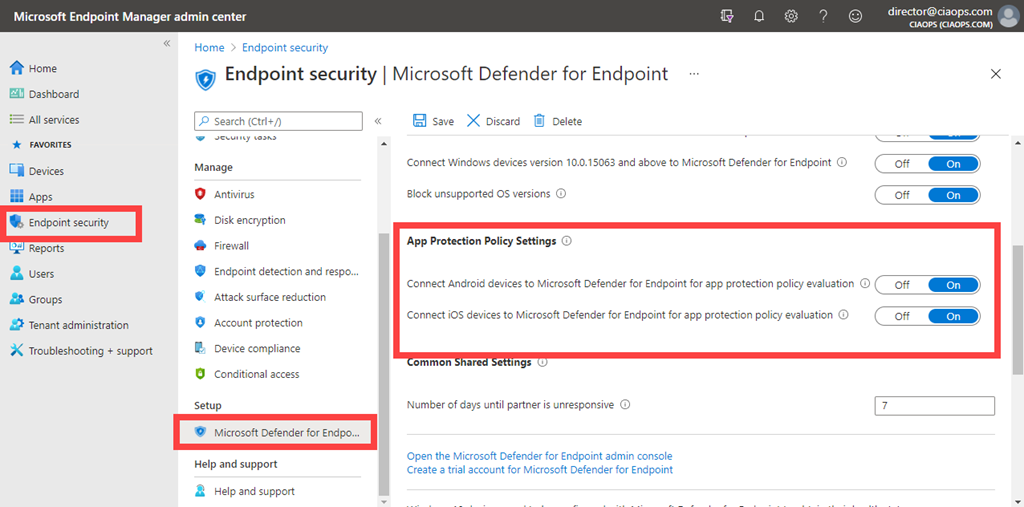
Navigate to https://endpoint.microsoft.com and select Endpoint security from the menu on the left as shown above.
Then select Attack surface reduction from the options that appear on the right as shown above.

Select Create policy.
Select Platform as Windows 10 and later as shown.
Select Profile as Device Control as shown.
Select Create in the bottom right.
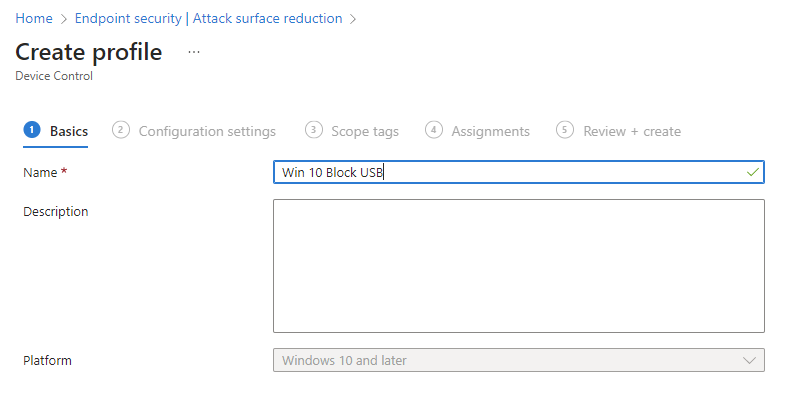
Give the policy a meaningful name and description.
Select Next to continue.

Under the System > Device Installation > Device Installation Restrictions heading locate the Prevent installation of removable devices item and set this to Enabled as shown above.
Select Next to continue.

Scroll down the list of available settings to locate the Device Control section as shown. To prevent ANY new USB from installing ensure this option is set to Not configured.
Select Next to continue.
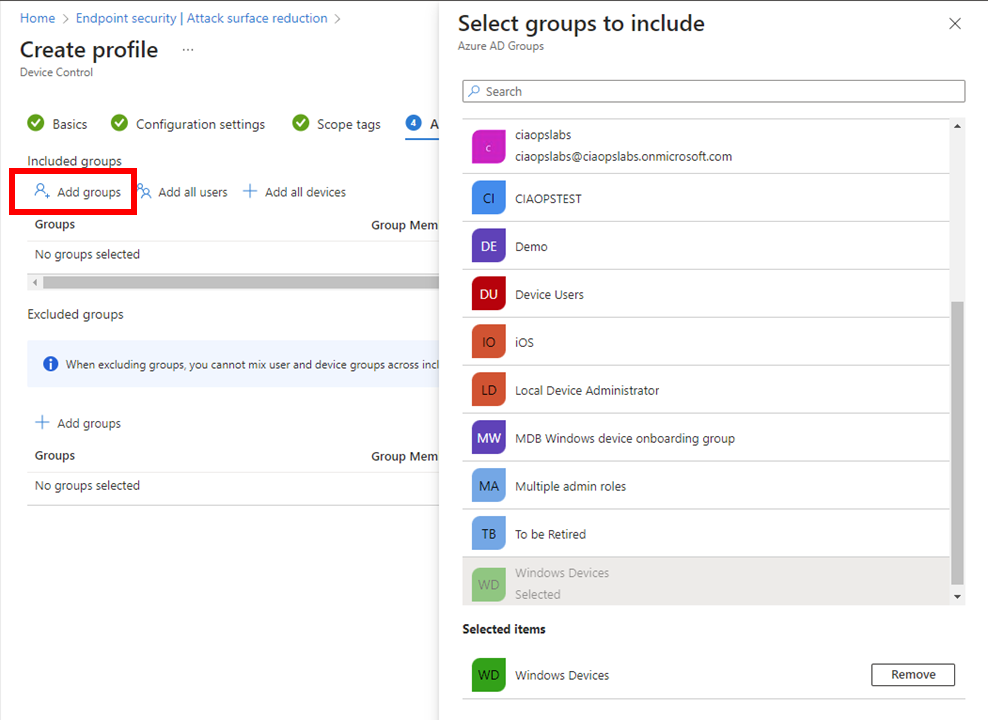
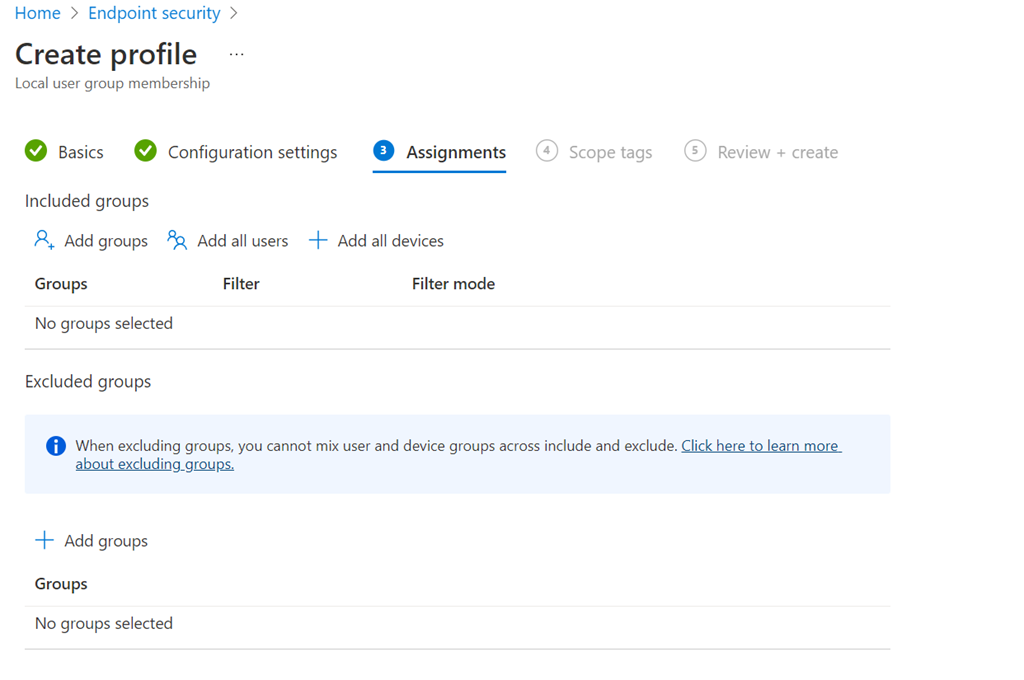
Assign the policy to a group. Here it is being assigned to all Windows devices.
Select Next to continue.

On the summary screen, expand the Administrative Templates option as shown. In here you should see that Prevent installation of removable devices is set to Enabled.
Select Create.

The created policy should now be listed as shown above. Click on it to view.

When the policy has been successfully applied to the devices the policy was assigned to you should see the status of devices as shown above.
Select View report button.

You should now see all the listed that have this policy applied to them as shown above.

If you now try and plug in an unknow USB storage device you may see the above warning. In other cases, you will see no warning but USB device storage will be blocked.
Some points to remember:
1. The above policy is only designed for Windows 10 and above
2. The above policy won’t prevent USB storage devices that have already been used on an endpoint. These need to be removed from the device manager on the device to be blocked in future.
3. Some USB devices that don’t appear as storage devices in fact have a small amount of storage on them (for video and projector drivers for example). These will also be blocked.
4. You can create exceptions to this policy via the device id if you wish.


 CIAOPS