Small and medium businesses (SMBs) with remote employees have shifted from a single “office network” model to a Zero Trust model. Microsoft 365 Business Premium (BPP) already includes extensive security layers – identity protection, device management, email scanning, and endpoint defenselearn.microsoft.comlearn.microsoft.com. With those controls fully configured, the traditional on-premises network perimeter (and thus an expensive firewall appliance) becomes far less critical. In practice, a standard router/NAT firewall combined with Windows/macOS built‑in firewalls and M365’s cloud protections can cost‑effectively secure a remote SMB. We explain how M365 BPP’s features cover typical firewall functions, and when a dedicated firewall (beyond a basic one) may not be needed.
Built-In Security in Microsoft 365 Business Premium
Microsoft 365 Business Premium bundles multiple security layers: endpoint protection, identity/access controls, device management, and more. Key built‑in features include:
Endpoint Security – Microsoft Defender for Business (included) provides next‑gen antivirus, threat detection/response and a host firewall on each devicelearn.microsoft.comlearn.microsoft.com. Devices (Windows, macOS, iOS, Android) get managed protection against ransomware, malware and network attacks.
Email and App Protection – Defender for Office 365 Plan 1 (included) scans email attachments and links for malware and phishing. Safe Links/Safe Attachments help stop threats before they reach userslearn.microsoft.com.
Identity and Access (Zero Trust) – Azure AD Premium P1 (included) enables Conditional Access policies and mandatory multi-factor authenticationmicrosoft.comlearn.microsoft.com. Only compliant, enrolled devices can access company resources, and admins/devices are always re‑authenticated.
Device Management – Microsoft Intune can enforce security policies on all devices: requiring device encryption (BitLocker), patching, endpoint firewalls, and even configuring VPN or Wi‑Fi profileslearn.microsoft.comlearn.microsoft.com. In short, Intune ensures every device meets the company’s security baseline before it connects.
Secure Remote Access – Azure AD Application Proxy (via Azure AD P1) publishes any on‑premises app through Azure AD, so remote users can reach internal resources without opening inbound firewall portssherweb.com. This often replaces a VPN or on‑site reverse proxy, making remote access simpler and safer.
These built-in layers cover most attack vectors. For example, M365 BPP’s Defender for Business includes a managed host-based firewall and web filtering, so each laptop is protected on any networklearn.microsoft.com. And Conditional Access can block sign-ins from unsecured locations or unregistered devices, effectively extending the network perimeter to only trusted endpoints.
Zero Trust and Remote Work
In a modern SMB, employees “can work anywhere,” so the old model of trusting the office LAN no longer applies. As Microsoft describes, traditional protections rely on firewalls and VPNs at fixed locations, whereas Zero Trust assumes no network is inherently safelearn.microsoft.com. Every sign-in is verified (via Azure AD) and every device is checked (via Intune) no matter where the user is.
In this diagram, a corporate firewall on the left no longer suffices when employees roam (right side)learn.microsoft.com. With Business Premium, identity and device policies take over: multifactor authentication and Conditional Access ensure only known users on compliant devices connectlearn.microsoft.commicrosoft.com. In effect, the organization’s “perimeter” is the cloud. Remote workers authenticate directly to Azure/Office 365 and receive Microsoft’s protection (e.g. encrypted tunnels, safe browser checks), rather than passing first through an on‑site firewall.
Host-Based Firewalls and Device Security
Even without a hardware firewall, devices must protect themselves on untrusted networks. All common operating systems include a built‑in firewall. Enabling these host firewalls is free and highly effective – many MSP guides advise turning on Windows Defender Firewall (and macOS’s) on every device before even buying a hardware applianceguardianangelit.com. Microsoft Defender for Business not only installs antivirus but can manage each device’s firewall settings: for instance, Intune can push a profile that blocks all inbound traffic except essential serviceslearn.microsoft.com.
By treating each endpoint as its own secured “network edge,” an SMB covers the user’s connection in coffee shops or home Wi‑Fi. For example, if a user’s laptop is on public Wi‑Fi, the Windows firewall (enforced by Defender policies) stops inbound attacks, while Defender’s web protection filters malicious sites. This layered endpoint approach (antivirus+EDR + host firewall + encrypted disk) significantly shrinks the need for a central firewall inspecting all traffic.
Network Perimeter and When to Use Firewalls
If an SMB still maintains an office or data closet, some firewall or router will normally be used for basic perimeter functions (NAT, DHCP, segmentation of guest networks, etc.). However, the level of firewall needed is typically minimal. A basic managed router or inexpensive UTM is often enough to separate IoT/guest Wi-Fi from internal staff, and to enforce outbound rules. Beyond that, heavy enterprise firewalls yield little benefit in a predominantly cloud-centric setup.
For remote-heavy SMBs, many experts suggest zero-trust access (e.g. VPN, ZTNA) instead of relying on office hardware. ControlD’s SMB security checklist, for instance, recommends ensuring VPN or Zero-Trust Network Access for remote employees, rather than expecting them to route through the office firewallcontrold.com. In other words, with cloud apps and M365-managed devices, the on‑site firewall sees only its local subnet – almost all work and threats are already handled by Microsoft’s cloud services and endpoint defenses.
Configuring M365 Business Premium as Your “Firewall”
A Business Premium tenant can be tuned to cover typical firewall functions:
Enroll and Update All Devices: Use Intune (part of BPP) to enroll every company device (Windows, Mac, mobile) and onboard them to Defender for Businesslearn.microsoft.comlearn.microsoft.com. Ensure full disk encryption (BitLocker/FileVault), automatic OS updates, and Defender real‑time protection are all enabled.
Enforce Host Firewalls: Create an Intune endpoint security policy that turns on Windows Defender Firewall for all profiles (Domain/Private/Public) and disables unnecessary inbound rulesguardianangelit.comlearn.microsoft.com. Similarly, enable the macOS firewall via Intune configuration. This ensures devices block unwanted network traffic by default.
Enable Multi-Factor Authentication & Conditional Access: Turn on Azure AD security defaults or define Conditional Access policies so that every login requires MFA and checks device compliancelearn.microsoft.commicrosoft.com. You can restrict access by device state or location, preventing unknown devices from even reaching company apps.
Protect Email and Apps: Activate Defender for Office 365 (Plan 1) to scan all incoming email and Teams messages. Safe Links/Attachments in Office documents serve as an additional layer that no firewall can providelearn.microsoft.com.
Use Application Proxy for Internal Apps: If you have any on-premises servers, install the Azure AD Application Proxy connector. This publishes apps (e.g. intranet, CRM) through Azure without punching holes in your firewallsherweb.com. Remote users then access the app via Azure AD login, with no need to maintain a VPN or open router ports.
Monitor and Respond: Use Microsoft 365 Defender’s security portal (included) to monitor alerts. Its threat analytics will flag unusual traffic or sign-ins. Automated investigation and remediation in Defender for Business can contain a threat on a device before it spreads.
Network-Level Protections (Optional): For extra DNS- or web-filtering, an SMB might add services like Microsoft Defender SmartScreen (built into Edge/Windows) or a cloud DNS filter. These complement – but don’t replace – the firewall; they block malicious domains at the device level.
In this configuration, each device and identity becomes a control point. The M365 stack effectively sits in front of your data, rather than hardware at the network perimeter.
Cost vs. Benefit of Dedicated Firewalls
Without regulatory mandates, a high-end firewall appliance is often not cost-justified for an SMB fully on M365. The hardware itself and ongoing subscriptions (threat feeds, VPN licenses, maintenance) add significant cost. Given that M365 Business Premium already provides next-generation protection on endpoints and enforces secure access, the marginal security gain from a $2k+ firewall is small for remote-centric SMBs.
That said, a simple firewall/router is still recommended for the office LAN. It can provide:
Basic NAT/segmentation: Separating staff devices from guest or IoT VLANs.
VPN termination (if needed): A site‑to‑site VPN or point‑to‑site gateway for branch offices or legacy systems (though Azure VPN with Azure AD is an alternative).
On‑prem device connectivity: If on-premises servers exist, the firewall can regulate incoming traffic.
For example, installing Azure AD Application Proxy (no cost beyond BPP license) often removes the need to expose an on‑site port for remote accesssherweb.com. Similarly, if home users connect via secure VPN with M365 credentials, the corporate firewall is bypassed by design.
In contrast, host-based security and cloud controls cover most threats: phishing and remote intrusion are handled by Defender and MFA, malware is stopped at the device, and data exfiltration is controlled by identity and DLP settings. As one MSP guide notes, for small businesses the built-in OS firewalls should be used before investing in hardware firewallsguardianangelit.com. In practice, the total protective overlap from Intune+Defender+Conditional Access can eliminate many risks that a hardware firewall is meant to address.
Conclusion
For a typical SMB with Microsoft 365 Business Premium fully enabled, the need for an expensive dedicated firewall is greatly reduced. M365 BPP delivers comprehensive security – endpoint protection, email filters, and zero-trust access – that, when properly configured, cover most attack vectorslearn.microsoft.comlearn.microsoft.com. A basic network firewall (even the one built into a router) is useful for simple segmentation, but beyond that most protections are handled by Microsoft’s cloud services and host firewalls. In short, by leveraging Business Premium’s features (Defender, Intune, Azure AD P1, etc.), an SMB can safely rely on default and cloud-managed defenses rather than purchasing a high-end firewall applianceguardianangelit.comsherweb.com.
In today’s security landscape, it’s not uncommon for organizations to run Microsoft Defender for Business (the business-oriented version of Microsoft Defender Antivirus, part of Microsoft 365 Business Premium) alongside other third-party antivirus (AV) solutions. Below, we provide a detailed report on how Defender for Business operates when another AV is present, how to avoid conflicts between them, and why it’s important to keep Defender for Business installed on devices even if you use a second AV product.
How Defender for Business Interacts with Other Antivirus Solutions
Microsoft Defender for Business is designed to coexist with other antivirus products through an automatic role adjustment mechanism. When a non-Microsoft AV is present, Defender can detect it via the Windows Security Center and adjust its operation mode to avoid conflicts[1]. Here’s how this interaction works:
Active vs. Passive vs. Disabled Mode: On Windows 10 and 11 clients, Defender is enabled by default as the active antivirus unless another AV is installed[1]. If a third-party AV is installed and properly registered with Windows Security Center, Defender will automatically switch to disabled or passive mode[1][1]. In Passive Mode, Defender’s real-time protection and scheduled scans are turned off, allowing the third-party AV to be the primary active scanner[2][1]. (Defender’s services continue running in the background, and it still receives updates[2], but it won’t actively block threats in real-time so long as another AV is active.) If no other AV is present, Defender stays in Active Mode and fully protects the system by default.
🔎 Note: In Windows 11, the presence of certain features like Smart App Control can cause Defender to show “Passive” even without Defender for Business, but this is a special case. Generally, passive mode is only used when the device is onboarded to Defender for Endpoint/Business and a third-party AV is present[1][1].
Detection of Third-Party AV: Defender relies on the Windows Security Center service (also known as the Windows Security Center (wscsvc)) to detect other antivirus products. If the Security Center service is running, it will recognize a third-party AV and signal Defender to step back[1]. If this service is disabled or broken, Defender might not realize another AV is installed and will remain active, leading to two AVs running concurrently – an undesirable situation[1]. It’s crucial that Windows Security Center remains enabled so that Defender can correctly detect the third-party AV and avoid conflict[1].
Passive Mode Behavior: When Defender for Business is in passive mode (device onboarded to Defender and another AV is primary), it stops performing active scans and real-time protection, handing those duties to the other AV[2]. The Defender Antivirus user interface will indicate that another provider is active, and it will grey out or prevent changes to certain settings[2]. In passive mode, Defender still loads its engine and keeps its signatures up to date, but it does not remediate threats in real-time[2]. Think of it as running quietly in the background: it collects sensor data for Defender for Business (for things like Endpoint Detection and Response), but lets the other AV handle immediate threat blocking.
EDR and Monitoring in Passive Mode: Even while passive, Defender for Business’s endpoint detection and response (EDR) component remains functional. The system continues to monitor behavior and can record telemetry of suspicious activity. In fact, Microsoft Defender’s EDR can operate “behind the scenes” in passive mode. If a threat slips past the primary AV, Defender’s EDR may detect it and, if EDR in block mode is enabled, can step in to block or remediate the threat post-breach[1][1]. In security alerts, you might even see Defender listed as the source that blocked a threat, even though it was in passive mode, thanks to this EDR capability[1]. This highlights how Defender for Business continues to add value even when not the primary AV.
On Servers: Note that on Windows Server, Defender does not automatically enter passive mode when a third-party AV is installed (unless specific registry settings are configured)[1][1]. On servers that are onboarded to Defender for Endpoint/Business, you must manually set a registry key (ForceDefenderPassiveMode=1) before onboarding if you want Defender to run passive alongside another AV[1]. Otherwise, you risk having two active AVs on a server (which can cause conflicts), or you may choose to uninstall or disable one of them. Many organizations running third-party AV on servers will either disable Defender manually or set it to passive via policy to prevent overlap[1]. The key point: on clients, the process is mostly automatic; on servers, it requires admin action to configure passive mode.
In summary, Defender for Business is smart about coexisting with other AVs. It uses Windows’ built-in security framework to detect other security products and will yield primary control to avoid contention. By entering passive mode, it ensures your third-party AV can do its job without interference, while Defender continues to run in the background (for updates, EDR, and as a backup). This design provides layered security: you get the benefits of your chosen AV solution and still retain Defender’s visibility and advanced threat detection capabilities in the Microsoft 365 Defender portal.
Common Conflicts When Running Multiple Antivirus Programs
Running two antivirus solutions concurrently without proper coordination can lead to a number of issues. If misconfigured, multiple AVs can interfere with each other and degrade system performance, undermining the security they’re meant to provide. Here are some common conflicts and problems that occur when Defender and a third-party AV operate simultaneously (both in active scanning mode):
High CPU and Memory Usage: Two real-time scanners running at the same time can put a heavy load on system resources. Each will try to scan files as they are accessed, often both scanning the same files. This double-scanning leads to excessive CPU usage, disk I/O, and memory consumption. Users may experience slowdowns, applications taking much longer to open, or the entire system becoming sluggish. In some cases observed in practice, running multiple AV engines caused systems to nearly freeze or become unresponsive due to the constant competition for scanning every file (each thinking the other’s file operations might be malicious)[3][4].
System Instability and Crashes: Beyond just slowness, having two AVs can result in software conflicts that crash one or both of them (or even crash Windows). For example, one AV might hook into the file system to intercept reads/writes, and the second AV does the same. These low-level “hooks” can conflict, potentially causing errors or blue-screen crashes. It’s not uncommon for conflicts between antivirus drivers to lead to system instability, especially if they both try to quarantine or lock a file at the same time[3]. Essentially, the products trip over each other – one might treat the other’s actions as suspicious (a kind of false positive scenario where each thinks “Why is this other process modifying files I’m scanning?”).
False Positives on Each Other: AV programs maintain virus signature databases and often store these in definition files or quarantine folders. A poorly configured scenario could have Defender scanning the other AV’s quarantine or signature files, mistakenly flagging those as malicious (since they contain malware code samples in isolation). Likewise, the third-party AV might scan Defender’s files and flag something benign. Without proper exclusions (discussed later), antivirus engines can identify the artifacts of another AV as threats, leading to confusing alerts or even deleting/quarantining each other’s files.
Competition for Remediation: If a piece of malware is detected on the system, two active AVs might both attempt to take action (delete or quarantine the file). Best case, one succeeds and the other simply reports the file missing; worst case, they lock the file and deadlock, or one restores an item the other removed (thinking it was a necessary system file). This tug-of-war can result in incomplete malware removal or error messages. Conflicting remediation attempts can potentially leave a threat on the system if neither AV completes the cleanup properly due to interference.
User Experience Issues: With two AVs, users might be bombarded by duplicate notifications for the same threat or update. For instance, both Defender and the third-party might pop up “Virus detected!” alerts for the same event. This can confuse end users and IT admins – which one actually handled it? Did both need to be involved? It complicates the support scenario.
Overall Protection Gaps: Ironically, having two AV solutions can reduce overall protection if they conflict. They might each assume the other has handled a threat, or certain features might turn off. For example, earlier versions of Windows Defender (pre-Windows 10) would completely disable if another AV was installed, leaving only the third-party active. If that third-party were misconfigured or expired, and Defender stayed off, the system could be left exposed. Even with passive mode, if something isn’t set right (say Security Center didn’t register the third-party), you could end up with one AV effectively off and the other not fully on either. Misunderstandings of each product’s state could create an unexpected gap where neither is actively protecting as intended.
In short, running two full antivirus solutions in parallel without coordination is not recommended. As one internal cybersecurity memo succinctly put it, using multiple AV programs concurrently can “severely degrade system performance and stability” and often “reduces overall protection efficacy” due to conflicts[3]. The goal should be to have a primary AV and ensure any secondary security software (like Defender for Business in passive mode) is configured in a complementary way, not competing for the same role.
Best Practices to Avoid Conflicts Between Defender and Other AVs
To safely leverage Microsoft Defender for Business alongside another antivirus, you need to configure your environment so that the two solutions cooperate rather than collide. Below are the key steps and best practices to achieve this and prevent conflicts:
Allow Only One Real-Time AV – Rely on Passive Mode:Ensure that only one antivirus is actively performing real-time protection at a time. With Defender present, the simplest approach is to let the third-party AV be the active (primary) protection, and have Microsoft Defender in passive mode (if using Defender for Business/Endpoint). This happens automatically on Windows 10/11 clients when the device is onboarded to Defender for Business and a non-Microsoft AV is detected[1]. You should verify in the Windows Security settings or via PowerShell (Get-MpComputerStatus) that Defender’s status is “Passive” (or “No AV active” if third-party is seen as active in Security Center) on those devices. Do not attempt to force both to be “Active”. (On Windows 10/11, Defender will normally disable itself automatically when a third-party is active, so just let it do so. On servers, see the next step.) The bottom line: pick one AV to be the primary real-time scanner – running two concurrently is not supported or advised[1].
Configure Passive Mode on Servers (or Disable One): On Windows Server systems, manually configure Defender’s mode if you plan to run another AV. Windows Server won’t auto-switch to passive mode just because another AV is installed[1]. Thus, before installing or enabling a third-party AV on a server that’s onboarded to Defender for Business, set the registry key to force passive mode:\ HKLM\SOFTWARE\Policies\Microsoft\Windows Advanced Threat Protection\ForceDefenderPassiveMode = 1 (DWORD)[1].\ Then onboard the server to Defender for Business. This ensures Defender Antivirus runs in passive mode (so it won’t actively scan) even while the other product is active. If you skip this, you might end up with Defender still active alongside the other AV on a server, which can cause conflicts. Alternatively, some admins choose to completely uninstall or disable Defender on servers when using a third-party server AV, to avoid any chance of conflict[1]. Microsoft allows Defender to be removed on Windows Server if desired (via removing the Windows Defender feature)[1], but if you do this, make sure the third-party is always running and up to date, and consider the trade-off (losing Defender’s EDR on that server). In summary, for servers: explicitly set Defender to passive or uninstall it – don’t leave it in an ambiguous state.
Keep the Windows Security Center Service Enabled: As noted, the Windows Security Center (WSC) is the broker that tells Windows which antivirus is active. Never disable the Security Center service. If it’s turned off, Windows cannot correctly recognize the third-party AV, and Defender will not know to go passive – resulting in both AVs active and conflicting[1]. In a warning from Microsoft’s documentation: if WSC is disabled, Defender “can’t detect third-party AV installations and will stay Active,” leading to unsupported conflicts[1]. So, ensure group policies or scripts do not disable or tamper with wscsvc. In troubleshooting scenarios, if you find Defender and a third-party AV both active, check that the Security Center is running properly.
Apply Mutual Exclusions (Whitelist Each Other): To avoid the problem of AVs scanning each other’s files or quarantines, it’s wise to set up exclusions on both sides. In your third-party AV’s settings, add the recommended exclusions for Microsoft Defender Antivirus (for example, exclude %ProgramFiles%\Windows Defender or specific Defender processes like MsMpEng.exe)[1]. This prevents the third-party from mistakenly flagging Defender’s components. Likewise, ensure Defender (when active or even during passive periodic scans) excludes the other AV’s program folders, processes, and update directories. Many enterprise AV solutions publish a list of directories/processes to exclude for compatibility. Following these guidelines will reduce unnecessary friction – each AV will essentially ignore the other. Microsoft’s guidance specifically states to “Make sure to add Microsoft Defender Antivirus and Microsoft Defender for Endpoint binaries to the exclusion list of the non-Microsoft antivirus solution”[1]. Doing so means, even if a periodic scan occurs, the AVs won’t scan each other.
Disable Redundant Features to Prevent Overlap: Modern antivirus suites often include more than just file scanning – they might have their own firewall, web filtering, tamper protection, etc. Consider turning off overlapping features in one of the products to avoid confusion. For instance, if your third-party AV provides a firewall that you enable, you might keep the Windows Defender Firewall on or off based on support guidance (usually it’s fine to keep Windows Firewall on alongside, but not two third-party firewalls). Similarly, both Defender and some third-party AVs have ransomware protection (Controlled Folder Access in Defender, versus the third-party’s module). Running both ransomware protection modules might cause legitimate app blocks. Decide which product’s module to use. Coordinate things like exploit prevention or email protection – if you have Defender for Office 365 filtering email, maybe you don’t need the third-party’s Outlook plugin scanning attachments too (or vice versa). The goal is to configure a complementary setup, where each tool covers what the other does not, rather than both doing the same job twice.
Keep Both Solutions Updated: Even though Defender is in passive mode, do not neglect updating it. Microsoft Defender will continue to fetch security intelligence updates (malware definitions) and engine updates via Windows Update or your management tool[2]. Ensure your systems are still getting these. The reason is twofold: (a) if Defender needs to jump in (say the other AV is removed or a new threat appears), it’s armed with current definitions; and (b) the Defender EDR sensors use the AV engine to some extent for analysis, so having the latest engine version and definitions helps it recognize malicious patterns. Similarly, of course, keep the third-party AV fully updated. In short, update both engines regularly so that no matter which one is protecting or monitoring, it’s up to date with the latest threat intelligence. This also means maintaining valid licenses/subscriptions for the third-party AV – if it expires, Defender can take over, but it’s best not to have lapse periods.
Optionally Enable Periodic Scanning by Defender: Windows 10 and 11 have a feature called “Periodic scanning” (also known as Limited Periodic Scanning) where, even if another antivirus is active, Microsoft Defender will perform an occasional quick scan of the system as a second opinion. This is off by default in enterprise when another AV is registered, but an administrator can enable it via Windows Security settings or GPO. In passive mode specifically, scheduled scans are generally disabled (ignored)[1]. However, Windows has a fallback mechanism: by default, every 30 days Defender will do a quick scan if it’s installed (this is the “catch-up scan” default)[1]. If you want this added layer of assurance, you can leave that setting. If you do not want Defender doing any scanning at all (to fully avoid even periodic performance impact), you can disable these catch-up scans via policy[1]. Many organizations actually leave it as is, so that if the primary AV missed something for a while, Defender might catch it during a monthly scan. This periodic scanning is a lightweight safeguard – it shouldn’t conflict because it’s infrequent and by design it runs when the PC is idle. Just be aware of it; tune or disable it via group policy if your third-party vendor recommends turning it off.
By following the above steps, you ensure that Defender for Business and your third-party antivirus operate harmoniously: one provides active protection, the other stands by with auxiliary protection and insight. Properly configured, you won’t suffer slowdowns or weird conflicts, and you’ll still reap security benefits from both solutions.
Ensuring Continuous Protection and Real-Time Security
A major concern when using two security solutions is preserving continuous real-time protection – you want no gaps in coverage. With one AV in passive mode, how do you ensure the system is still protected at all times? Let’s clarify how Defender for Business works in tandem with a primary AV to maintain solid real-time defense:
Primary AV Handles Real-Time Scanning: In our scenario, the third-party AV is the primary real-time defender. It will intercept file events, scan for malware, and block threats in real-time. As long as it’s running normally, your system is actively protected by that AV. Microsoft Defender, being in passive mode, will not actively scan files or processes (it’s not duplicating the effort)[2]. This means no double-scanning overhead and no contention – the third-party product is in charge of first-line protection.
Microsoft Defender’s EDR Watches in the Background: Even though Defender’s anti-malware component is passive, its endpoint detection and response capabilities remain at work. Microsoft Defender for Business includes the same kind of EDR as Defender for Endpoint. This EDR works by analyzing behavioral signals on the system (for example, sequences of process executions, script behavior, registry changes that might indicate an attack in progress). Defender’s EDR operates continuously and is independent of whether Defender is the active AV or not[1][1]. So, while your primary AV might catch known malicious files, Defender’s EDR is observing patterns and can detect more subtle signs of an attack (like file-less malware or attacker techniques that don’t drop classic virus files).
EDR in Block Mode – Stopping What Others Miss: If you have enabled EDR in block mode (a feature in Defender for Endpoint/Business), Microsoft’s EDR will not just alert on suspicious activity – it can take action to contain the threat, even when Defender AV is passive. For example, suppose a piece of malware that wasn’t in the primary AV’s signature database executes on the machine. It starts exhibiting ransomware-like behavior (mass file modifications) or tries to inject into system processes. Defender’s EDR can detect this malicious behavior and step in to block or quarantine the offending process[1][1]. This is done using Defender’s antivirus engine in the background (“passive mode” doesn’t mean completely off – it can still kill a process via EDR). In such a case, you might see an alert in the Microsoft 365 Defender portal that says “Threat remediated by Microsoft Defender Antivirus (EDR block mode)” even though your primary AV was active. EDR in block mode essentially provides a safety net: it addresses threats that slip past traditional antivirus defenses, leveraging the behavioral sensors and cloud analysis. This ensures that real-time protection isn’t solely reliant on file signatures – advanced attacks can be stopped by Defender’s cloud-driven intelligence.
Automatic Fallback if Primary AV Fails: Another aspect of continuous protection is what happens if the primary AV is for some reason not running. Microsoft has designed Defender to act as a fail-safe. If the third-party AV is uninstalled or disabled (intentionally or by malware), Defender will sense the change via Security Center and can automatically switch from passive to active mode[1]. For instance, if an attacker tries to turn off your third-party antivirus, Windows will notice there’s no active AV and will re-activate Microsoft Defender Antivirus to ensure the machine isn’t left defenseless[1]. This is hugely important – it means there’s minimal gap in protection. Defender will pick up the real-time protection role almost immediately. (It’s also a reason to keep Defender updated; if it has to step in, you want it current.) So, whether due to a lapsed AV subscription, a user error, or attacker sabotage, Defender is waiting in the wings to auto-enable itself if needed.
Real-Time Cloud Lookups: Both your primary AV and Defender (in passive) likely use cloud-based threat intelligence for blocking brand new threats (Defender calls this Cloud-Delivered Protection or Block at First Sight). In passive mode, Defender’s cloud lookup for new files is generally off (since it’s not actively scanning)[1]. However, if EDR block mode engages or if you run a manual or periodic scan, Defender will utilize the cloud query to get the latest verdict on suspicious items. Meanwhile, your primary AV might have its own cloud lookup. Make sure that feature is enabled on the primary AV for maximum real-time efficacy. Defender’s presence doesn’t impede that.
Attack Surface Reduction and Other Preventive Policies: Some security features of Defender (like Attack Surface Reduction rules, controlled folder access, network protection, etc.) only function when Defender AV is active[1]. In passive mode, those specific Defender enforcement features are not active (since the assumption is that similar protections might be provided by the primary AV). To ensure you have similar real-time hardening, see if your third-party solution offers equivalents: e.g., exploit protection, web filtering, ransomware protection. If not, consider whether you actually want Defender to be the one providing those (which would require it to be active). We’ll cover these features more in the next section, but the key is: real-time protection is a combination of antivirus scanning and policy-based blocking of behaviors. With Defender passive, you rely on the third-party for those preventative controls or accept the risk of not having them active.
In essence, you maintain continuous protection by leveraging the strengths of both products: the third-party AV actively stops known threats, and Defender for Business supplies a second layer of defense through behavior-based detection and instant backup protection if the first layer falters. Done correctly, this hybrid approach can actually improve security – you have two sets of eyes (engines) on the system in different ways, without the two stepping on each other’s toes. The key is that Microsoft has built Defender for Endpoint/Business to augment third-party AV, not compete with it, thereby ensuring there’s no lapse in real-time security.
Additional Features and Benefits Defender for Business Provides (That Others Might Not)
Microsoft Defender for Business is more than just an antivirus scanner. It’s a whole platform of endpoint protection capabilities that can offer layers of defense and insight that some third-party AV solutions (especially basic or legacy ones) might lack. Even if you have another AV in place, keeping Defender for Business on your devices means you can leverage these additional features:
Endpoint Detection and Response (EDR): As discussed, Defender brings enterprise-grade EDR to your devices. Many traditional AVs (especially older or consumer-grade ones) focus on known malware and maybe some heuristic detection. Defender’s EDR, however, looks for anomalies and tactics often used by attackers (credential theft attempts, suspicious PowerShell usage, persistence mechanisms, etc.). It can then alert or automatically respond. This kind of capability is often missing in standalone AV products or only present in their premium enterprise editions. With Defender for Business (included in M365 Business Premium), you get EDR capabilities out-of-the-box[5], which is a big benefit for detecting advanced threats like human-operated ransomware or nation-state style attacks that evade signature-based AV.
Threat & Vulnerability Management (TVM): Defender for Business includes threat and vulnerability management features[5]. This means the system can assess your device’s software, configuration, and vulnerabilities and report back a risk score. For example, it might tell you that a certain machine is missing a critical patch or has an outdated application that attackers are exploiting, giving you a chance to fix that proactively. Third-party AV solutions typically do not provide this kind of IT hygiene or vulnerability mitigation guidance.
Attack Surface Reduction (ASR) Rules: Microsoft Defender has a set of ASR rules – special policies that block high-risk behaviors often used by malware. Examples include: blocking Office macros from creating executable content, blocking processes from injecting into others, or preventing scripts from launching downloaded content. These are powerful mitigations against zero-day or unknown threats. However, ASR rules only work when Defender Antivirus is active (or at least in audit mode)[1]. If Defender is passive, its ASR rules aren’t enforced. Some third-party security suites have analogous features (like “Exploit Guard” or behavior blockers), but not all do. By having Defender installed, you at least have the option to enable ASR rules if you decide to pivot Defender to active, or you can use Defender in a testing capacity to audit those rules. It’s worth noting that ASR rules have been very effective at blocking ransomware and script-based attacks in many cases – a capability you might be missing if you rely solely on a basic AV.
Cloud-Delivered Protection & ML: Defender leverages Microsoft’s cloud protection service which employs machine learning and enormous threat intelligence to make split-second decisions on new files (the Block at First Sight feature)[1]. When active, this can detect brand-new malware within seconds by analyzing it in the cloud. If your third-party AV doesn’t have a similar cloud analysis, having Defender available (even if passive) means Microsoft’s cloud brains are just a switch away. In fact, if you run a manual scan with Defender (even while it’s passive for real-time), it will use the cloud lookups to identify new threats. Microsoft’s threat researchers and AI constantly feed Defender new knowledge – by keeping it on your device, you tap into an industry-leading threat intelligence network. (Microsoft’s Defender has been a top scorer in independent AV tests for detection rates, largely thanks to this cloud intelligence.)[1]
Network Protection and Web Filtering: Defender for Endpoint/Business includes Network Protection, which can block outbound connections to dangerous domains or restrict scripts like JavaScript from accessing known malicious URLs[1]. It also offers Web Content Filtering categories (through Defender for Endpoint) to block certain types of web content enterprise-wide. These features require Defender’s network interception to be active; if Defender AV is fully passive, network protection won’t function[1]. But some third-party antiviruses don’t offer network-layer blocking at all. If Defender is installed, you could potentially enable web filtering for your users (note: works fully when Defender is active; in passive, you’d rely on the primary AV’s web protection, if any). Also, SmartScreen integration: Defender works with Windows SmartScreen to block phishing and malicious downloads. Keeping Defender means SmartScreen gets more signal (like reputation info) — for instance, Controlled Folder Access and network protection events can feed into central reporting when Defender is present[1].
Controlled Folder Access (CFA): This is Defender’s anti-ransomware file protection. It prevents untrusted applications from modifying files in protected folders (like Documents, Desktop). CFA is a last-resort shield; if ransomware slips by, it tries to stop it from encrypting your files. Like ASR, CFA only works with Defender active[1]. Many third-party AVs have their own anti-ransomware modules – if yours does, great, you have that protection. If not, know that CFA is available with Defender. Even if you run Defender passive daily, you might choose to temporarily enable Controlled Folder Access if you feel a spike in risk (or run Defender active on a subset of high-risk machines). Just having that feature on the system is a plus.
Integration with Microsoft 365 Ecosystem: Defender for Business integrates with other Microsoft 365 security components – like Defender for Office 365 (for email/phish protection), Azure AD Identity Protection, and Microsoft Cloud App Security. Alerts can be correlated across email, identity, and endpoint. For example, if a user opens a malicious email attachment that third-party AV didn’t flag, Defender’s sensor might detect suspicious behavior on the endpoint and the portal will tie it back to that email (if using 365). Microsoft’s security stack is designed to work together, so having at least the endpoint piece (Defender) present means you’ll get better end-to-end visibility. Third-party AVs often operate in a silo – you’d have to manually correlate an endpoint alert with an email, etc. The unified Microsoft 365 Defender portal will show incidents that combine signals from Defender for Business, making investigation and response more efficient for your IT team.
Centralized Logging and Audit: Defender provides rich audit logs of what it’s doing. If it’s active, it logs every detection, scan, or block in the Windows event logs and reports to the central console. Importantly, even in passive mode, it can report detection information (like if it sees a threat but doesn’t remediate, that info can still be sent to the portal, flagged as “not remediated by AV”). There’s also a note that certain audit events only get generated with Defender present[1]. For instance, tracking the status of AV signature updates on each machine – if Defender is absent, your ability to audit AV health via Microsoft tools might be limited. With Defender installed, Intune or the security portal can report on AV signature currency, regardless of third-party (assuming the third-party reports to Security Center, it may show up there too, but it’s often not as seamless). So for compliance and security ops, Defender ensures you have a baseline of telemetry and logs from the endpoint.
Automated Investigation and Remediation: Defender for Business (Plan 2 features) includes automated investigation capabilities. When an alert is raised (say by EDR or an AV detection), the system can automatically investigate the scope (checking for related evidence on the machine) and even remediate artifacts (like remove a file, kill processes) without waiting for admin intervention. Some third-party enterprise solutions do have automatic remediation, but if yours doesn’t, Defender’s presence means you can utilize this automation to contain threats faster. For example, if a suspicious file is found on one machine, Defender can automatically scan other machines for that file. This is part of the “XDR” (Extended Detection and Response) approach Microsoft uses. It’s an advantage of keeping Defender: you’re effectively adding an agent that can take smart actions across your environment driven by cloud intelligence.
Device Control (USB control): Defender allows for policies like blocking USB drives or only allowing authorized devices (through Intune endpoint security policies). It’s a capability tied into the Defender platform. If you need that kind of device control and your other AV doesn’t provide it, Defender’s agent can deliver those controls (even if the AV scanning part is passive).
In summary, Defender for Business offers a suite of advanced security features – from behavioral blocking, vulnerability management, to deep integration – that go beyond file scanning. Many third-party solutions aimed at SMBs are essentially just antivirus/anti-malware. By keeping Defender deployed, you ensure that you’re not missing out on these advanced protections. Even if you’re not using all of them while another AV is primary, you have the flexibility to turn them on as needed. And critically, if your third-party AV lacks any of these defenses, Defender can fill the gap (provided it’s allowed to operate in those areas).
It’s this breadth of capability that leads cybersecurity experts to often recommend using Defender as a primary defense. One internal analysis noted that adding a redundant third-party AV “introduces substantial security limitations by deactivating or sidelining the advanced, integrated capabilities inherent to the Microsoft 365 ecosystem”[6]. In plain terms: if a third-party AV causes Defender to go passive, you might lose out on the very features listed above (ASR, network protection, etc.). That’s one reason to carefully weigh which product you want in the driver’s seat.
Updates, Patches, and Maintenance in a Dual-AV Setup
Keeping security software up-to-date is critical, and when you have two solutions on a device, you need to maintain both. Here’s how updates and patches are handled for Defender for Business when another AV is installed, and what you should do to ensure smooth updating:
Defender Updates in Passive Mode: Even in passive mode, Microsoft Defender Antivirus continues to receive regular updates. This includes security intelligence (definition) updates and anti-malware engine updates[2]. These updates typically come through Windows Update or WSUS (or whatever update management you use). In the Windows Update settings, you’ll see “Microsoft Defender Antivirus Anti-malware platform updates” and “Definition updates” being applied periodically. Passive mode does not mean “not updated”. Microsoft explicitly advises to keep these updates flowing, because they keep Defender ready to jump in if needed, and also empower the EDR and passive scans with the latest info[2]. So, ensure your update policies allow Defender updates. In WSUS, for instance, don’t decline Defender definition updates thinking they’re unnecessary – they are necessary even if Defender is not the primary AV.
Platform Version Upgrades: Microsoft occasionally updates the Defender platform version (the core binaries). In passive mode, these will still install. They might come as part of cumulative Windows patches or separate installer via Microsoft Update. Keep an eye on them; usually there’s no issue, but just know that the Defender service on the box will occasionally upgrade itself, which could require a service restart. It shouldn’t interfere with the other AV, but it’s part of normal maintenance.
Third-Party AV Updates: Of course, continue to update the third-party AV just as you normally would. Most modern AVs have at least daily definition updates and regular product version updates. There is nothing special to do with Defender present – just apply updates per the vendor’s guidelines. Both Defender and the other AV can update independently without conflict. They typically update different files. If you have very tight change control, note that Defender’s daily definition updates can happen multiple times per day by default (Microsoft often pushes signature updates 2-3 times a day or more). This is usually fine and goes unnoticed, but in offline environments you might manually import them.
No Double-Writing to Disk: One thing to clarify: both AVs updating doesn’t mean double downloading gigabytes of data. Defender definitions are relatively small incremental packages, and third-party ones are similar. So bandwidth impact is minimal. And because one might wonder: “do they try to update at the exact same time and conflict?” – practically, no. Even if by coincidence they did, they’re updating different sets of files (each in their own directories). They aren’t locking the same files, so it’s not a problem.
Patch Compatibility: Generally, there are no special OS patch requirements for running in passive mode. Apply your Windows patches as normal. Microsoft Defender is a part of Windows, so OS patches can include improvements or fixes to it, but there’s no need to treat that differently because another AV is there.
Tamper Protection Consideration:Microsoft Defender Tamper Protection is a feature that prevents unauthorized changes to Defender settings (like disabling real-time protection, etc.). When another AV is active, Defender will be off, but Tamper Protection still guards Defender’s settings. This means even administrators or malware can’t easily re-enable Defender or change its configs unless done through proper channels. One scenario: if you wanted to manually set Defender to passive mode via registry on a device after onboarding (perhaps to troubleshoot), Tamper Protection might block the registry change[1][1]. In Windows 11, Tamper Protection is on by default. For the most part, this is a good thing (it stops malware from manipulating Defender). Just remember it exists. If you ever need to fully disable Defender or change its state and find it turning itself back on, Tamper Protection is likely why. You’d disable Tamper Protection via Intune or the security portal temporarily to make changes. Day-to-day, though, Tamper Protection doesn’t interfere with updates – it only protects settings. Both your AVs can update freely with it on.
Monitoring Update Status: In the Microsoft 365 Defender portal or Intune endpoint reports, you can monitor Defender’s status on each machine, including whether its definitions are up to date. If Defender is passive, it will still report its last update time. Use these tools to ensure no device is falling behind on updates. Similarly, monitor the third-party AV’s console for update compliance. It’s important that one solution being up to date isn’t considered sufficient; you want both updated so there’s never a weak link.
Avoiding Update Conflicts: It’s rare, but if both AV engines release an update that requires a reboot (happens maybe if a major version upgrade of the AV engine is installed), you might get two separate reboot notifications. To avoid surprise downtime, coordinate such upgrades during maintenance windows. With Defender, major engine updates are infrequent and usually included in normal Patch Tuesday. With third-party, you control those updates via its management console typically.
In summary, maintain a regular patching regimen for both Defender and the third-party AV. There’s little extra overhead in doing so, and it ensures that whichever solution needs to act at a given moment has the latest capabilities. Microsoft Defender in passive mode should be treated as an active component in terms of updates – feed it, water it, keep it healthy, even if it’s sleeping most of the time.
Known Compatibility Issues and Considerations
Microsoft Defender for Business is built to be compatible with third-party antivirus programs, but there are a few compatibility issues and considerations to be aware of:
Security Center Integration: The biggest “gotcha” is when a third-party antivirus does not properly register with Windows Security Center. Most well-known AV vendors integrate with Windows Security Center so that Windows knows they are installed. If your AV is obscure or not fully integrated, Windows might not recognize it as an active antivirus. In that case, Defender will stay active (since it thinks no other AV is protecting the system)[1]. This results in both running concurrently. The compatibility issue here is less about a bug and more about support: running two AVs is not supported by Microsoft or likely by the other vendor. To resolve this, ensure your AV is one that registers itself correctly. Almost all consumer and enterprise AVs do (Symantec, McAfee, Trend Micro, Sophos, Kaspersky, etc. all hook into Security Center). If you ever encounter an AV that doesn’t, consider switching to one that does, or be prepared to manually disable Defender via policy (with the downsides noted). This issue is rare nowadays.
Tamper Protection Confusion: As mentioned, Windows 11 enabling Tamper Protection by default caused some confusion in scenarios with third-party AV. Tamper Protection might prevent IT admins or deployment scripts from manually disabling Defender services or changing registry keys for Defender. For example, an admin might try to turn off Defender via Group Policy when deploying a third-party AV, but find that Defender keeps turning itself back on. This is because Tamper Protection is forbidding the policy change (since from Defender’s view, an unknown process is trying to turn it off). The compatibility tip here is: if you’re going to centrally disable Defender for some reason despite having Defender for Business, do it via the supported method (security center integration, or Intune “Allow Third-party” policy) rather than brute force, or deactivate Tamper Protection first. Newer versions of Defender are resilient to being turned off if Tamper Protection is on[1].
Double Filtering of Network Traffic: If your third-party AV includes a web filtering component (or a HTTPS scanning proxy), and you also have enabled Defender’s network protection, there could be conflicts in how web traffic is filtered. For instance, two different browser add-ons injecting into traffic might slow down or occasionally break secure connections. The compatibility solution is usually to choose one web filtering mechanism. In Intune or group policy, you might leave Defender’s network protection in audit mode if you prefer the third-party’s web filter, or vice versa. Some admins reported that with certain VPNs or proxies, having multiple network filters (one from Defender, one from another app) could cause websites not to load. In such cases, tune one off.
Email/Anti-Spam Overlap: Defender for Business itself doesn’t include email scanning (that’s handled by Defender for Office 365 in the cloud), but some desktop AV suites install plugins in Outlook to scan attachments. Running those alongside Defender shouldn’t conflict (Defender will see the plugin’s activity as just another program scanning files). But two different email scanners might fight (e.g., if you had two AVs, each might try to quarantine a bad attachment – similar to file conflicts). It’s best to use only one email filtering plugin. If you rely on Exchange Online with Defender for Office 365, you might not need any client-side email scanning at all.
Exclusion Lists Handling: One subtle compatibility note: If you or the third-party AV sets specific process exclusions, just ensure they aren’t too broad. For example, sometimes guidance says “exclude the other AV’s entire folder”. If that folder includes samples of malware (in quarantine), excluding it means Defender might ignore actual malware sitting in that folder. This is usually fine since it’s quarantined, but just something to remember. Also, when the third-party AV upgrades, verify the path/executable names in your exclusions are still correct (they rarely change, but after major version updates, just double-check the exclusions are still relevant).
Uninstallation/Reinstallation: If at some point you uninstall the third-party AV, Windows should automatically re-activate Defender in active mode. Occasionally, we’ve seen cases where after uninstalling one AV, Defender didn’t come back on (maybe due to a policy setting lingering that kept it off). Compatibility tip: if you remove the other AV, run a Defender “re-enable” check. You can do this by simply opening Windows Security and seeing if Defender is on, or using PowerShell Set-MpPreference -DisableRealtimeMonitoring 0 to turn it on. Or reboot – on boot, Security Center should turn Defender on within a few moments. If it doesn’t, you might have a GPO that’s disabling Defender (like “Turn off Windows Defender Antivirus” might have been set to Enabled by some old policy). Remove such policies to allow Defender to run.
Vendor Guidance: Some antivirus vendors in the past explicitly said to uninstall or disable Windows Defender when installing their product. This was common in Windows 7 era. With Windows 10/11, that guidance has changed for many, since Defender auto-disables itself. Nonetheless, always check the documentation of your third-party AV. If the vendor supports coexisting with Defender (most do now via passive mode), follow their best practices – they may have specific instructions or recommendations. If a vendor still insists that you must remove Defender, that’s a sign they might not support any coexistence, in which case running both even in passive might not be officially supported by them. However, since Defender is part of the OS, you really can’t fully remove it on Windows 10/11 (you can only disable it). Most vendors are fine with that.
Bugs and Edge Cases: In rare cases, there could be a bug where a particular version of a third-party AV and Defender have an issue. For example, a few years back there was an update that caused Defender’s passive mode to not engage properly with a specific AV, fixed by a patch later. Keeping both products up to date usually prevents hitting such bugs. If you suspect a compatibility glitch (e.g., after an update, users complain of performance issues again), check forums or support channels; you might need to update one or the other. Microsoft Learn “Defender AV compatibility” pages[1] and the third-party’s knowledge base are good resources.
In summary, the compatibility between Defender for Business and third-party AVs is generally smooth, given the design of passive mode. The main things to do are to ensure proper registration with Windows Security Center and avoid manually forcing things that the system will handle. By following the earlier best practices, most compatibility issues can be circumvented. Always treat both products as part of your security infrastructure – manage them intentionally.
Monitoring Performance and Health of Defender (with Another AV Present)
When running Microsoft Defender for Business alongside another AV, you’ll want to monitor both to ensure they’re performing well and not negatively impacting the system or each other. Here are some tips for monitoring the performance and health of Defender in this scenario:
Use Microsoft 365 Defender Portal and Intune: If your devices are onboarded to Defender for Business, you can see their status in the Microsoft 365 Defender security portal (security.microsoft.com) or in Microsoft Endpoint Manager (Intune) if you’re using it. Look at the Device inventory and Threat analytics. Even in passive mode, devices will show up as “onboarded” with Defender for Endpoint. The portal will indicate if the device’s primary AV is a non-Microsoft solution. It will also raise alerts if, say, the third-party AV is off or signatures out of date (Security Center feeds that info). In Intune’s Endpoint Security > Antivirus report, you might see devices listed with status like “Protected by third-party antivirus” vs “Protected by Defender” – that can help confirm things are as expected.
Monitor Defender’s Running Mode: You can periodically check a sample of devices to ensure Defender is indeed in the intended mode. A quick PowerShell command is:\ Get-MpComputerStatus | Select AMRunningMode\ This will return Normal, Passive, or EDR Block Mode as the current state of Defender AV[1]. In your scenario it should say “Passive” on clients (or “EDR Block Mode” if passive with block mode active). If you ever find it says “Active” when it shouldn’t, that warrants investigation (maybe the other AV isn’t being detected). If it says “Disabled”, that means Defender is turned off completely – which only happens if the device is not onboarded to Defender for Business in presence of another AV, or someone manually disabled it. Prefer passive over disabled, as disabled means no EDR.
Resource Usage Checks: Keep an eye on system performance counters. You can use Task Manager or Performance Monitor to watch the processes. MsMpEng.exe is the main Defender service. In passive mode, its CPU usage should normally be negligible (0% most of the time, maybe a tiny blip during definition updates or periodic scan). If you see MsMpEng.exe consuming a lot of CPU while another AV is also running, something might be off (it might have reverted to active mode, or is scanning something it shouldn’t). Also watch the third-party AV’s processes. It’s normal for one or the other to spike during a scan, but not constantly. Windows Performance Recorder or Analyzer can dig deep if there are complaints, but often just looking at Task Manager over time suffices.
Event Logs: Defender logs events to the Windows Event Log under Microsoft > Windows > Windows Defender/Operational. In passive mode, you might still see events like “Defender updated” or if a scan happened or if an EDR detection occurred. Review these if you suspect any issue. For example, if Defender had to jump in because it found the other AV off, you’d see an event about services starting. Also, if a user accidentally turned off the other AV and Defender turned on, it will log that it updated protection status. These logs can serve as a historical record of how often Defender had to do something.
Performance Baseline: It’s good to get a baseline performance measurement on a test machine with both AVs. Measure boot time, average CPU when idle, time to open common apps, etc. This gives you a reference. Ideally, having Defender passive should have minimal impact on performance beyond what the third-party AV already does. If you find boot is slower with both installed than with just one, consider if both are trying to do startup scans. Many AVs let you disable such startup scans or defragment their loading order. In practice, passive Defender is lightweight.
User Feedback: Don’t forget to gather anecdotal evidence. If users don’t notice any slowdowns or strange pop-ups, that’s a good sign your configuration is working. If they report “my PC seems slow and I see two antivirus icons” or something, then investigate. Ideally, only the third-party AV’s tray icon is visible (Defender doesn’t show a tray icon when a third-party is active; it will show a small Security Center shield if anything, which indicates overall security status). If users aren’t confused, you’ve likely hidden the complexity from them, which is good.
Regular Security Audits: Periodically, conduct a security audit. For example, simulate a threat or run a test EICAR virus file. See which AV catches it. (Note: In passive mode, Defender won’t actively block EICAR if the other AV is handling it. But if you disable the third-party momentarily, Defender should instantly catch it, proving it’s ready as a backup.) These drills can confirm Defender is functional and updated. Also check that alerts from either solution reach the IT admins (for third-party, maybe an email or console alert; for Defender, it would show in the portal).
Check for Conflicting Schedules: Ensure that if you do enable Defender’s periodic scan, it’s scheduled at a different time than the third-party’s full system scan (if that is scheduled). Overlapping full scans could still bog down a machine. Typically Defender’s quick scan is quick enough not to matter, but just to be safe, maybe schedule the third-party weekly full scan at say 2am Sunday, and ensure Defender’s monthly catch-up scan isn’t also Sunday 2am (the default catch-up is every 30 days from last run at any opportunistic time). You might even disable Defender’s scheduled tasks explicitly if you want only on-demand use.
Overall, monitoring a dual-AV setup is about verifying that the primary AV is active and effective, and that Defender remains healthy in the background. Microsoft provides you the tools to see Defender’s status deeply (via its logs and portal), and your third-party AV will have its own status readings. By staying vigilant, you can catch misconfigurations early (like Defender accidentally disabled, or two AVs active after an update) and ensure continued optimal performance.
Risks of Not Having Defender for Business Installed
Given all the above, one might ask: What if we just didn’t install or use Defender at all, since we have another AV? However, there are significant risks and disadvantages to not having Microsoft Defender for Business present on your devices:
Loss of a Backup Layer of Defense: Without Defender installed or enabled, if your primary antivirus fails for any reason, there’s no built-in fallback. Consider scenarios like the subscription for the third-party AV expires and it stops updating or functioning – the system would be left with no modern AV protection if Defender has been removed. Microsoft Defender is essentially the “last line” built into Windows; if it’s gone, an unprotected state is more likely. With Defender around, even if one product is compromised or turned off, the other can step up. If you remove Defender completely (which on Windows 10/11 requires special measures, as it’s core to OS), you are placing all your eggs in the third-party basket.
EDR and Advanced Detection Missing:Defender for Business can’t help you if it’s not there. You lose the entire EDR capability and rich telemetry that comes with the Defender platform. That means if an attacker evades your primary AV, you have much lower chances of detecting them through behavior. It’s like flying blind – without Defender’s sensors, those subtle breach indicators might not be collected at all. Many organizations have discovered breaches only because their EDR (like Defender) caught something unusual; without it, those incidents could run unchecked for longer. So not having Defender means giving up a critical detection mechanism that operates even when malware isn’t caught by traditional means[1][1].
Reduced Visibility and Central Management: If you don’t have Defender on endpoints, you cannot utilize the unified Microsoft 365 security portal for those devices. Your security team would then have to rely solely on the third-party’s console/logs, and potentially correlate with Microsoft 365 data manually. You’d lose the single pane of glass that Microsoft provides for correlating endpoint signals with identity, cloud app, and email signals. Lack of visibility can translate to slower response. For example, if a machine gets infected and it’s only running third-party AV, you might find out via a helpdesk call (“PC acting weird”) rather than an automatic alert in your central SIEM. And if the third-party AV only keeps logs locally (some simpler ones do), an attacker might disable it and erase those logs – you’d have no record, whereas Defender sends data to the cloud portal continuously (harder for an attacker to scrub that remotely stored data).
Missing Specialized Protections: As described before, features like ASR rules, Controlled Folder Access, etc., are not available at all if Defender isn’t installed. Many third-party AV solutions targeted at consumers or SMBs do not have equivalents to these. So if you forgo Defender, you might be forgoing entire classes of defense. For instance, without something like Controlled Folder Access, a new ransomware that slips past the AV could encrypt files freely. Without network protection, a malicious outbound connection to a C\&C server might go unblocked if the other AV isn’t inspecting that. The holistic defense posture is weaker in ways you may not immediately see.
Long-Term Strategic Risk: Microsoft’s security ecosystem (Defender family) is continuously evolving. By not having Defender deployed, you may find it harder in the future to adopt new Microsoft security innovations. For example, Microsoft could release a new feature that requires the Defender agent to be present to leverage hardware-based isolation or firmware scanning. If you’ve kept Defender off your machines, you’d have to scramble to deploy or enable it later to get those benefits. Keeping it on (even passive) “primes” your environment to easily toggle on new protections as they become available.
Compliance and Support: Some compliance standards (or cyber insurance policies) might require that all endpoints have a certain baseline of protection – and specifically, some might recognize Windows Defender as meeting an antivirus requirement. If you removed it, you have to show an alternative is present (which you do with third-party AV). But also consider Microsoft support: if you have an issue or breach, Microsoft’s support might be limited in how much they can help if their tools (Defender/EDR) weren’t present to collect data. Microsoft’s Detection and Response Team (DART) often uses Defender telemetry when investigating incidents. If not present, investigating after-the-fact becomes harder, possibly lengthening downtime or analysis in a serious incident.
No Quick Reaction if Primary AV is Breached: In some advanced attacks, adversaries target security software first – they might disable or bypass third-party antivirus agents (some malware specifically tries to unload common AV engines). Without Defender, once the attacker knocks out your primary AV, the system is completely naked. With Defender present, even if primary is disabled, as noted, Defender can auto-enable and at least provide some protection or alerting[1]. It forces the attacker to deal with two layers of defense, not just one. If you’ve removed it, you’ve made the attacker’s job easier – they have only one thing to circumvent.
Opportunity Cost: You’ve effectively already paid for Defender for Business (it’s included in your Microsoft 365 license), and it doesn’t cost performance when passive – so removing it doesn’t gain much. The risk here is giving up something that could save the day with minimal downside to keeping it. Many see that as not worth it. Using what you have is generally a good security practice – a layered approach.
In short, not having Defender for Business installed means relying solely on one line of defense. If that line is breached or fails, you have nothing behind it. Defense in depth is a core principle of cybersecurity; eliminating Defender removes one of those depths. The safer approach is to keep it around so that even if dormant, it’s ready to spring into action. The risks of not doing so are essentially the inverse of all the reasons to keep it we’ve discussed: fewer protections, fewer alerts, and greater exposure if something goes wrong.
Indeed, an internal team discussion at one organization concluded with a clear recommendation: “fully leverage the built-in Defender solution and avoid deploying redundant AV products” to maximize protection[3]. The reasoning was that adding a second AV (and thereby turning off parts of Defender) often “leaves security gaps” that the built-in solution would have covered[3].
Defender for Business and Overall Security Posture
Microsoft Defender for Business plays an important role in your overall security posture, even if you’re using a third-party antivirus. It provides enterprise-grade security enhancements that, when combined with another AV in a layered approach, can significantly strengthen your defense strategy:
Layered Security (“Defense in Depth”): Running Defender for Business alongside another AV embodies the principle of layered security. Different security tools have different detection algorithms and heuristics. What one misses, the other might catch. For example, your third-party AV might excel at catching known malware via signatures, whereas Defender’s cloud AI might catch a brand-new ransomware based on behavior. Together, they cover more ground. This layered approach reduces the risk of any single point of failure in your defenses[4]. It’s akin to having two independent alarm systems on a house – if one doesn’t go off, the other might.
Unified Security Framework: By keeping Defender in the mix, you tie your endpoints into Microsoft’s broader security framework. Microsoft 365 offers Secure Score metrics, incident management, threat analytics, and more – much of which draws on data from Defender for Endpoint. With Defender for Business on devices, you can leverage these tools to continually assess and improve your posture. For instance, Secure Score will suggest actions like “Turn on credential theft protection” (an ASR rule) – which you can only do if Defender is there to enforce it. Thus, Defender forms a backbone for implementing many best practices. It also means your endpoint security is integrated with identity protection (Azure AD), cloud app security, and Office 365 security, giving you a holistic posture instead of siloed protections.
Simplified Management (if used as primary): While currently you are using a third-party AV, some organizations eventually decide to consolidate to one solution. If at some point you opt to use Defender for Business as your sole AV, you can manage it through the same Microsoft 365 admin portals, reducing complexity. Even now, with a dual setup, using Intune or Group Policy to manage Defender settings is relatively straightforward. In contrast, not having Defender means deploying and managing another agent for EDR if you want those features, etc. Defender for Business lowers management overhead by being part of the existing Windows platform and Microsoft cloud management. Your security posture benefits from fewer moving parts and deeper integration.
Proven Protection Efficacy: Defender has matured to have protection efficacy on par with or exceeding many third-party AVs in independent tests[5]. It consistently scores high in malware detection, often 99%+ detection rates in AV-Test and AV-Comparatives evaluations. Knowing that Defender is active (even if passive mode) in your environment provides confidence that you’re not leaving protection on the table. It brings Microsoft’s massive threat intelligence (tracking 8+ trillion signals a day across Windows, Azure, etc.) to your endpoints. That contributes to your posture by ensuring you have world-class threat intel baked in. If your other AV slips, Defender likely knows about the new threat from its cloud intel.
Incident Response Readiness: In the event of a security incident, having Defender deployed can greatly assist in investigation and containment. Your overall posture isn’t just prevention, but also the ability to respond. With Defender for Business, you can isolate machines, collect forensic data, or run antivirus scans remotely from the portal. Many third-party AVs do have some remote actions, but they may not integrate as well with a full incident response workflow. By using Defender’s capabilities, you can respond faster and more uniformly. This is a significant posture advantage – it’s not just about lowering chances of breach, but minimizing impact if one occurs.
Cost Effectiveness and Coverage: From a business perspective, since Defender for Business is included in your Microsoft 365 Business Premium license (or available at low cost standalone), you are maximizing value by using it. Some companies pay considerable sums for separate EDR tools to layer on top of AV. If you use Defender, you already have an EDR. This means you can possibly streamline costs without sacrificing security, which indirectly improves your security posture by allowing budget to be spent on other areas (like user training or network security) rather than redundant AV tools. A Microsoft partner presentation noted that to get equivalent capabilities (like EDR, threat & vulnerability management, etc.) from many competitors, SMBs often have to buy more expensive enterprise products or multiple add-ons, whereas Defender for Business includes them all for one price[5]. In other words, Defender for Business offers an “enterprise-grade” security stack – as part of your suite – leveling up your posture to a big-business level at a small-business cost.
User and Device Trust (Zero Trust): Modern security models like Zero Trust require continuous assessment of device health. Defender for Business provides signals like “Is the device compromised? Is antivirus up to date? Are there active threats?” that can feed into conditional access policies. For example, you could enforce that only devices with Defender healthy (reporting no threats) can access certain sensitive cloud resources. Without Defender, you might not have a reliable device health attestation unless the third-party integrates with Azure AD (few do yet). Therefore, having Defender improves your posture by enabling stricter control over device-driven risk.
In conclusion, Defender for Business significantly bolsters your security posture by adding layers of detection, response, and integration. It helps transform your strategy from just “an antivirus on each PC” to “an intelligent, cloud-connected defense system.” Many businesses, especially SMBs, have found that leaning into the Microsoft Defender ecosystem gives them security capabilities they previously thought only large enterprises could afford or manage. It’s a key reason why even if you run another AV now, you’d still want Defender in play – it’s providing a safety net and broader protection context that stand-alone AV can’t match.
To quote a relevant statistic: Over 70% of small businesses now recognize that cyber threats are a serious business risk[7]. Solutions like Defender for Business, with its broad protective umbrella, directly address that concern by elevating an organization’s security posture to handle modern threats. Your posture is strongest when you are using all tools at your disposal in a coordinated way – and Defender is a crucial part of the Windows security toolkit.
Real-World Example and Case Study
Many organizations have navigated the decision of using Microsoft Defender alongside (or versus) another antivirus. One illustrative example is a small professional services firm (fictitiously, “Contoso Ltd”) which initially deployed a well-known third-party AV on all their PCs, with Microsoft Defender disabled. They later enabled Defender for Business in passive mode to see its benefits:
Initial Setup: Contoso had ThirdParty AV as the only active protection. They noticed occasional ransomware incidents where files on one PC got encrypted. ThirdParty AV caught some, but one incident slipped through via a new variant that the AV didn’t recognize.
Enabling Defender for Business: The IT team onboarded all devices to Microsoft Defender for Business (via their Microsoft 365 Business Premium subscription) while keeping ThirdParty AV as primary. Immediately, in the first month, Defender’s portal highlighted a couple of suspicious behaviors on PCs (PowerShell scripts running oddly) that ThirdParty AV did not flag. These turned out to be early-stage malware that hadn’t dropped an actual virus file yet. Defender’s EDR detected the attack in progress and alerted the team, who then intervened before damage was done. This was a turning point – it showed the value of having Defender’s second set of eyes.
Avoiding Conflicts: In this real-world scenario, they did encounter an issue at first: a few PCs became sluggish. On investigation, IT found that those PCs had an outdated build of ThirdParty AV that wasn’t properly registering with Windows Security Center. Defender wrongly stayed active, so both were scanning. After updating ThirdParty AV to the latest version, Defender correctly went passive and the performance issue vanished. This underscores the earlier advice about keeping software updated for compatibility.
Outcome: Over time, Contoso’s IT gained confidence in Defender. They appreciated the consolidated alerting and rich device timeline in the Defender portal (they could see exactly what an attacker tried to do, which ThirdParty AV’s console didn’t show). Eventually, in this case, they decided to run a pilot of using Defender as the sole AV on a subset of machines. They found performance was slightly better and the protection level equal or better (especially with ASR rules enabled). Within a year, Contoso phased out the third-party AV entirely, standardizing on Defender for Business for all endpoints – simplifying management and reducing costs, while still having top-tier protection. During that transition, they always had either one or both engines protecting devices, and never left a gap.
Another scenario to note comes from an internal IT advisory in an organization that had a mix of security tools. After reviewing incidents and system reports, the advisory concluded that running a third-party AV alongside Defender (and thus putting Defender in passive mode) was counterproductive: it “severely degraded performance” and “sidelined advanced threat protection features of Defender for Business, leaving security gaps”[3]. They provided guidance to their teams to minimize use of redundant AV and trust the integrated Defender platform[3]. The result was improved system performance and a more streamlined security posture, with fewer missed alerts.
These examples show that while you can run both, organizations often discover that fully leveraging one robust solution (like Defender for Business) is easier and just as safe, if not safer. Still, if regulatory or company policy demands a specific third-party AV, using Defender in the supportive role as we’ve described can certainly work well. Many businesses do this, especially during a transition period or to evaluate Defender.
The key takeaway from real-world experiences is that Defender for Business has proven itself capable as a full endpoint protection platform, and even in a secondary role it adds value. Companies have caught threats they would have otherwise missed by having that extra layer. And importantly – when configured correctly – running Defender and another AV together has been manageable and stable for those organizations.
Resources for Further Learning and Configuration Guidance
For IT administrators looking to dive deeper into configuring Microsoft Defender for Business alongside other antivirus solutions (or just to maximize Defender’s capabilities), here are some valuable resources and references:
Microsoft Learn Documentation – Defender AV Compatibility: Microsoft’s official docs have a detailed article, “Microsoft Defender Antivirus compatibility with other security products”, which we have referenced. It explains how Defender behaves with third-party AV, covering passive mode, requirements, and scenarios (client vs server) in depth[1][1]. This is a must-read for understanding the mechanics and supported configurations. (Microsoft Learn, updated June 2025).
Microsoft Learn – Defender for Endpoint with third-party AV: There is also content specifically about using Defender for Endpoint (which underpins Defender for Business) alongside other solutions[2][2]. It reiterates that you should keep Defender updated even when another AV is primary, and lists which features are disabled in passive mode. Search for “Antivirus compatibility Defender for Endpoint” on Microsoft Learn.
Microsoft Tech Community Blogs: The Microsoft Defender for Endpoint team posts blogs on the Tech Community. One particularly relevant post is “Microsoft Defender Antivirus: 12 reasons why you need it” by the Defender team[1]. It provides a lot of insight into why Microsoft believes running Defender (especially alongside EDR) is important, including scenarios where third-party AV was in place. URL: (techcommunity.microsoft.com > Microsoft Defender for Endpoint Blog). This is more narrative but very useful for justification and best practices.
Migration Guides: If you are considering moving from a third-party to Defender, Microsoft has a “Migrate to Microsoft Defender for Endpoint from non-Microsoft endpoint protection” guide (Microsoft Learn, updated 2025). It walks through co-existence strategies and phased migration, which is useful even if you’re not fully migrating – it shows how to run in tandem and then switch.
Microsoft 365 Defender Documentation: Since Defender for Business uses the same portal as Defender for Endpoint, Microsoft’s docs on how to use the Microsoft 365 Defender portal to set up policies, view incidents, and use automated investigation are very useful. Look up “Get started with Microsoft Defender for Business”[8] for guidance on deployment and initial setup, and “Use the Microsoft 365 Defender portal” for navigating incidents and alerts.
Vendor-Specific KBs: Check your third-party AV vendor’s knowledge base for any articles about Windows Defender or multiple antivirus. Many vendors have published articles like “Should I disable Windows Defender when using [Our Product]?” which give their official stance. For example, some enterprise AVs have guides for setting up mutual exclusions with Defender. These can save you time and ensure you follow supported steps.
Community and Q\&A: There are Q\&A forums on Microsoft’s Docs site (Microsoft Q\&A) and places like Reddit or Stack Exchange where IT pros discuss real experiences. Searching those for your AV name + Defender can surface specific tips (e.g., someone asking about “Defender passive mode with Symantec Endpoint Protection” might have an answer detailing required settings on Symantec).
Microsoft Support and DART: In the event of an incident or if you need help, Microsoft’s DART (Detection and Response Team) has publicly available guidance (some is on Microsoft Learn as well). While these are more about handling attacks, they often assume Defender is present. A resource: “Microsoft Defender for Endpoint – Investigation Tutorials” can educate you on using the toolset effectively, complementing your other AV.
In all, you have a wealth of information from Microsoft’s official documentation to community wisdom. Leverage the official docs first for configuration guidance, as they are authoritative on how Defender will behave. Then, use community forums to learn from others who have done similar deployments. Keeping knowledge up to date is important – both Defender and third-party AVs evolve, so stay tuned to their update notes and blogs (for instance, new Windows releases might tweak Defender’s behavior slightly, which Microsoft usually documents).
Lastly, as you maintain this dual setup, regularly review Microsoft’s and your AV vendor’s recommendations. Both want to keep customers secure and typically publish best practice guides that can enhance your deployment.
Conclusion: Running Microsoft Defender for Business concurrently with another antivirus solution can be achieved with careful configuration, and it offers significant security advantages by layering protections. By following best practices to avoid conflicts (one active AV at a time, using Defender’s passive mode, adding exclusions, etc.), you can enjoy a harmonious setup where your primary AV and Defender complement each other. This approach strengthens your security posture – Defender for Business brings advanced detection, response, and integration capabilities that fill gaps a standalone AV might leave[6][1], all while providing a safety net if the other solution falters[1].
In today’s threat environment, such a defense-in-depth strategy is extremely valuable. It ensures that your endpoints are not only protected by traditional signature-based methods, but also by cloud-powered intelligence and behavioral analysis. And should you ever choose to transition fully to Microsoft’s solution, you’ll be well-prepared, as Defender for Business will already be installed and familiar in your environment.
TL;DR:Use one antivirus as primary and let Microsoft Defender for Business run alongside in passive mode. Configure them not to conflict. This gives you the benefit of an extra set of eyes (and a ready backup) without the headache of dueling antiviruses. Always keep Defender installed – it’s tightly woven into Windows security and provides crucial layers of protection (like EDR, cloud analytics, and ransomware safeguards) that enhance your overall security. In the end, you’ll achieve stronger security resilience through this layered approach, which is greater than the sum of its parts.[3][1]



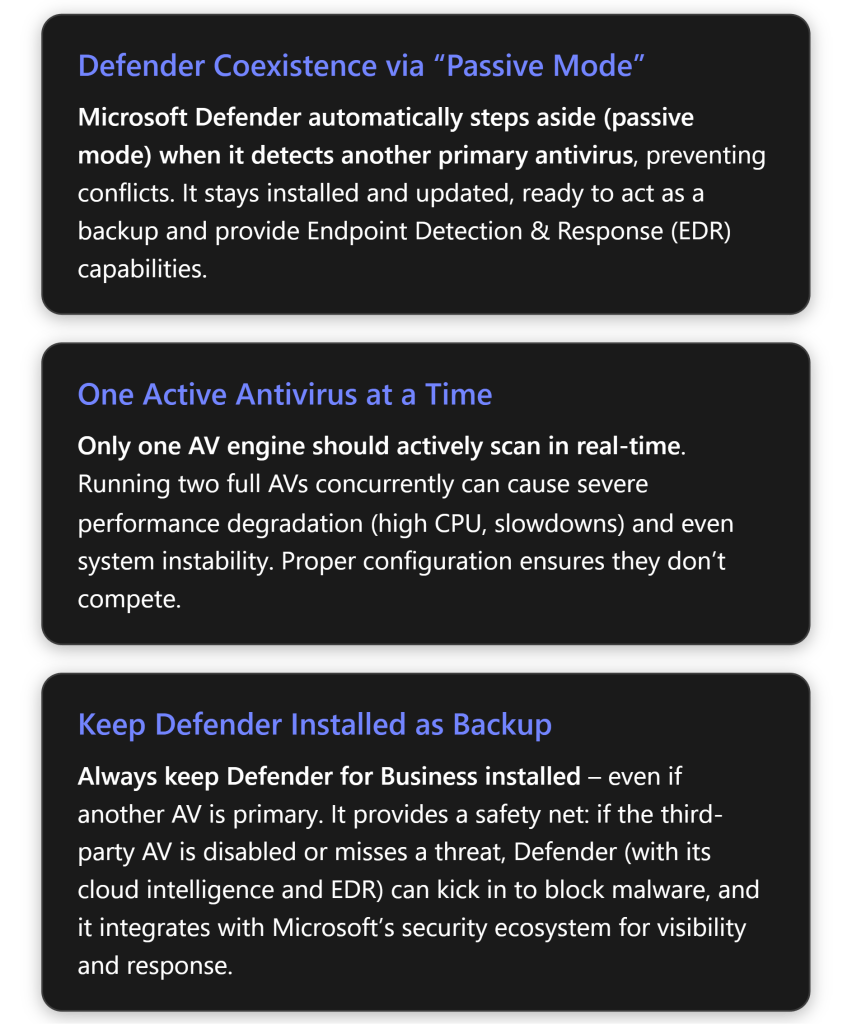
 CIAOPS