
It is a very good thing to have a breakglass account in your environment. I have spoken about this in depth in an episode of my podcast:
Need to Know podcast – Episode 310
The challenge can be ensuring you know if and when this account is used because it typically has less protection associated with it than normal accounts in the environment.
One way to achieve this is to use Defender for Cloud Apps, which can be found by navigating to:
https://security.microsoft.com
to generate alerts when the account logs into the environment.

On the left hand menu of the Microsoft Security Center for your tenant expand the Policies option under the Cloud apps heading, and select the Policy management item.
Now select the +Create policy menu item on the right as shown above.
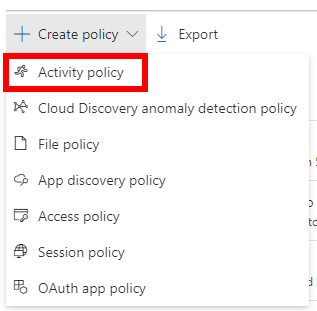
From the drop down that appears, select Activity policy as shown above.
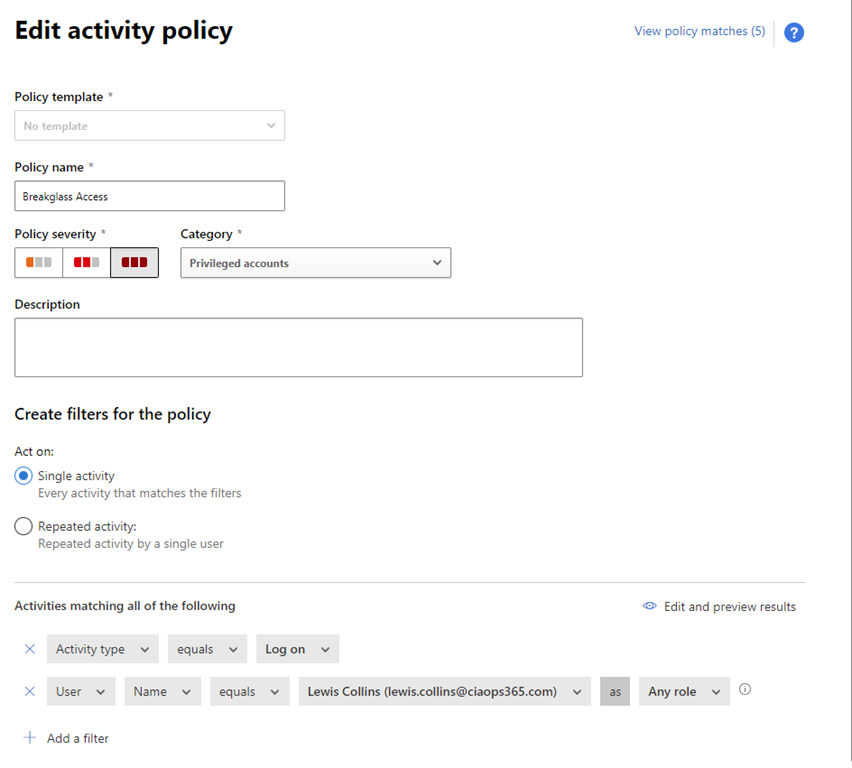
Give the new policy a Name and Description. Select the Policy severity and the Category.
Select the option to Act on: Single activity.
In the Activities matching all of the following select:
Activity Type equals Log on
then add another filter and select:
User Name equals breakglassaccount@domain.com as Any role
as shown above. This in essence will trigger and alert whenever the breakglass account logs into the environment.
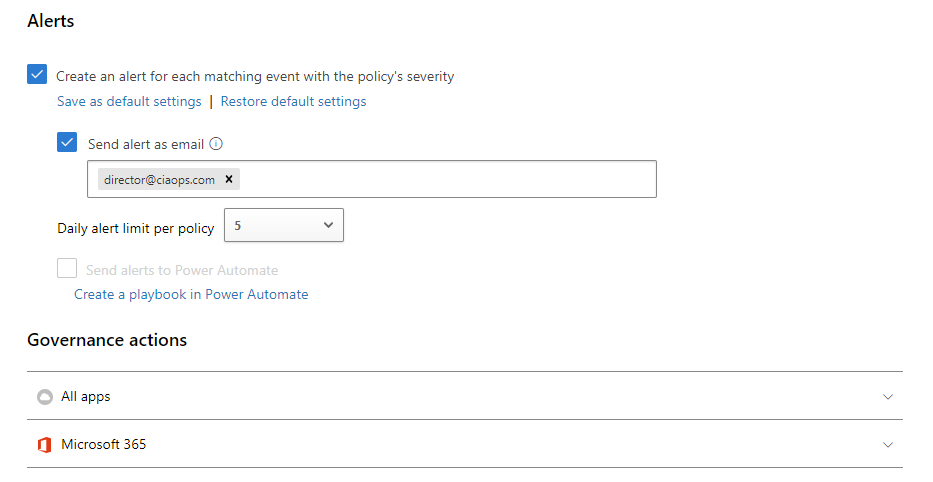
Configure the Alerts and Governance actions to suit your requirements. At a minimum you probably want the alert to be emailed to an external address. You can also build a Power Automate Flow from this also if you wish.
Save the new policy.
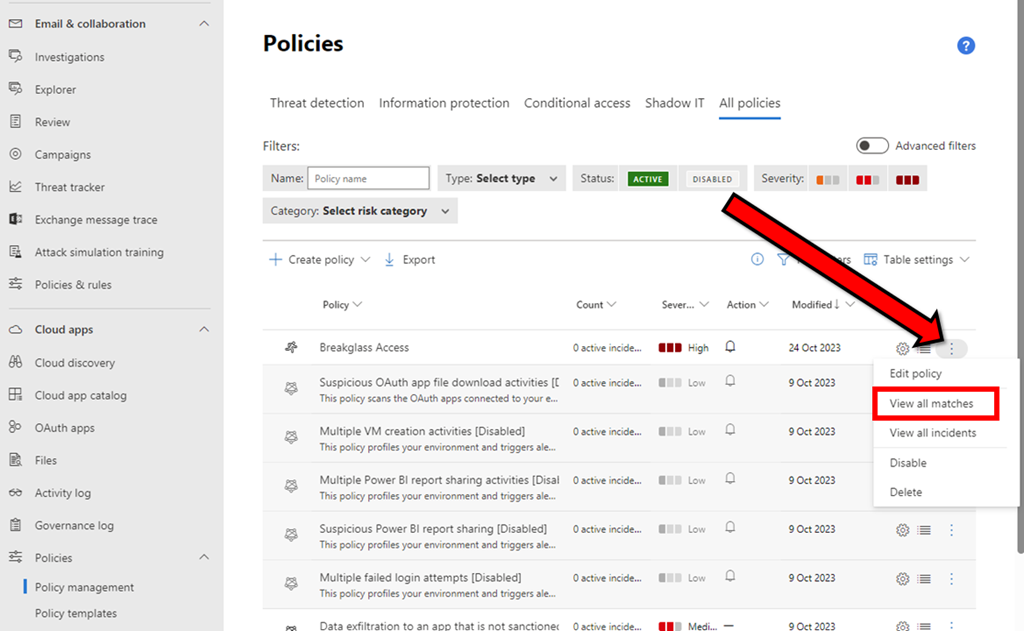
Locate the policy just created in the list (you can sort using the Modified column if necessary). Select the ellipse (three dots) to the right of the policy entry and from the menu that appears, select View all matches as shown above.
Ensure you test the policy by logging into your breakglass account.
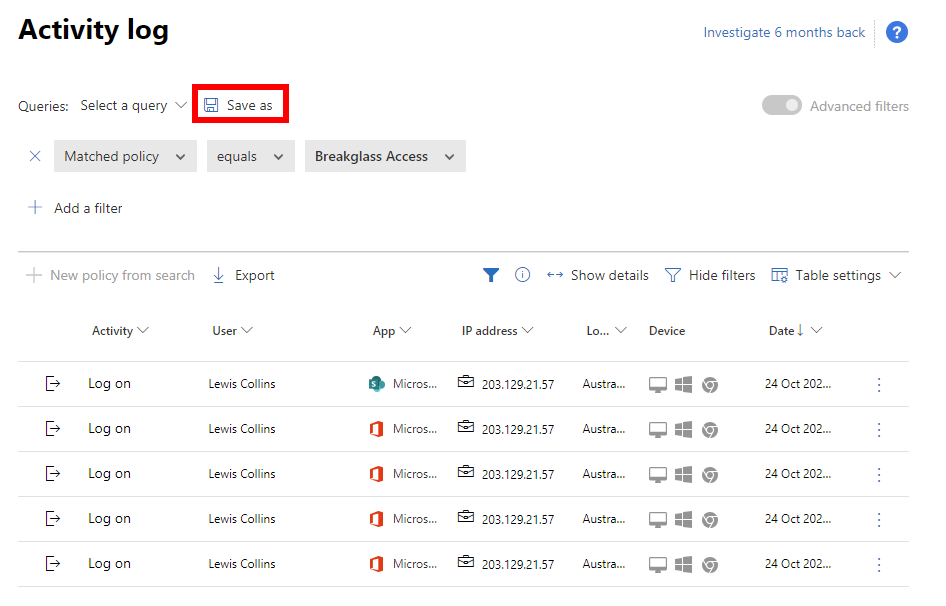
This will now show all the matches in your environment as shown above. It is also recommended that you Save as so you can easily return these results if needed in the Activity log.
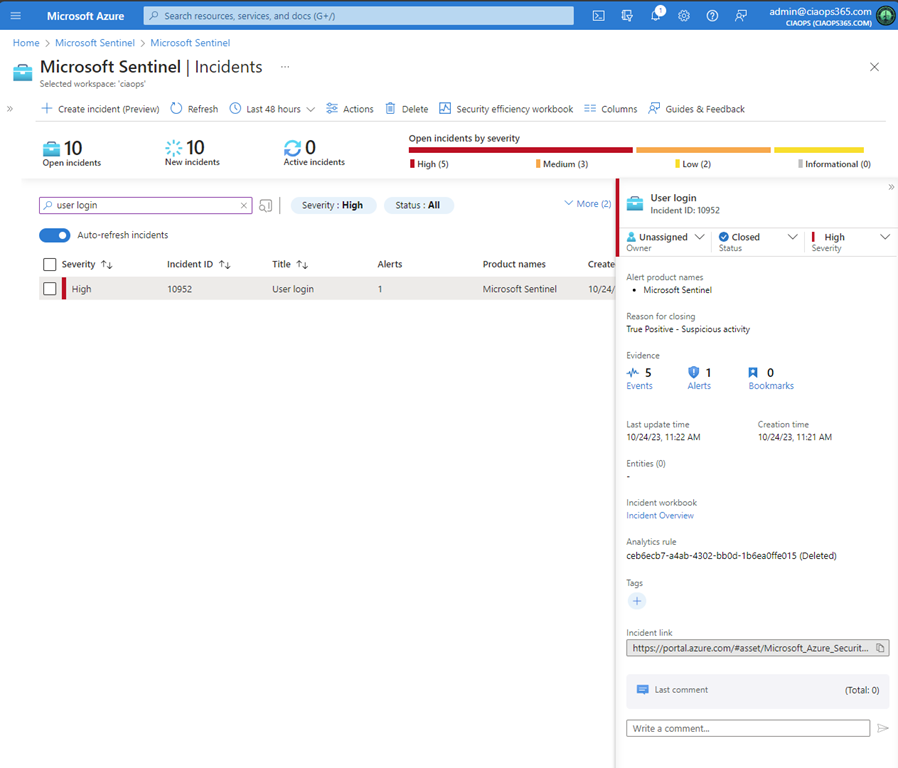
If you have also set up Sentinel, the alert should also flow into here as shown above. More automation and alert options are available here if needed.
The most important thing to remember that any alert generated by the login of your breakglass will NOT be immediate! It should however appear with a a few minutes of the action taking place and then a little while after in Sentinel as it flows through the logging process.
There is more that can be done to with this process, but this should get you started protecting your breakglass account.
 CIAOPS