Enabling your Office 365 Azure AD access

Many don’t realise that Office 365 identity is built on top of Azure Active Directory. This means that every Office 365 tenant is using Azure Active Directory. What many also don’t realise is that you can easily access the Azure Active Directory by simply enabling it from your Office 365 Admin console. Here’s how you do this.

image

Login to Office 365 as a global administrator.

image

Navigate to the Office 365 Admin, in this case by selecting the Admin icon from the app launcher.

image

In the lower left of this window, under the Admin section, you should find the Azure AD link as shown above. Select this.

image

You’ll now be taken to a screen like that shown above, where you sign up to Azure.

image

You’ll need to enter your details (name, email, country, etc). You’ll also need to specific a mobile phone which a verification code can be sent to.

image

Once all the details are entered and you have complete the verification via mobile phone select the Sign up button.

You’ll notice here that you don’t need to put in any credit card details like you do when you sign up for a free trial. This is because you are getting the free Azure Active Directory Edition only.

image

You’ll see your request begin to process.

image

After a short while you should see a screen like that shown above. You can see that what you have signed up for is Access to Azure Active Directory.

image

It will take a few minutes to complete the provisioning.

image

When processing is complete you’ll see the above screen. Select the Start managing my service link to proceed.

image

You should then see the new Azure Resource management portal as shown above.

image

If you look in the billing area of this tenant you will see that you have no subscriptions as shown above. You can of course add a paid subscription to this to enable all the other Azure features. This is in fact the recommended way to deploy Azure IaaS services for SMB I would suggest. Office 365 first, and then add a paid Azure subscription to that free Azure tenant you get as part of Office 365. That way all the users and resources are in one location. Even if you plan to do Azure IaaS initially, always get an Office 365 subscription first. All you need is a single Exchange Online Plan 1 Kiosk license for around AU$3 to get the Azure tenant.

image

The only area that you can configure currently is the Azure Active Directory.

image

In there you should now see a list of your Office 365 users.

You can administer and work with tenant users from Azure or Office 365 (as well as PowerShell in both environments).

So you have now enabled the free Azure Active Directory Edition that comes as part of every Office 365 subscription. To read more about the different Azure Active Directory Editions see:

https://msdn.microsoft.com/en-us/library/azure/dn532272.aspx

You’ll also find the Microsoft documentation on this here:

Register your free Azure AD subscription

My software and services

Previously, I detailed the hardware that I used in my work:

My gear

In this article I’ll look at the software and services I use most.

To start with, I use Windows 10 professional on all my desktop machines and Windows Storage Server 2008 on my WD Sentinel DX4000 NAS. I have upgraded all my immediate families machines to Windows 10 without any issues as well. We are therefore a Windows 10 family through and through.

Unsurprisingly, I used Office 365 for things such as a email, OneDrive for Business, Skype, Office desktop software and the like. What maybe somewhat surprising is that, although I have access to a free Office 365 tenant from Microsoft as a partner, I don’t use this in production. I have a completely separate paid tenant for my business.

Why is that, you may ask? The main reason is that I use my Microsoft Office 365 tenant for demonstrations and testing. I don’t want production data appearing when I do demos to customers and prospects. Having to two separate tenants means complete separation of the data.

I of course use all the standard Microsoft Office desktop software such as Outlook, Word, Excel, PowerPoint, etc however, the key application from the suite for me is OneNote. OneNote is my go to Swiss Army knife for just about everything digital. I use it to capture all sort of data. I even use it as a diary as I have detailed previous here:

One of the ways I use OneNote

The reason OneNote is key is because:

1. Just about everything I put in there us searchable

2. It is freely available across all platforms.

3. All my information is synced and accessible on all devices.

4. It is available on the web or offline if needed.

Another key service I use everyday along with Office 365 and OneNote is Azure. Typically, I use it for running up virtual machines that I test various things with but I also use it to backup my local data as well as that of other members of my family using Azure Backup.

Azure desktop backup

There is just so much that can be done with Azure. I haven’t even scratched the surface of what I could use it for. I see Azure becoming a larger and large part of what I do every day.

I use Lastpass to keep my passwords and private information secure. It allows me to do things like generate and store unique passwords for each website that I sign up for. It is also available across all browsers on my machine (including Microsoft Edge).

For a subset of my local data that I wish to remain secure I use Truecrypt to create encrypted volumes. All my my Windows 10 machines run with full disk encryption thanks to Bitlocker, but stuff like financial and customer data I keep inside Truecrypt volumes for that extra layer of security. I understand that Truecrypt is no longer maintained and may have some very minor security flaws, but for how and why I use it, it is more than adequate.

To capture my desktop for my online training academy or my YouTube channel I use Camtasia.

To compose and publish blog articles I use Open Live Writer.

To keep track of where I spend my time on my desktops I use RescueTime.

For improved email productivity I use Microsoft FindTime and Boomerang.

For chat and web meetings I use Skype for Business from Office 365. I encourage anyone to connect up to me via my address = admin@ciaops365.com. Chat is generally always faster at resolving things than traditional email.

For protection, apart from the standard Windows 10 tools, I use Malware Bytes.

Inside my browsers I typically have the following plugins:

Lastpass which provides automated insertion of web site credentials.

Nosili which provides productivity enhancement thanks to background sounds. My favourite is rain.

Pushbullet which connects alerts from my Android phone to my dekstop browser and allow me to share information easily between them.

GetPocket which allows me to save and categorise websites URLs, which I then typically read at a later time. Has its own dedicated mobile that I can use on any device.

The Great Suspender which puts unused tabs in Chrome to ‘sleep’ to save memory.

I use the automation sites If This Then That and Zapier to automate many different tasks. A good example of one of these is automatically publishing to various social media sites.

For my Office 365 and Azure email newsletters I use Mailchimp.

My preferred public social networks for business, in order are:

1. Twitter

2. Linkedin

3. Facebook

I also use Yammer extensively but for more specialised roles and thus don’t consider it really a ‘public’ social network, more a private one.

YouTube is also something I use daily for business and pleasure. It use for both education and marketing as well as entertainment, thanks largely to the XBox YouTube app. Just wish they’d hurry up and bring the Amazon Prime Video app to the Xbox here in Australia so I can watch The Grand Tour from my bean bag.

I use a lot of other software and services but the above are the main ones I use pretty much everyday that I’m at my desk.

I am always looking for ways to improve my productivity and effectiveness with software and services. If you therefore have something you can recommend to me please don’t hesitate to let me know what it is.

Need to Know podcast–Episode 124

Marc and I are join by another Mark in this episode (just in case things weren’t confusing enough on this podcast already!). Mark O’Shea joins us to talk about Microsoft Intune and where it fits into today’s IT landscape. Mark shares with us what Microsoft Intune is, how it can be purchased and what role it plays for IT Pros.

You’ll also get our latest Microsoft cloud news at the top of the show to keep you up to date with everything happening in the Microsoft Cloud-verse.

You can listen to this episode directly at:

http://ciaops.podbean.com/e/episode-124-mark-oshea/

or on Soundcloud here:  

or subscribe via iTunes at:

https://itunes.apple.com/au/podcast/ciaops-need-to-know-podcasts/id406891445?mt=2

The podcast is also available on Stitcher at:

http://www.stitcher.com/podcast/ciaops/need-to-know-podcast?refid=stpr

Don’t forget to give the show a rating as well as send us any feedback or suggestions you may have for the show.

Resources

Mark O’Shea – @Intunedin

Marc Kean – @marckean

Robert Crane – @directorcia

Marc’s Azure news

New CIAOPS VPN online course

Azure VPN performance

New OneDrive for Business client coming for all

Copy from OneDrive for Business to Team Sites now available

Integration of Flow and PowerApps into Team Sites

If This Then That

Zapier

New OneDrive for Business admin console rolling out

InTunedin

Microsoft Intune

Microsoft Intune features

Microsoft Intune pricing

Microsoft EMS

Azure VPN performance

I’ve be working a lot recently with Azure VPNs thanks to the development of my new online course:

CIAOPS Azure VPN course

One of options you need to select when you create a new Azure VPN gateway is the SKU.

image

With all the VPNs I had been working with I’d always just left the option set as Standard but then I wondered whether selecting another VPN SKU made any real difference?

I therefore set out to do some basic testing of the performance of the different Azure VPN SKUs to get an indication of what differences, if any, there was between them.

The place to start if you want more information about Azure VPN Gateways is here:
About VPN Gateway

In my case, I started with 6.9GB of data, composed of a number of large PST files (100 – 500MB each) that I would copy between local and Azure VM’s via an Azure VPN.

I kept the VMs at both ends the same and only recreated the VPN gateway as needed, with a different SKU each time. I did all the transfers using drag and drop from Windows Explorer.

clip_image001

You can see the speed test results from the link that I had my local VM connected to the Internet with.

After copying the 6.9GB of data up from the local VM to Azure and then back down from Azure my results showed that there was no appreciable difference in performance between any of the Azure VPN SKUs. The time taken to upload or download the data was identical at around 12 minutes or around 720 seconds. That is about 9.81 MB/s in my maths (6.9 x 1,024)/720 up and down.

When you look at the quoted VPN gateway throughput you find that Basic and Standard are around 100Mbps, while High Performance is 200Mbps. However, as the Microsoft notes:

“The VPN throughput is a rough estimate based on the measurements between VNets in the same Azure region. It is not a guaranteed throughput for cross-premises connections across the Internet. It is the maximum possible throughput measurement.”

So, based on my rudimentary tests, I didn’t see any difference in performance based on the different VPN SKU’s.

image

Where a major difference surfaces is price. If you go to the Azure pricing calculator and calculate the monthly cost of the different VPN SKUs you find that to run for a full month the Basic VPN SKU costs AU$34.11.

image

The Standard SKU costs AU$180.05 (428% higher) and

image

the High Performance SKU costs AU$464.34 (12,610% higher than the Basic SKU).

Based on my rudimentary transfer tests, and provided you don’t need some of the additional features of the more advanced VPN SKUs (such as additional IPSec tunnels) then I have to say that probably for most cases, the Basic VPN SKU is more than adequate. Thus, from what I can determine, the Basic Azure VPN SKU is the most cost effective option.

However, I’m sure when you get lots of varied traffic, with different file sizes and a more typical work environment the more advanced Azure VPN SKUs shine but as I said, from I see, the Basic SKU is a great place to start when you want to connect your environment securely to Azure.

The other value that I’ll share with you is the fact that creating a VPN Gateway using the Azure Resource Manager (ARM) portal takes about 40 minutes. It is easy enough to change the Azure VPN SKU you use over time but remember that, if you do want to change the Gateway SKU, you’ll need to delete the existing Gateway and create a new one. And that will take about 40 minutes to complete.

In summary, my take aways from this rudimentary testing of the different Azure VPN SKUs is that, in the SMB world, a Basic VPN SKU appears to be the most cost effective, unless you need some specific advanced VPN features. It is also easy enough to upgrade the Azure VPN Gateway at any time but doing so requires about 40 minutes of creation time.

So, for about AU$35 per month (excluding traffic costs out of Azure of course) you can get a secure VPN connection from Azure to your on premises infrastructure, and that ain’t expensive at all for the flexibility it provides!

Office 365 branding using Azure Resource Manager

image

When most people login to Office 365 they see the above standard branding.

image

What you may not know is that you can, in fact, customise this branding to look much more enticing as shown above.

This branding is accomplished via the Azure portal. I detailed how to do this a while back:

Office 365 tenant branding

Such configuration needed to be carried out using the older, Azure Service Manager (ASM) portal.

Luckily, the ability to brand Office 365 tenants is now available in the new Azure Resource Manager (ARM) portal in preview. Here’s the process.

image

You’ll need to have previously enabled the Azure management portal from your Office 365 tenant. You should always do this as part of your Office 365 tenant enablement process because there are so many additional cool features (like branding) that you get access to. If you haven’t enabled your Office 365 Azure AD subscription then the steps to do this are here:

Register your free Azure Active Directory subscription

Once you have completed that process you’ll be able to login to the Azure Resource Manager (ARM) portal at:

https://portal.azure.com

using your administrator Office 365 credentials.

When you do so, you should see something like the screen above.

image

From the list of items on the left hand side of the window you should find one called Azure Active Directory. If you can’t, simply search for the service and when you have found it in the available list as shown above, simply select it.

image

This should then open the above blade, where you can see information, such as users, from your Office 365 tenant displayed.

image

From the options available, on the left, locate and select Company branding as shown above.

image

This will open another blade to the right as shown above. In here select the link Configure company branding now.

image

A further blade will open to the right and you’ll be presented with all the branding options for your tenant.

All the details about these options can be found here:

Add company branding to your sign-in and Access Panel pages

The most important section you’ll need, is the one telling you the image sizes required. That section is located at the bottom of the page under the heading – Customizable elements.

image

The first option you can brand is the large image on the left hand side of the login page. The maximum image size here is 1420 x 1200 pixels, with a maximum file size of 500KB.

Simply select an image file from your local machine and you’ll see a preview as shown above.

image

The next option to customise is the Banner logo, which is located above where the user enters their credentials on the Office 365 login page. The maximum image size here is 60 x 280 pixels, with a maximum file size of 10KB.

Again, simply select an image file from your local machine and you’ll see a preview as shown above.

image

You can then customise the User name hint if desired (generally not recommended), as well as a some Sign-in page text which appears in the lower left of the login screen, under the users login credentials.

image

If you scroll down, you’ll see some additional options that you can customise if desired.

When complete, simply Save your changes and they will be applied to the tenant, which in this case means the login now looks like:

image

You can of course return at any point and edit these settings and update or remove them if desired. My experience is that when you do make changes, it may take 10 – 15 minutes for you to actually see the branding changes appear in your tenant, so be patient.

Office 365 is built on Azure Active Directory which means it provides a whole range of extras that most people don’t know about. A good overview article can be found here:

Sign in page branding and cloud user self service password reset for Office 365

I’ve also got a presentation you can download here:

Office 365 Azure AD

https://docs.com/d/embed/D25193685-5871-8149-4450-000618648953%7eMd4186d87-61d5-259a-4d26-00a8bd86cfff

So take a few moments to brand your Office 365 tenant. It is quick and easy to do and really helps drive adoption for your users because it becomes a much more personal experience.

Remember, every Office 365 tenant has the ability to be branded. The only thing missing in my books, is the ability to do all this via a PowerShell script. Hopefully, now the Office 365 branding options have come to the new Azure Resource Manager (ARM) portal, the ability to brand via a script isn’t far away.

CIAOPS Azure VPN course

I’ve just uploaded a new online technology training course to the CIAOPS Academy. This one is focused on Azure VPNs. You will find the course here:

http://ciaops-academy.teachable.com/p/azure-vpn/

The course will show you how to configure:

– Azure Point to Site VPNs

– Service Manager Site to Site VPNS

– Resource Manager Site to Site to VPNS

– Connections between Azure VNets using VPNs

– and VNet peering

Each lesson contains a video tutorial as well as a number of resources for your continued learning.

You can purchase the course individually or you can purchase access to the complete course catalogue that covers any new courses created as well. You can also select from many other stand alone courses on Azure, Office 365 and more.

I’ll be adding more courses soon so stay tuned to further updates from the CIAOPS Academy.

Pricing a VM as an SMB share

I posted a recent article on pricing a 1TB file share using Azure that you can find here:

Clarification on Azure SMB file share transactions

The estimated cost for that was AU$115.35 per month.

Let’s repeat the exercise but this time price up the share in Azure using a virtual machine (VM) for storage.

image

I’m going to use the DS1_V2 machine as my base for two reasons. Firstly, it is low power, which is what we want if we are simply using it as a file share and secondly this machine supports premium storage, which I’ll also look at pricing as an option.

image

If I now price this using the Azure pricing calculator (and remembering that a DS2_V2 is the same as a D1_V2 in the calculator) I come up with an estimate of AU$139.30 per month.

However, this is just for the host machine. I now need to add additional storage of at least 1TB to host the file share.

image

You can see when I select basic storage (HDD) and 300,000 (i.e. 3 units) transactions as before, for 1TB of additional storage. This comes to a total of AU$104.36 for storage alone.

The total of the VM and storage here is AU$243.66.

image

Now, let’s say I select premium storage (SSD) for this additional 1TB rather than basic.

The first thing you’ll notice is that you are no longer charged for transactions, just a flat storage cost of AU$172.17.

I need to select the P30 to give me at least 1TB of storage. I could of course use multiple disks striped together but one big disk works out cheaper anyway. Thus, the total cost of the VM + premium storage is AU$311.47 per month. This is about a 28% premium over the basic storage option above.

image

So let’s now say I want to go with the cheapest VM (host) available. That would be an A0 machine as shown above. However, choosing an A0 machine now means I don’t have premium storage available as an option.

image

That means my additional storage option is back to AU$104.36, giving me a total cost of AU$131.84. Which is about a 50% discount on the basic storage option and 58% discount on the premium storage option.

So in terms of pure cost, Azure SMB file shares wins out at AU$115.34 while the cheapest VM share option is AU$131.34. However, in terms of flexibility the VM is probably the winner because:

1. You can potentially run other processes on the VM.

2. The VM supports low level NTFS permissions inside the share which the Azure file solution currently doesn’t.

3. It is easy to upgrade the base VM and add more storage if required.

But wait, there is still something else that hasn’t yet been considered here. How do you access the share?

With an Azure SMB File share you simply map a drive on any modern machine by running a command but how would an end user map a drive with a VM?

For an end user to easily map a drive letter to an Azure VM they are typically going to need to have in place a site to site VPN from on premises to Azure.

image

As you can see from above the cost of a standard Azure VPN gateway is AU$180.05 per month. There is also the need to factor transfers out of Azure (you don’t pay for data into Azure, only out from). Let’s say that half of our data (i.e. 500GB) is transferred per month out of Azure. That leaves the total cost of the VPN gateway to be AU$267.06.

The inclusion of the VPN gateway now inflates our original DS1_V2 scenario with basic storage to a cost of AU$510.71 which is much more expensive than the initial Azure SMB file share option considered previously. However again, a VPN to Azure is going to provide a huge amount of flexibility when it comes to the infrastructure going forward.

So what this means is that as a pure stand alone file share solution the Azure SMB file share option is going to be typically the most cost effective. However, in terms of an overall shift of on premises infrastructure to the cloud, the VM share option is going to provide the flexibility and growth capability that you are going to want.

Which should you choose? In reality, both. Why? The scenario for most SMB customers is a desire to move the majority, if not all of their infrastructure, to the cloud. However they are not going to do it all immediately. It will be a process undertaken over time. Thus, an Azure SMB file share makes good sense initially but in the long run a VM share solution is probably the most effective solution.

The great thing is that because everything is Azure you can set all of this up under one tenant and add and remove components as you need over time and only be billed for what you consume. That’s the real flexibility here. Azure gives you a range of tools that you can use to solve just about any infrastructure challenge. That’s why it needs to be part of your toolbox!

Yes, there are lot more ‘if’s and but’s’ than if you simply went out and purchased an on premises NAS for storage but that doesn’t give you the flexibility for what is ultimately the end game of migrating infrastructure to the cloud now does it?

We live in a world where everyone wants more options. SMB resellers also need to get comfortable with the fact that there is really no end to a ‘migration’ because it simply continues on in other forms. That should be music to IT resellers ears as it means growing demand by customers for assistance and the opportunity to generate more revenue.

Yes, the world may be different and pricing may be a little more involved than it used to be but there is no beating the flexibility that is now available thanks to Azure.

What is the correct price?

One of major pain points for SMB resellers is pricing Azure solutions. Here’s an example of why.

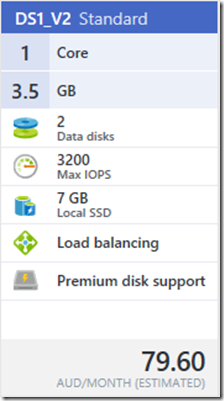
Let’s say that I want to price a DS1_V2 machine.

image

In this case I’ve chosen a DS1_V2 machine for a couple of reasons. Firstly, it is a low power machine, and secondly, the DS machines allow the attachment of premium storage.

Now as you can see from the estimate from inside the Azure portal above the price of this machine alone comes to $79.60 per month.

image

Interestingly, if I now go to the Azure price calculator I don’t find an option for a DS1_V2 machine, so confusion point number one. It turns out that I need to use the pricing for a D1_V2 which is the same as the pricing for a DS1_V2 (but of course the DS1_V2 permits premium storage while the D1_V2 doesn’t).

Confusion point number two is that the price for a D1_V2 (which is the same as my desired DS1_V2) is listed as $139.30 per month. So what’s the right estimate here? Sure, the difference in price is only about $60 but as a percentage the difference is about 75% which is significant.

Let’s try another machine.

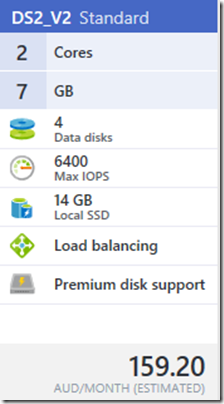
image

image

The difference in a D2_V2 is $119.40 or again a 75% difference.

Let’s try another family of machines.

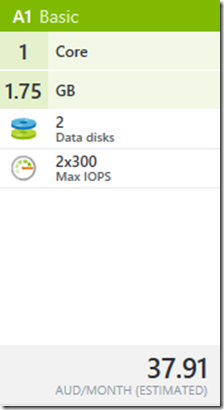
image

image

The difference in an A1 machine is $69.17 or 182% difference!

So clearly I’m missing something here and would appreciate someone setting me straight as to:

1. Why the pricing between the portal and calculator is different and

2. Which one I should be using to get a correct estimate of cost?

I need to know.

**** Here’s the answer:

http://windowsitpro.com/azure/azure-msdn-virtual-machine-price-discount

Because I have Azure via an MSDN subscription I received additional discounts on VM usage per:

https://azure.microsoft.com/en-us/pricing/member-offers/msdn-benefits-details/

Low dev/test rates help you stretch your credit farther

Use the Microsoft software included with your Visual Studio subscription on Azure Virtual Machines for dev/test at no extra charge—you’ll just pay the Linux rate for VMs you run, even VMs with SQL Server, SharePoint Server, or other software that is normally billed at a higher rate. Upload custom virtual machine images yourself or use one of our pre-configured images from the Azure Gallery.

In addition to the low dev/test rates on VMs, you also get low rates on Cloud Services, HDInsight, and Web Apps.

So now I know. My oversight!

So in summary the Azure pricing calculator gives you the RRP without any discounts while the portal gives your effective costs taking into account any discounts you receive on that tenant alone! Thus, for pricing a solution for a customer, always use the calculator pricing.