
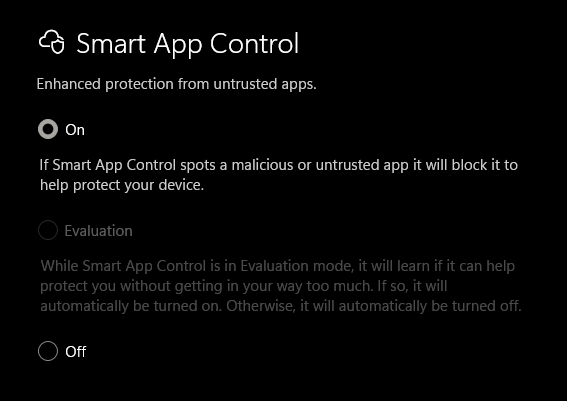
What Windows Smart App Control actually is
Smart App Control (SAC) is a pre‑execution application control layer built into Windows 11 that blocks untrusted software before it runs. It lives in Windows Security → App & browser control, and operates independently from Microsoft Defender Antivirus and SmartScreen. [support.mi…rosoft.com], [computerworld.com]
This is important:
Smart App Control is not antivirus.
It is policy‑enforced app allow/deny at launch time, based on trust and reputation.
Think of it as Microsoft sneaking a consumer‑friendly WDAC‑lite into Windows 11.
The security model: how SAC makes decisions
When any executable (EXE, DLL, MSI, script, etc.) attempts to run, Smart App Control applies a deterministic trust pipeline:
1. Cloud reputation check first
Windows queries Microsoft’s cloud‑based app intelligence service, which analyses signals from billions of executions worldwide. [support.mi…rosoft.com], [computerworld.com]
If the app is:
- Known good
- Widely deployed
- Previously classified as safe
➡ It runs
2. Certificate trust validation
If cloud intelligence cannot confidently classify the app, SAC checks:
- Is the file digitally signed?
- Is the certificate trusted and valid?
- Has the binary been tampered with?
Signed software from reputable vendors typically passes this stage. [support.mi…rosoft.com], [howtogeek.com]
➡ Valid signature = allowed
3. Everything else is blocked
If the app is:
- Unsigned
- Unknown
- Newly compiled custom binaries
- Internally built tooling
➡ Smart App Control blocks execution
There is no “Run anyway”, no whitelist, and no user override in enforcement mode. That is entirely by design. [computerworld.com], [howtogeek.com]
The three Smart App Control states (this matters)
SAC operates in three mutually exclusive modes:
1. Evaluation mode
- SAC runs silently
- Nothing is blocked
- Windows observes your real‑world app usage
- SAC decides if your system is “compatible” with strict enforcement
This was originally only triggered on clean installs. [howtogeek.com]
2. Enforcement (On)
- Unknown or untrusted apps are blocked at launch
- No user bypass
- No per‑app exceptions
- Logs are written to Windows Security / Event Viewer
This is where SAC actually provides protection.
3. Off
- No checks
- No enforcement
- Until recently, this was permanent without OS reinstall
Why Smart App Control was widely ignored (until now)
From a pure security model perspective, SAC was solid.
From a real‑world usability perspective, it was borderline hostile.
Until early 2026:
- If you disabled SAC once, it could never be turned back on
- Re‑enablement required a full Windows reinstall or reset
- Upgraded systems were locked to Off
- MSPs, developers, and power users effectively couldn’t touch it
Microsoft openly acknowledged this rigidity in its own documentation. [support.mi…rosoft.com]
So the result?
Everyone who actually understands Windows workflows turned it off permanently.
What changed in 2026 (this is the big deal)
April 2026 Windows 11 security updates fundamentally changed SAC’s lifecycle
Microsoft removed the “one‑way switch” limitation.
As of the April 2026 Windows 11 updates (24H2 / 25H2):
✅ Smart App Control can now be turned ON after install
✅ Smart App Control can be re‑enabled after being turned off
✅ No OS reinstall required
✅ Managed via Windows Security UI
This change is explicitly documented by Microsoft and multiple independent sources. [techrepublic.com], [pureinfotech.com], [windowsreport.com], [msn.com]
Where the toggle now lives
Windows Security
→ App & browser control
→ Smart App Control
→ Smart App Control settings
From there, you can:
- Switch On
- Switch Off
- Let systems enter Evaluation again
[techrepublic.com], [pureinfotech.com]
What did not change (important limitations remain)
Microsoft did not soften SAC’s enforcement model:
- ❌ Still no per‑app allow
- ❌ Still blocks unsigned internal apps
- ❌ Still unsuitable for dev workstations
- ❌ Still excluded from enterprise‑managed devices
The decision engine is unchanged. Only the lifecycle control was fixed. [msn.com]
Who Smart App Control now makes sense for
✅ Excellent fit
- SMB users
- Standard staff PCs
- BYOD devices
- Non‑technical users
- High‑risk email / web exposure roles
Especially when paired with:
- Defender Antivirus
- Attack Surface Reduction rules
- Defender SmartScreen
❌ Poor fit
- Developers
- MSP admin machines
- Script‑heavy workflows
- Legacy Line‑of‑Business apps
- Custom PowerShell tooling
For these, WDAC, AppLocker, or Intune‑managed policy is still the correct solution.
MSP‑level takeaway (opinionated, but grounded)
Smart App Control finally crossed the line from:
“Technically interesting but unusable”
to:
“Deployable baseline protection for unmanaged Windows 11 PCs”
It is not a replacement for:
- Application control
- Device management
- Security policy
But it is now a credible default deny layer for Windows 11 endpoints that previously had none.

