Office 365 plan selection flow chart–feedback requested

image

I am starting to put together some flow charts to help people with the process of selecting the right Office 365 plan. If you have a few minutes I’d really appreciate your feedback on my initial iteration which you can find at:

http://ciaops.squarespace.com/storage/o365-plan-choice.pdf

Initially, I’m keen to make sure the decision process flow is correct (so let me know any mistakes I’ve made) but any feedback around how it looks or what enhancement you’d like to see would also be greatly appreciated. Also, I’d be interested to hear whether people find this of value.

You can leave your comments on this blog post or email me direct via director@ciaops.com.

SharePoint Online Site Mailboxes

One of the hidden gems of the new Wave 15 (SharePoint 2013) version of Office 365 are Site Mailboxes. They are basically a full Exchange mailbox (for free) that can be associated with a SharePoint Team site.

image

A Site Mailbox is not enabled by default but it is easy enough to do. You can press the Keep email in context tile on the front page of a new team site or

image

you can ‘Add an app’ and select Site Mailbox from the list of available apps.

image

Once the Site Mailbox has been added you’ll need to give it a few minutes to setup.

image

As the above message highlights, it may take up to 30 minutes for access to the Site Mailbox. Site Owners will be sent an email when the mailbox is ready.

image

You can now access the mailbox by pressing the Mailbox link from the Quick Launch Menu on the left hand side of the Team Site.

image

The first time you access the mailbox you’ll need to set the default language and time zone

image

You should then see the familiar Outlook Web Access (OWA) interface to the mailbox like so:

image

So now you can send and receive as that mailbox just as you would with normal Exchange accounts.

To navigate back to your site simply select the site name in the top left of the screen.

image

If you now go and look at your Office 365 users in the Admin centre you should see a new user that matches the Site Mailbox you just created like so:

image

Clicking on that user you will see they have no licenses and can’t be assigned any.

image

Now there is not much that you can do here to work with the Site Mailbox. What you need to do is access the Site Mailbox from SharePoint and then select Options from the Settings menu in the top right of the browser.

image

You should then end up with a screen like

image

In the middle of this screen you will see that Site Mailboxes are 5GB maximum in size.

image

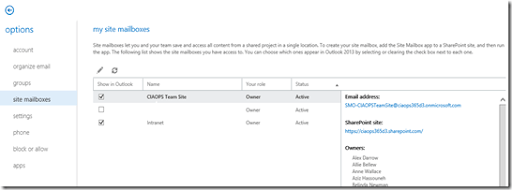
I won’t cover the standard OWA stuff here but if you select site mailboxes from the list you’ll see that it is blank. This is because a Site Mailbox isn’t really connected to other Site Mailboxes, BUT if you go to your own personal OWA and select the same options you should see
image

all the Site Mailboxes you have access to.

image

You should also see that you have ability to determine whether they appear in Outlook by simply checking the box to the left of the Site Mailbox.

image

If you edit the Site Mailbox by selecting it and press the Edit button (the pencil) you’ll get another dialog window. In there you will find a sync status option as shown above. You will also notice that you have a button to start sync if needed.
Capture3

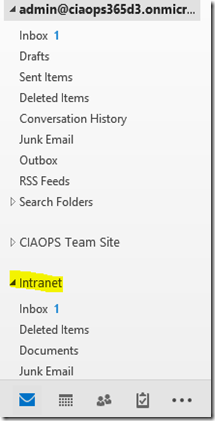
After a while (this is not instantaneous and may take up to 30 minutes or so), users who have rights to the SharePoint Team site, where you created the Site Mailbox, will see that mailbox appear in their Outlook desktop application like shown above.

Now they can happily drag and drop emails between the Site Mailbox and their own Inbox.

Capture

If a message arrives with an attachment, as shown above, that attachment can be dragged and dropped to the Document subfolder and this will copy it to the Documents library in the SharePoint Team Site.

image

This Documents subfolder is effective a direct link to the SharePoint Team site library and thus you can drag use it exactly like a linked Library in Outlook. That means you can drag and drop files that aren’t attachments here and they will also be uploaded to SharePoint.

Capture

So Site Mailboxes are easy to set up, are free, get automatically provisioned to Outlook on the desktop and allow a connection for file transfers to a SharePoint. They make a great option for working with projects that may involve team members sharing information via email. Having calendar, contacts, documents AND emails for a project all in one location is very handy but that is not the only application for Site Mailboxes!

This post only scratches the surface of what is possible. If you are looking for more configuration of this mailbox like being able to change the inbound address as well as Send-As permissions then you are going to need to look at standard Office 365 PowerShell commands to achieve this. Not hard but beyond the scope of this post (maybe a future post so stay tuned).  

Here are some more resources to help you with SharePoint Site Mailboxes in Office 365:

Overview: Use a site mailbox to collaborate with your team – http://office.microsoft.com/en-au/sharepoint-help/overview-use-a-site-mailbox-to-collaborate-with-your-team-HA103927690.aspx

Prepare for using site mailboxes in Office 365 – http://office.microsoft.com/en-au/office365-suite-help/prepare-for-using-site-mailboxes-in-office-365-HA103834109.aspx

OWA for iPad and iPhone now available

In line with my voiced expectations of more apps for Office 365 Microsoft has just release OWA for iPad and iPhone. You can read all about it and see it in action at:
http://blogs.office.com/b/office365tech/archive/2013/07/16/owa-for-iphone-and-owa-for-ipad.aspx
At the moment it is only for Office 365 users but it is apparently slated to shortly also become available for on premise and other Exchange hosted solutions.
In essences it looks very much like what you see when you use the browser interface although it does have some nice touches.

photo4
Like I said it is very much the same as using a browser interface but it does however it does offer some capabilities only available through native integration with the device including:

  • Stored credentials so you are automatically logged into the app
  • Push notifications that actively notify you of new email
  • Meeting reminders that pop up even when the app is closed
  • Voice activated actions like scheduling a meeting or sending email
  • Contact sync so that OWA contacts are recognized by the iPhone’s caller ID function
  • Remote wipe capability that allows IT to delete email and calendar data in the app from the device in the event that the device gets lost or the user leaves the organization

So for the average ‘business’ end user these are big benefits over using the standard web browser. Although the browser works fine IT Professionals need to remember that most end users prefer dedicated apps for their interactions with a product.
To get the full details of the new apps check out the blog post mentioned above and watch out for will surely be more apps coming from Microsoft.
You can download the new apps directly from:
iPad – https://itunes.apple.com/us/app/owa-for-ipad/id659524331
iPhone – https://itunes.apple.com/us/app/owa-for-iphone/id659503543

New Administrating Office 365 Jump Start available

If you want to get certified or learn more about the technical side of Office 365 you could previously do the Administering Office 365 for Small Business Jump Start at:
http://www.microsoftvirtualacademy.com/training-courses/administering-office-365-for-smb
via the Microsoft Virtual Academy. This positioned you to complete the 74-324 exam.
There is now an updated version of the Administering Office 365 for Small Business Jumpstart at:
http://www.microsoftvirtualacademy.com/training-courses/administering-office-365-for-small-business-jump-start
As with the previous course all the material is now available for download. So do what I’ve done, download all the videos and PowerPoint’s for viewing at your convenience.
This new course is aimed at providing material for the upcoming 74-325 Administering Office 365 exam, which is expected to be available very soon. So use this material and get studying!

Guest on Eagle Tech Genius

Just for a change, I’ve swapped my podcast hosting mike to be a guest on Eagle Talk Radio. You’ll find the episode here:
http://eaglewavesradio.com.au/2013/07/eagle-tech-genius-11-july-2013/
I’m actually the second guest on for this episode so might need to fast forward just over half way to catch my segments on SharePoint and podcasting.
Thanks to Belinda Luby and Peter Moriarty for the opportunity to be a guest on their show.

Giving new Microsoft support offerings a chance

As I am only a small business my ‘traditional’ relationship with Microsoft is only as an ordinary reseller. This is probably the lowest level available to those dealing with Microsoft. Of course I have other more high level relationships (like being an MVP), however I like to ‘pretend’ to be an ordinary reseller now and then so I can understand what my SMB peers experience when dealing with Microsoft.
Since July 1 2013 Microsoft has been making changes to the way it deals with partners. One of these is the following:
from – https://mspartner.microsoft.com/en/uk/pages/support/partner-network-support.aspx
Note: Beginning July 1, 2013, email support will be phased out for all partners, and phone support will be limited to partners with competencies or Microsoft Action Pack subscriptions. Email support for all partners and phone support for partners without a competency or an Action Pack subscription will be replaced by an RSC agent–supported forum in the Partner Support Community.
So my original Office 365 tenant (still on Wave 14) was due to expire in 7 days. I wanted to keep this tenant if I could so I could go through the migration process to Wave 15 and document it. Previously, all partners had to do to resolve these issues was to call Microsoft Partner Support, speak and rep and get the trial extended. Easy as. Having called after July 1 I was greeted with the fact that I could no longer do this as a lowly reseller. I certainly felt unloved initially.
My only option appeared to be the partner forums for Microsoft cloud benefits which after a little searching around I found here:
http://partnersupport.microsoft.com/en-us/mpnpartnermem/forum/mpnpmcless
I posted a message and I received a public message a day or so later saying:
Hello Robert,
Thank you for your question.
All internal-use subscriptions will be extended by July 15th, 2013 automatically. Subscriptions may go into a “In-Grace” period while awaiting for the extension. This is normal and will not interrupt the services.
Please note that I have sent you a private response to further assist you on this matter.
Best regards,
Sandy
Partner Support Community
I also received a private message saying that the trail had been expended as I wanted.
I see many smaller partner bemoaning the changes that Microsoft is making and how they are ‘turning away’ from SMB resellers. Initially, I too felt the same thing when I made my call about getting the tenant extended. But you know what? Any relationship is a two way street and I realized that I also need to embrace the new way Microsoft handles things. Once I did I got an excellent results and am very happy.
As painful as change is it is something that is part of life. if Microsoft is changing its business then resellers and customers who want to maintain a relationship need to also change. In some ways this change can be for the better and I can now better appreciate why Microsoft has made the change to forum based support.
The end result? Don’t be too quick to judge change as being bad just because it is different from the way things were!

Using a site template with a new site collection in SharePoint Online

One of the really great things about SharePoint is that you can template a lot of the content and re-use it elsewhere. You can also create templates that include the contents of a site if you want.

Once you have a site template you can use it within an existing site collection to create a subsite based on this template, but what about if you want to create a completely new site collection (i.e. URL) in Office 365 SharePoint Online based on this template?

Here’s how.

image

You create the site template as you normally would be going into Site Settings for that site and then selecting Save site as a template.

image

When  complete the new site template will end up in the Solutions Gallery for that Site Collection. You’ll need to click on the hyperlink for the name of the site template you just created to download the template file to your workstation.

image

You then simply proceed as you would normally to create a new Site Collection, however when it comes time to select a template to base the new site collection select the Custom tab (on the extreme right), which should only have one option – .

Select this option and continue with the new site collection creation process.

In a few moments a new site collection will be created in Office 365. Now navigate to the new site collection URL.

image

Since the site doesn’t have a template yet you will be prompted to choose one. At the top you’ll see the standard SharePoint templates but below this you’ll see option to upload something to the Solution Gallery of the new site collection. You should select this.

image

You should see that the Solution Gallery is empty. You now need to upload the template you downloaded from the previous site that was saved on your workstation. To do this simply select the Upload Solution button in the top left and proceed to upload the template from your workstation.

image

Just before you close the dialog displayed after uploading the file completes you should select the Activate button on the right of the Ribbon Menu to make that template available. Failing to do this will mean that it can’t used.

image

You should now see a single activated solution in the gallery as shown above.

image

You’ll need to browse to the URL of your new site collection again but now if you select the Custom tab in the Template Selection area you should see the name of your custom site template as shown above. Select this and press the OK button to proceed with the creation process.

image

The time it takes to create the new root site in the new site collection depends on how large your custom template is but in a short period of time the new site collection based on your custom template will be created. All you need to do is set the security groups and you are good to go.

That’s how you create a completely new site collection from an existing site template.

Keep those SharePoint libraries under 5,000 items

Unfortunately, what many people seem to think SharePoint Online is only good for is as a dumping ground for files. I have seem many people who ‘don’t want a local server’ simply copy all their files up to SharePoint and dump them into a single document library, map a drive letter on the desktop and think things will function exactly like they did when they had a server.
This is a really bad idea for many, many reasons but the major reason is that currently SharePoint Online in Office 365 has 5,000 item view limit per library/list as the following knowledge base article outlines:
http://support.microsoft.com/kb/2759051
This means for lists with greater than 5,000 rendering it into the browser becomes very resource intensive. Lists can certainly be greater than 5,000 items but trying to view lists larger than this in one go causes problems.
That article also includes the following recommendation:
To work around this issue, split the items into multiple lists so that no list exceeds 5,000 items.
So simply mapping a drive to SharePoint Online and copying massive amounts of documents in the same folder structure is not a good idea, especially for large amounts of files.
Prior to uploading data you really should look at breaking the structure up into multiple document libraries. Apart from overcoming the 5,000 view item limit it also allows you to more easily provide different permissions and options on libraries. For example, imagine you created one HUGE document library but wanted to have versioning enabled on only a limited amount of documents? Unfortunately, document versioning in SharePoint applies to complete document libraries.
Unlike email, migrating data to SharePoint Online is never just ‘drag and drop’. Sure, SharePoint can be used to store lots of files in the cloud but remember it is Office 365 not Server 365. There are major differences and these MUST be taken into consideration when migrating data into SharePoint Online.
Just because you can have massive lists doesn’t mean you should!