Enterprise social updates for Office 365

I’ve been talking a lot lately about how collaboration is the key requirement going forward for successful teams and businesses. I’ve also highlighted my belief that Microsoft stands alone in understanding what collaboration with technology is all about.

The heart of this understanding has been SharePoint for many, many years, however what I see coming down the pipe, especially from a product like Yammer integrated with Office 365 simply blows me away when I think about the future of collaboration.

If you want an idea of what this all about and why I am so excited by what I see coming take a look at this Microsoft Garage video.

What it demonstrates is fundamentally how Yammer will be seamlessly integrated across every Office 365 product. It also demonstrates to me that Microsoft is the only business that is truly integrating ‘social’ into the enterprise for large and small businesses.

I honestly can’t wait until these updates start hitting customer tenants and I can start helping them change the way the way they work to become more productive with a tool like Office 365. If you want a differentiation point between the Microsoft cloud offering and what the competition is doing watch this video and tell me you don’t agree.

Installing Office 365 Pro Plus on an RDS server

*** Please see this update – https://blog.ciaops.com/2014/09/installing-office-365-pro-plus-on-rds.html ***

Office 365 Pro Plus on a RDS (Terminal Server) is a very common question I see all the time. A while ago I wrote an detailed article around the licencing of Office 365 Pro Plus in an RDS environment. You can read the full blog post if you want to as it is still valid, but in summary what it says is that if you purchase Office 365 via a web console, that is either via the Microsoft console or via the Telstra portal here in Australia that product is NOT licensed to run on any type of RDS environment. The only way that you can run Office 365 Pro Plus in an RDS environment is if Office 365 was purchased via an Open agreement (basically volume licensing). That is basically the same as it is with other versions of Office, RDS is only supported with volume licensing.

With that answered, next question is normally about actually installing Office 365 Pro Plus in a RDS environment. The challenge is the software you get from Office 365 is ‘click to run’ which won’t install on a RDS machine. So how do you actually go about getting Office Pro Plus onto a RDS machine when you have Office 365 via Open?

Strangely enough, it is exactly the same as when you have normal Office, you need to purchase Office Pro Plus software and Volume License key that allows the installation. For reference see the following document;

Licensing Microsoft Office Pro Plus Subscription Service in Volume Licensing

which says:

How do customers get access to Office Professional Plus 2013 media for use with RDS deployments?
Customer must have access to Volume Licensing Service Center (VLSC) and Volume Licensing keys to install and activate Office Professional Plus 2013 media on network servers for RDS scenarios with Office 365 ProPlus licenses. Access to media and keys in VLSC vary among different Volume License agreements, such as Enterprise Agreement and Open. Depending on your agreement type and previous Office license purchases, you may have access to Office Professional Plus 2013. If Office Professional Plus 2013 media and key are not available to you, a Volume Licensing
partner may assist you with the purchase of an Office Professional Plus 2013 license to support your rights to deploy Office software on a network server with RDS role enabled.

Thus, if you have only purchase Office 365 via Open you will also need to purchase one Office Pro Plus media and key via Volume Licensing to actually support the installation.

This of course is an additional cost on top of any Office 365 licenses purchase which many resellers fail to factor in. They then get a nasty surprise when they attempt an install using ‘click-to-run’ and it doesn’t work. They get an even nastier shock when they discover they have to purchase one additional Office Pro Plus license to do the RDS installation. But by far the worst is when they have to go back to the customer and ask them for more money to cover this or swallow the increase themselves.

I hear lots of bitching an moaning about this from resellers but in all honesty it is the same as it for most other versions of Office. You can’t install Office Pro Plus in an RDS environment with a retail version of Office Pro Plus, you again need to purchase the media and key via volume licensing.

Now, I appreciate that there is an extra cost and it would be nice to get the media an key as part of Office 365 Open, and that may well come down the track, but you do have the additional benefit of being able to install Office 365 on in an RDS environment that you once couldn’t. Time to look at the cup half full guys I think.   

The secret is knowing what you can and can’t do and hopefully after reading this post it will have answered these questions which without doubt are the most common I see.

Office 365 Pro Plus downgrade rights via Open

If you purchase Office 2013 Professional Plus on a PC (OEM) or off a retail shelf there is no downgrade rights. This means you do not have the right to install Office 2010 instead. However, under certain volume licensing programs if you purchase Office 2013 Professional Plus you do have that right. This is one advantage of using volume licensing.
Now in the Office 365 world, if you purchase a plan that includes Office Professional Plus for the desktop what happens? If you purchase that plan via a console (either the Microsoft console or the Telstra console here in Australia) you do not receive any downgrade rights because it is effectively like a retail purchase. However, what happens if you purchase Office 365 via Open licensing?
The answer can be found here:
Licensing Microsoft Office Pro Plus Subscription Service in Volume Licensing
Inside the PDF you will find:
Online Services Downgrade Rights In Online Services customers have access to the latest technology with the newest features and releases. As with all
Subscription Services, Microsoft generally offers only the latest version of the service at a time. Therefore, downgrade
rights are not available with Office 365 ProPlus licenses.

So, in summary, no matter where you purchase Office 365 Pro Plus from, it does not come with downgrade rights.

Review – Veho Pebble Smartstick Emergency Charger

Full disclosure – the review unit was supplied by Mobilezap. You can find this device and others at the Mobilezap category pages.

How many times have you needed to charge your phone and you couldn’t find a power point? Or all the power points have been taken by others charging their devices (happens at conferences and at airports a lot). All you need is just enough charge to send that email or make that quick call but without a recharge you are stuck? We’ll here’s a great little gadget to help, the Veho Pebble Smartstick Emergency Charger.


Basically, you charge it up from a USB port prior to stepping out. Then you connect it to your device, with the huge variety of connectors that are provided. This will normally give you more than enough charge to keeping going through the day and get done what you need to do.
Obviously, it takes a while to fully charge the Smartstick but the idea is that you do that the night before from your PC or wall jack. You then throw into your bag as you head out and you’ll be pretty secure that you should be able to get through a whole day not needing to look for a charger.
The really great thing is that it comes with so many connectors that fit just about all your devices. It is small and convenient and quite stylish. It is a little bit heavier than you expect but that’s because it is a battery. However that is not a hindrance at all.
This is a really great travelling accessory and I’d recommend to anyone who have every had to scrounge around for a power point to do some ‘desperate’ charging. Adding one of these to your kit and topping it up before you leaves almost guarantees that you’ll never need to look for a power point during the day.

The classic SharePoint Online migration mistake

I see this so many times that it isn’t funny. People simply upload the contents of their network ‘S:’ drive to a single Document Library in SharePoint Online and then try and synchronize the entire contents of that to every desktop or to a network server and attempt to share it again from there.
This is a really, really bad idea simple because SharePoint Online is designed as a collaboration tool first and foremost rather than simply a storage location. Traditional on premise file systems are arranged in some structure and the argument I see from so many people is that they want all the benefits of the cloud BUT they don’t want to change the way they work to make the most of a tool like SharePoint Online.
You know what? If you are not prepared to change the way that you work with the tools then I would seriously question why you are using those tools at all.
Let me give you an analogy. Imagine you are using a paper based ledge to total up figures. You write values in one column, then the next and then you manually add them up and place the result in the third column. If you need to change any of the values in column one or column two you need to erase it, enter the new number, recalculate the result, erase that column and update it. Hard work.
Now what happens if I show you Excel? If you type the numbers into the first two columns again, manually calculate the total and type it into the third column. What have you achieved by using Excel? Nothing much, now have you? Excel allows you to create a formula that totals the sum of the rows automatically so that it updates if anything changes. How much easier is that? Heaps.
In the process of adopting Excel you have needed to learn more about what the tool can do and learn how to create and input formulas but the end results are well worth it, because now you know that you can apply that to every ledger you create. Small investment up front, small change in the way things are done results in huge productivity gains going forward. That is how technology works.
The same is true with SharePoint Online. Desiring SharePoint Online to work ‘exactly’ the way traditional files and folders works is like driving a high performance car in first gear everywhere. It is a waste of resources. If this is solely what you are looking to achieve with a move to SharePoint Online my advice is to read no further and look elsewhere for a solution. If you do that however, I’ll bet that sooner or later you’ll realize how limiting that decision will turn out to be, since storage is NOT collaboration and provides NO major productivity gains.
As I said initially, SharePoint Online is a collaboration tool, files and folders is just storage. Migration from files and folders to SharePoint Online means you should take the opportunity to look at how you have structured things and whether there is a better way to organize your information because at the end of the day it is all about FINDING your information now isn’t it? Tell me, how much data do you actually have in files and folders today that you use? How of much of it do you have no idea what it was ever for? And how often do you never find what you are looking for in there?
SharePoint is a way of approaching these problems from a different direction. This means that you (and only you) have to make decisions about how to arrange your information. SharePoint can help with the arranging but you need to decide HOW to arrange it. What is the outcome you desire? Simply replicating what you may have in traditional files and folders is simply using SharePoint Online in first gear, that is, a complete waste of time and effort.
So prior to any migration to SharePoint Online for you files and folders, stop and think about how to COLLABORATE with your data not simply store it. Ask how you end users WANT to access the information. Ask them what makes the MOST SENSE to them. In short make their job easier when it comes to working with information and there is no better tool for that than SharePoint. Like Excel, you need to invest a little up front but the rewards are HUGE.
If you are simply going to migrate gigabytes and gigabytes of data to one Document Library in SharePoint Online DON’T! If you are prepared to learn how to take SharePoint Online out of first gear and use it for COLLABORATION not storage then you will reap the benefits.
Stay tuned to this blog for more suggestions on how to migrate to SharePoint Online for collaboration and avoid the common mistakes.

Need to Know podcast–Episode 58

In this episode I speak with the creator of Brightgauge Eric Dosal. Eric gives us his insights into running and MSP business, how important metrics and peer networking are as well as an insight into software development and the opportunities that abound for technical people.

Check out more of Eric’s information at:

Brightgauge

Dosal Brothers

If you own or are part of a managed service provider IT business then this is an episode you can’t miss.

You can find the episode at:

http://ciaops.podbean.com/2014/04/23/episode-58-eric-dosal/

or subscribe via your favourite app like iTunes:

https://itunes.apple.com/au/podcast/ciaops-need-to-know-podcasts/id406891445?mt=2

Remember, if you have a suggestion or want to appear on an episode simply get in contact with me.

I finally get Microsoft Azure

Ever since Microsoft Azure (recently renamed from Windows Azure) has been available I have struggled with a reason to use it. This also flows over into reasons of why other SMB reseller or customers would have cause to use it. Does that mean that it was merely a tool for the enterprise? The answer is definitely ‘NO’ now that I have come to better understand its application for me and potentially others in the SMB space.
So here’s the challenge that brought me to my Azure epiphany.
I have always been a big users of virtual machines. I have used products like Microsoft Virtual PC and Hyper V to allow me to have access to a number of different operating systems for support. Over time I migrated my six independent servers into a single Hyper V machine that used to host things like web sites and my old SharePoint blog. In an effort to save money, stay simple and utilize the cloud more I decommissioned this production Hyper V server a few years ago.
The problem was that besides running production environments that Hyper V box also had a number of test machines that I used to power up and down as required. My need for these virtual test machines continued even after decommissioning the Hyper V server.
I was able to use a product like Virtual Box on a more powerful laptop to achieve the testing environment I required. With 8GB of RAM and some big disks the laptop faired well for demos and training purposes. It certainly was a lot to lug around but with Virtual Box on there it did the job.
One of the other reasons I need a number of virtual servers is for when I do a SharePoint migration. Typically this involves swinging the database into a new version of SharePoint and allowing it to convert. Unfortunately, you can’t for example template a calendar element in SharePoint 2010 and import it directly into SharePoint 2013, you can only go from 2013 to 2013 version. Thus, this meant converting the data to the same version and then migrating.
Where this started to become an issue was the release of SharePoint Foundation 2013. No longer could I deploy a stand alone SharePoint Foundation server, I now needed to have a Domain Controller as well since SharePoint Foundation required a domain login to install. It was certainly possible to install SharePoint Foundation 2013 on a domain controller but that really wasn’t supported and it also provided a different experience. So now even to do the most simple thing with SharePoint Foundation 2013 I needed two virtual machines running.
The requirement of two virtual machines started to make it hard to work with the old laptop I was using. All I needed was more RAM but that wasn’t an option with this laptop. So my thoughts then turned to potentially replacing my aging desktop with a more ‘beefy’ box with plenty of RAM so I could run all the virtual machine I needed. This however wasn’t going to be cheap and would take up space and chew more power. It also wasn’t going in the direction I wanted to head, which was simplicity, small devices and cloud based systems. It also meant that I wouldn’t have a portable solution as I do now with the laptop. So where to now?
I considered perhaps getting my own equipment in a datacentre or ‘renting’ a server but then I wondered with Microsoft Azure could do the trick.
Spinning up a server is easy enough and after a few false starts when it came to networking everything together I finally got two servers connected together using Azure. I made one a domain controller and the other a SharePoint Foundation Server 2010 box. With that accomplished I then set up a SharePoint Foundation 2013 box with ease.
image
So here’s one of the first benefits of Azure. As I have documented in this blog previously, SharePoint Foundation 2013 requires a lot more resources than SharePoint 2010. In Azure that’s no problem. I can start with the lowest spec machine and easily scale up as required. So for this initial machine I have bumped it up to 2 cores and 3.5GB of RAM (which still isn’t really enough) and I can continue to bump it up if required.
After also building a stand alone Windows SharePoint Services v3.0 server also in Azure I now have all the machines I need to do a migration. Best of all, say the migration has a lot of data that will take a while to process I can simply ramp up the power of each Azure virtual machine to allow it to complete the task quicker. When I have finished, I simply scale it back to what it was before.
image
Previously, people would physically mail me their SharePoint data to convert, now I can simply give them access to the Azure virtual machine and they can directly upload it there. Once I convert the data I can also give them access to the same machine so they can check it before proceeding. Easy.
So now I no longer to carry around my laptop with my SharePoint migration machines, I can do it all on Azure from any machine on which I can access the Internet with, including my Mac! That means that I don;t have to ‘waste’ my money on getting another super powered desktop. I can throw it out and use my Surface PC instead.
Now enamoured with Azure I began to consider what else I could use it for and found yet another example.
Another virtual machine that I maintain is one that is set up to use for PowerShell access to Office 365. That way it is isolated and can be used independently of what maybe installed on my desktop. I have now set up a similar machine in Azure so now I can use PowerShell with Office 365 no matter where I am. This makes it far more convenient than having to fire the laptop up to do something simple. Again, I can do this wherever I have a browser.
Now you might be asking about the cost of all this. Because most of the time these machines are powered off the cost of usage is extremely low. With all the running up of a domain controller, three SharePoint servers and a PowerShell machine my total cost (including all the data transfers for install files) is less than $5! A new powerful desktop would have cost be probably in the range of $2,400 dollars. That is an allowance of about $200 per month for 12 months of Azure which I can’t see myself getting anywhere near. Thus, it may only cost me $10 – $50 per month which over the year is a huge saving from shelling out for a desktop (not to mention the run up time which I didn’t include).
Thus, Azure now makes sense to me in terms of agility for my business. It now makes sense to me in terms of cost saving. It also makes sense to me in the opportunity to do so much more with the product. All I have done is play with virtual machines, which is only a very small component of what is possible with the product.
I have a long, long way to go to truly understand and utilize the product to its full extent but now I GET IT. I am beginning to see the benefits it can provide me and thus it is opening my eyes as to what is possible for customers.
So if you are an IT Professional I urge you to get into Azure and understand what it can do. Like me, I’m pretty sure that once you do you’ll see the light like I have.
I’ll be posting more about Azure from now on as I discover more about how it works and how to configure it so stay tuned.

SharePoint Online metadata basics

One of the problems with files stored on a local hard disk is that you are typically relying only the file name to describe the contents of the file. We all of course know that most businesses don’t have policies and procedures around how their files are name. They therefore end up with a ‘dog’s breakfast’ of gobblygook that makes sense to no one.

Studies show that most employees spend at least 30% of their week looking for information and having files in unintelligible locations with random names doesn’t make that job ANY easier! This is where moving such files into SharePoint can help.

image

As you see above, if I simply upload documents to a SharePoint Document Library they are just as ‘higgildy piggidly’ as they would be if they were stored on your local hard disk.

image

If I now press a column heading, in this case Name, you’ll find that the documents are sorted A-Z and if I press it again, Z-A. Nothing unusual about that, you can do that on your local hard drive.

image

If now however I select the File Type column heading I see the above which lists all the file extensions that appear in the list. If I select say the docx option what I get is:

image

I now see a filtered version of my files based on the file extension I selected (i.e. only those that match the filtered criteria). I can of course select more than one file extension if I want. You can tell that the list is filtered by the little filter icon net to the file type column heading.

To remove the filter just select that column heading again and select the option Clear Filter from Type.

You can of course perform this filtering on any column but even better you can add your own columns to describe the files. This is know as adding metadata.

image

To do this select the Library tab top left of the page to reveal the Ribbon Menu and from the right hand side of the Ribbon select Library Settings.

image

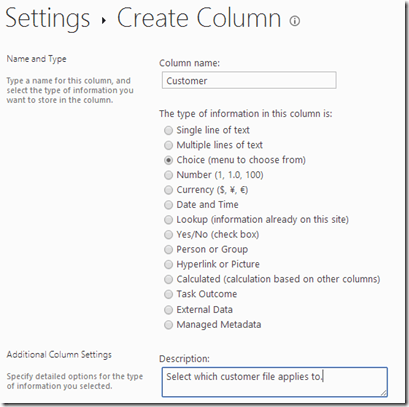
Scroll down this page until you locate the Columns heading. Under the list of existing columns select Create column.
image

Give the new column and name (here Customer), select the type of column it will be (here a choice) and add a description. Scroll down for more options.

image

In this case we’ll elect to Require that the column has information, which is not the normal default. This means people can’t add documents to this location WITHOUT also selecting which customer they apply to, which is great for enforcing compliance.

In the choice box you see 4 choices have been entered (Starbucks, Microsoft, HP and Other). These are the options that will be available for this field. You can always return and edit these if necessary later.

All the other fields are left as default and the OK button is selected at the bottom of the page to save the changes.

image

When you return to the Document Library you will see an extra column, Customers, to the right as shown above. Obviously, any existing files won’t have a value for this field since it is new, however if you edit an existing entry you will be required to enter one.

image

If you edit the properties of the first file you can see that there is now an additional field called Customer displayed. You will also notice that it has a star (*) next to it indicating it is a required field. You will also find a drop down selection box, which when selected will display all the options entered when the column has created.

image

Since it is a required field, if you attempt to leave it blank you’ll get a message like that above and you won’t be able to save any updates.

image

You can now go through and update the customer field for every item in the Document Library. The easy was to do this is to use the Quick Edit option from the Ribbon Menu which displays the entries like a spreadsheet so you can easily move between fields using the arrow keys and even copy and paste between cells.

image

When you return to the list you can now select the new column heading you created and you’ll again see a list of entries on which you can filter.

image

In this case, just selecting Microsoft will filter the list of items to only display those that have Microsoft in the Customer column as shown above.

It’s really that simply to add metadata to your SharePoint items. Don’t forget adding metadata works on just about everything in SharePoint, Document Libraries, Lists, Calendars, etc and is a great way to help you filter, sort and most importantly locate your data. Now isn’t that better than what you might be using with you local hard disk?

You can of course extend the concept of metadata way beyond the basics demonstrated here, however the most important thing is to think about, and define you metadata up front. What columns do you need? What type of information will they contain? How will you display the information? etc. 

Remember, SharePoint is an immensely powerful tool like most other Office applications. If you want to get the most from it you need to invest some time understanding what it does. Hopefully, this post will get you started on that path but watch out for more posts on making the most of SharePoint.