Configuring and Using Encrypted Email (Office 365 Message Encryption) with M365 Business Premium

Office 365 Message Encryption (OME) is a Microsoft 365 feature that protects email content by converting it into indecipherable text that only authorized recipients can read[1]. Microsoft 365 Business Premium includes this capability, allowing you to send confidential emails that only intended recipients (inside or outside your organization) can access. This report provides a step-by-step guide to enable and use OME, and a complete walkthrough of sending and receiving encrypted emails for both Microsoft 365 users and external (non-M365) recipients, along with best practices and troubleshooting tips.
Prerequisites and Setup for Office Message Encryption

Before using OME, ensure your Microsoft 365 environment meets the requirements and is configured correctly:

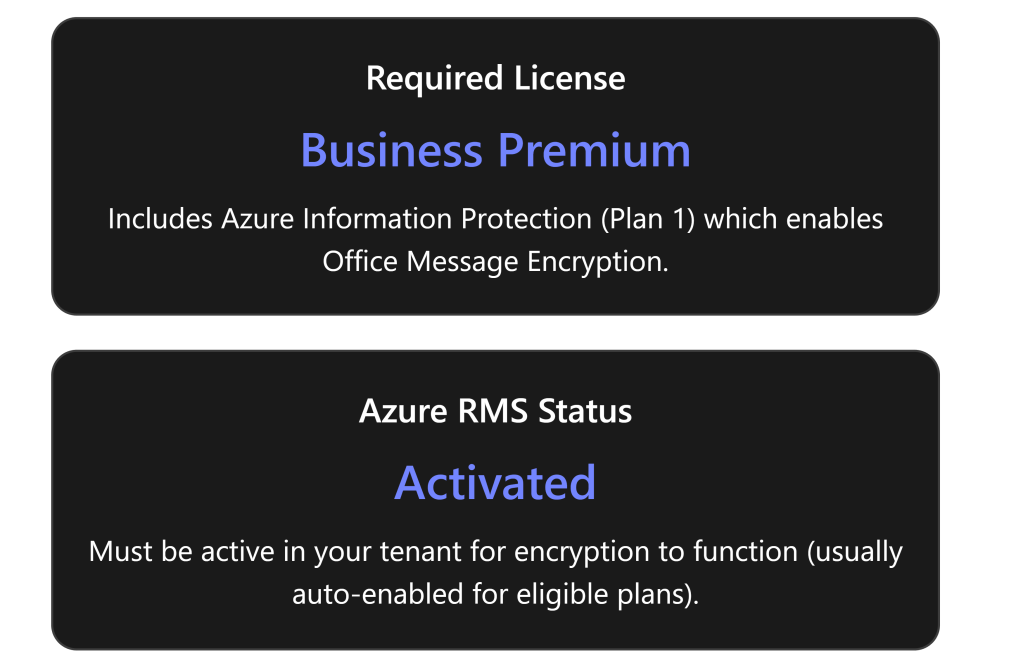
  • Eligible Microsoft 365 Subscription: Microsoft 365 Business Premium includes Office Message Encryption rights out-of-the-box[2]. (It comes with Azure Information Protection Plan 1, which OME leverages.) Other plans that include OME are Office 365/M365 E3 and E5, Office 365 A1/A3/A5, etc.[2]. If you are on a plan like Business Standard or Exchange Online-only, you would need to add Azure Information Protection Plan 1 to get OME functionality[2]. Each user who will send encrypted emails must have a valid license that supports OME[2].
  • Azure Rights Management (Azure RMS) Activation: OME is built on Azure RMS (the protection technology of Azure Information Protection)[3]. Azure RMS must be active in your tenant for encryption to work. In most cases, eligible subscriptions have Azure RMS automatically activated by Microsoft[3]. However, if it was turned off or not enabled, an administrator should activate it. You can activate Azure RMS via the Microsoft Purview compliance portal or Azure portal (the option “Activate” under Azure Information Protection)[3]. Once Azure RMS is active, Microsoft 365 automatically enables OME for your organization[3].
  • Verify configuration (Admin step): As an admin, it’s good to verify that encryption is enabled. For example, you can use Exchange Online PowerShell to run Get-IRMConfiguration; the output AzureRMSLicensingEnabled should be True (meaning OME is enabled in the tenant)[3][3]. If it’s False, run Set-IRMConfiguration -AzureRMSLicensingEnabled $true to enable OME[3][3]. (By default this shouldn’t be needed for Business Premium, but it’s a useful check in troubleshooting scenarios.)
  • User mail client requirements: Users can send/view encrypted emails using Outlook on the web or recent versions of Outlook desktop/mobile. For the best experience (including the newer “encrypt-only” capabilities), users should have Outlook 365 (subscription version) or Outlook 2019/2021. Older Outlook clients (e.g. 2016) also support OME but may not support the newest policy (like encrypt-only) without updates[4]. Ensure Office is updated so that the “Encrypt” button or permission options appear in the client. In Outlook on the web (OWA), the Encrypt option is available in the compose toolbar by default; if not, an admin may need to ensure the OWA mailbox policy has IRM enabled[5] (this is usually true by default).
  • (Optional) Configure automatic encryption policies: After ensuring OME is active, admins can set up policies to apply encryption automatically in certain cases. This isn’t required for basic usage (users can always manually encrypt an email), but it’s a useful configuration:
    • Mail flow rules (transport rules) in Exchange Admin Center can automatically encrypt emails that match specific conditions. For example, an admin might create a rule to encrypt all emails sent externally or any email containing certain keywords (like “Confidential”)[1][1]. These rules use Microsoft Purview Message Encryption as the action to protect messages automatically.
    • Sensitivity labels (from Microsoft Purview Information Protection) can be configured to apply encryption. In Business Premium, you can create labels such as “Confidential – Encrypt” that, when a user applies the label to an email, it automatically encrypts that message. This is a more user-friendly and consistent way to invoke encryption and can also enforce permissions (e.g., restrict forwarding).
    • Branding (optional): Administrators can customize the appearance of encrypted mail notifications sent to external recipients. For instance, you can add your organization’s logo, custom title, or instructions to the encryption portal email template[6]. Branding is configured via PowerShell (Set-OMEConfiguration) and is a best practice so that recipients recognize the secure message as coming from your company.

Sending Encrypted Emails (Step-by-Step Guide)

Once OME is enabled for your account, sending an encrypted email is straightforward. You do not need to manage any encryption keys yourself – the encryption is handled by Microsoft’s service in the background. Here’s how to send an encrypted email using Outlook:
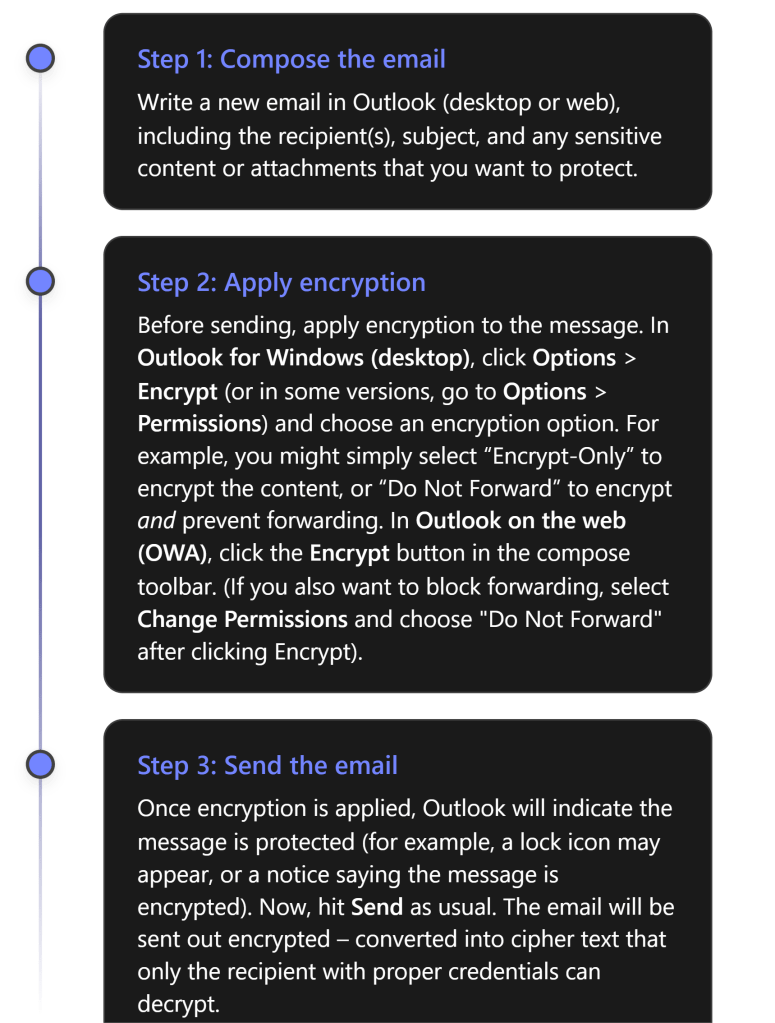
Encryption Options: When applying encryption in Step 2, you may have a few choices depending on your configuration:

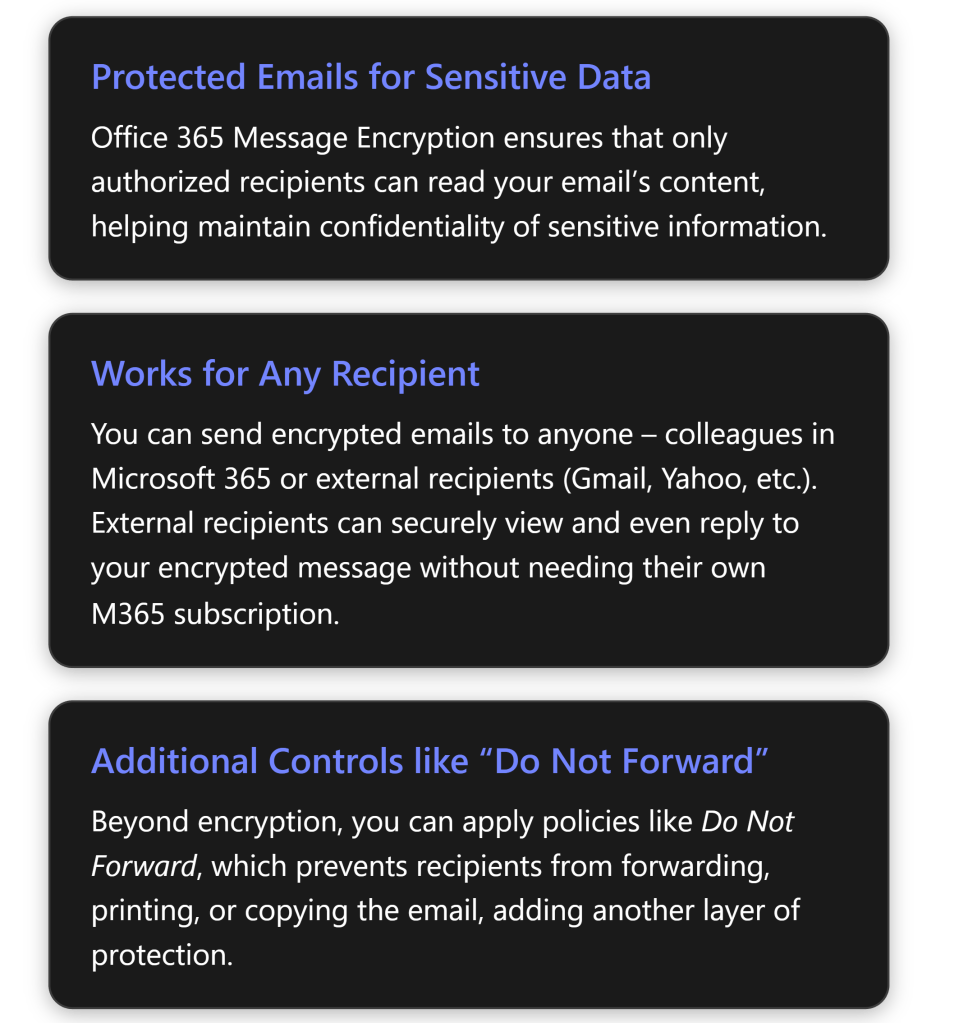
  • Encrypt-Only – Encrypts the email (and attachments) so that only authorized recipients can read it, but does not restrict what recipients can do with the content. Recipients could potentially copy or forward the content after decrypting, so use this when you want confidentiality but don’t need to restrict sharing.[4][4]
  • Do Not Forward – Encrypts the email and applies Information Rights Management restrictions prohibiting the recipient from forwarding, printing, or copying the email’s content[6]. The recipient can read and reply, but cannot share it further. This is ideal for highly sensitive emails where you want to keep tight control.
  • Sensitivity Labels – If your organization uses labels (like “Confidential”) configured to apply encryption, you might see those as options (for example, an email labeled Confidential might auto-encrypt and restrict to internal employees only). These will function similarly to the above, with preset scopes and restrictions defined by your admin.

Note: You do not need to exchange certificates or use special plugins to send encrypted mail using OME. As long as you have a supported M365 account with OME enabled, the feature is built into Outlook. This is much simpler than using S/MIME certificates, which require exchanging keys. With OME, just clicking “Encrypt” in Outlook is enough – Microsoft manages the encryption keys behind the scenes[6][6].

After sending, you might want to verify that your message was encrypted. In your Sent Items, the message should show an icon or text indicating it is protected. For instance, Outlook might display a small padlock icon or a banner “Do Not Forward” on the sent email if that was applied. Additionally, if you try to open the email from Sent Items, it may show that you (as sender) have full permissions. You can also double-check with a test recipient that they received an encrypted message (they will see indications on their side, described next).

Receiving and Opening Encrypted Emails

When a recipient gets an encrypted email, their experience will vary slightly depending on whether they are using a Microsoft 365/Outlook account or a third-party email service. We outline both scenarios below.
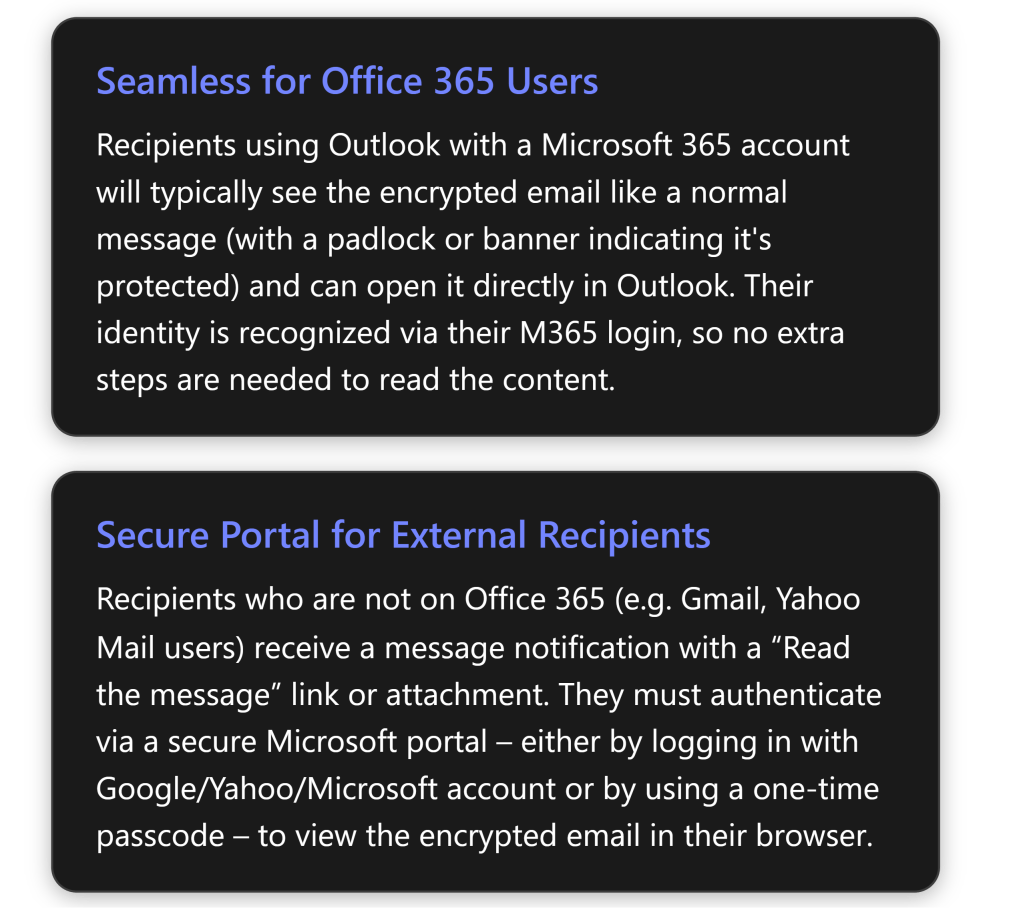
1. Microsoft 365/Office users (Internal or External with M365 accounts): If the recipient uses Outlook and has a Microsoft 365 account (either in your organization or another organization that uses Azure AD), the encrypted email arrives in their inbox like a regular email. In Outlook 2016 or later, they will see an alert in the Reading Pane that the message has restricted permissions[4] (for example, “Encrypt-Only” or “Do Not Forward” noted). They can simply open the email normally – Outlook will automatically retrieve the decryption key in the background using their credentials. After opening, the content is readable within Outlook just like any other email[4]. In short, for M365 users, reading an OME email is usually one-click: open it and read. For Outlook on the web or mobile, it’s similar – they click the message and, as long as they’re logged in with the authorized account, the message opens. (If by chance their client cannot display it directly – e.g., an older Outlook not fully updated – the email will instead contain a “Read Message” link guiding them to the web portal. But as of recent updates, Outlook 2019/M365 apps support the direct decrypt in the client for the Encrypt-Only policy[4].)

2. External or non-Microsoft recipients: If the recipient is outside M365 (for example, using Gmail, Yahoo, or any other email provider), they will receive an email letting them know you sent an encrypted message. The email will typically show your original subject line and a body message like: “\ has sent you a protected message” with a button or link that says “Read the message” (or an HTML attachment that they need to open)[6].

From the external recipient’s perspective, these are the steps to open an encrypted mail:
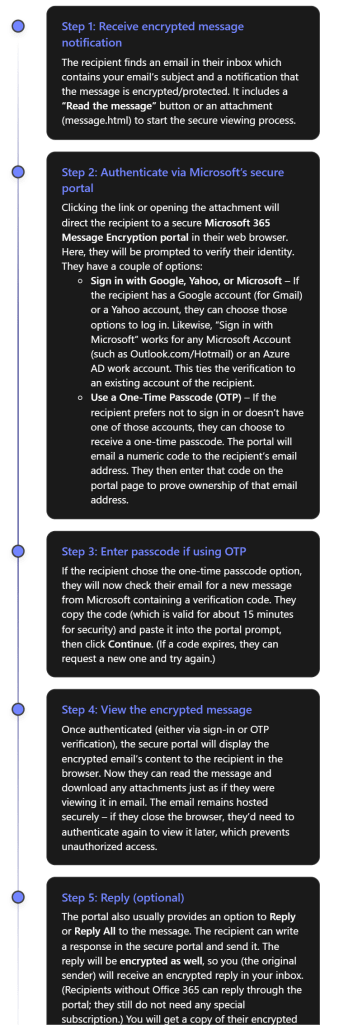
As seen above, Microsoft has designed OME so that even external recipients have a user-friendly (if slightly multi-step) way to access encrypted mail. They do not have to install anything; a web browser is enough. They either sign in with an existing email account or use a one-time code sent to their email[4][4]. Once that is done, they can read and even respond securely. This approach means you can confidently send sensitive data to clients or partners using Gmail, Yahoo, etc., and know that only they (not an unintended person) can read it.

Important: Certain parts of the email are not encrypted for practical reasons: the email subject line and metadata (sender, timestamp) are visible in the notification email. Only the body and attachments are encrypted. Therefore, as a best practice, do not put highly sensitive info in the subject line of an email – keep it generic and put details in the body or attachments which will be encrypted.

Also note, if an external recipient tries to forward the original notification email itself, it won’t help others read the message because only the intended recipient can authenticate to view the content. If you applied “Do Not Forward” protection, an external recipient cannot forward the content from the portal either (the portal will enforce no forwarding). If a Microsoft 365 recipient tries to forward a “Do Not Forward” encrypted email, the forwarded message will be unreadable to the new third-party, since they aren’t authorized – the system will either block it or send a protected email that the new recipient cannot open[6].

Best Practices for Using OME Effectively

Using Office Message Encryption adds security, but it’s important to use it correctly. Here are some best practices and tips:

  • Train users and set expectations: Educate anyone sending encrypted emails on how OME works and when to use it (e.g. for personal data, financial info, confidential documents). Likewise, prepare external recipients if possible. For instance, if you’re emailing a client securely for the first time, you might call or text them beforehand, saying “You’ll receive a secure encrypted email from me with a link – it’s safe to open.” This helps external recipients not mistake your encrypted email for a phishing attempt.
  • Use “Do Not Forward” for highly sensitive content: If you want to ensure the information doesn’t get re-shared, use the Do Not Forward option (or a similar rights-protected label). This way, even if a recipient’s account were compromised or someone was tempted to share the email, the protected content cannot be opened by unauthorized people[6]. It adds an extra layer beyond encryption alone.
  • Avoid sensitive details in subject or preview text: As noted, the email subject is visible to anyone who might intercept the message (or just in the recipient’s inbox preview). Keep subjects generic and put sensitive info only in the encrypted body/attachments.
  • Verify encryption on outgoing emails: When you send an encrypted email, double-check that Outlook shows it’s encrypted (look for the lock icon or a permissions message in the compose window)[6]. If you don’t see the encryption indicator, you may have missed a step. Also, you can send a test email to yourself (to a separate account) to see how the experience looks for recipients.
  • Consider sensitivity labels for consistency: If your organization frequently encrypts emails, using sensitivity labels can make it easier and more standardized. For example, a label “Private – Recipients Only” could automatically encrypt and set Do Not Forward, in one click for the user. It ensures the correct policy is applied and also might apply visual markings to the email. Business Premium allows configuring such labels in the Purview compliance center.
  • Be cautious with group emails: OME can encrypt emails sent to multiple people, but ensure each recipient is intended. If you send to a distribution list or a group, all members will be able to read it; if someone is later added to that group, they may not access past encrypted mail. For external groups, OME might not resolve all members. Ideally, send encrypted mail to individual addresses to maintain clarity over who can decrypt it.
  • External recipient guidance: Some external recipients might struggle with the process (for example, the one-time passcode email might land in their spam folder or they may not realize they can use a Google login). Be ready to guide them. Microsoft’s support page “Open encrypted and protected messages” is a useful reference to share if someone has trouble.
  • Remove encryption if needed: If you accidentally sent an email with encryption but later need to share the content openly, you (the sender) have the ability to remove encryption after sending. In Outlook, find the sent encrypted message, open it, go to File > Permissions (or Encrypt) and choose “Unrestricted Access” (for Outlook desktop)[6]. This essentially decrypts the message for all recipients, allowing them to view it without the special process. Use this carefully – it will make that content accessible just like a normal email.
  • Leverage branding for trust: As mentioned, consider adding your organization’s branding to encrypted emails (logo, custom instructions)[6]. This helps recipients trust that the encryption message is legitimately from your company and not a phishing scam. The branding appears on the “Read the message” page and in the email that contains the link.
  • Stay updated: Microsoft continually improves OME. For example, the “Encrypt-Only” mode was added to allow direct decryption in modern Outlook apps[4]. Keep your Outlook client updated to benefit from the latest improvements (e.g., some older versions required always using the web portal; newer versions can decrypt in-app). Similarly, stay informed via Microsoft 365 updates for any changes to the encryption experience.

Monitoring, Management, and Compliance Considerations

From an IT administration and compliance perspective, encrypted emails introduce some new considerations. Here’s how to manage and monitor OME usage in your organization and ensure compliance requirements are met:

  • Tracking encrypted messages: Administrators may want to know when and how often users are sending encrypted emails (for example, to ensure policies are followed). Microsoft 365 provides an Encryption Report in the compliance center (Purview portal) that shows statistics and details of encrypted emails. In the Microsoft Purview portal, under Data Loss Prevention or Reports, you can find a report for Message Encryption usage[7]. This report can show which emails were encrypted, by whom, and if they were automatically encrypted by a rule or manually. It can typically be scheduled to be sent via email or viewed on demand[7]. Use this to monitor adoption and detect any anomalies (like an unusual spike in encrypted emails, which might indicate users handling a lot of sensitive info).
  • Audit logs: Each time a user sends an encrypted email, an event is recorded in the Unified Audit Log in Microsoft 365 (if auditing is enabled). Admins can search the audit log for activities related to OME (such as the “Applied sensitivity label” event if labels are used, or mail flow rule events). There isn’t a special “encryption” event per se for each message, but the encryption report mentioned above is a higher-level view. If deeper investigation is needed (e.g., for a specific incident), administrators with proper permissions could also access the content (see eDiscovery below).
  • eDiscovery and compliance searches: Encrypted emails are still stored in mailboxes (in an encrypted form). Compliance officers may worry: can we perform eDiscovery on encrypted content? The answer is yes – Microsoft Purview eDiscovery tools can decrypt encrypted emails so that compliance or legal reviewers can search and read them, provided the reviewer has the necessary permissions (specifically, the “RMS Decrypt” permission in Purview)[8][8]. In practice, during a content search or eDiscovery case, the system will decrypt the content of OME emails when exporting results or adding items to a review set, so that the reviewer can see the actual email text[8][8]. This ensures that using OME doesn’t impede your organization’s ability to fulfill legal discovery or compliance obligations, as long as authorized personnel are doing the searching.
  • Data Protection and compliance standards: Using OME can help your organization comply with regulations that require protection of sensitive data in transit (such as GDPR, HIPAA for healthcare communications, or financial privacy laws). The encryption ensures that even if an email is inadvertently sent to the wrong party or intercepted, it cannot be read by unauthorized persons. That said, encryption is one piece of the puzzle – you should still enforce data loss prevention policies and train users on handling sensitive info. OME works in tandem with Data Loss Prevention (DLP) policies: for instance, a DLP policy detecting a credit card number could automatically trigger encryption of the email instead of blocking it, allowing the email to go out securely rather than in plain text[1].
  • Advanced Message Encryption: For organizations with higher-end licenses (E5 or as an add-on), Advanced Message Encryption provides additional management capabilities. This includes the ability for admins to revoke access to a sent encrypted email or set it to expire after a certain time. For example, if an employee sent an encrypted email externally by mistake, an admin with Advanced Message Encryption could revoke that message, so that when the recipient tries to read it, they get a notice that the message is no longer available. Business Premium does not include Advanced Message Encryption (that’s an E5 feature), but it’s useful to know such features exist in case your compliance needs grow in the future.
  • Ensuring availability of encryption features: If users report that they can’t find the Encrypt button or that encrypted emails aren’t opening, revisit the configuration:
    • Make sure the user is logged into their Outlook with the correct account that has the Business Premium license. If not, have them sign out and sign back in with their licensed account[5][5].
    • Check that the Outlook on the web policy has IRM enabled (an admin can do Get-OwaMailboxPolicy -Identity OwaMailboxPolicy-Default | FL IRMEnabled. It should be True. If not, set it to true to expose the Encrypt option in OWA)[5].
    • Ensure there are no older Active Directory Rights Management (on-premises AD RMS) configurations interfering – Microsoft’s OME will not work simultaneously with an old AD RMS setup. If you previously used AD RMS, you should migrate those keys to Azure RMS[3].
  • Internal monitoring and scanning: Note that Exchange Online can still scan encrypted emails for malware and spam before encryption is applied. If you manually encrypt a message and send it, the content gets encrypted after it passes through the Outbox, meaning Microsoft’s server has the plaintext to scan for viruses. If an admin sets up an automatic encryption rule, it typically applies at the transport stage after other filters. So your use of OME shouldn’t reduce the effectiveness of Exchange Online Protection (EOP) for anti-malware. However, once encrypted, other systems (like a recipient’s email server or a journaling system outside Microsoft) can’t inspect the content. Keep this in mind if your enterprise routes mail through any gateway that needs to inspect content – you may need to allow that encryption happens at the final stage.

In summary, Microsoft 365 Business Premium provides a robust encryption capability for email. By configuring it properly and following the best practices above, you can greatly reduce the risk of sensitive information leaking via email, while still maintaining usability for your users and external contacts. Always balance security with practicality – use encryption when it’s truly needed (so users take it seriously), and make sure to support recipients who might be unfamiliar with the process. With OME, you empower users to protect data on their own, which is a powerful tool in your organization’s security arsenal.

Further Resources

For more information and support on Office 365 Message Encryption, consider these resources:

  • Microsoft Learn – Email encryption in Microsoft 365: An overview of all email encryption options in M365, including OME, S/MIME, and IRM[9]. This is useful for understanding how OME compares to other encryption methods.
  • Microsoft Learn – Set up Message Encryption: Step-by-step guidance for admins to enable and test OME in a tenant[3][3].
  • Microsoft 365 Business Premium Training – Protect Email with OME: Microsoft offers a training module on using OME (protecting email) as part of their Business Premium documentation[1][1].
  • Troubleshoot OME (Microsoft Support): Common issues and solutions if encrypted messages can’t be opened or the encrypt option is missing[5][5].
  • User Guide – Send, View, and Reply to Encrypted Emails: Microsoft support article for end-users on how to send and read encrypted messages in Outlook[4][4] – this can be shared with new users or external recipients if they need guidance.

Each of these resources can provide deeper insights or up-to-date instructions as OME evolves. By following the steps and tips in this report, you should be well-equipped to configure Office Message Encryption in Microsoft 365 Business Premium and use it to securely send/receive sensitive emails with confidence. Enjoy the peace of mind that comes from that extra layer of security on your communications! [4][4]

References

[1] Send encrypted email with Microsoft 365 Business Premium – Microsoft …

[2] Message Encryption FAQ | Microsoft Learn

[3] Set up Microsoft Purview Message Encryption | Microsoft Learn

[4] Send, view, and reply to encrypted messages in Outlook for PC

[5] Resolve Microsoft Purview Message Encryption issues

[6] How to Encrypt Emails in Outlook and Office 365 — LazyAdmin

[7] O365 Encrypted Email – How can I tell which outgoing emails were …

[8] Decryption in Microsoft Purview eDiscovery tools

[9] Email encryption in Microsoft 365 | Microsoft Learn

Need to Know podcast–Episode 350

In Episode 350 of the CIAOPS “Need to Know” podcast, along with the latest news from the Microsoft Cloud, we explore how Microsoft Power Pages is revolutionising web development for SMBs. Learn how this low-code platform enables businesses to build secure, scalable portals—without needing full-stack developers. From customer support portals to partner onboarding, discover real-world use cases, a step-by-step guide to building your first portal, and how Managed Service Providers (MSPs) can offer Power Pages as a service. This episode is a must-listen for IT professionals, MSPs, and business leaders driving digital transformation.

Brought to you by www.ciaopspatron.com

you can listen directly to this episode at:

https://ciaops.podbean.com/e/episode-350-power-up/

Subscribe via iTunes at:

https://itunes.apple.com/au/podcast/ciaops-need-to-know-podcasts/id406891445?mt=2

or Spotify:

https://open.spotify.com/show/7ejj00cOuw8977GnnE2lPb

Don’t forget to give the show a rating as well as send me any feedback or suggestions you may have for the show.

Resources

CIAOPS Need to Know podcast – CIAOPS – Need to Know podcasts | CIAOPS

X – https://www.twitter.com/directorcia

Join my Teams shared channel – Join my Teams Shared Channel – CIAOPS

CIAOPS Merch store – CIAOPS

Become a CIAOPS Patron – CIAOPS Patron

CIAOPS Blog – CIAOPS – Information about SharePoint, Microsoft 365, Azure, Mobility and Productivity from the Computer Information Agency

CIAOPS Brief – CIA Brief – CIAOPS

CIAOPS Labs – CIAOPS Labs – The Special Activities Division of the CIAOPS

Support CIAOPS – https://ko-fi.com/ciaops

Get your M365 questions answered via email

Show Notes

Security & Compliance
AI & Copilot
Learning & Productivity
Threat Intelligence
Platform & Tools
Recognition & Industry Updates
AI Governance & Design
Media & Branding

Test Your Microsoft 365 Speed in Seconds — For Free!

bp1

Ever wondered if your Microsoft 365 experience is running as fast as it should? Whether you’re dealing with slow Outlook syncs, Teams lag, or SharePoint delays, the culprit might be your connection to Microsoft’s cloud.

That’s where my new Microsoft 365 Connection Speed Test script comes in — a free, no-fuss tool that gives you a clear picture of how well your network connects to Microsoft 365.


️ What Is It?

This PowerShell script, created CIAOPS, runs a quick diagnostic to test your connection speed to Microsoft 365 services. It checks latency, download speed, and other key metrics — all from your own machine.


Why Should You Use It?
  • Spot Bottlenecks: Identify if your network is slowing down your Microsoft 365 apps.

  • Troubleshoot Smarter: Get real data to help IT support pinpoint issues faster.

  • Work from Anywhere: Test performance from home, the office, or on the go.

  • No Guesswork: Know exactly how your connection stacks up — no tech jargon required.


Who’s It For?

Anyone using Microsoft 365! Whether you’re an IT admin, a remote worker, or just someone who wants Teams to stop freezing mid-call — this tool is for you.


How to Get It
  1. Head to the GitHub page: Microsoft 365 Speed Test Script
  2. Follow the simple instructions to run the script using PowerShell as well as reading the online documentation for the script.
  3. Review your results and take action if needed.


✅ Final Thoughts

This script is a great example of how a little tech can go a long way in improving your daily workflow. It’s free, fast, and incredibly useful — especially if you rely on Microsoft 365 to get things done.

Want help running it or interpreting the results? Just let me know — I’m here to help!

A final note – you have the option to upload the results securely to my BLOB storage in Azure at the end of the script. I’m planning to use AI to analyse these results and providing a results dashboard and potentially providing benchmarking feedback as part of the results. So, I’d love it if you would share your results back to me so I can keep improving and enhancing this for all.

Everyday Copilot example prompts for SMB

bp1

Microsoft 365 Copilot is a powerful AI assistant integrated into the Microsoft 365 apps you already use, designed to boost productivity, creativity, and efficiency. For small businesses, it can act as a virtual team member, automating routine tasks and providing intelligent assistance across various functions.

Here’s a breakdown of practical examples and a step-by-step implementation guide for a small business to leverage Copilot for increased productivity:

Practical Examples of Microsoft 365 Copilot in a Small Business

Here are concrete scenarios where a small business can use Copilot to be more productive:

1. Marketing & Content Creation:

  • Scenario: A small online retail business needs to create engaging product descriptions for new inventory and draft a marketing email campaign.

  • Copilot Use:

    • Word: “Draft 10 unique, SEO-friendly product descriptions for a new line of organic bath bombs, highlighting their natural ingredients and calming properties.” Copilot generates initial drafts, which the team can then refine.

    • Outlook: “Based on the organic bath bomb product descriptions, write a promotional email to our subscriber list, including a special launch discount and a clear call to action to visit our website.” Copilot drafts the email, saving significant time.

    • PowerPoint: “Create a presentation for an upcoming local market vendor event, showcasing our brand story and top 5 best-selling products. Include images and key benefits.” Copilot helps generate slides, suggest layouts, and even find relevant stock images.

2. Sales & Customer Management:

  • Scenario: A freelance graphic designer needs to prepare a tailored proposal for a new client and summarize a long email thread about project revisions.

  • Copilot Use:

    • Word: “Generate a comprehensive project proposal for [Client Name] for their new brand identity project. Include sections for scope of work, timeline, deliverables, and pricing, referencing our standard pricing guide.” Copilot quickly builds the proposal structure and fills in details.

    • Outlook: In a long email thread about client feedback, “Summarize the key decisions made and action items from this email conversation regarding the logo design revisions for [Client Name].” Copilot provides a concise summary, preventing missed details.

    • Teams: After a client meeting, “Summarize this Teams meeting about the website redesign, highlighting key agreements, outstanding questions, and assigned tasks to each team member.” Copilot generates meeting minutes and action items.

3. Finance & Operations:

  • Scenario: A small consulting firm needs to analyze quarterly sales data in Excel and draft a memo to employees about new expense policies.

  • Copilot Use:

    • Excel: “Analyze this sales data in Sheet1 to identify the top 3 performing services and visualize monthly revenue trends.” Copilot can suggest formulas, create charts, and even interpret the data, turning raw numbers into actionable insights.

    • Word: “Draft a clear and concise memo to all employees outlining the new expense reimbursement policy, effective next month. Emphasize the need for itemized receipts and submission deadlines.” Copilot helps draft the policy document quickly and accurately.

    • Microsoft 365 Chat: “What are the latest updates to the company’s Q2 budget in the ‘Finance Reports’ SharePoint folder?” Copilot can search across your M365 environment to retrieve and summarize relevant information.

4. Human Resources (HR) & Internal Communications:

  • Scenario: A small accounting firm needs to create an onboarding checklist for new hires and respond to common employee queries about leave policies.

  • Copilot Use:

    • Word: “Create a detailed onboarding checklist for new hires, covering IT setup, HR paperwork, team introductions, and initial training modules.” Copilot provides a structured checklist to ensure a smooth onboarding process.

    • Outlook: When an employee asks about personal leave, “Draft an email response to [Employee Name] explaining the company’s personal leave policy, referencing the relevant section in the employee handbook, and attaching the leave request form.” Copilot helps generate accurate and consistent responses.

Step-by-Step Implementation of Microsoft 365 Copilot in a Small Business

Implementing Copilot effectively involves more than just enabling licenses. It requires preparation, user adoption strategies, and ongoing monitoring.

Phase 1: Preparation and Readiness

  1. Assess Your Microsoft 365 Environment:

    • Data Governance: Copilot inherits your existing Microsoft 365 security, privacy, and compliance settings. Ensure your data is well-organized, permissions are correctly set, and sensitive information is protected (e.g., using sensitivity labels). This is crucial to prevent “oversharing” of information through Copilot.

    • Licensing: Verify you have an eligible Microsoft 365 subscription (e.g., Microsoft 365 Business Standard or Business Premium). Copilot is an add-on, so you’ll need to purchase licenses ($30 per user per month, as of my last update).

    • Network Readiness: Ensure your internet connection and Microsoft 365 services are robust enough to handle the increased AI processing.

  2. Identify Key Use Cases and Pilot Users:

    • Define Needs: Pinpoint specific pain points and areas where AI can provide the most immediate value for your business (e.g., slow report generation, repetitive email drafting, meeting summaries).

    • Select Pilot Group: Choose a small group of enthusiastic users from different departments who are heavy Microsoft 365 users and open to new technologies. These “champions” will be crucial for early feedback and encouraging wider adoption.

  3. Establish an “AI Council” (Even for a Small Business):

    • This doesn’t need to be formal or large. It could be 1-2 owners/managers and a key IT contact (internal or external).

    • Their role: Define clear goals for Copilot, oversee implementation, address challenges, and communicate the vision.

Phase 2: Deployment and Onboarding

  1. Assign Copilot Licenses:

    • Go to the Microsoft 365 admin center.

    • Navigate to Billing > Licenses.

    • Select Microsoft 365 Copilot and assign licenses to your chosen pilot users.

    • Note: It might take up to 24 hours for Copilot to appear in all apps for users. They may need to restart or refresh the apps.

  2. Provide Training and Resources:

    • Basic Prompting: Train users on how to craft effective prompts. Emphasize clarity, context, and specifying the desired outcome.

    • Role-Specific Examples: Provide examples of how Copilot can be used in their specific roles (e.g., marketers: “draft a social media post,” sales: “summarize this client email”). Microsoft provides an “SMB Success Kit” and online quick-start training (aka.ms/quickstartcopilot) that can be valuable.

    • “When to use Copilot” vs. “When not to”: Help users understand when Copilot is a valuable assistant and when human judgment or expertise is still paramount.

    • Encourage Experimentation: Foster a culture where users feel comfortable experimenting with Copilot.

  3. Establish a User Community (informal):

    • Even in a small business, create a dedicated chat channel (e.g., in Microsoft Teams) for users to share tips, ask questions, and celebrate “Copilot wins.” This peer-to-peer learning is highly effective.

Phase 3: Monitor, Refine, and Expand

  1. Gather Feedback:

    • Regularly check in with your pilot users. What’s working well? What are the challenges? What new ideas do they have?

    • Qualitative feedback (discussions, surveys) is just as important as quantitative data.

  2. Monitor Usage (Microsoft Copilot Dashboard):

    • The Microsoft Copilot Dashboard provides insights into Copilot usage, including which apps it’s used in most and active user counts. Use this to understand adoption trends and identify areas for further training or focus.

  3. Iterate and Optimize:

    • Based on feedback and usage data, refine your training materials, prompt guidelines, and use cases.

    • Address any data governance issues that arise.

  4. Gradual Rollout (or full deployment):

    • Once the pilot is successful and you’ve addressed initial challenges, gradually expand Copilot access to more users or the entire team.

    • Continue to provide ongoing support and training as new users come online.

  5. Celebrate Successes:

    • Share stories of how Copilot has helped employees save time, improve quality, or achieve business goals. This builds enthusiasm and encourages wider adoption.

By following these practical examples and a structured implementation approach, even small businesses can effectively harness the power of Microsoft 365 Copilot to significantly boost their productivity and gain a competitive edge.

CIA Brief 20250720

image

Understanding Apple enrollment methods in Microsoft Intune –

https://techcommunity.microsoft.com/blog/intunecustomersuccess/understanding-apple-enrollment-methods-in-microsoft-intune/4434586

New tools for Security Copilot management and capacity planning –

https://techcommunity.microsoft.com/blog/securitycopilotblog/new-tools-for-security-copilot-management-and-capacity-planning/4432723

Learning the new Outlook: Managing the Calendar surface –

https://www.youtube.com/watch?v=5kA72Vs8Zo0

Web vs work grounding in Microsoft 365 Copilot –

https://www.youtube.com/watch?v=y03QC8PCAfE

Protecting Cloud Storage in the Age of AI –

https://techcommunity.microsoft.com/blog/MicrosoftDefenderCloudBlog/protecting-cloud-storage-in-the-age-of-ai/4433854

Microsoft 365 Insider Round-Up: July 2025 –

https://www.linkedin.com/pulse/microsoft-365-insider-round-up-july-2025-microsoft-365-insider-epw2c/

Microsoft Purview Powering Data Security and Compliance for Security Copilot –

https://techcommunity.microsoft.com/blog/microsoft-security-blog/microsoft-purview-powering-data-security-and-compliance-for-security-copilot/4433522

Transparency on Microsoft Defender for Office 365 email security effectiveness –

https://www.microsoft.com/en-us/security/blog/2025/07/17/transparency-on-microsoft-defender-for-office-365-email-security-effectiveness/

Now Generally Available: Microsoft Security Copilot in Surface Management Portal –

https://techcommunity.microsoft.com/blog/surfaceitpro/now-generally-available-microsoft-security-copilot-in-surface-management-portal/4429558

Stay ahead of emerging threats with Microsoft Defender Experts for Hunting –

https://www.youtube.com/watch?v=iqlxXf6JeQg

Learning the new Outlook: Configuring Notifications and Reminders –

https://www.youtube.com/watch?v=ov7x5p4FQGE

Deceived, not hacked: Why keeping people safe online now starts with smarter design –

https://news.microsoft.com/source/features/ai/deceived-not-hacked-why-keeping-people-safe-online-now-starts-with-smarter-design/

Automating Microsoft Sentinel: Playbook Fundamentals –

https://techcommunity.microsoft.com/blog/microsoftsentinelblog/automating-microsoft-sentinel-playbook-fundamentals/4424475

Protecting customers from Octo Tempest attacks across multiple industries –

https://www.microsoft.com/en-us/security/blog/2025/07/16/protecting-customers-from-octo-tempest-attacks-across-multiple-industries/

Introducing Copilot Memory: A More Productive and Personalized AI for the Way You Work –

https://techcommunity.microsoft.com/blog/microsoft365copilotblog/introducing-copilot-memory-a-more-productive-and-personalized-ai-for-the-way-you/4432059

Microsoft Stream and Microsoft Clipchamp: Brand unification update for Microsoft 365 video –

https://techcommunity.microsoft.com/blog/microsoft_365blog/microsoft-stream-and-microsoft-clipchamp-brand-unification-update-for-microsoft-/4433155

Learning the new Outlook: Adding Shared mailboxes –

https://www.youtube.com/watch?v=g7Z37I1ZIKY

Secure and govern AI apps and agents with Microsoft Purview –

https://techcommunity.microsoft.com/blog/microsoft-security-blog/secure-and-govern-ai-apps-and-agents-with-microsoft-purview/4429925

Mastering Agent Governance in Microsoft 365 –

https://techcommunity.microsoft.com/blog/healthcareandlifesciencesblog/mastering-agent-governance-in-microsoft-365/4416620

Get the most out of Microsoft Forms with these little-known features –

https://techcommunity.microsoft.com/blog/microsoft365insiderblog/get-the-most-out-of-microsoft-forms-with-these-little-known-features/4432179

Microsoft Security Copilot in Intune deep dive – Part 3: Explore and act on your Intune data with AI –

https://techcommunity.microsoft.com/blog/intunecustomersuccess/microsoft-security-copilot-in-intune-deep-dive—part-3-explore-and-act-on-your-/4433019

After hours

Tech Promised Everything. Did it deliver? | Scott Hanselman – https://www.youtube.com/watch?v=dVG8W-0p6vg

Editorial

If you found this valuable, the I’d appreciate a ‘like’ or perhaps a donation at https://ko-fi.com/ciaops. This helps me know that people enjoy what I have created and provides resources to allow me to create more content. If you have any feedback or suggestions around this, I’m all ears. You can also find me via email director@ciaops.com and on X (Twitter) at https://www.twitter.com/directorcia.

If you want to be part of a dedicated Microsoft Cloud community with information and interactions daily, then consider becoming a CIAOPS Patron – www.ciaopspatron.com.

Watch out for the next CIA Brief next week

How SMBs can use AI with security

bp1

Microsoft 365 Business Premium offers a robust suite of security features, many of which are enhanced by Artificial Intelligence (AI) and machine learning. For SMBs, leveraging these AI capabilities can significantly bolster their cybersecurity posture. Here’s how:

1. AI-Powered Threat Detection and Prevention (Microsoft Defender for Business & Office 365):

  • Advanced Malware and Ransomware Protection: Microsoft Defender for Business (included in M365 Business Premium) uses AI and machine learning to analyze endpoint behavior (PCs, Macs, mobile devices) and detect suspicious activity indicative of malware, ransomware, and other advanced threats. It provides real-time threat detection and automated response capabilities to mitigate issues before they escalate [1, 2].

  • Phishing and Zero-Day Attack Protection: Microsoft Defender for Office 365 (Plan 1, also included) employs AI to identify and block sophisticated phishing attempts, including those crafted with Generative AI to appear more convincing. It uses “Safe Links” to scan URLs in emails and documents at the time of click, and “Safe Attachments” to open email attachments in a virtual environment to detect malicious content before it reaches users. This AI helps interpret email language and intent to classify threats at machine speed [1, 3].

  • Behavioral Anomaly Detection: AI models continuously learn normal user and system behavior. Any deviation from this baseline, such as unusual login patterns, large data downloads, or access from unfamiliar locations, can trigger alerts and automated responses, indicating potential account compromise or insider threats [3].

2. Identity and Access Management (Microsoft Entra ID Premium P1):

  • Risk-Based Conditional Access: AI plays a crucial role in Conditional Access policies. It analyzes factors like user location, device compliance, and detected risk levels (e.g., impossible travel, anomalous login times, leaked credentials) to determine if access to resources should be granted, denied, or require additional verification (like MFA). This proactive approach significantly reduces the risk of unauthorized access even if credentials are stolen [1, 4]. Microsoft Entra ID Protection categorizes risk into low, medium, and high confidence levels, using machine learning to inform these assessments [4].

  • Multi-Factor Authentication (MFA) Enforcement: While MFA itself isn’t AI, the AI in Entra ID (formerly Azure Active Directory) can recommend and enforce MFA based on detected risks, making it a critical layer of defense against identity attacks [1, 4].

3. Data Loss Prevention (DLP) and Information Protection (Microsoft Purview):

  • Intelligent Data Classification: AI in Microsoft Purview Information Protection can automatically identify and classify sensitive data (e.g., credit card numbers, health information, personally identifiable information) across Outlook, SharePoint, and Teams. This helps ensure that sensitive data is appropriately protected, encrypted, and prevented from leaving the organization, whether maliciously or accidentally [1, 5]. Sensitive information types and trainable classifiers leverage AI to find sensitive data in user prompts and responses when they use AI apps [5].

  • Automated Policy Enforcement: Based on the AI-driven classification, DLP policies can be automatically enforced, preventing sharing of sensitive information with unauthorized external parties or even internally if policies dictate [5]. DLP also uses machine learning algorithms to detect content that matches your DLP policies [5].

4. Device Management and Compliance (Microsoft Intune):

  • Automated Security Policy Deployment: While Intune primarily manages devices, AI can inform and automate the deployment of security policies, ensuring devices are compliant before accessing company resources. It can also help detect and flag non-compliant devices, preventing them from becoming entry points for attacks [1].

  • Remote Wipe and Data Protection: In case of lost or stolen devices, Intune allows for remote wiping of company data, which, while not directly AI-powered, is a critical security measure supported by the device management framework [1].

  • AI-powered insights for device management: Microsoft Intune leverages real-time data and AI-powered insights (e.g., in Endpoint analytics and with Copilot in Intune) to help proactively manage and secure devices, pinpoint problems, identify vulnerabilities, and deploy remediations [6].

5. AI for Security Operations (Microsoft 365 Copilot & Analytics):

  • Microsoft 365 Copilot (Add-on): While primarily a productivity tool, Copilot, when integrated with Microsoft 365 Business Premium, can contribute to security by:

    • Summarizing Security Alerts: Quickly digest and understand complex security alerts and incident reports [7].

    • Threat Intelligence Analysis: Help analyze security logs and data to identify potential threats and vulnerabilities [7].

    • Generating Security Policies/Documentation: Assist in drafting security policies, guidelines, or incident response plans [7].

    • Adhering to existing security controls: Copilot inherits existing Microsoft 365 security, privacy, identity, and compliance requirements, ensuring users only see what they have permission to access [7].

  • Security Analytics and Reporting: The underlying AI within M365’s security features continuously collects and analyzes vast amounts of security data. This allows for better insights into the organization’s security posture, identifies trends in attacks, and helps predict potential vulnerabilities, enabling SMBs to make informed security decisions [2].

How SMBs can best leverage this AI:

  • Enable and Configure: Don’t just subscribe to M365 Business Premium; actively enable and configure its security features. Many of the AI-powered capabilities need to be turned on and customized to your business’s needs.

  • Prioritize MFA and Conditional Access: These are foundational and highly effective in preventing identity-based attacks [1, 4, 7].

  • Educate Employees: Even with AI, human error is a significant vulnerability. Train employees on phishing awareness, data handling best practices, and the importance of reporting suspicious activity.

  • Regularly Review Security Reports: Pay attention to the security insights and recommendations generated by M365, as these are often powered by AI analysis.

  • Consider Professional Assistance: For complex configurations or if you lack in-house IT expertise, consider working with a Managed Service Provider (MSP) who specializes in Microsoft 365 security. They can help optimize your security posture and ensure you’re getting the most out of the AI-powered features.

  • Stay Updated: Microsoft continuously updates its security features. Keep your M365 environment updated to benefit from the latest AI enhancements.

By proactively utilizing the AI capabilities within Microsoft 365 Business Premium, SMBs can significantly enhance their defenses against evolving cyber threats, protecting their data, devices, and ultimately, their business continuity.


References:

[1] Security Features of Microsoft Business Premium | Smile IT. (n.d.). Retrieved from https://www.smileit.com.au/cybersecurity/security-features-of-microsoft-business-premium/

[2] Microsoft Defender for Business | Microsoft Security. (n.d.). Retrieved from https://www.microsoft.com/en-au/security/business/endpoint-security/microsoft-defender-business

[3] Microsoft Defender for Office 365 | Microsoft Security. (n.d.). Retrieved from https://www.microsoft.com/en-au/security/business/siem-and-xdr/microsoft-defender-office-365

[4] What are risks in Microsoft Entra ID Protection. (n.d.). Retrieved from https://learn.microsoft.com/en-us/entra/id-protection/concept-identity-protection-risks

[5] Use Microsoft Purview to manage data security & compliance for Entra-registered AI apps. (n.d.). Retrieved from https://learn.microsoft.com/en-us/purview/ai-entra-registered

[6] Microsoft Intune data-driven management | Device Query & Copilot – Mechanics Team. (n.d.). Retrieved from https://officegarageitpro.medium.com/microsoft-intune-data-driven-management-device-query-copilot-fc6b958a5e83

[7] Securing Microsoft 365 Copilot in a Small Business Environment – CIAOPS. (n.d.). Retrieved from https://blog.ciaops.com/2025/07/07/securing-microsoft-365-copilot-in-a-small-business-environment/

Unlocking Productivity: SharePoint, Teams, and OneDrive Best Practices for SMBs with M365 Business Premium

bp1

For Small and Medium Businesses (SMBs) leveraging Microsoft 365 Business Premium, the suite of tools – SharePoint, Teams, and OneDrive for Business – offers an incredible opportunity to transform collaboration and boost productivity. But simply having the tools isn’t enough; strategic configuration and a well-designed collaboration structure are key to unlocking their full potential. This blog post will guide you through the recommended best practices and provide detailed steps to configure your environment for maximum efficiency.

Understanding the Trio: SharePoint, Teams, and OneDrive

Before diving into configuration, it’s crucial to understand the distinct roles of each platform:

  • OneDrive for Business: Think of this as your personal cloud storage. It’s ideal for individual work files, drafts, and documents you’re not yet ready to share broadly. It provides seamless synchronization across devices and robust versioning.
  • SharePoint Online: This is your organization’s intranet and document management system. SharePoint sites are perfect for structured, long-term document storage, company-wide resources, policies, and departmental information. Every Microsoft Team gets an associated SharePoint Team Site.
  • Microsoft Teams: The hub for teamwork. Teams brings together chat, meetings, calls, and collaboration on files. It’s designed for dynamic, real-time collaboration within specific groups or projects, with the underlying file storage powered by SharePoint.

Designing Your Collaboration Structure: The “When to Use What” Guide

A common pitfall is using these tools interchangeably. A clear “when to use what” guideline is essential for user adoption and efficient collaboration.

  • Your Personal Work & Drafts: OneDrive for Business
  • Immediate Team/Project Collaboration: Microsoft Teams (with files stored in the connected SharePoint Team Site’s document library)
  • Company-wide Information & Structured Document Management: SharePoint Communication Sites (for intranets, HR portals) and SharePoint Team Sites (for departmental or long-term project repositories not necessarily tied to a daily Teams chat).
  • Formal/External Communication: Outlook (for email and calendaring)
  • Task Management: Microsoft Planner (for team tasks, integrated into Teams) and Microsoft To Do (for personal tasks).

Detailed Steps: Configuring Your Collaboration Environment

Phase 1: Foundation & Security (Admin-Focused)
  1. Initial Setup & Domain Verification: Ensure your Microsoft 365 tenant is fully set up, and your custom domain is verified. This is typically done during your initial M365 Business Premium subscription setup.
  2. User Management & Licensing:
    • Go to the Microsoft 365 Admin Center https://admin.microsoft.com
    • Navigate to Users > Active Users.
    • Add users and assign the appropriate Microsoft 365 Business Premium licenses. Ensure display names and usernames are consistent.
  3. Enable Multi-Factor Authentication (MFA) for ALL Users: This is non-negotiable for SMB security.

    • From the Admin Center, go to Azure Active Directory (now Microsoft Entra ID).
    • Under Security > Conditional Access or Identity > Users > Per-user MFA, enable MFA for all users. Consider setting up Conditional Access policies to enforce MFA based on location or device.
  4. Configure OneDrive for Business Default Settings:
    • In the Microsoft 365 Admin Center, go to Show all > SharePoint > Settings > OneDrive sync.
    • Ensure the OneDrive sync app is recommended and consider enabling Known Folder Move to automatically back up users’ Desktop, Documents, and Pictures folders to OneDrive.
    • Set appropriate retention policies for OneDrive files in the Microsoft Purview compliance portal.
    • Review external sharing settings for OneDrive. For SMBs, it’s often best to restrict external sharing to specific domains or require sign-in for external users.
  5. SharePoint Online Default Settings:

    • In the Microsoft 365 Admin Center, go to Show all > SharePoint > Policies > Sharing.
    • Set your default external sharing level (e.g., “Existing guests” or “New and existing guests”). Avoid “Anyone” links for sensitive data.
    • Implement retention policies for SharePoint sites and libraries in the Microsoft Purview compliance portal.
    • Consider configuring data loss prevention (DLP) policies to prevent sensitive information from being shared inappropriately.

    Microsoft Teams Default Settings:

    • Go to the Microsoft Teams Admin Center https://admin.teams.microsoft.com
    • Under Teams > Teams settings, define guest access permissions. Be clear on who can invite guests and what guests can do.
    • Establish Team and channel naming conventions (e.g., Dept-Marketing, Project-LaunchX). This helps with organization and searchability. Communicate these clearly to users.
    • Consider governance policies for Team creation (e.g., restricting who can create new Teams or requiring approval for new Teams). This prevents sprawl.
    • Review app availability. Limit or approve third-party apps based on your company’s security and productivity needs.
Phase 2: Structuring for Collaboration (User & Admin Collaboration)
  1. Identify Collaboration Needs & Groups:
    • Gather key stakeholders from different departments or projects.
    • Determine how teams currently communicate and share files.
    • Identify logical groups for collaboration (e.g., Sales Team, Marketing Team, Project X Team, Leadership).
  2. Create Microsoft 365 Groups/Teams:
    • For each identified collaboration group, create a Microsoft Team in the Teams Admin Center or directly in the Teams application.
    • When you create a Team, it automatically creates a corresponding Microsoft 365 Group (which includes a SharePoint Team Site, Exchange mailbox, Planner, etc.).
    • Best Practice: Start with a few core Teams (e.g., by department or major function) and add specific channels within them. Avoid creating a Team for every single small project initially.
  3. Organize Channels within Teams:
    • Within each Team, create Standard Channels for different topics, workstreams, or sub-projects.
    • Use the “General” channel for announcements and onboarding.
    • Private Channels should be used sparingly for sensitive discussions or files involving a subset of the Team members.
    • Shared Channels (if applicable) allow seamless collaboration with specific internal or external teams without granting full access to the parent Team. Ideal for client projects or vendor collaborations.
  4. Leverage SharePoint for Structured Content:
    • Team Sites (Connected to Teams): The “Files” tab in each Teams channel is powered by a document library in the connected SharePoint Team Site. Encourage users to store all Team-related documents here. Use folders within these libraries for further organization.
    • Communication Sites: Create dedicated SharePoint Communication Sites for company-wide news, HR resources, IT support, or marketing collateral that needs to be broadly accessible but controlled by a smaller group of content creators. Link these sites from within Teams using tabs or a central intranet portal.
  5. Integrate Apps & Tabs in Teams:
    • Pin frequently used files, SharePoint pages/lists, Planner boards, OneNote notebooks, or websites as tabs within relevant Teams channels.
    • For example, add a Planner tab to a project channel to track tasks, or a OneNote tab for meeting notes.
  6. Document Co-authoring Best Practices:
    • Encourage users to co-author documents directly in Teams or SharePoint Online instead of sending attachments via email.
    • Remind users to use the @mention feature in documents and Teams chats to notify specific colleagues.
    • Utilize version history in SharePoint and OneDrive for easy rollbacks and tracking changes.

Phase 3: Adoption & Ongoing Management (Continuous Improvement)
  1. User Training & Education: This is perhaps the most critical step.

    • Conduct internal workshops or provide clear, concise training on “when to use what” for OneDrive, SharePoint, and Teams.
    • Provide quick-reference guides, FAQs, and short video tutorials.
    • Leverage Microsoft Learn resources, which offer extensive free training materials.
    • Focus on practical scenarios: e.g., “How to share a document for team collaboration,” “How to find company policies,” “How to conduct a project meeting.”
  2. Establish “Champions” Program:
    • Identify enthusiastic users in different departments who can become internal experts and advocates.
    • They can help answer questions, promote best practices, and gather feedback.
  3. Regular Review & Optimization:
    • Periodically review your Microsoft 365 usage from the Admin Center. Identify underutilized features or areas of confusion.
    • Gather feedback from users regularly to understand their pain points and suggestions for improvement.
    • Stay updated with new Microsoft 365 features and enhancements, and communicate relevant updates to your team.
    • Conduct content audits in SharePoint to ensure information remains relevant and accurate.
  4. Data Governance & Compliance:
    • Regularly review and enforce retention and deletion policies to manage data lifecycle and compliance.
    • Monitor audit logs in the Microsoft Purview compliance portal for suspicious activities or data breaches.

Conclusion

Microsoft 365 Business Premium offers a powerful toolkit for SMBs to foster a highly productive and secure collaboration environment. By thoughtfully designing your collaboration structure and diligently applying these best practices for SharePoint, Teams, and OneDrive for Business, you can empower your employees, streamline workflows, and ultimately drive greater success for your business. Remember, it’s an ongoing journey of refinement and user engagement, so keep learning and adapting!

New Defender for Office 365 Dashboard

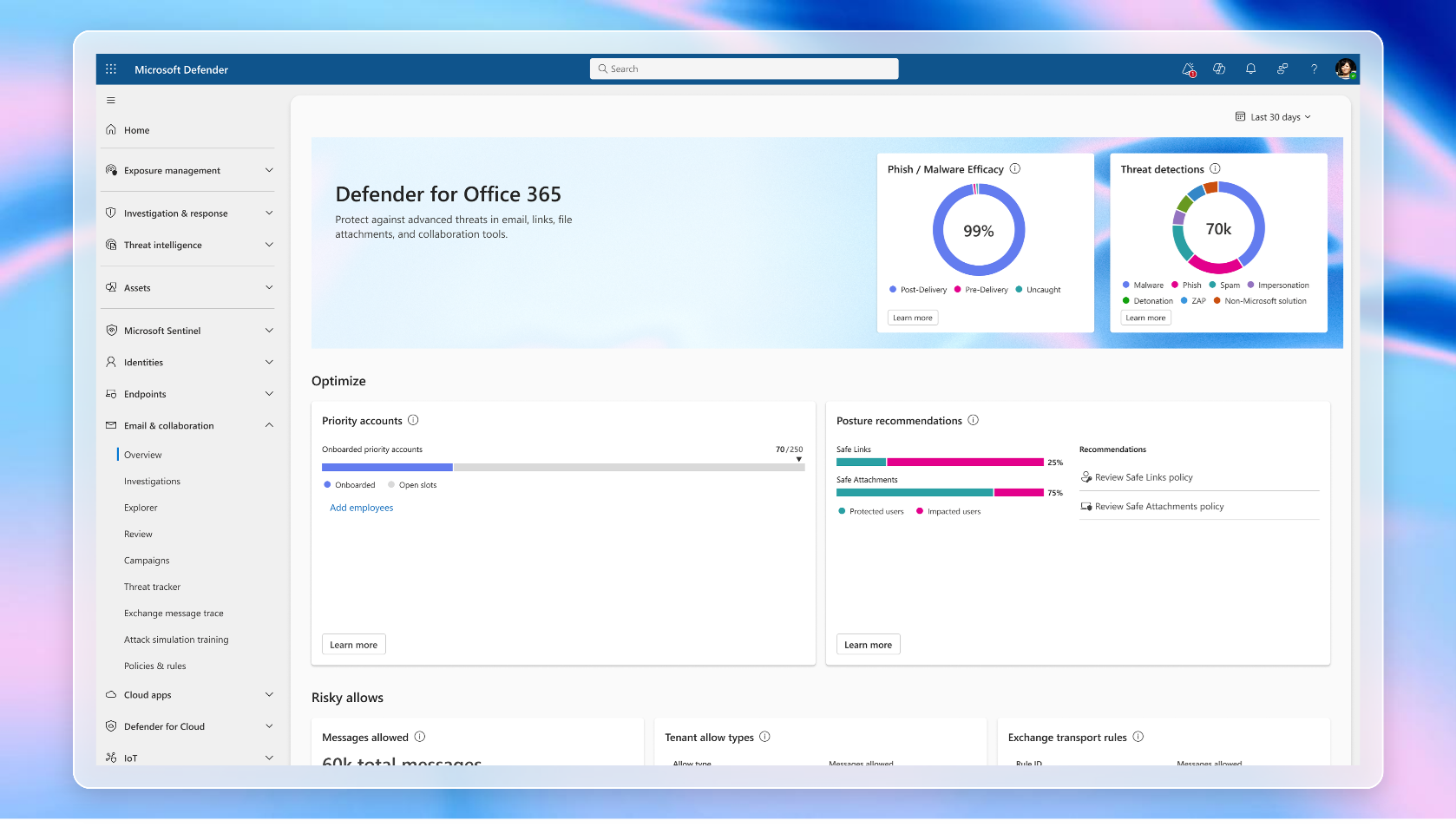
A screenshot of the new Defender for Office 365 overview dashboard.

The new customer overview dashboard allows security teams to track efficacy across cyberthreats blocked pre-delivery, threats mitigated post-delivery, and even “missed” threats. It includes details on how Microsoft Defender for Office 365 capabilities like Safe link, Safe attachments, and Zero-hour Auto Purge contribute to threat protection across an organization. Our goal is simple: to help you confidently answer the question “How are my organization’s users being protected from malicious content and cyberattacks when using email and other collaboration surfaces like Microsoft Teams?”

Transparency on Microsoft Defender for Office 365 email security effectiveness

View it now – https://security.microsoft.com | Email & Collaboration | Overview