Over 3GB of cloud on demand video training

image

I’m happy to announce that I’ve uploaded over 3GB of video training at my cloud business training academy at Cloud Business Blueprint. This is all part of the Cloud Business Blueprint Community. You can also see that there are at least 136 videos available for community members to view on demand aside from all the other content that is also there!

The best thing for Cloud Business community members is that I am committed to build even more content. I am working hard to add more on demand training, white papers, how to articles, re-brandable content on top of what is already provides in the forums.

It is easy for you to sign up as a community member, just do so at:

http://www.cloudbusinessblueprint.com/members-sign-up/

You can cancel at any time, non obligation, no questions asked. if you want content on building a cloud business then look no further than Cloud Business Blueprint.

If you like all the free stuff that I do, then you are sure going to like what is in the Cloud Business Blueprint Community. Becoming a member supports me in focusing on bringing members even greater and deeper content.

I thank all the existing members and I hope that anyone else will join them in creating a community of resellers dedicated to succeeding with their cloud business.

Creating a Domain Controller in Azure

Setting up a Domain Controller (DC) in Azure is a little different than on premises. This post is by no means an extensive guide or best practices document on doing that. It is however designed to give you the basics so you can get up and running quickly.

image

I am going to assume you are starting totally fresh here. The first task is to create a new Azure network in the location that you desire. For more details on doing this see:

Tutorial: Create a Cloud-Only Virtual network in Azure

image

The next step is to run an Azure virtual machine that will be your Domain Controller. The only step that is slightly different from the norm is that you need to select the virtual network you created previously in the Region/Affinity Group/Virtual network option as shown above.

You then continue on as normal and create the virtual machine and allow it start up.

For more information on creating an Azure virtual machine see:

How to Create a Custom Virtual Machine

image

Before you connect to the new virtual machine that will be you file server you need to add an additional hard disk to it. From the list of virtual machines you have in Azure select your new machine. Then select the Add button at the bottom of the page. From the menu that appears select Attach empty disk.

image

Complete the details for the additional disk and save the configuration. For more information on adding an additional disk to a virtual machine see:

How to attach a data disk to a Windows virtual machine

image

When you log into the virtual machine you’ll see that it already has a dynamic IP address (here 10.0.0.4). This comes from the virtual network you created previously. It is important that you DON’T assign static IP addresses to Azure virtual machines, even in the case of a domain controller. All Azure virtual machines should ONLY have dynamically assigned IP addresses.

image

If you look at the storage layout of your new virtual machine you’ll see a C: and D:. Beware, D: drive is a temporary drive that gets erased and recreated on reboot. Thus, the only stuff you want on there is temporary stuff like the page file. Good practice is not to have the Active Directory databases on the boot partition, because if that becomes inaccessible then bye bye AD, unless you have a backup. This is the reason why we attached an additional disk to our new virtual machine.

image

Everything now is pretty as it would be with on premises equipment. Go into the Windows Disk Management console and initialise the new disk.

image

Create a new volume on this additional disk and format it. At the end you should have a drive letter you can access. Here, F:.

image

If you again view the storage configuration of your virtual machine you should see a new disk (here F:) which will be the destination for the AD database.

image

Things remain the same when you configure your server to be a domain controller. Simply go in and add the role as you would normally.

image

Allow the configuration to complete.

image

Once the role has been enabled you now need to raise the server to being a domain controller exactly how you would on premises. The only difference is that you should re-locate the AD DS database, log files and SYSVOL to the disk you added (here F:).

image

Just before you complete the process of raising the server to be a domain controller, you’ll see the above warning about a domain controller requiring a static IP address. Again, in Azure this DOES NOT apply. In Azure we want all servers to have dynamic IP addresses.

image

Once you Domain Controller is running go into the DNS manager, right mouse click on the DNS server (here the domain controller) and select properties. In the Forwarders tab remove any IP address listed.

image

The last step is to go back and edit the properties of your virtual network. In the Configure tab for the network you will find the option for dns servers as shown above. Add the IP address and machine name here and save it. Although, the IP address assigned is dynamic it is on a extended lease so it should effectively ‘remain’ static. if you do power up and down your DC regularly for testing like I do, simply ensure that your DC is the first machine your fire up on that virtual network.

So now you have an Azure hosted Windows Domain Controller (DC) without too much additional fuss.

image

So now, if I want to add another Azure virtual machine into this network and onto the domain, I simply run up an Azure virtual machine as normal. When you do you’ll see it get a different IP address (here 10.0.0.5, while the DC is 10.0.0.4).

image

Then, as you would anywhere else, simply add that machine to the domain. You’ll be prompted for administrator credentials to verify the domain join.

image

If that is all you now have a second machine on this domain.

So in summary, the key points with a Windows Domain Controller in Azure is:

– Add an extra disk and install the AD database, logs and SYSVOL here

– Don’t give DC a static IP address

– Assign the DC IP address to the DNS setting in the virtual network configuration.

For more details on doing this see:

Install a new Active Directory forest on an Azure virtual network

Office 365 automation

One of the strong beliefs I hold is that technology automation is going to have a major impact on our world. It is going to mean a lot of people need to re-skill if they want to stay relevant (including IT Pros).

A great example of this growth in automation is the recent announcement from Microsoft about integration with IFTTT (if this then that) which you can read in full here:

https://blogs.office.com/2015/07/21/office-365-channels-are-live-on-ifttt/

I have been a big IFTTT user for many years so this is great news. Let me give you some insight of what you can do.

After you create an announce on IFTTT you need to connect up your channels. They may include services like WordPress, Facebook, Twitter and now Office 365.

image

You simply locate the channel you wish to connect and select it.

image

You then select the option to Connect.

image

You’ll then need to login to your Office 365 account to authorise IFTTT to access it.

Once you have authorised access you can use IFTTT to create automation recopies. I’m not going to show you how to do that, but it is pretty simple, I’ll give you an example of how the automation works

image

So what I have done above is create an automation recipe that takes daily sleep information from my FitBit and uses Office 365 email to send an email to my normal email account (i.e. from my ciaops365.com domain to ciaops.com domain).

image

When triggered, you see that I receive an email with my previous nights sleep details in my normal inbox (showing a poor nights sleep in reality). Impressive eh? And simple to set up.

The people and businesses who will be most effective in the future will be the ones that take maximum advantage of technology automation. IFTTT is just a simple example of what is now possible with Office 365. I’d suggest now is the time to get automated!

Free Third Tier Azure webinar tomorrow

I have been fortunate enough to be invited to participate in free webinar hosted by Third Tier titled;

Getting Started with Azure and Making Money Doing It

Amy, Susan welcome Robert Crane to the webinar series. Robert has been a long time SMB IT professional well known for his SharePoint, Office 365 and now his Azure expertise. If you think that Azure is just another hosting platform you are so wrong. Azure is your future with Microsoft and it’s a whole new world. Robert will share with us his tips and a path to success with Azure.

More importantly, the webinar is being hosted by two rockstars in the community, Amy Babinchak and Susan Bradley.

Amy Babinchak is the owner of Third Tier and Harbor Computer Services (an MSP). She is also a Microsoft MVP in Small and Medium Business Server. Susan Bradley is a Microsoft Enterprise Security MVP and forensic accountant. Both Amy and Susan have a passion for excellence in small business IT. These webinars will be chatty with each bringing their experience and technical expertise to the table.

The best thing is that the webinar is scheduled in the daylight! At least for me. Here in Sydney Australia the webinar runs from 10am – 11am on Thursday 23rd of July.

So if you are interested in learning about how you can make Azure your business and learn from the likes of Amy and Susan, with some occasional input from me, then check out the webinar. Remember, it is free to attend!

I hope to see you there tomorrow.

Using a template to migrate a SharePoint library

In a recent post I showed how to:

Create a template from a Document Library

In the above video I take that one step further and show you how to import this template into a completely different site collection. This could also be in a separate unique Office 365 tenant if desired.

The process is basically to create a template, including the content if desired, from the source library. You then download the template that this creates and upload to the destination Site Template Gallery. Once there you can create a new library based on this template. When you create the new library it should also contain the content from the source location if you selected that initially.

This is a quick way to not only copy the structure of a library from one location to another, also potentially the content.

Create a template from a Document Library

This tutorial shows you how to take an existing Document Library in SharePoint and create a template. You can then use that template to create additional Document Libraries. This is much like you would use template for Word.

You’ll see how to create a template based on just the structure or one that also includes the contents of the list. Including the structure in a template is a quick and easy way to migrate data in SharePoint as well across SharePoint locations.

Need to Know podcast–Episode 87

In this episode I speak with Kevin Allan from Probax about their new offerings and cloud backup in general.

You can listen to this episode at:

http://ciaops.podbean.com/e/episode-87-kevin-allan/

or subscribe to this and all episodes in iTunes at:

https://itunes.apple.com/au/podcast/ciaops-need-to-know-podcasts/id406891445?mt=2

The podcast is also available on Stitcher at:

http://www.stitcher.com/podcast/ciaops/need-to-know-podcast?refid=stpr

Don’t forget to give the show a rating as well as send me any feedback or suggestions you may have for the show. I’m also on the hunt for some co-presenters so if you are interested on being a regular part of the show please contact me.

Resources

Probax

Cloud Business Blueprint

Profit First

The Pumpkin Plan

Toilet Paper Entrepreneur

Delve should be the center of your Office 365 universe

How do you get Delve?

Delve is currently only available to Office 365 subscribers. Delve is included with all Office 365 suites that include SharePoint Online (Business Essentials, Business Premium, E1, E3 and E4). Users who are assigned a SharePoint Online license as part of the suite will also get Delve.

image

What is Delve?

Under the covers of Office 365 is something called Officegraph. It monitors interactions between people and the information they use. It then applies machine learning to these interactions in order to determine what is most relevant.

One of the ways that the results of this machine learning is surfaced to Office 365 users is via Delve (Clutter is another place). As you can see from the above video, Delve is simply another location users can navigate to in Office 365 from their App Launcher.

When a user navigates to Delve they are presented with information from Office 365 that is most relevant to them at that moment. This means they could see documents from Team Sites or OneDrive. They could see emails or conversations in Yammer or content from Skype for Business.

Delve does not change or negate permissions in Office 365, a user can only see in Delve what they can see elsewhere in Office 365. If they don’t have access to it elsewhere, Delve will not show it to them.

The more important the information that the machine learning in Officegraph determines something is, the higher it will rank in a users Delve.

Why use Delve?

If you think about the way most people work in a business these days, firstly, they dive into their emails, then they may jump across and access some files. Maybe they then have a phone or Skype call with some instant messaging thrown in. Then maybe they go out to a social network to catch up on what’s happening. They then of course repeat this process over and over again during their day.

Delve alleviates a lot of this service switching by providing a single ‘pane of glass’  at which a user can get an overview across all their information locations arranged in a manner that is most relevant to them. This means that documents they have recently been working appear at the top of the list in Delve.

From Delve, users can then simply select the information they want and be taken directly to that location where ever it is in Office 365. So let’s say that you are working on a document and you save it somewhere quickly to get on with other tasks. When you want to come back to that document later you may have forgotten exactly where you saved it. Was it in OneDrive? Maybe this Team Site? No. Maybe that Team Site? Now, what did I call it again so I can search for it? By using Delve instead, you’ll see that document listed near the top of your feed and by selecting it you’ll be taken directly to that location.

Inside a business it is important to remember that we do not work in isolation. We are generally part of many teams, large and small as well as many interactions. We therefore also need to collaborate with others, share information and gain insight from understanding what others in the business are working on. Once again, Delve provides benefits because it allows you to not only see what information is most relevant to you but also what information is relevant to others in your team. In essence, if you select a colleague in your Delve you’ll see their Delve (again remembering Delve respects security and permissions).

image

So if I login as a user and navigate to Delve I see something like that shown above, which is information about Me.

image

But if now select someone else under People menu on the left hand side you’ll that I see their Delve activity feed which is different to mine.

image

If I now select their Profile instead of their Activity I get information about them as shown above. On this page are direct links to their email address, phone and chat.
image

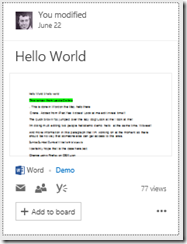
If you look closely at a Delve card you see that it has information about the user at the top of the card, which you can select, that will take you to their profile. If you click on document in the middle of the card, a new tab in browser will open and you’ll be taken directly to the location for that document wherever it is in Office 365.

image

At the bottom of the card you’ll see the location of the document (here in a SharePoint Team Site called Demo) as well as links to collaborate further on this document via email, or share it with others (like you do in SharePoint but here directly from Delve).

image

However, what I believe is a better way to share documents to gain feedback is via document conversations in Yammer. This occurs when you select the Yammer icon below the document. When you do this a pane will slide out from the right hand side of the window and you’ll we prompted to post a link to the document in Yammer as well as see any existing conversations around this document already in Yammer as shown above. This document conversation feature used to be part of SharePoint Online directly but has been deprecated as I indicated in a previous post here:

Document conversations deprecated

The final option available when it comes to sharing are Delve Boards.

Delve Boards basically allow you to ‘pin’ information from Delve to an ‘interest’ or topic. Imagine that your business is doing a project, you could create Delve Board with the project name and then ‘pin’ information to it

image

When you create a board and add something to it you are sharing that across your organisation so that everyone (with suitable permissions of course) can view what is on the board and pin their own stuff to it.

image

You will see, just under the board name you can elect to Follow/Unfollow the board as well as send a link to the board via email.

Why is Delve important?

The more that I see of Delve and the more I understand the direction Microsoft is taking with Office 365 the more important I believe Delve is to every business using Office 365. It’s ability to function as a ‘single pane’ of glass across all your content. It’s ability to show you what is most important to you, along with the ability to access and share information directly from there points to the direction your business should be heading with Office 365 I believe.

Yes, it is probably a very different way of working from the way you currently do BUT I am very confident that using it would provide major productivity benefits across any business if utilised appropriately. Remember, you don’t have to abandon the way you do things now to use Delve, you can start using it today and then judge for yourself, which is exactly what I’d encourage you to do. Try and see before making any judgement.

Too many times we become locked into a routine, into a comfortable way of doing things for purely emotional reasons. After we embrace something new that really works we wonder why we didn’t do it sooner. I think this is very much the case with Delve base on my interactions with resellers and users (more resellers tho’).

The common mentality is, because I don’t understand it I won’t use it, whereas a true business mentality should be let me see if this can provide me business benefit. Yes, Delve is a different way of going about your work but just because its different doesn’t mean it is worse, in fact I’d pretty much wager that it will make things better. A lot better.

Can I disable Delve?

image

Each user can disable Delve if they so desire. The do this by navigating to Delve and selecting the Cog in the top right corner. From the menu that appears they then select Sharing Activity.

image

They will then be given the option as shown above to disable Delve.

image

If you want to disable Delve across you whole organisation you’ll need to login as an administrator and visit the SharePoint admin center. There under Settings you find the above option for Officegraph which when disallowed will also disable Delve.

Conclusion

I certainly see Delve becoming more and more the center of the Office 365 universe. It will be the central place to access all your information. It will be the place to stay up to date with what’s happening across you whole organisation. It will be the place you go to share information with people inside and outside your business. And that is just for starters.

in short, it will make you and your business more productive and that’s why you should start using it today, because from what I have seen of the roadmap for Delve and Office 365 it is only going to get better and more powerful. (see Hey, workaholics: Microsoft Delve will track your ‘work life balance as an example of what’s coming).

References

What is Office Delve?

Office Delve for Office 365 admins

Are my document safe in Office Delve?