Introduction to Office 365 Advanced Threat Protection (ATP)

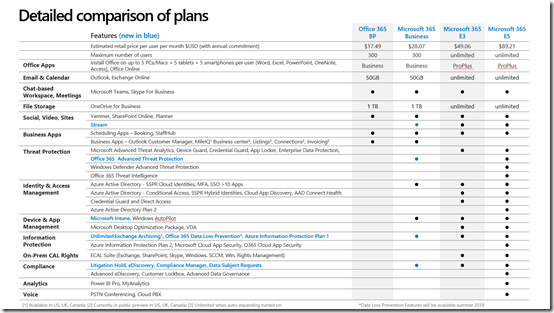
Office 365 Advanced Threat Protection (ATP) is one of the recent offerings rolled into Microsoft 365 Business. See:

Microsoft 365 Business new feature comparison

I feel that ATP should be a mandatory add on for all Office 365 SKUs that don’t already include it. It is very cheap but really helps protect users from bad stuff coming in via emails.

One thing that many people fail to realise about ATP (and many other O365 security features in fact) is that you need to enable it or set up policies to control what you want the service to do. These generally aren’t there by default, so simply adding a license isn’t good enough. You actually need to go in and configure the policies.

The above video gives you and overview of how to set these policies and what options they involve. You’ll also see ATP in action protecting a mailbox from malware. This should give you a goo introduction to Office 365 ATP.

Learn how ATP will make you and your business safer.

Saving custom columns widths with SharePoint Online

*** September 2019 : It appears that the configurations mentioned here no longer work unfortunately.

image

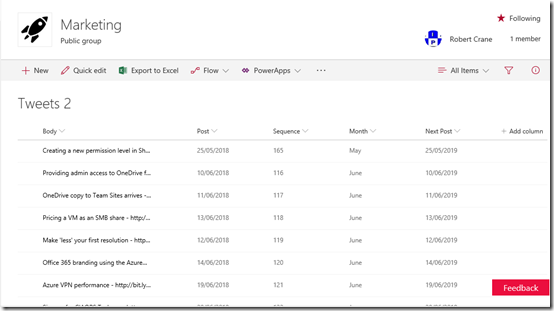
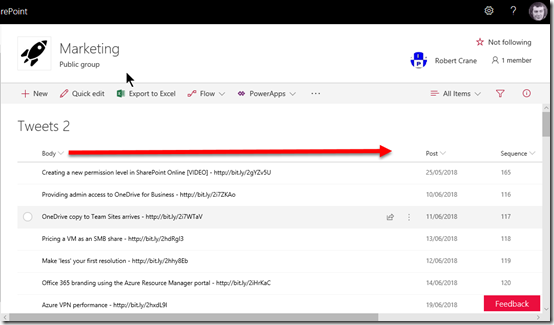
One of the great things about SharePoint Online is that you can create custom columns for just about every element in a site. The information that SharePoint Online displays to you can be customised using “Views”. You can configure multiple “Views” inside a List or Library to show exactly the information you want, as you can see above.

image

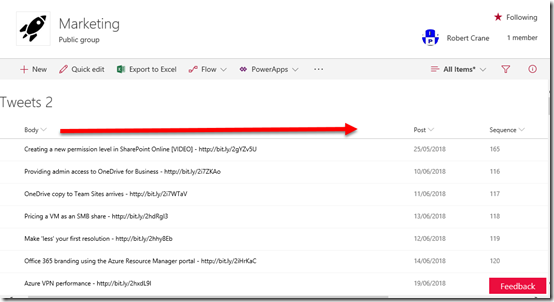
You can also adjust the width of any column by simply dragging it out like you do in something such as Excel. Just go to the boundary of the column heading and drag the column width out as shown above.

The issue was that when you return to this layout after the current session (i.e. closed the browser and logged in again later), the column width would revert back to the default width. Frustrating.

image

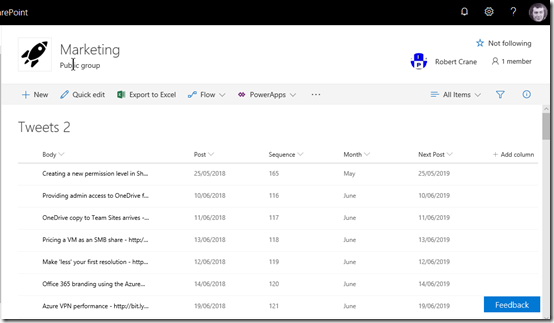
Also, if another user looked at the same location they would again, only see the default widths, even though you changed it in your session.

So, any column changes made were not persistent between sessions or globally available. Frustrating.

image

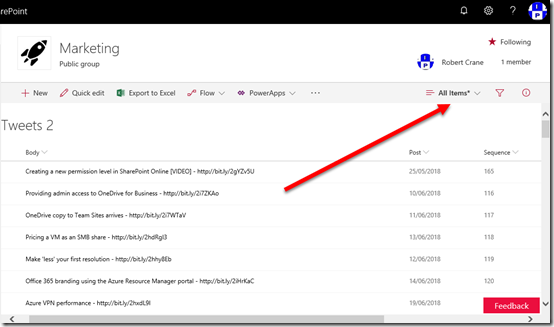
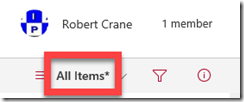
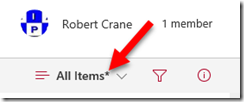
However, if you take a close look at the “View” pull down in the top right of the page you will notice something.

image

You should see that once you change a column width on the page a * appears after the “View” name.

image

Again, make a change to the column width and a little * will appear. This is telling you that the “View” has changed is different from the default. This is kinda the same when you edit documents. It indicates that the contents have changed and you SHOULD save these changes for them to be retained!

image

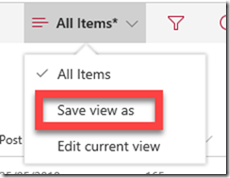
If you therefore select the “View” pull down there will be an option to Save view as.

image

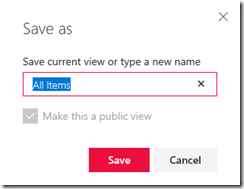
If you then Save the “View”, using the same name as before, you are overviewing the old display with the new layout i.e. with different column widths.

image

If another user now navigates to the page they will see the columns widths that you set! i.e. saving the “View” after adjusting the columns sets these columns width for all users! Yes Martha, we have achieved the global configuration for column widths in SharePoint Online! Yeah!

In summary then, adjust the column widths to the size you want and then save the “View” to make those widths available to all users globally.

CIAOPS Need to Know Azure Webinar–May 2018

pexels-photo-325229

This month I’ll take a look at Azure Storage and all the options that are available around that service. There’ll also be news, updates and Q and A. I hope to see you there.

May Azure Webinar Registrations

The details are:

CIAOPS Need to Know Azure Webinar – May 2018
Friday 25th of May 2017
2pm – 3pm Sydney Time

All sessions are recorded and posted to the CIAOPS Academy.

There of course will also be open Q and A so make sure you bring your questions for me and I’ll do my best to answer them.

The CIAOPS Need to Know Webinars are free to attend but if you want to receive the recording of the session you need to sign up as a CIAOPS patron which you can do here:

http://www.ciaopspatron.com

or purchase them individually at:

http://www.ciaopsacademy.com/

Also feel free at any stage to email me directly via director@ciaops.com with your webinar topic suggestions.

I’d also appreciate you sharing information about this webinar with anyone you feel may benefit from the session.

CIAOPS Need to Know Office 365 Webinar–May

laptop-eyes-technology-computer

For this month’s webinar we are going to take a look at what Office 365 Data Loss Prevention (DLP) is and how it can be used to safeguard the information inside your organisation. You’ll learn what DLP is all about and how to implement it with Office 365. Of course, I’ll also bring you up to speed with all the latest news and updates in the world of Office 365 and Microsoft 365.

You can register for free at:

May Webinar Registrations

The details are:

CIAOPS Need to Know Webinar – May 2018
Friday 25th of May 2018
11am – 12am Sydney Time

All sessions are recorded and posted to the CIAOPS Academy.

There of course will also be open Q and A so make sure you bring your questions for me and I’ll do my best to answer them.

The CIAOPS Need to Know Webinars are free to attend but if you want to receive the recording of the session you need to sign up as a CIAOPS patron which you can do here:

http://www.ciaopspatron.com

or purchase them individually at:

http://www.ciaopsacademy.com/

Also feel free at any stage to email me directly via director@ciaops.com with your webinar topic suggestions.

I’d also appreciate you sharing information about this webinar with anyone you feel may benefit from the session.

Need to Know podcast–Episode 180

We have been lucky enough to speak with Microsoft Senior Marketing Manager for OneDrive for Business Stephen Rose all about how OneDrive helps customers collaborate in this episode. I chat with Stephen about how to resist the urge to map drive letters to OneDrive and how it is superior to the competition amongst plenty of other things. Lots of really great information about OneDrive for Business and we thank Stephen for his time and information that he shared with us. Of course Brenton and I also wrap up the latest news and events in the Microsoft Cloud world and share with you our take on the current happenings. Don’t for get to send us your feedback.

Take a listen and let us know what you think –feedback@needtoknow.cloud

You can listen directly to this episode at

https://ciaops.podbean.com/e/episode-180-stephen-rose/

Subscribe via iTunes at:

https://itunes.apple.com/au/podcast/ciaops-need-to-know-podcasts/id406891445?mt=2

The podcast is also available on Stitcher at:

http://www.stitcher.com/podcast/ciaops/need-to-know-podcast?refid=stpr

Don’t forget to give the show a rating as well as send us any feedback or suggestions you may have for the show.

Resources

@stephenlrose

@contactbrenton

@directorcia

OneDrive

OneDrive Uservoice

Microsoft Fasttrack

Microsoft 365 gets a swag of updates

Making IT simpler with a modern workplace

Make the most of your time with the new Windows 10 update

Office 2019 Preview is ready for commercial users

New survey explores the changing landscape of teamwork

Increase in SharePoint Online storage allocation

Microsoft Forms is enterprise ready

Microsoft results

Microsoft Kaizala

Microsoft 365 Business gets serious

night-portrait-canon-flash-74472

Recently Microsoft announced that Microsoft 365 Business had added a number of new features. You can read the announcement here:

https://www.microsoft.com/en-us/microsoft-365/blog/2018/04/30/safeguard-your-business-with-new-security-features-for-microsoft-365-business/

Now, I was super impressed with what they added. Things like Advanced Threat Protection (ATP) and Data Loss Prevention (DLP) are amazing add ons. However, when I went and looked at the actual Services Descriptions for what has been added I was blown away with what has in fact been added. Here’s the complete list:

1. Microsoft 365 Business includes Exchange Online Archiving subscription. This effectively turns an Exchange Online Plan 1 mailbox into a Plan 2 mailbox. This means that it effectively makes the mailbox unlimited in capacity. This was previously only available on E3 plans or better!

2. Azure Information Protection (AIP) Plan 1 is included in Microsoft 365 Business. This includes even more features that are part of Office 365 E3! For example, AIP Plan 1 includes the following items above and beyond what you get with Office 365 E3:

–  Manual, default, and mandatory document classification and consumption of classified documents

– Azure Information Protection connector with on-premises Windows Server file shares by using the File Classification Infrastructure (FCI) connector

– Document tracking and revocation

3. Data Loss Prevention features will be available in Microsoft 365 Business in Summer 2018. Normally this required a minimum of Office 365 E3.

4. Enterprise State Roaming for Windows 10 with Azure AD join. This is a feature of Azure AD Premium 1 but is now in Microsoft 365 Business.

5. Full Intune capabilities for iOS, Android, MacOS, and other cross-platform device management built into Azure console, also licensed for use with Microsoft 365 Business. Now this is the REALLY interesting one. It says FULL Intune!

6. In-Place Hold and Litigation Hold. This used to require a minimum of Office 365 E3.

7. Microsoft Stream. This used to require a minimum of Office 365 E1.

Interestingly, there now seems to more flexibility when it comes to integration with local Active directory per:

8. Azure AD Connect tool for enabling directory synchronization is supported in Office 365 Business Premium, which is a component of Microsoft 365 Business. However, when Windows Management components are enabled for Microsoft 365 Business, an Azure AD-join is required. If you have an on-premises Active Directory environment and you want to join your domain-joined devices to Azure AD, you can accomplish this by configuring hybrid Azure AD joined devices.

9. Advanced Threat Protection (ATP). This used to only be included in Office 365 E5 or as an addon SKU.

Some things Microsoft 365 Business still doesn’t include:

A. Conditional access (based on group, location, device state, sign-in, or user risk).

B. Device objects two-way synchronization between on-premises directories and Azure AD (device write-back).

C. Dynamic Groups.

D. Group Naming Policy. I am going to assume this one as I can’t find information that say it is included. However, fingers crossed.

E. Advanced eDiscovery.

If you want to check out all the details see:

https://technet.microsoft.com/en-us/library/mt846681.aspx

This really changes the whole Microsoft 365 Business conversation. These additional features I believe make Microsoft 365 Business the hero SKU for SMB, especially considering that that the price has not been increased (as far as I am aware). That is a huge amount of added value for no additional price.

The two big ones for me are the inclusion of Advanced Threat Protection (ATP) and Intune. If you then go and add everything else, wow, simply wow, is all I can say. This puts Microsoft 365 Business into the must have for most small businesses.

If you haven’t looked at Microsoft 365 Business, you really, really should!