Enable mailbox auditing in Exchange Online

Office 365 has the ability to log and audit a lot of actions in your tenant, however much of this logging is not enabled by default but should be by an administrator in my opinion.

Another point to consider is that you have to use Exchange Online PowerShell to enable mailbox audit logging. You can’t use the Office 365 Security & Compliance Center or the Exchange admin center (i.e. the web interface).

image

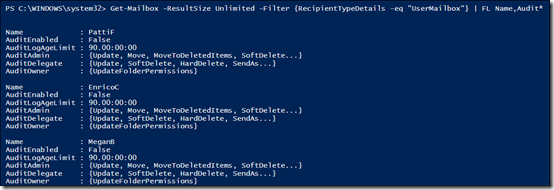
After you have connected to Exchange Online using PowerShell, run the following command to view what audit settings are currently enabled for your mailboxes:

Get-Mailbox -ResultSize Unlimited -Filter {RecipientTypeDetails -eq “UserMailbox”} | FL Name,Audit*
image

That should produce a result as shown above. As you can see the AuditEnabled option is current set to False for all mailboxes per:

By default, mailbox auditing in Office 365 isn’t turned on. That means mailbox auditing events won’t appear in the results when you search the Office 365 audit log for mailbox activity. But after you turn on mailbox audit logging for a mailbox, you can search the audit log for mailbox activity. Additionally, when mailbox audit logging is turned on, some actions performed by administrators, delegates, and owners are logged by default.

which is detailed here:

https://support.office.com/en-us/article/enable-mailbox-auditing-in-office-365-aaca8987-5b62-458b-9882-c28476a66918#ID0EABAAA=Step-by-step_instructions

So to turn auditing on for all mailboxes execute the following PowerShell commands.

Get-Mailbox -ResultSize Unlimited | Set-Mailbox -AuditEnabled $true

If you wish to modify what events are actually audited you can use the following. Note, there is a separate one for administrators, delegates and owners of the mailboxes:

Get-Mailbox -ResultSize Unlimited | Set-Mailbox -Auditadmin @{Add=”Copy”,”Create”,”FolderBind”,”HardDelete”,”MessageBind”,”Move”,”MoveToDeletedItems”,”SendAs”,”SendOnBehalf”,”SoftDelete”,”Update”,”UpdateFolderPermissions”}

Get-Mailbox -ResultSize Unlimited | Set-Mailbox –Auditdelegate @{Add=”Copy”,”Create”,”FolderBind”,”HardDelete”,”MessageBind”,”Move”,”MoveToDeletedItems”,”SendAs”,”SendOnBehalf”,”SoftDelete”,”Update”,”UpdateFolderPermissions”}

Get-Mailbox -ResultSize Unlimited | Set-Mailbox –Auditowner @{Add=”Copy”,”Create”,”FolderBind”,”HardDelete”,”MessageBind”,”Move”,”MoveToDeletedItems”,”SendAs”,”SendOnBehalf”,”SoftDelete”,”Update”,”UpdateFolderPermissions”}

You’ll find all the details about these commands here:

Set-mailbox = https://technet.microsoft.com/en-us/library/bb123981(v=exchg.160).aspx
image

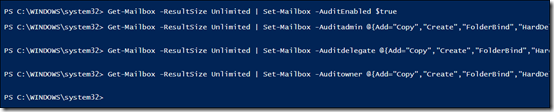
In true PowerShell tradition, when you execute these commands correctly, you’ll just be returned to the command line as shown above.
image

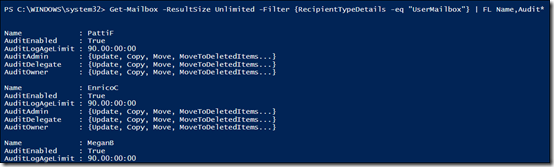
If we re-examine our mailboxes we now see that auditing is enabled and that more actions are audited as expected.

By default, entries in the mailbox audit log are kept for 90 days. When an entry is older than 90 days, it’s deleted. You can use the Set-Mailbox cmdlet to change this setting so items are kept for a longer (or shorter) period of time like so:

Get-Mailbox -ResultSize Unlimited | Set-Mailbox -AuditLogAgeLimit 180

which extends the entry limit retention to 180 days.

So, another way to improve the security of your Office 365 tenant is to enable mailbox auditing and extending the properties that are audited. You can only do this with PowerShell but once you have the the script you can re-run it as many times as you like. The power of PowerShell!

Need to Know Podcast–Episode 175

Brenton and I talk about the importance of data compliance in light of recent legislation updates in both Australia and overseas. This means that it is very important to firstly understand what your obligations are when it comes to personal data but to also ensure you own systems are compliant. Technology is not the only solution required here, you’ll need policy as well as training to help people better understand what their responsibility is. We cover off all the major highlights as well as give you some suggestions of how you should be approaching this with your Office 365 tenants.

Take a listen and let us know what you think –feedback@needtoknow.cloud

You can listen directly to this episode at

https://ciaops.podbean.com/e/episode-175-compliance/

Subscribe via iTunes at:

https://itunes.apple.com/au/podcast/ciaops-need-to-know-podcasts/id406891445?mt=2

The podcast is also available on Stitcher at:

http://www.stitcher.com/podcast/ciaops/need-to-know-podcast?refid=stpr

Don’t forget to give the show a rating as well as send us any feedback or suggestions you may have for the show.

Resources

@contactbrenton

@directorcia

Non Azure AD accounts can now join Microsoft Teams

Azure AD Connect: Version release history

How Office 365 protects your organisation from modern phishing campaigns

Azure migrate is now generally available

Introducing Azure Advanced Protection

Check those Office 365 forwards

Extending Exchange Online Deleted Items retention period

Many people are unaware of the fact that ALL (yes, I said ALL) Exchange Online plans are configured by default, to ONLY retain deleted items for 14 days. Yes, I said ALL Exchange Online plans, and I quote:

“How long deleted items are kept in the Deletions folder depends on the deleted item retention period that is set for the mailbox. An Exchange Online mailbox keeps deleted items for 14 days, by default. Use the Exchange Management Shell, as shown above, to change this setting, to increase the period up to a maximum of 30 days.”

this is from:

https://technet.microsoft.com/en-us/library/dn163584(v=exchg.160).aspx

You will also note that you can extend this to a maximum of 30 days using PowerShell, which is exactly what you should do IMMEDIATLY you add a user account I would suggest.

To do this you firstly need to connect to Exchange Online using PowerShell. Then to view the current retention periods run the following:

image

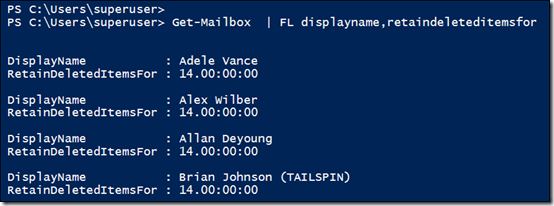
that should then display something like:

image

As you can see from the above, all the mailboxes listed are currently only set to a MAXIMUM of 14 days for retention (which is the default).

To extend this to the maximum of 30 days for ALL plans, execute the following command:

image

Now when you re-examine all the deletion period for all mailboxes you should see:

image

they have all been extended to the maximum of 30 days, which should make everyone much happier and provide you the ability to recovered deleted email data out to the maximum period of 30 days for ALL plans. After 30 days however, the deleted data will still be purged and unrecoverable.

If you wish to retain deleted email data beyond the maximum 30 days that can be provisioned generally you’ll need to add the legal hold service to the mailbox and ENABLE it! The legal hold service is available on Exchange Online Plan 2 mailboxes, E3 and E5 suites typically.

To my way of thinking, extending the deleted item retention period of all mailboxes in a tenant is something that should be done immediately and using the above PowerShell commands it is really easy to do. So there should be NO excuse!

Check those Office 365 email forwards

One of the most common tasks that hackers perform after they have compromised accounts in Office 365 (usually via a poor password or phishing attack) is to set up an email forwarding rule on mailboxes so they receive a copy of emails to that user.

Thus, it is good security practice to ensure that you are aware of all the email forwarding configurations that are enabled on your tenant. To do this you simply need to run the following PowerShell command once you have connected to Exchange Online:

Get-Mailbox | select UserPrincipalName,ForwardingSmtpAddress,DeliverToMailboxAndForward

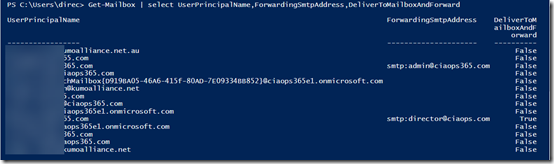
This will produce a result like:

image

which tells you whether forwarding has been enabled and to which address emails are being sent. Obviously, if you don;t recognise any of these you should investigate further.

There are plenty of ways to run this script on a regular basis but I’m not going to cover that here.

CIAOPS Need to Know Azure Webinar–March 2018

pexels-photo-325229

One of biggest challenges people have with Azure is determining pricing. So for March we’ll focus on understanding how pricing works with Azure and how you can optimize your spend There’ll also be news, updates and well as open Q & A so I’d love to see you attend.

You can register for free at:

March Azure Webinar Registrations

The details are:

CIAOPS Need to Know Azure Webinar – March 2018
Thursday 29th of March 2017
2pm – 3pm Sydney Time

All sessions are recorded and posted to the CIAOPS Academy.

There of course will also be open Q and A so make sure you bring your questions for me and I’ll do my best to answer them.

The CIAOPS Need to Know Webinars are free to attend but if you want to receive the recording of the session you need to sign up as a CIAOPS patron which you can do here:

http://www.ciaopspatron.com

or purchase them individually at:

http://www.ciaopsacademy.com/

Also feel free at any stage to email me directly via director@ciaops.com with your webinar topic suggestions.

I’d also appreciate you sharing information about this webinar with anyone you feel may benefit from the session.

CIAOPS Need to Know Office 365 Webinar–March

laptop-eyes-technology-computer

In light of the recent Australia Data Breach Legislation and the upcoming GDPR policies in Europe the March webinar will focus on security in Office 365. You’ll learn what is available and how ton configure it. There will be the usual news, updates and Q & A on Office 365.

You can register for free at:

March Webinar Registrations

The details are:

CIAOPS Need to Know Webinar – March 2018
Thursday 29th of March 2018
11am – 12am Sydney Time

All sessions are recorded and posted to the CIAOPS Academy.

There of course will also be open Q and A so make sure you bring your questions for me and I’ll do my best to answer them.

The CIAOPS Need to Know Webinars are free to attend but if you want to receive the recording of the session you need to sign up as a CIAOPS patron which you can do here:

http://www.ciaopspatron.com

or purchase them individually at:

http://www.ciaopsacademy.com/

Also feel free at any stage to email me directly via director@ciaops.com with your webinar topic suggestions.

I’d also appreciate you sharing information about this webinar with anyone you feel may benefit from the session.

Why following best practices in Azure is a good idea

Over my time I have seen so many Azure solutions built in ways that are contrary to agreed best practices. Why does this happen? Typically, it is because people bring old concepts and methodologies to new environments like Azure. Yes, many of the fundaments are the same. Things like TCP/IP, networking and the like are the same as on premises but others are very, very different.

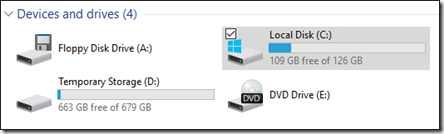
One of the key differences when it comes to storage with Azure Virtual Machines (VMs) is the disk topology. When you spin up an Azure VM you typically get two drives, C: and D:. C: is the boot partition and holds the operating system while D: is a temporary or caching disk that gets recreated upon every reboot.

image

Above you can see an example of a topology from an Azure machine. You will see that D: has the label ‘Temporary Storage’.

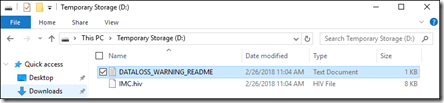
image

A closer looks at D: reveals the contents shown above.

image

If you look at the contents of the warning file you see the above. Note the first line which says (in capitals):

WARNING: THIS IS A TEMPORARY DISK

Why am I emphasising this? I can’t tell you the number of people I have seen bring previous practices to Azure and put production data (such as Active Directory Databases) onto this temporary drive because ‘this is the way they have always done it”. That unfortunately, is only going to end in tears.

Best practice when it comes to Azure is to always add data disks to Azure and start the labelling from F:. Yes, there is an additional cost for adding data disks but that cost is small compared to the flexibility you gain.

Case in point. I have a nested virtualisation server running in Azure that hosts a number of machines for testing. This machine has two data disks striped together for storage and performance optimisation. Using striping is another change from the ‘de-facto’ that I’ll look at in an upcoming article.

Unfortunately, when I put on some recent Windows updates the machine decided it no longer wanted to boot. I tried all the troubleshooting tips to get the system to boot but to no avail.

image

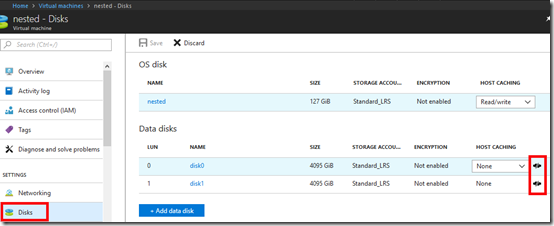
I therefore went in to the disk configuration of the failed machine and ‘detached’ the existing data disks, which as you can see, you can do from the Azure portal, although there are also PowerShell commands to accomplish this.

With the data disks ‘freed’ from the original failed machine, I proceeded to create a new virtual machine to mirror the original failed host. After doing this I went to the disks area of the new machine and selected the option to Add data disk. However, instead of specifying to create new clean disk, I elected to use existing disks and select the ones that I had detached from the failed original.

When I now looked at the new machine, with the existing disk attached, I found that the striping environment was already in place and needed no further configuration. All I needed to do was to restore my virtual machines that were on the data disks using the Hyper V manager. All really simple.

If I had installed everything on the C: drive then I would have lost the lot and would have needed to rebuild every virtual machine in that Hyper V environment from scratch. That would have cost me a lot of time, where in fact the total recovery time here was only a matter of minutes. That’s a BIG difference!

The moral of this tale is that a new environment like Azure does operate in a different manner from previous technologies. It is generally not appropriate to always bring old practices to a new environment without taking time to understand the ‘best practices’ for a new environment. Doing things the same old way just because this is the ‘way it’s always done’ can lead to a lot of pain and heartache. On the contrary, when you take the time to understand any new environment and follow best practices for that environment, things tend to be much easier as the above hopefully illustrates. This applies as much to Azure as it does Office 365. New technologies need new approaches and new best practices.

In summary, please oh please DON’T put your production data on C: or D: with Azure virtual machines.

February Azure Webinar Resources

Here are the slides from the February Azure webinar where we took a look at Azure networking.

https://www.slideshare.net/directorcia/ciaops-need-to-know-azure-webinar-february-2018

The recording is also available at:

http://www.ciaopsacademy.com.au/p/need-to-know-azure-webinars

which CIAOPS patrons get free access to as part of their subscription.

This webinar set more of the ground work for upcoming monthly webinars that will go deeper into Azure features and abilities.

So make sure you sign up for next month’s webinar.