MVP for 2018-19

MVP_Logo_Horizontal_Preferred_Cyan300_RGB_300ppi

It is with a great deal of humility and pride that I can report that Microsoft has once again recognised my community contributions with its Most Valuable Professional (MVP) award for 2018 in the Office Servers and Services category.

This is now my seventh consecutive award and just as special as the first. This recognition is however not possible without the support of so people who follow and support what I do, especially those that take the time to read this blog. To each and every one of you I say thanks again.

I’ll be sure to work hard again to bring you more information about Office 365 and Azure. Some additional stuff coming real soon! However, all of that wouldn’t be possible without Microsoft making such great products and making them available to people like me. I look forward eagerly to what they’ll be bringing out in 2018-19. It is going to be another very exciting year for Microsoft and being in the Microsoft ecosystem.

Being an MVP is great and unique honour. Being part of a community of really smart and passionate technology people who are also MVPs is truly inspiring and I hope to live up to their dedication and enthusiasm. I congratulate all those who where also awarded the same MVP recognition today.

But again, I thank Microsoft for this honour and will work hard to live up top the expectations it sets again for 2018-19.

Create Office 365 Activity Alerts using PowerShell

In a previous article:

Create Office 365 Alerts

I detailed how to create Office 365 Activity alerts using the browser. I will point out how important it is to have appropriate alerts set for your tenant, especially when you generally don’t get many configured . your tenant by default.

Of course doing administration tasks via a browser is the slow way to get things done. A much better approach is to use PowerShell and let the script do the heavy lifting.

The first step in this process is to take a look at the following article:

Search the audit log in the Office 365 Security and Compliance center

and locate the heading – Auditing activities which contains a list of the actions that will trigger an alert. There are plenty of things here so pick those that make the most sense and remember that lots and lots of alerts generally doesn’t improve security, it simply creates information overload.

The alert I’ll chose to illustrate is FileMalwareDetected.

Next step is connect to the Office 365 Security and Compliance Center with PowerShell. I’m not going to show you how to do that here as it is easily located elsewhere like here:

Connect to Office 365 Security & Compliance Center PowerShell

With that done, you can now execute the actual commands to configure activity alerts with PowerShell.

$fileandpagepolicyparams = @{
“Name” = “File and Page Alert”;
“operation” = “Filemalwaredetected”;
“notifyuser” = $notifyusers;
“userid” = $userids;
“Description” = “SharePoint anti-virus engine detects malware in a file.”;
}

$result=New-ActivityAlert @fileandpagepolicyparams

Basically, what I’m doing here is creating an array called $fileandpagepolicyparams that contains all the options required for the command that will set the alert. Doing it this way makes it easier to what’s going on and make any additions if needed in my opinion.

The New-ActivityAlert command takes all those array parameters as inputs when an alert is now created.

The $notifyusers are the users you want to receive emails when alerts occurs. The $userids are the users you wish to trigger alerts. If you leave $userids empty it will apply the alert to all users in the tenant.
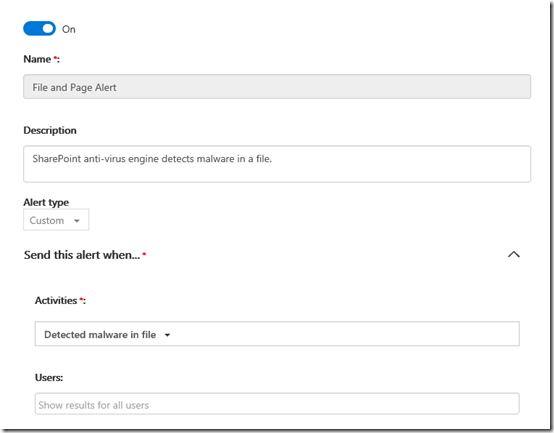
image

You can see the result above once that command is run.

Now the idea is to build a script that configures all the activity alerts you desire and then apply them to a tenant.

image

As you can see above, I generally create about a dozen or so alert policies this way that monitor for a range of activities I believe should have alerts configured for. However, you need to decide what makes sense for you.

Now be very, very careful when you configure activity alerts via PowerShell. Ensure you get all the parameters 100% correct and you check the alert policies in the web interface when you are testing your script, because errors in the script don’t get reported and you end configuring an activity alert that does nothing all because you got a parameter wrong!

June Office 365 Webinar Resources

Slides from this month’s webinar are at:

https://www.slideshare.net/directorcia/june-2018-office-365-need-to-know-webinar

If you are not a CIAOPS patron you want to view or download a full copy of the video from the session you can do so here:

http://www.ciaopsacademy.com.au/p/need-to-know-webinars

Watch out for next month’s webinar.

Saving Office 365 Login Credentials with PowerShell

I need to log into lots and lots of different Office 365 tenants all the time. Having an easier way to do this and prevent fat fingering the wrong information is a big time saver for me. This is even more the case when I use PowerShell.

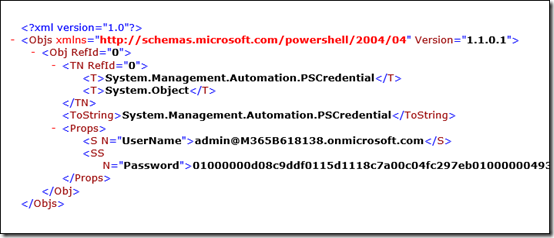
I therefore decided that it would be easier to have the ability to save tenant credentials to a local file and then recall these as needed. To save the credentials to an XML file use the command:

Get-Credential | Export-CliXml -Path c:\downloads\tenant.xml

This will prompt you for a login and password as normal but then save the results into an XML in the location you specified.

image

If you look at the XML file created, you can see the username as expected but you’ll notice that the password has been saved securely rather than in plain text.

It is important to note here that this file now contains the access details to the tenant. You need to ensure that the file remains secure because if someone else manages to get it they maybe able to login to the tenant! Beware!

To extract the details from the file and save them into a variable you can use in PowerShell use the following command:

$credential=import-clixml -path c:\downloads\tenant.xml

now you can connect to Office 365 services as normal using:

connect-msolservice –credential $credential

and you you won’t be prompted for the login details.

Hopefully, I’ve covered all the steps in the video above, so you can see it all in action from end to end.

Enabling Office 365 mailbox auditing

You may not be aware that by default Office 365 mailbox auditing isn’t turned on. Don’t believe me? Well check out this article, especially the first paragraph:

Enable mailbox auditing in Office 365

which says:

In Office 365, you can turn on mailbox audit logging to log mailbox access by mailbox owners, delegates, and administrators. By default, mailbox auditing in Office 365 isn’t turned on. That means mailbox auditing events won’t appear in the results when you search the Office 365 audit log for mailbox activity. But after you turn on mailbox audit logging for a user mailbox, you can search the audit log for mailbox activity. Additionally, when mailbox audit logging is turned on, some actions performed by administrators, delegates, and owners are logged by default.

If you want to check your own tenant then connect to Exchange Online with PowerShell and run this command:

get-mailbox | select userprincipalname,auditenabled

You’ll probably see that all the mailboxes don’t have auditing enabled.

To enable auditing, simply run this command:

Get-Mailbox -ResultSize Unlimited | Set-Mailbox -AuditEnabled $true

and then run the first command again to verify it is now enabled for all mailboxes.

You also need to appreciate that out of the box, not all items are audited and you may need to adjust these options, also using PowerShell. The options you can audit for are:

Mailbox auditing actions

I’ll cover how to set these in an upcoming article.

Configuring an Office 365 SPAM filtering policy with PowerShell

I recently wrote an article that shows you how to configure the spam policy in Office 365 using the web interface. If you missed that you can find it here:

Configuring an Office 365 SPAM filtering policy

Doing this multiple times via the web interface is a lot of work. A better approach is to use PowerShell. So once, how have connected to Exchange Online PowerShell, run these two commands:

$policyparams = @{
“name” = “Configured Policy”;
‘Bulkspamaction’ =  ‘movetojmf’;
‘bulkthreshold’ =  ‘7’;
‘highconfidencespamaction’ =  ‘movetojmf’;
‘inlinesafetytipsenabled’ = $true;
‘markasspambulkmail’ = ‘on’;
‘increasescorewithimagelinks’ = ‘off’
‘increasescorewithnumericips’ = ‘on’
‘increasescorewithredirecttootherport’ = ‘on’
‘increasescorewithbizorinfourls’ = ‘on’;
‘markasspamemptymessages’ =’on’;
‘markasspamjavascriptinhtml’ = ‘on’;
‘markasspamframesinhtml’ = ‘on’;
‘markasspamobjecttagsinhtml’ = ‘on’;
‘markasspamembedtagsinhtml’ =’on’;
‘markasspamformtagsinhtml’ = ‘on’;
‘markasspamwebbugsinhtml’ = ‘on’;
‘markasspamsensitivewordlist’ = ‘on’;
‘markasspamspfrecordhardfail’ = ‘on’;
‘markasspamfromaddressauthfail’ = ‘on’;
‘markasspamndrbackscatter’ = ‘on’;
‘phishspamaction’ = ‘movetojmf’;
‘spamaction’ = ‘movetojmf’;
‘zapenabled’ = $true
}

new-hostedcontentfilterpolicy @policyparams

The first basically sets up an array of all the parameters you are going to see into the spam policy. It makes it easier to adjust if you need to.

The second command creates a new policy based off this array that will be called ‘Configured Policy’.

However, after running these two commands you aren’t quite done yet because you have created the policy BUT you actually need to create a rule that uses this policy to do that use the following:

$ruleparams = @{
‘name’ = ‘Configured Recipients’;
‘hostedcontentfilterpolicy’ = ‘Configured Policy’;
## this needs to match the above policy name
‘recipientdomainis’ = ‘domain.com’;
## this needs to match the domains you wish to protect in your tenant
‘Enabled’ = $true
}

New-hostedcontentfilterrule @ruleparams

You’ll need to ensure the policy names match as noted and you include the domains you wish to protect.

image

Once this has been completed, if you go and look in your Exchange Admin area, under protection and spam filter, you should see a new policy called ‘Configured Recipients’ that was created by the above script commands.

Save the script away and run it as many times as you need. That should make life easier!