More granular admin roles now available in Office 365

image

You should now start seeing in your Office 365 tenants the ability to set more granular administration roles for your users in Office 365 as shown above.

You’ll see all the old favourites such as Billing Administrator, User Management administrator but you’ll also now see some new ones like SharePoint and Skype for Business administrator. This allows you to delegate administration for a particular services to a particular user.

Great some more options when it comes to assigning rights with Office 365!

Azure AD Connect (Preview)–Install

In a recent post I detailed the current replacement product to DIRSYNC:

Azure AD Sync Services tool – the basic

In there I noted that this will soon be replaced with Azure AD Connect which is currently in preview:

Azure AD Connect Preview 2 is available

I thought I’d run through a short walk through experience of installing Azure AD Connect just so you can see. When the product comes out of preview I’ll do something in more detail.

image

You download and run the tool.

image

This will give you an icon on your desktop and launch the install wizard.

image

You need to agree to the license terms.

image

You select the Continue button.

image

You’ll be prompted to install any prerequisites. Press the Install button to continue.

image

You can select any custom configuration you desire. Press the Install button to continue.

image

You should now see the service commence installing by installing SQL Express as AD Sync Services did.

image

It will then start installing the Synchronization Service.

image

Next, you’ll need to enter you Office 365 credentials and select Next.

image

You should then see the connection to your tenant being made.

image

At this point you can elect to use the express settings or work through the customised options. The express options will automatically:

– Configure synchronization of identities in the current AD forest

– Configure password synchronization from on premise AD to Azure AD

– Start an initial synchronization

– Synchronize all attributes

For most standard configurations this is fine but we will select the Customize option rather than the Use express settings here to see all the options.

image

Select the Password Synchronization option and Next to continue.

image

Next, enter you on premised domain credentials and select Add Directory. If you have more local domains you can add these but normally all you need to do after adding the local domain is select Next.

image

The local AD information will be retrieved.

image

Here is where you can now elect to filter what is synchronised. Since we only have one domain we’ll elect to synchronise everything and press Next to continue.

image

Normally you select User are represented once across all directories here and press Next.

image

This option allows you to match on premise users with those in the cloud via different attributes. best practice is normally to leave the default options and select Next to continue.

image

There are lots of options here that are in preview. Select the Password writeback to sync information from you local AD to Office 365. Remember, that at the moment two way sync will not occur unless you have an Azure AD Premium subscription, which is not part of Office 365. Office 365 only includes free Azure AD.

The hope however is that when Azure AD Connect comes out of preview the ability to sync passwords from local AD to Office 365 and back will be included with all Office 365 plans. However, right here, right now for two way syncing you need an Azure AD Premium subscription.

Select Next to continue.

image

Everything is now ready to configure so press the Install button to proceed.

image

The wizard will now do its thing.

image

Configuring you Office 365.

image

Updating rules

image

The on premises domain.

image

Then enables password sync.

image

In a few moments the process will be complete and you can press Exit to end.

image

As before, you’ll find a number of new applications installed.

image

The Synchronization Service will give you the ability to monitor the progress real time.

image

if a user tries to change a password in their web portal they will be greeted with the above message basically informing them that it has to be on premises NOT in the cloud.

image

An Office 365 administrator can reset the password via the admin portal for a user but after the next sync has run from the local AD that changed password will be overwritten with the one from on premises.

Thus, there is not a huge change between what we have now with Azure AD Sync Services and what is coming with Azure AD Connect. At this stage, you still need and Azure AD Premium subscription to do password write back to on premises as well as many of the advanced features. The hope is that this will change when Azure AD Connect come out of preview. Fingers crossed.

SharePoint Online Backups

I get lots of questions about how/if data is backed up with SharePoint Online. Remember, that SharePoint Online is composed of two items , Team Sites and OneDrive for Business. Both of these are SharePoint, OneDrive for Business is simply a very limited set of standard Team Site features, but it is STILL IS SharePoint.

As I say over and over and over again, SharePoint is a collaboration system not just a file share. It is very different from a traditional network share. Thus, the way that data is stored is very different to start out with.

Firstly, all of SharePoint’s data is stored in a database. Calendars, contacts, lists AND flies are all stored inside a database because they are objects. This means that when you upload a file to SharePoint Online it is wrapped inside an object that contains additional information not just the file. This information could be meta data, workflows, previous versions and more.

When a user deletes something from SharePoint Online it will generally be sent to their recycle bin. They can recover it from here themselves currently for a period of 93 days.

If in that 93 days the file is deleted from the users recycle bin it is moved to an administrator recycle bin for the remainder of those 93 days.

Points to remember with the recycle bin:

– Deleted items can be recovered up to 93 days after deletion

– Items in the users recycle bin count against the storage quote for that site. Items in the administrators recycle bin don’t count against the storage quota for the site.

– The administrator recycle bin can only be accessed by a Site Collection Administrator.

For more information about various recycle bins and how to recover see:

Manage the Recycle Bin of a SharePoint Online site collection

Document Libraries, i.e. where files are stored in SharePoint, have version history enabled by default and set to save 500 versions of a file. Each time a file is changed and save a new copy is retained. This versioning can be edited and disabled if required and also counts against your storage site quota.

For more on versioning see:

How does versioning work in a list or library?

Apart from that SharePoint Online

– Is backed up every 12 hours and kept for 14 days

– The only recovery option is a full site collection restore

– To perform a site collection restore you must contact technical support

– The restore location is the same as the source, so you will loose all data that is currently hosted there.

Further details are contained in this blog post:

Restore options in SharePoint Online

If none of these options are adequate then there are third party backup providers like:

Leaphq

and

CloudFinder

and others that can provide an alternate method of backing up SharePoint data.

With all SharePoint Online backup option, you need to understand that some allow recovery of any items (i.e. appointment, list item, contact, file etc) while some just allow recovery of files.

In my experience, with document library versioning now enabled by default and presence of a recycle bin, there is generally no need for a third party tool, however they are available if your needs are not adequately covered by the tolls built into SharePoint.

Back with Blogger

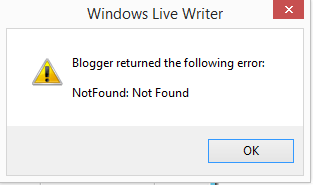
As I mentioned a few posts ago, I and a lot of people where having problems posting from Windows Live Writer to Blogger.

After successfully post my mega-article on AD Sync Services I am happy to report that everything is back up and running as it was. For that I’d like to thank both Microsoft and Google engineers who sorted the issue out. You have made a lot of people very, very happy.

My only concern now is what is the roadmap for Blogger and Windows Live Writer? Is this just a temporary fix or will we face the same issue down the track? Unsure whether we’ll get an answer there so something to keep in mind going forward.

Again, those who listened and resolved the issue, a HUGE amount of thanks.

Azure AD Sync Services tool–the basics

The most popular post on my blog is currently:

Windows Azure Active Directory Sync tool (DIRSYNC) – the basics

The currently recommended tool for syncing your on premises AD to Office 365 is now is not DIRSYNC but:

Azure AD Sync Services

There is a further updated version that is currently in preview called:

Azure AD Connect

and you can read more about that preview here:

Azure AD Connect Preview 2 is available

I’ll do a blog post on that very soon, but for now let’s concentrate on what is generally available.

You can read more about Azure Active Directory Sync here:

https://msdn.microsoft.com/en-us/library/azure/dn790204.aspx

image

Firstly, download the tool from the link above. In this case I am installing on clean AD and I’m also going to install the tool onto a domain controller, which is supported but not best practice. I am also using a new demo empty Office 365 E3 tenant.

After you have made sure your on premises AD is in good health, and before installing the sync tool on your network, you should login to your Office 365 tenant as a global administrator and navigate to the Admin portal.

image

You then need to select the Active Users option from beneath the Users menu item from the option on the left of the Office 365 Admin portal.

image

Note: that I have no users apart from the Global Administrator in my new Office 365 tenant initially.

image

At the top of the Active Users dashboard you will see an option called Active Directory synchronization as shown above. Select the Set up hyperlink to the right.

image

This will then present you with a number of steps. You should complete Steps 1 and 2, which I have already completed.

Then select the Activate button under option 3.

image

You’ll then be prompted to confirm you do want to proceed with synchronization. Note the warnings and select the Activate button to proceed.

image

You should now see that option 3 displays Active Directory synchronization is activated as shown above.

image

Return to your on premises sync server and double click on the package you downloaded. It will be extracted.

image

Double click the icon it places on the desktop to commence the configuration process.

image

You are prompted for the location to install the software. The default location is:

c:\program files\microsoft azure ad sync

You can however change this if desired.

image

When you have entered in the appropriate installation directory and checked the I agree to the license terms box, you can select the Install button in the lower right hand corner.

image

You will now see the program install the files to the installation directory as shown above.

image

You will then see Microsoft SQL Express being installed. Having SQL on a domain controller is generally not best practice but is supported now. However, beware that they sync tool will install and use SQL Express by default.

image

You will then see it installing the actual Sync Service on your machine.

image

Amongst a few other Azure services installed on your machine you’ll now find the Microsoft Azure AD Sync service as shown above.

image

You’ll then be prompted to enter you details for Azure AD as shown above.

image

Remember, Office 365 is built on Azure AD and uses it to manage identity. Thus, here you now enter your Office 365 global administrator credentials.

Best practice is to use a dedicated global administration account that has not been assigned any licenses. That is, create a new user and make then a global administrator but don’t assign them a license in your Office 365. Then only use this user to synchronise your local AD to Office 365.

Here, I am am just going to use the default tenant administrator to keep it simple but importantly, the user you enter here MUST have the Office 365 Global Administration role.

When you have completed the required details here press the Next button to proceed.

image

The provided login will then be authenticated.

image

If you have not as yet enabled directory synchronization in your Office 365 tenant, as detailed previously, you will see the above error message.

image

You will be prompted to enable this before you can proceed further.

image

You’ll then be prompted for a local forest (domain) and domain administrator as shown above.

image

If you look at your local Active Directory Users and Computers you will normally find the forest name at the top of the tree. In this case it is kumoalliance.org.

Note, that you need to have users assigned to routable domain locally as their primary UPN, not something like .local or .lan. if they are, then you will need to change this prior to synchronisation or otherwise users won’t end up correctly in Office 365.

Take a look at this article:

How to synchronize a .local domain

on how to perform update your users if you only have a .local domain.

Also note here that I have four users in my local domain also shown above.

image

When the correct local domain administration credentials have been entered select the Add Forest button.

image

If that is successful you should see you domain listed below teh entry fields now as shown above.

Select the Next button to proceed.

image

You should now see the connector from your local AD to Azure being created and configured as shown above.

image

You are now given the options to match local users to Azure AD users if they exist. This will basically match on premise AD objects to those already in Azure AD.

Because there are currently no users in my Office 365 tenant there are none that require matching so best practice is to leave the default options configured and select the Next button to continue but as you can see, you can match users between your local AD and the cloud via a variety of options.

image

Remember again, that my Office 365 tenant is empty except for the default admin account as shown above.

image

You are now presented with the Optional features page. You can learn more about the options here at:

https://msdn.microsoft.com/en-us/library/azure/dn757602.aspx#BKMK_ConfigureSynchronizationOptions

Where many get confused is the difference between Password write-back and Password synchronization. Password write-back is an Azure Active Directory Premium feature. For more information on how to configure this, see:

Password writeback: how to configure Azure AD to amange on-premises passwords

and 

http://blogs.technet.com/b/ad/archive/2014/04/29/deep-dive-password-reset-with-on-premise-sync-in-azure-ad-premium.aspx

image

Office 365 currently doesn’t include Azure AD Premium so the only option available is Password synchronization which you should select. More information on password synchronization can be found here:

https://msdn.microsoft.com/en-us/library/azure/dn835016.aspx

Remember, Azure AD sync allows the connection of more than just Office 365 to your local AD, that’s why there are more options here.

The new sync tool, Azure AD Connect, that is in preview, will support password writeback as the above blog post highlights towards the end of the post. As I said, I will also do a post on this soon.

So, in summary here, select Password synchronization and then the Next button to continue.

image

You can now review the information and when ready select the Configure button to continue.

image

The tool will now complete the configuration and enable the options you select. You see it connecting as shown above.

image

You will then see it enable the options you selected with any issues or errors highlighted.

image

When the process is complete you’ll have the option to Synchronize now, which you can uncheck if desired. Remember, this first sync may be quite large and take some time depending on how many objects are being copied to Office 365.

However, in most cases, you’ll leave this option checked and select the Finish button.

image

In a very short period of time you should see your users appear in the Office 365 console as shown above.

image

However, importantly, they will not have a license assigned to them so they won’t have things like a mailbox yet.

Why is that? Remember you can have many different types of licenses in Office 365 and you can allocate them to different users as you please. The sync client doesn’t know which licenses you want applied to which user so they need to be applied manually.

image

If all the users are going to get the same license simply select all the users in bulk as shown above, then select the Activate synced users hyperlink in the lower right hand side.

image

Then assign the location and license you want to apply to these users and select the Activate button at the bottom of the screen.

image

The process is now complete. Your local AD users are now synced to Office 365 using Azure Azure Sync Services. If they change their password on premises it is also synced using password hashing to Office 365.

Points to remember with Azure AD Sync (and DIRSYNC for that matter):

– By default, passwords changed in the cloud are overwritten when the next sync from on premises AD occurs.

– Information is copied from local AD to Office 365 not back. That is, the way it was installed above, it is a one way sync from on premises to Office 365.

Owners of an on-premises distribution group that’s synced to Office 365 can’t manage the distribution group in Exchange Online

Azure AD Sync services allow the configuration of object filtering

Changes are synchronized based on a three hours interval  (this is the same interval that is also used by DirSync). There is a scheduled task running as the service account which will run the cycle. If you unselected “synchronize changes now” during installation then the task is installed as “disabled”. You can force synchronization using a PowerShell command if required as well as running the following file:

C:\Program Files\Microsoft Azure AD Sync\Bin\directorysyncclientcmd.exe

You can upgrade from DIRSYNC to Azure AD Sync Services

The new Azure AD Connect tool is due soon with more features (blog post on that coming soon)

image

You’ll also find some tools installed on your sync machine to help manage and troubleshoot the sync process.

image

Like the Synchronization Service Manager show above that give you a low level insight into what the sync is actually doing. More on that again in an upcoming post.

Blogger we still have a problem

The issue with Windows Live Writer and Blogger continues. If you are experiencing the issues check these threads:

https://productforums.google.com/forum/#!msg/blogger/-49FC2_0l-g/SMflGo-3NwYJ

and

http://answers.microsoft.com/en-us/windowslive/forum/writer-program/windows-live-writer-wont-connect-to-blogger/f3ae8ae5-f013-477b-b262-399430d29e28?tab=question&status=AllReplies&page=4

The good news is that Microsoft and Google appear to be working together on a solution.

https://twitter.com/shanselman/status/604131498220986369

Please. Soon!

Blogger we have a problem

It would seem that desktop tool that publish to Blogger are now not working! Google knows about the issue and is apparently looking to fix it but it’s now been three days and no resolution!
Here’s the post if want to see that status of the issue:


I had a mega post on Azure AD sync lined up but until this is fixed not much I can really do.
Tally Ho Google. Please fix asap!

Karl’s on line conference

Individual_Speaker_Pimps_ROBERT

We are less than a month away from Karl Palachuk’s online conference at which I have been lucky enough to be given a speaking opportunity. You can find out more about the conference and sign up at:

http://www.smbonlineconference.com/

My presentation topic is:

You Need a New Business Model for Success in the Cloud

and I’ll warn you that I’m going to rather brutal in what I present here. My focus is on looking forward not back and looking for a business model that will be sustainable now and into the foreseeable future.

That, no doubt, will challenge a lot of conventional thinking but I really believe that is what is called for in the SMB technology reseller space these days. The game has changed which brings both threats and opportunities and understanding both is key.

If you want to get both barrels from my no holds bared presentation as well as some great insight for a score of other really smart and talented presenters then sign up for Karl’s conference today.