Getting Endpoint Privilege Management working

If you are not aware yet, Endpoint Privilege Management is now available in public preview.

image

You can find it in https://intune.microsoft.com under the Endpoint Security menu option as shown above.
image

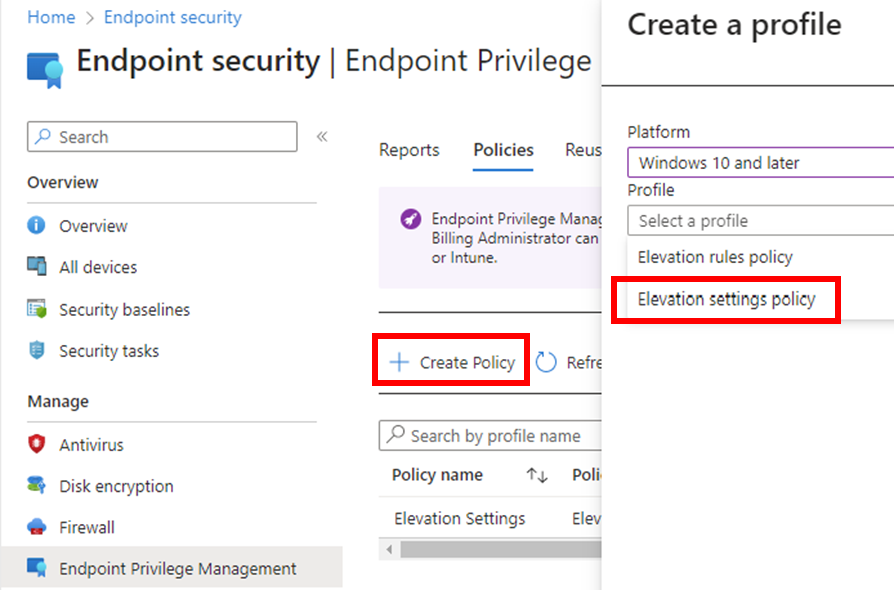
You’ll firstly need to use the Create Policy menu option, as shown to create a policy for your environment.

Select Windows 10 and later for the Platform (only option currently available).

Select Elevation settings policy for the Profile.

Select Create to continue.
image

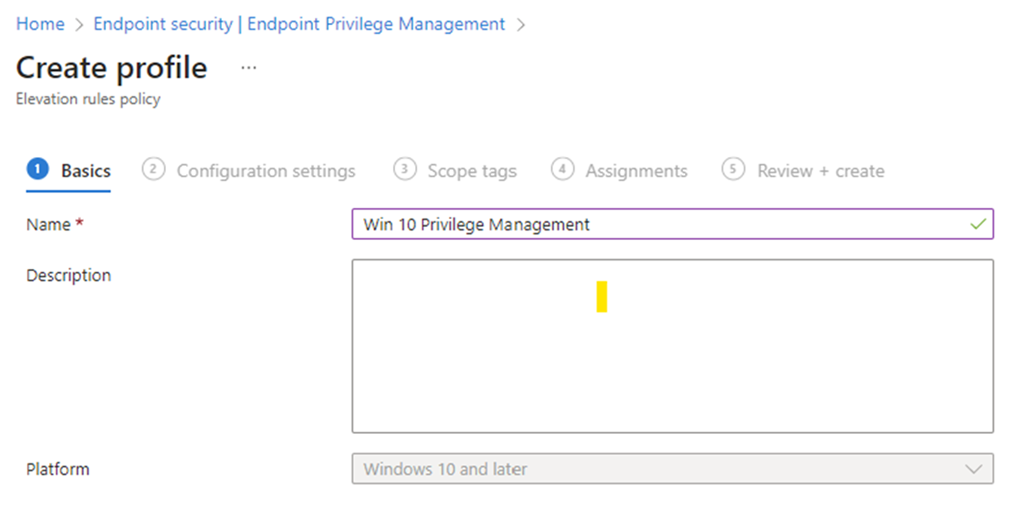
As always, give the new policy a name and select Next to continue.
image

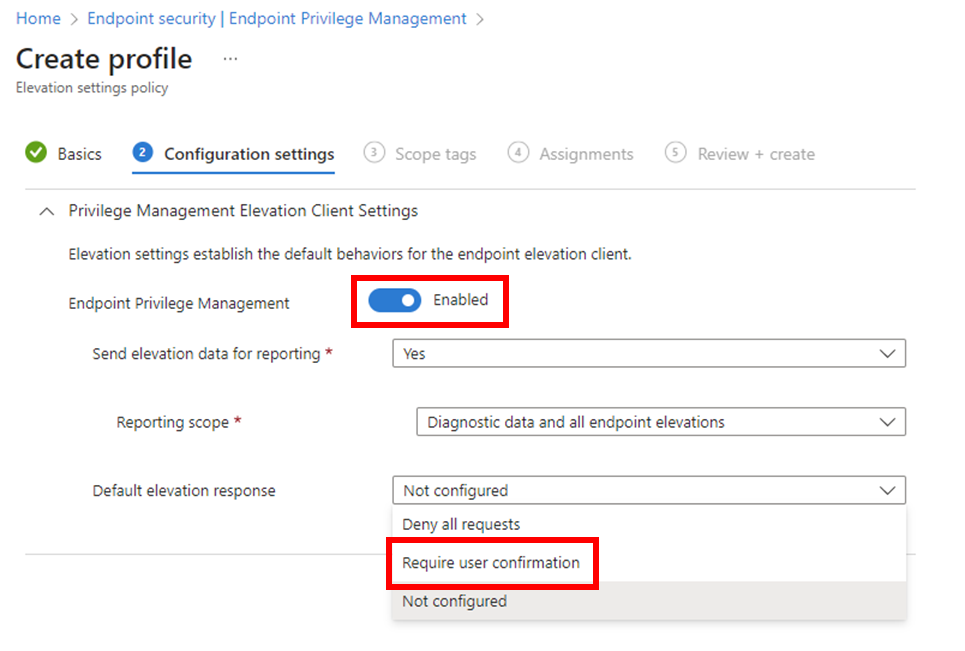
The most important thing here is to ensure that the option Endpoint Privilege Management is set to Enabled as shown above.

In this case, the Default elevation response is set to Require user confirmation.

Select Next to continue.

Continue through the rest of the policy as normal, ensuring you assign this policy to an appropriate group in your organisation.
image

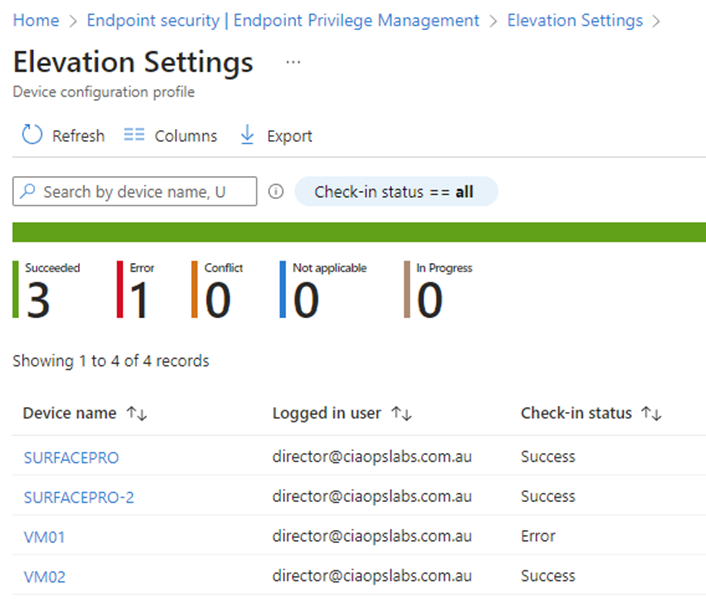
You can then select on the new policy to view it and then select View report to see the results of how the policy has been applied in your environment.

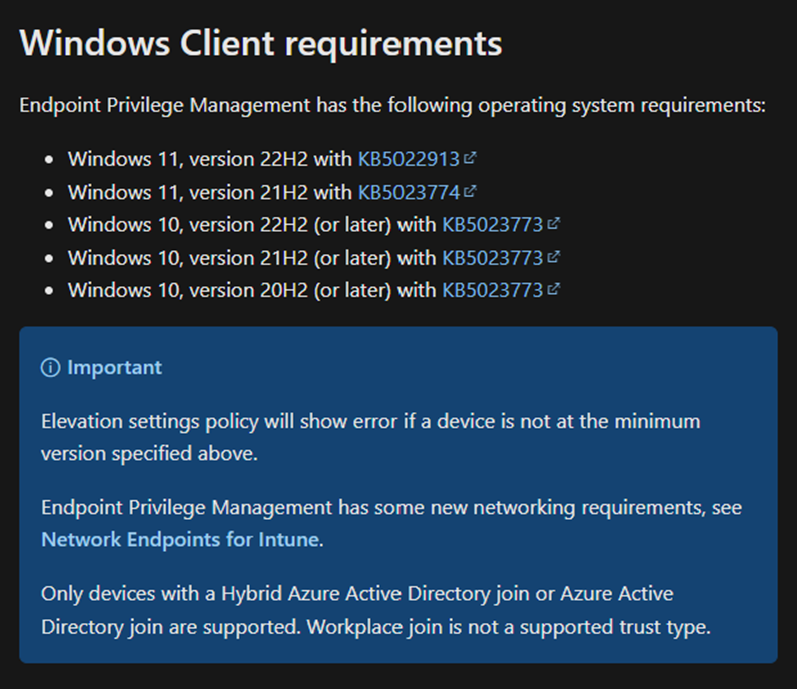
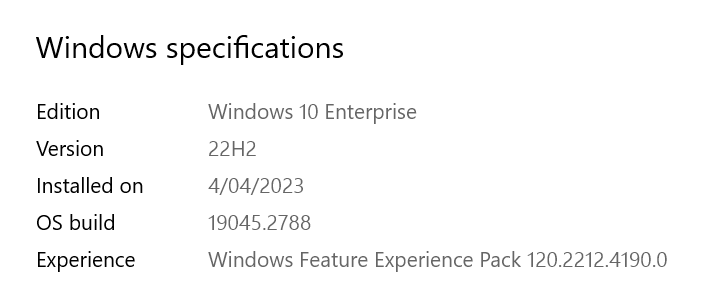
It is important to ensure your workstations are at the appropriate update level. At the moment that is:
image

The policy will NOT work until you are at this level.
Screenshot 2023-04-04 153526

The above shows the client I used was Win 10 22H2 Build 19045.2788.
Screenshot 2023-04-04 153056
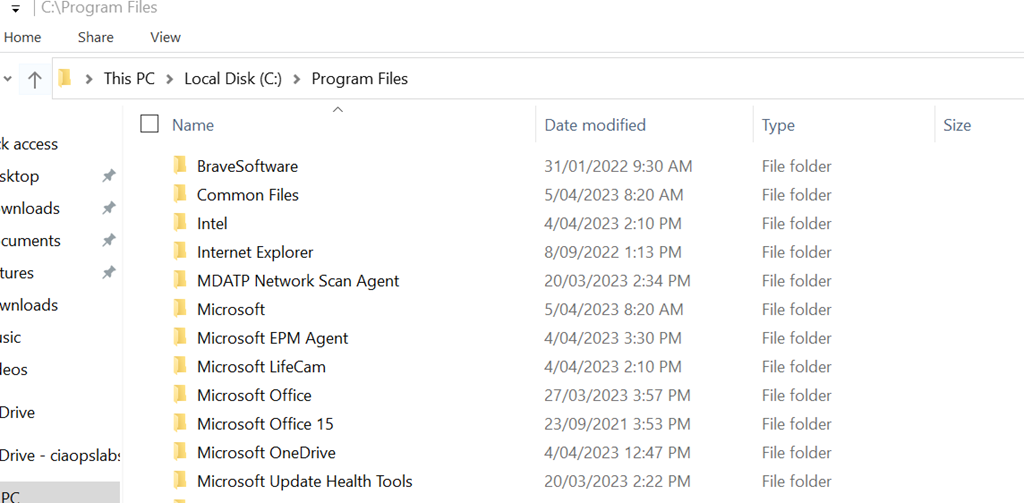
When the policy is applied successfully to the device you will find a new directory C:\Programs Files\Microsoft EPM agent is created as shown above.
Screenshot 2023-04-04 153137

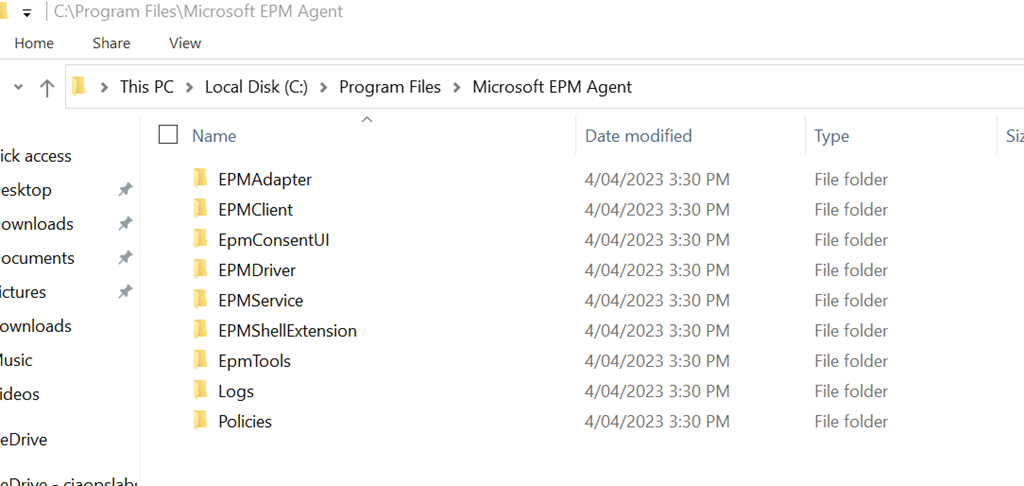
If you look inside that directory you will see the above structure.
Screenshot 2023-04-04 153323

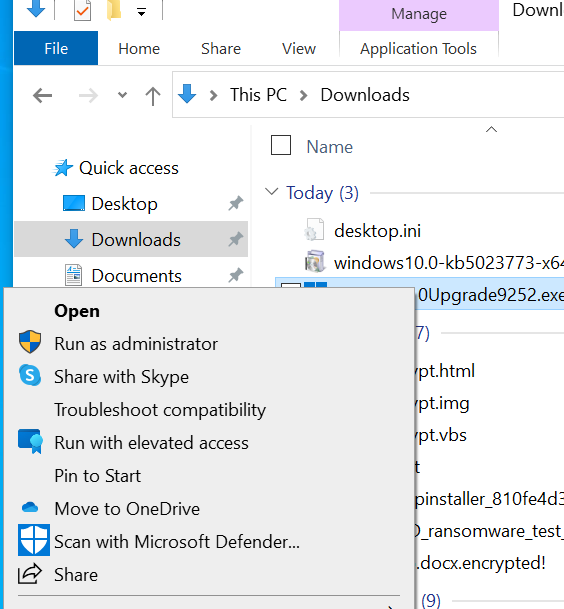
With these files now on the device, you can right mouse click on an executable and you should now see the option Run with elevated access as shown above.

Screenshot 2023-04-04 153409

When you select that option you will now be prompted, per the policy options, to enter a confirmation as shown above.

You can find documentation from Microsoft here:

Use Endpoint Privilege Management with Microsoft Intune

Blocking Command Prompt on Windows with an Intune Device Configuration profile

This article shows you how to use Intune to block the Command Prompt on Windows devices using a Configuration profile.

Navigate to https://endpoint.microsoft.com and select Device from the menu on the left as shown above.

Then, select Windows on the right.

Select Configuration profiles from the menu on the left as shown.

image

Select Create profile.

Then select the Platform as Windows 10 and later.

Select the Profile type as Templates.

From the list of templates select Custom.

Select Create in the bottom right.

image

Give the policy a name and select Next to continue.

image

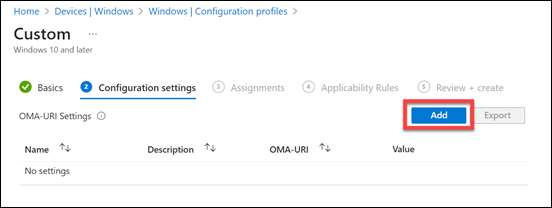
Select Add.

image

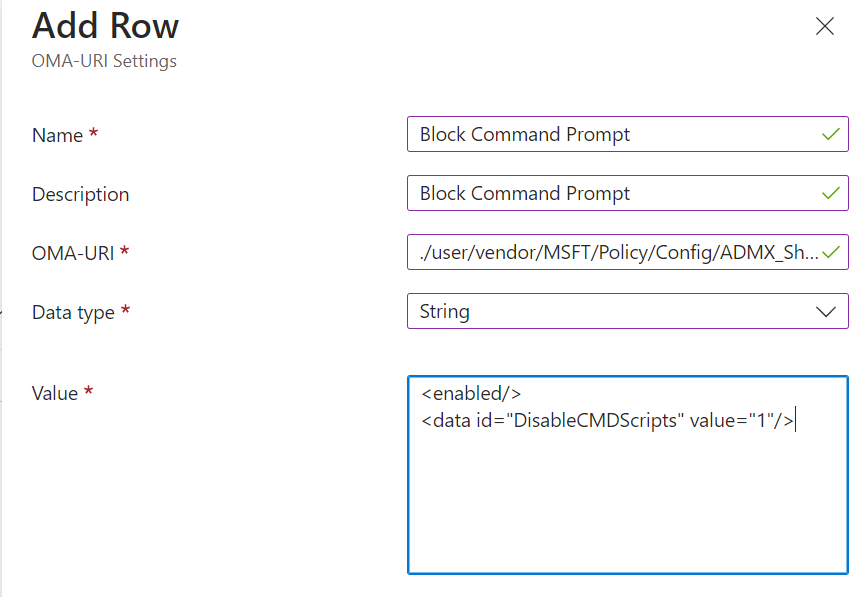
In the OMA-URI settings enter the following as shown above:
Name = Block Command Prompt

Description = Block Command Prompt

OMA-URI = ./user/vendor/MSFT/Policy/Config/ADMX_ShellCommandpromptRegeditTools/DisableCMD

Data type = String

Value =
<enabled/>
<data id=”DisableCMDScripts” value=”1″/>

Ensure you enter these exactly as shown, anything else will prevent the policy working as expected.

Press Save.

image

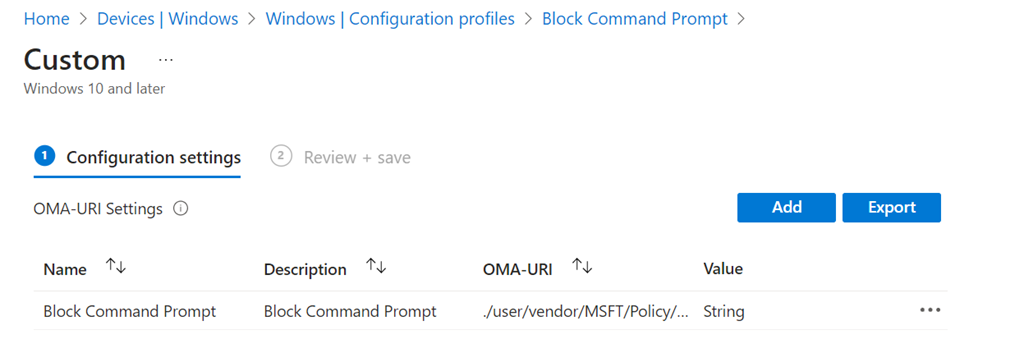
You should now see the item you just entered displayed as shown above.

Select Next to continue.

Assign the policy to a group. Here it is being assigned to all Windows devices.

Select Next to continue.

image

You will now see a summary. Ensure the Configuration settings has the above set before selecting the Create button to complete the policy.

image

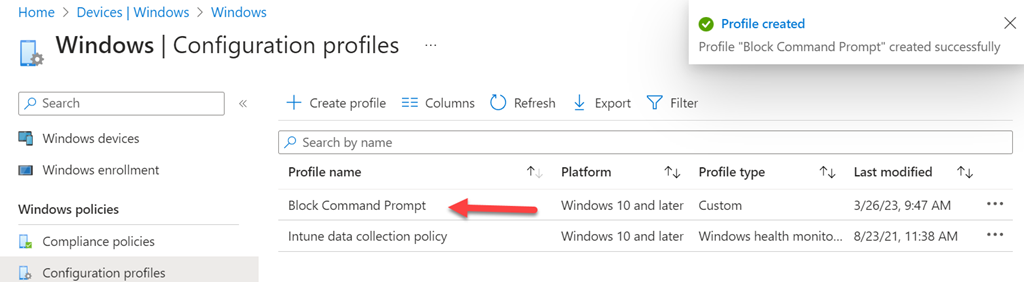
You should now see that the policy has been created and listed with all other Configuration profile policies as shown above.

You can edit this policy at any stage simply by selecting it.

image

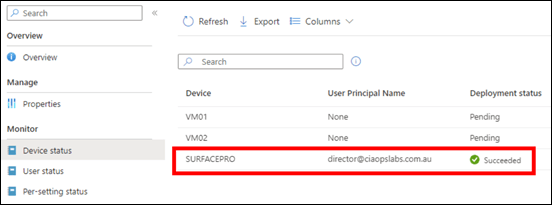
You now need to wait until the policy is deployed successfully to devices. You can check the status of this by viewing the Device status for the policy as shown above.

Capture2

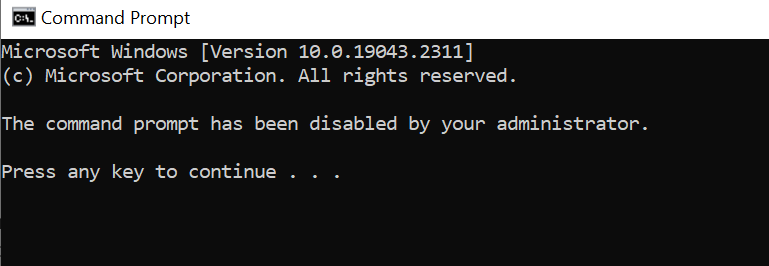
If you open the Command Prompt on a device where the policy is deployed you will see the above message.

Blocking Registry edits on Windows with an Intune Device Configuration profile

This article shows you how to use Intune to block Registry editing on Windows devices using a Configuration profile.

Navigate to https://endpoint.microsoft.com and select Device from the menu on the left as shown above.

Then, select Windows on the right.

Select Configuration profiles from the menu on the left as shown.

image

Select Create profile.

Then select the Platform as Windows 10 and later.

Select the Profile type as Templates.

From the list of templates select Custom.

Select Create in the bottom right.

image

Give the policy a name and select Next to continue.

image

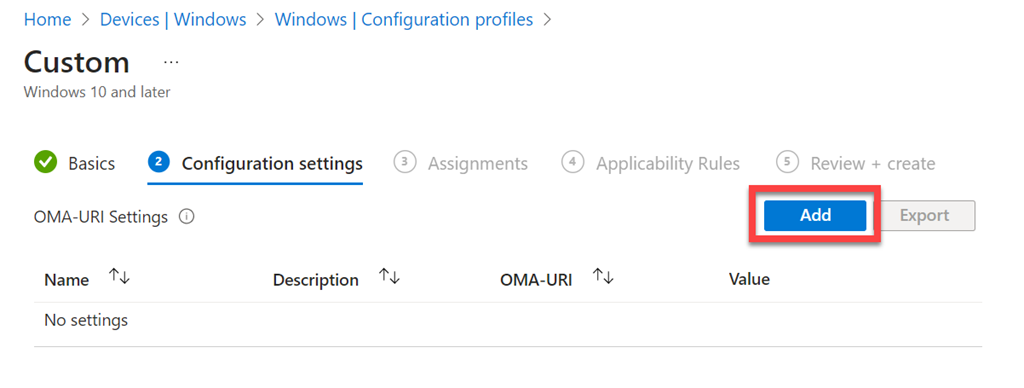
Select Add.

image

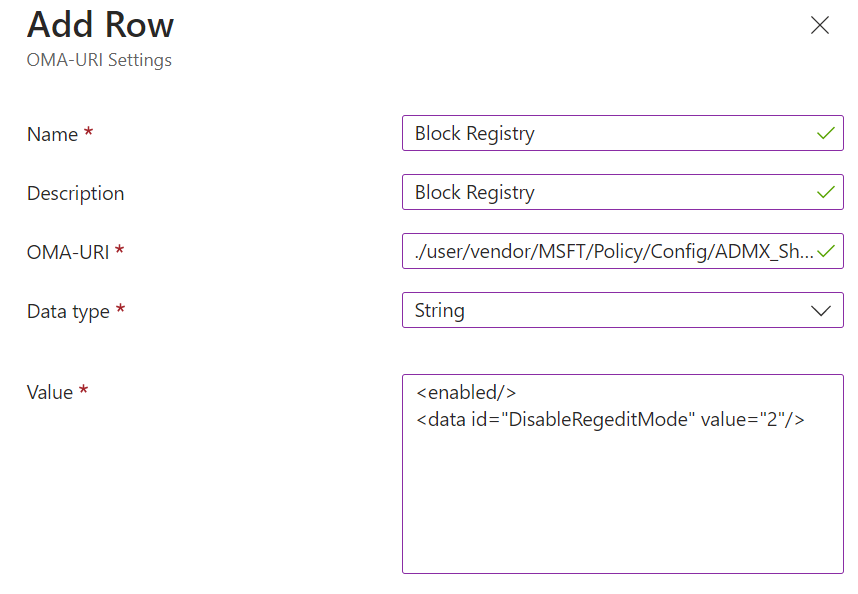
In the OMA-URI settings enter the following as shown above:

Name = Block Registry

Description = Block Registry

OMA-URI = ./user/vendor/MSFT/Policy/Config/ADMX_ShellCommandpromptRegeditTools/DisableRegedit

Data type = String

Value =
<enabled/>
<data id=”DisableRegeditMode” value=”2″/>

Ensure you enter these exactly as shown, anything else will prevent the policy working as expected.

Press Save.

image

You should now see the item you just entered displayed as shown above.

Select Next to continue.

Assign the policy to a group. Here it is being assigned to all Windows devices.

Select Next to continue.

image

You will now see a summary. Ensure the Configuration settings has the above set before selecting the Create button to complete the policy.

image

You should now see that the policy has been created and listed with all other Configuration profile policies as shown above.

You can edit this policy at any stage simply by selecting it.

image

You now need to wait until the policy is deployed successfully to devices. You can check the status of this by viewing the Device status for the policy as shown above.

Capture1

If you now try and make a change to the registry on a device where the policy is deployed you will see the following message.

Blocking USB devices on Windows with an Intune Device Configuration profile

There are a number of ways to block USB storage devices using Intune. You can also complete:

Blocking USB devices on Windows with an Intune Endpoint Security policy

The following method is very similar but uses a Device Configuration profile.

image

Navigate to https://endpoint.microsoft.com and select Device from the menu on the left as shown above.

Then, select Windows on the right.

image

Select Configuration profiles from the menu on the left as shown.

image

Select Create profile.

Then select the Platform as Windows 10 and later.

Select the Profile type as Templates.

From the list of templates select Administrative Templates.

Select Create in the bottom right.

image

Give the policy a meaningful name and description.

Select Next to continue.

image

Select Computer configuration.

Then enter the following into the Search box ‘prevent installation of devices’ and Search.

Typically, the first item returned will be ‘Prevent installation of devices not described by any other policy. Select this.

Select the option Enabled.

Select OK.

Select Next to continue.

image

Assign the policy to a group. Here it is being assigned to all Windows devices.

Select Next to continue.

image

You will now see a summary. Ensure the Configuration settings has the above set before selecting the Create button to complete the policy.

image

You can also review these settings at any time by simply selecting the policy in the list and viewing its details as shown above.

image

You now need to wait until the policy is deployed successfully to devices. You can check the status of this by viewing the Device status for the policy as shown above.

Screenshot 2023-03-20 145033

If you now try and plug in an unknow USB storage device you may see the above warning. In other cases, you will see no warning but USB device storage will be blocked.

Some points to remember:

1. The above policy is only designed for Windows 10 and above

2. The above policy won’t prevent USB storage devices that have already been used on an endpoint. These need to be removed from the device manager on the device to be blocked in future.

3. Some USB devices that don’t appear as storage devices in fact have a small amount of storage on them (for video and projector drivers for example). These will also be blocked.

Blocking USB devices on Windows with an Intune Endpoint Security policy

There are a number of ways to block USB devices using Intune. The following method uses an Endpoint Security Policy.

image

Navigate to https://endpoint.microsoft.com and select Endpoint security from the menu on the left as shown above.

Then select Attack surface reduction from the options that appear on the right as shown above.

image

Select Create policy.

Select Platform as Windows 10 and later as shown.

Select Profile as Device Control as shown.

Select Create in the bottom right.

image

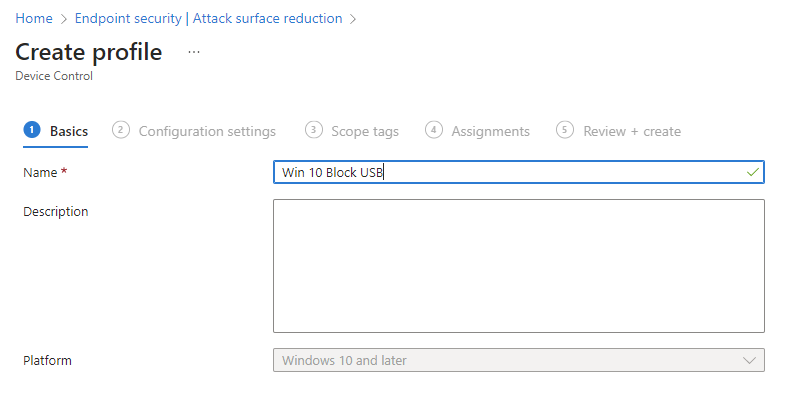
Give the policy a meaningful name and description.

Select Next to continue.

image

Under the System > Device Installation > Device Installation Restrictions heading locate the Prevent installation of removable devices item and set this to Enabled as shown above.

Select Next to continue.

image

Scroll down the list of available settings to locate the Device Control section as shown. To prevent ANY new USB from installing ensure this option is set to Not configured.

Select Next to continue.

image

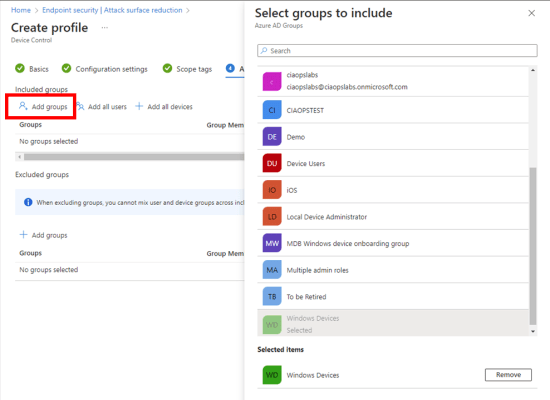
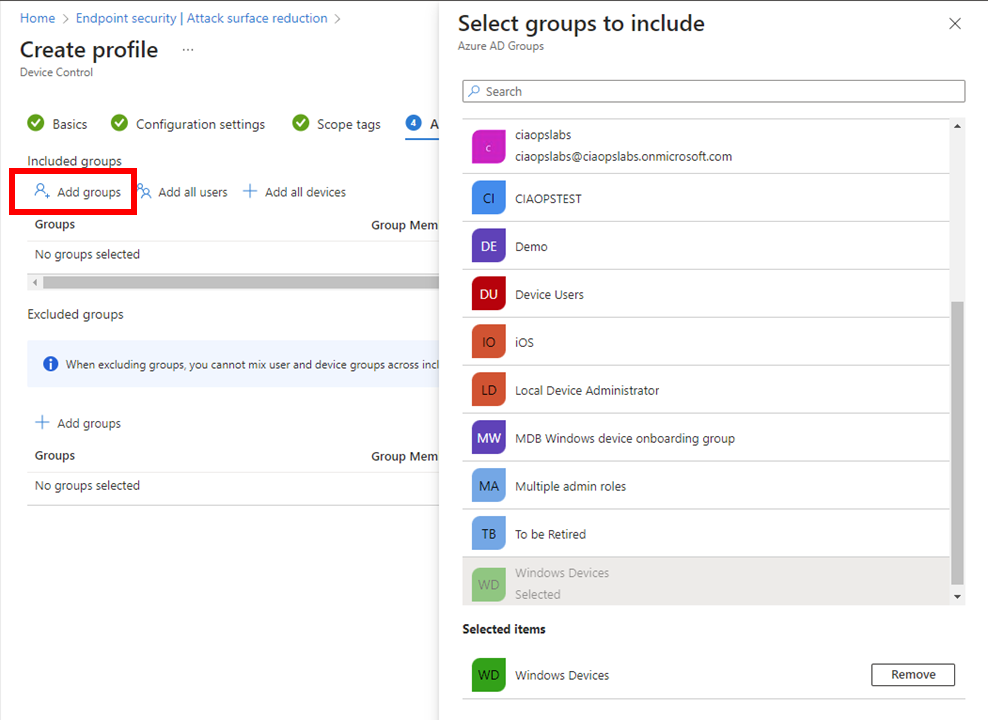
Assign the policy to a group. Here it is being assigned to all Windows devices.

Select Next to continue.

image

On the summary screen, expand the Administrative Templates option as shown. In here you should see that Prevent installation of removable devices is set to Enabled.

Select Create.

image

The created policy should now be listed as shown above. Click on it to view.

image

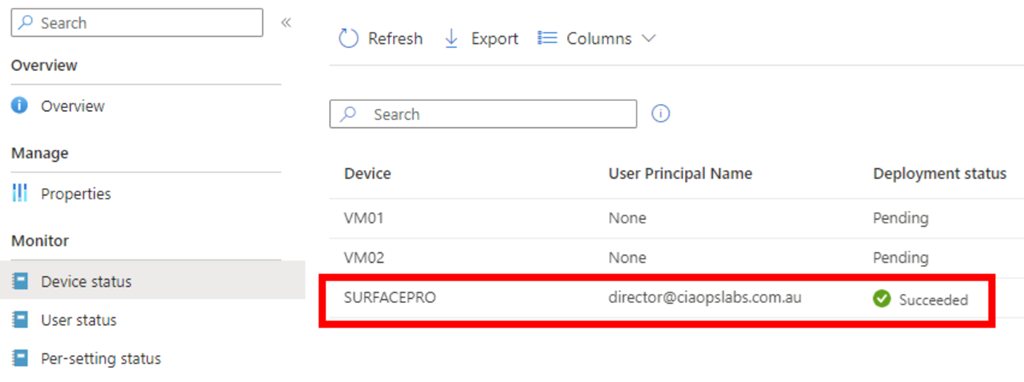
When the policy has been successfully applied to the devices the policy was assigned to you should see the status of devices as shown above.

Select View report button.

image

You should now see all the listed that have this policy applied to them as shown above.

Screenshot 2023-03-20 145033

If you now try and plug in an unknow USB storage device you may see the above warning. In other cases, you will see no warning but USB device storage will be blocked.

Some points to remember:

1. The above policy is only designed for Windows 10 and above

2. The above policy won’t prevent USB storage devices that have already been used on an endpoint. These need to be removed from the device manager on the device to be blocked in future.

3. Some USB devices that don’t appear as storage devices in fact have a small amount of storage on them (for video and projector drivers for example). These will also be blocked.

4. You can create exceptions to this policy via the device id if you wish.

Need to Know podcast–Episode 298

In this episode I look at the recommended best practices for managing your emergency access or ‘break glass; accounts in Microsoft 365. In the news we welcome the arrival of the Intune Suite and major update to Windows 11. Listen along for all the details.

You can listen directly to this episode at:

https://ciaops.podbean.com/e/episode-298-break-glass/

Subscribe via iTunes at:

https://itunes.apple.com/au/podcast/ciaops-need-to-know-podcasts/id406891445?mt=2

The podcast is also available on Stitcher at:

http://www.stitcher.com/podcast/ciaops/need-to-know-podcast?refid=stpr

Don’t forget to give the show a rating as well as send me any feedback or suggestions you may have for the show.

This episode was recorded using Microsoft Teams and produced with Camtasia 2022.

Brought to you by www.ciaopspatron.com

Resources

@directorcia

@directorcia@twit.social

Join my shared channel

CIAOPS merch store

Become a CIAOPS Patron

CIAOPS Blog

YouTube edition of this podcast

The Microsoft Intune Suite fuels cyber safety and IT efficiency

Introducing a big update to Windows 11 making the everyday easier including bringing the new AI-powered Bing to the taskbar

Total Identity Compromise: DART lessons on securing Active Directory

Skilling snack: Intro to Azure Active Directory

Defender for Endpoint(MDE): Integrate with Compliance & Conditional Access Policy

Mitigate risks with application block in Defender Vulnerability Management

SharePoint Roadmap Pitstop: February 2023

Microsoft is named a Leader in the 2022 Gartner® Magic Quadrant™ for Endpoint Protection Platforms

Manage emergency access accounts in Azure AD

Inconsistent Intune PowerShell module results

If you run the command:

get-intuneconfigurationpolicy

you’d except to see all your Intune configuration policies displayed.

image

However, after connecting to the Microsoft Graph module you see that nothing is returned. My experience has also been receiving incomplete results using these commands.

image

What I have found is that using the Microsoft Graph directly by using commands like:

$uri = “https://graph.microsoft.com/beta/deviceManagement/deviceConfigurations/&#8221;

(Invoke-MSGraphRequest -Url $URI -HttpMethod GET).value

produces the desired results as shown above in the same environment.

So my tip is when working with Intune and Endpoint Manager with PowerShell is, use the Microsoft Grah directly to obtain and set the information you need.