Custom web filtering for Microsoft Defender for Endpoint

In a recent post I showed how you can enable web filtering with Defender for Endpoint using the built in blocked categories method.

Enabling web filtering with Microsoft Defender for Endpoint

The limits of this approach are that you can only use the categories that have been provided (i.e. Adult content, High bandwidth, Legal liability, Leisure and Uncategorized). An interesting omission, in my opinion, is the ability to block social networking (i.e. Twitter, Facebook, etc).

You can achieve custom web filtering with Microsoft Defender for Endpoint if you wish using the custom indicator approach.
image

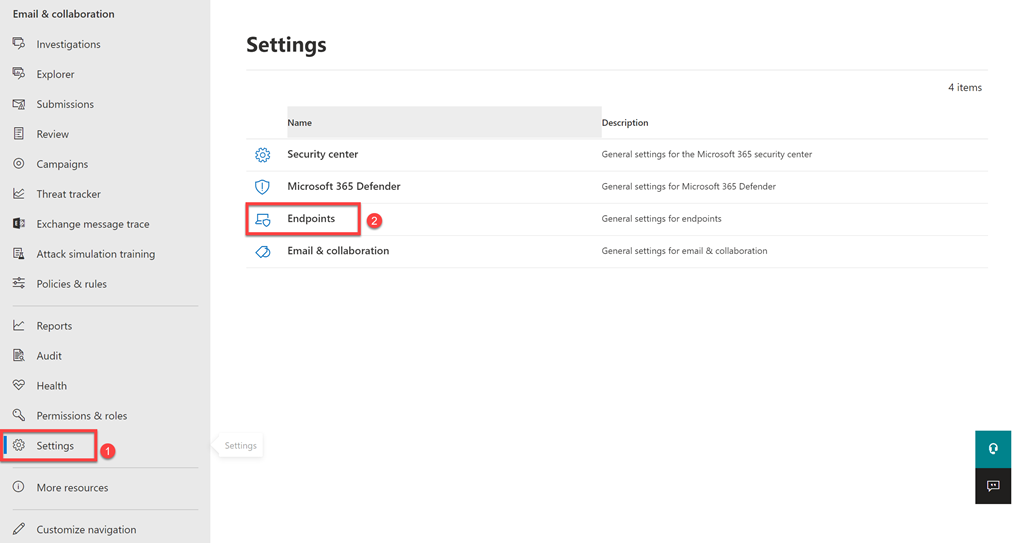
You’ll first need to ensure that custom network indicators have been enabled in your environment. You do this by navigating to  https://security.microsoft.com, scroll down the list on.the left hand side until you locate Settings, then select Endpoints.

image

From the menu that now appears, select Advanced features. Ensure that the Custom network indicators option is turned on as shown. Don’t forget to save any changes with the Save preferences button at the bottom of the page.

image

To enable a custom  indicator, navigate to https://security.microsoft.com, scroll down the list on.the left hand side until you locate Settings, then select Indicators. On the right you can create an indicator as File hash, IP address, URL or Certificate. In this case, select URLs/Domains. Then select the option to Add item.
image

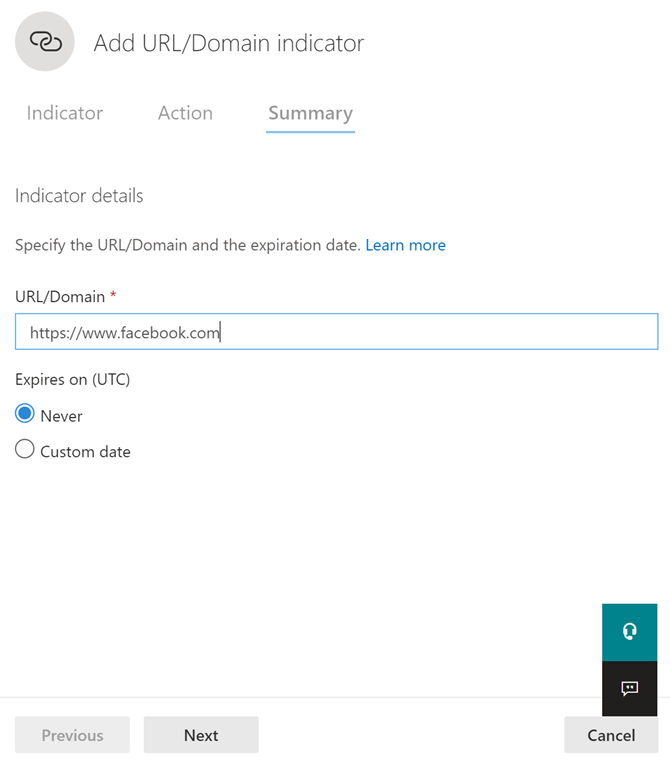
Enter the URL you wish to block and select whether you wish an expiry date for this indicator. Unfortunately, you can’t use wildcard characters here, it must be the direct URL. Press the Next button to continue.
image

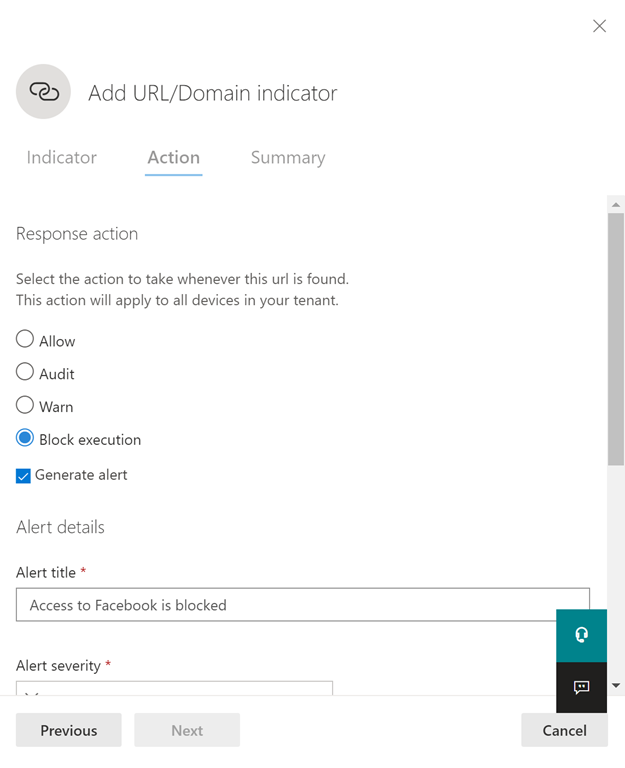
Select the action you wish to take (Allow, Audit, Warn, Block execution). It is also recommended that you select the Generate Alert option so that information can be shared with other applications such as Azure Sentinel, which I’ll cover in an upcoming article. Also, give the alert a descriptive title (I suggest you mention the particular web site you are blocking here). Scroll down the page to continue.
image

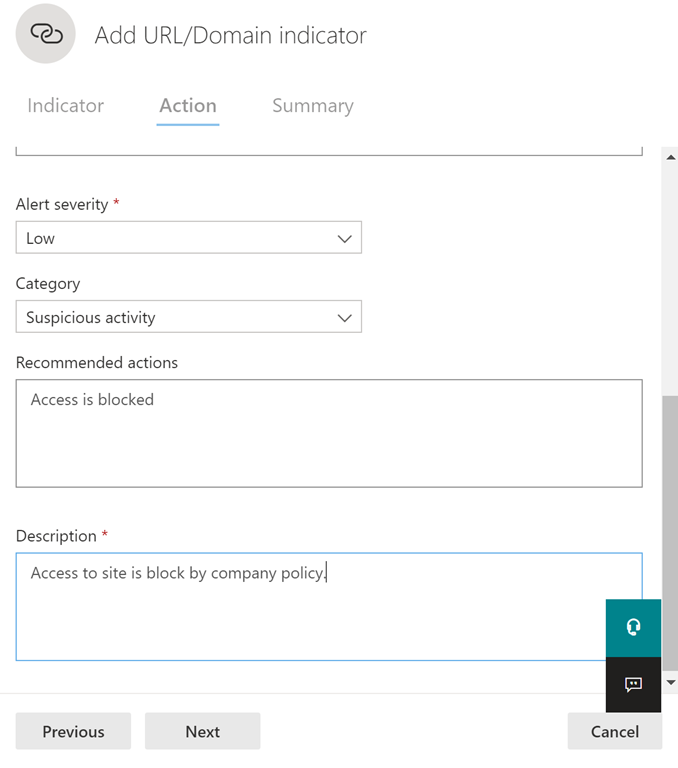
Enter the Alert severity, Category as well as the Recommended actions and a Description as shown above. Press the Next button at the bottom of the page when complete.
image

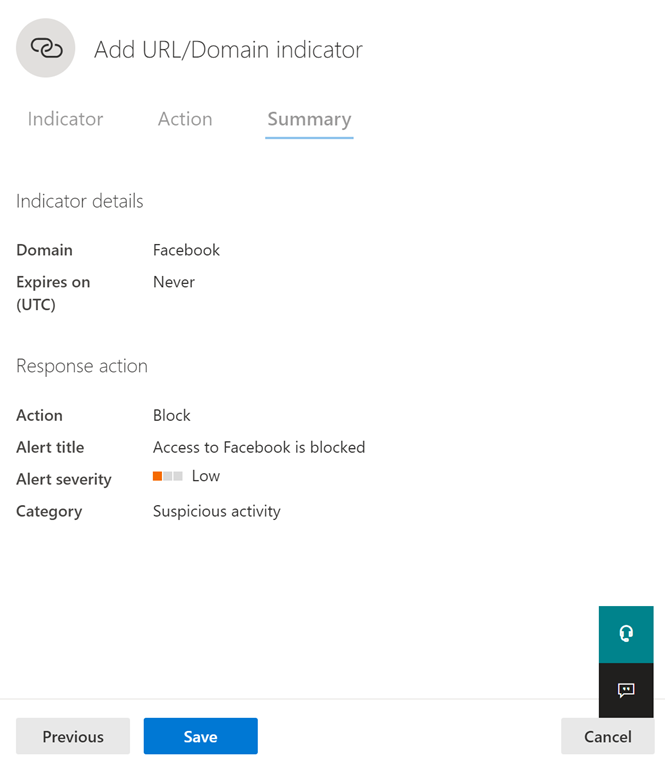
View the summary that is now displayed and press the Save button at the bottom of the screen.
image

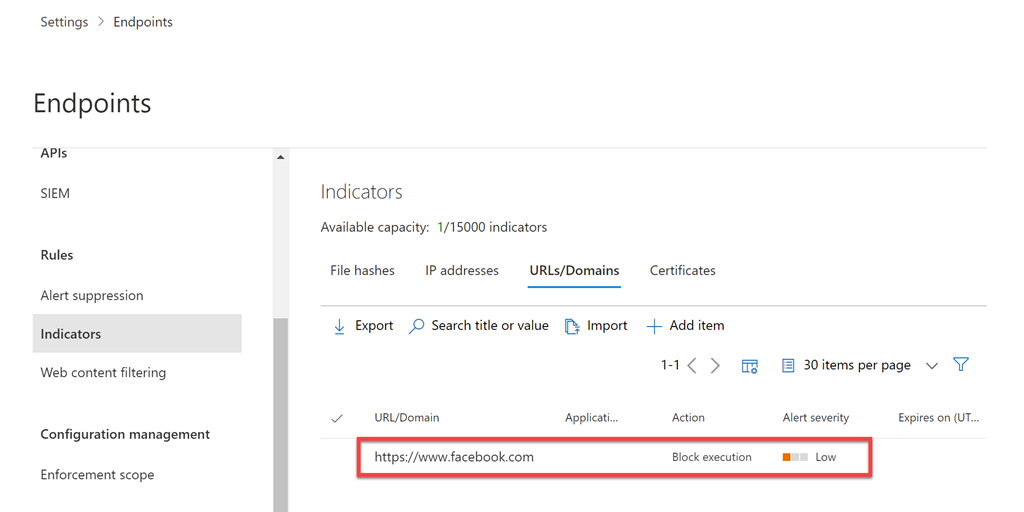
You should see your entry listed as shown above. You can edit this by simply clicking on it. You also delete the indicator once you edit it.

Also note the Import menu option that allows you to import a list of items from a CSV file.

Now according to the Microsoft documentation:

Create indicators for IPs and URLs/domains

– Classless Inter-Domain Routing (CIDR) notation for IP addresses is not supported.

– URL/IP allow and block relies on the Defender for Endpoint component Network Protection to be enabled in block mode.

– Supported on machines on Windows 10, version 1709 or later, Windows 11, Windows Server 2016, Windows Server 2012 R2, Windows Server 2019, and Windows Server 2022

– Only external IPs can be added to the indicator list. Indicators cannot be created for internal IPs.

– If there are conflicting URL indicator policies, the longer path is applied. That is, the more specific path.

– Only single IP addresses are supported (no CIDR blocks or IP ranges).

– Encrypted URLs (full path) can only be blocked on first party browsers (Internet Explorer, Edge)


Encrypted URLS (FQDN only) can be blocked outside of first party browsers (Internet Explorer, Edge)

– Full URL path blocks can be applied on the domain level and all unencrypted URLs

– There may be up to 2 hours of latency (usually less) between the time the action is taken, and the URL and IP being blocked. My personal experience is around 45 minutes.
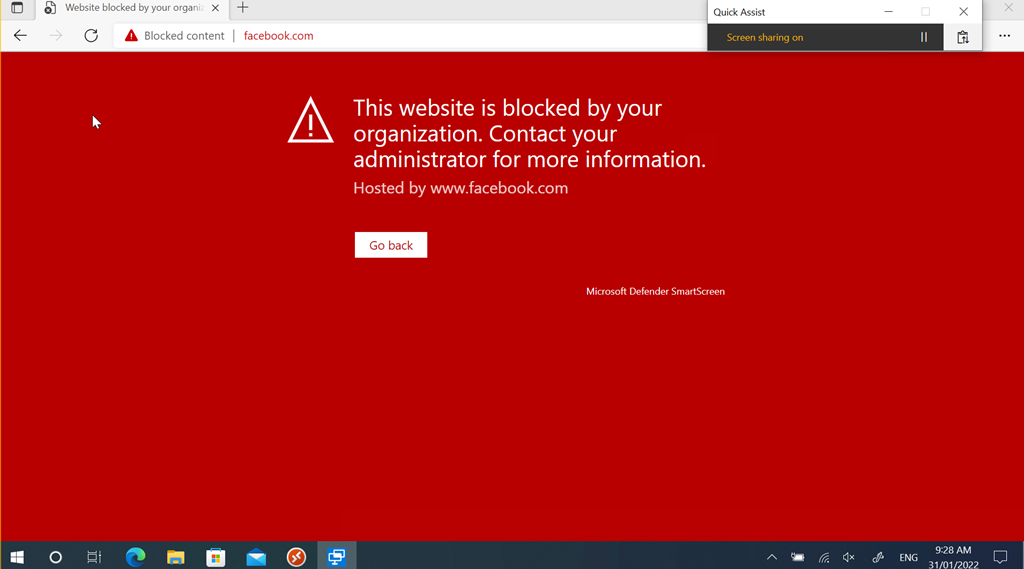
image

Enforced result on Edge. If you use third party browsers, and the site is encrypted (i.e. uses https) it will not be blocked as mentioned above.

Adding indicators using the web and even importing using a CSV is somewhat time consuming and cumbersome, especially if you have a standard set you wish to block. I’ll show you how to add indicators using a script and API calls in an upcoming post. so stay tuned for that.

Remember, that you can use these indicators to not only block but also warn and audit if you wish. You can also have a number of different indicators and types. I’d also recommend you take a look at this article from Microsoft:

Best practices for optimizing custom indicators

when you start creating these custom indicators.
All the Microsoft Defender for Endpoint options

It is important to understand that there are current 3 plans for Defender for Endpoint

1. P1

2. Defender for Business

3. P2

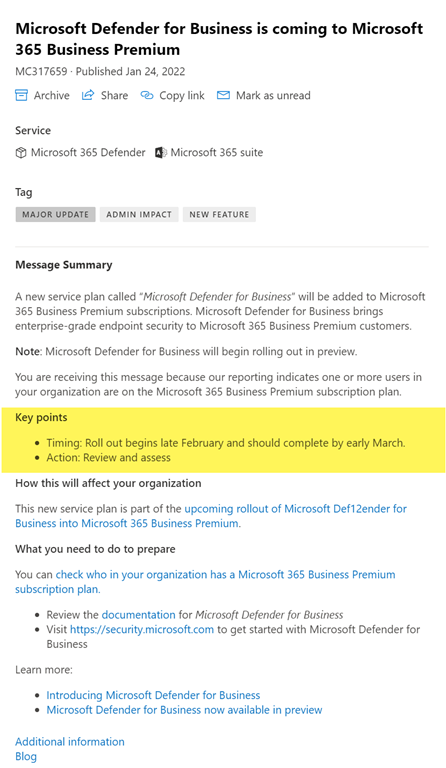
Note: that Defender for Business is currently in preview.

image

The indicated general available is late February/early March per the above Message Center item.

I have perhaps been some what cavalier in the screens I have shared with a few posts of late. This could potentially lead to confusion about what plans include when I am showing screens from plans that maybe different from what people assume it is.

The issue is not with the functionality, the issue is that what I have shown may not be identical to the specific plan I’m focusing on. In essence, if you look at your screen and what I have shown, you might see differences in the total number of options available for example.

So, let’s clear all that up with a look at the three plans and their differences.

This is probably the best place to start:

Compare Microsoft Defender for Business to Microsoft Defender for Endpoint Plans 1 and 2

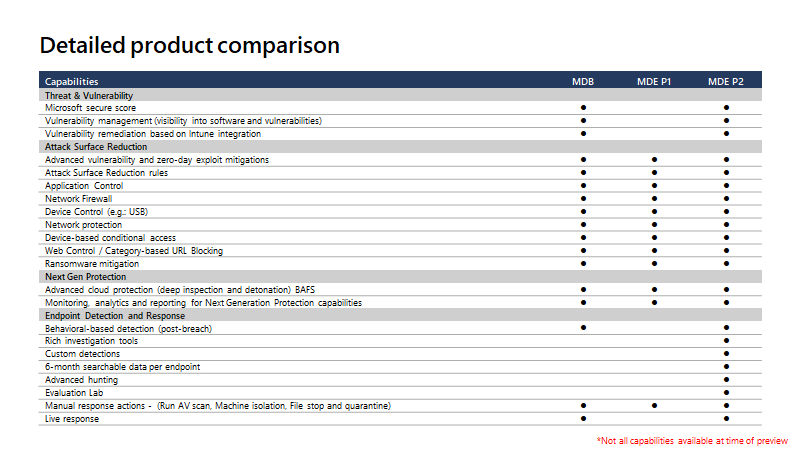
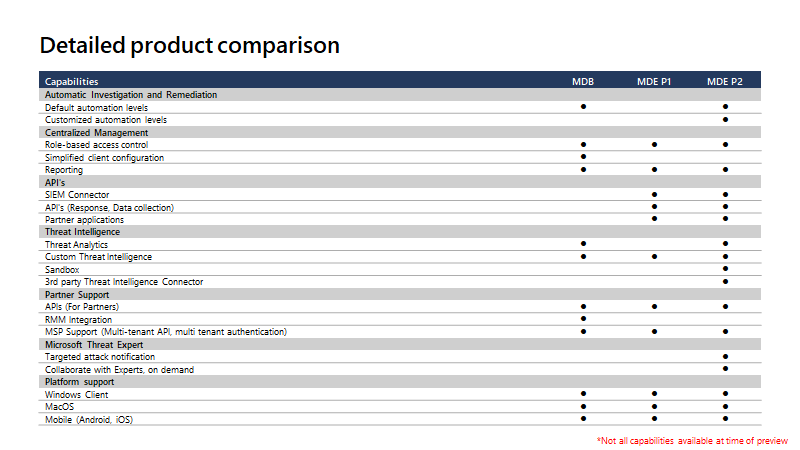
The following provides a more current granular break down:

image

image

Some other helpful links:

Microsoft Defender for Endpoint

Overview of Microsoft Defender for Endpoint Plan 1

HadleyE_0-1636992556830.png

Microsoft Defender for Endpoint Plan 1 and Plan 2

Microsoft Defender for Business

Overview of Microsoft Defender for Business (preview)

Compare security features in Microsoft Defender for Business to Microsoft 365 Business Premium

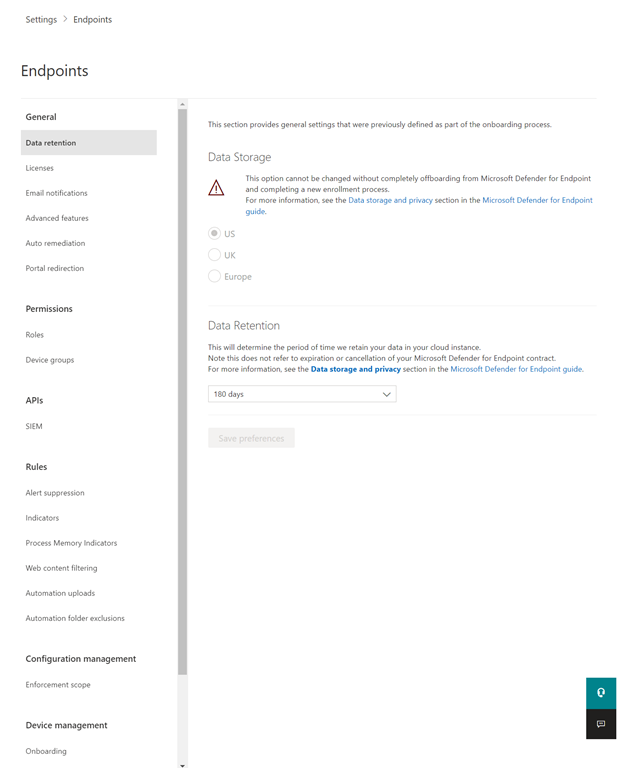
There are also differences in the options available in the interface. For example with Defender for Endpoint P2 you see the following in Settings | Endpoints:

image

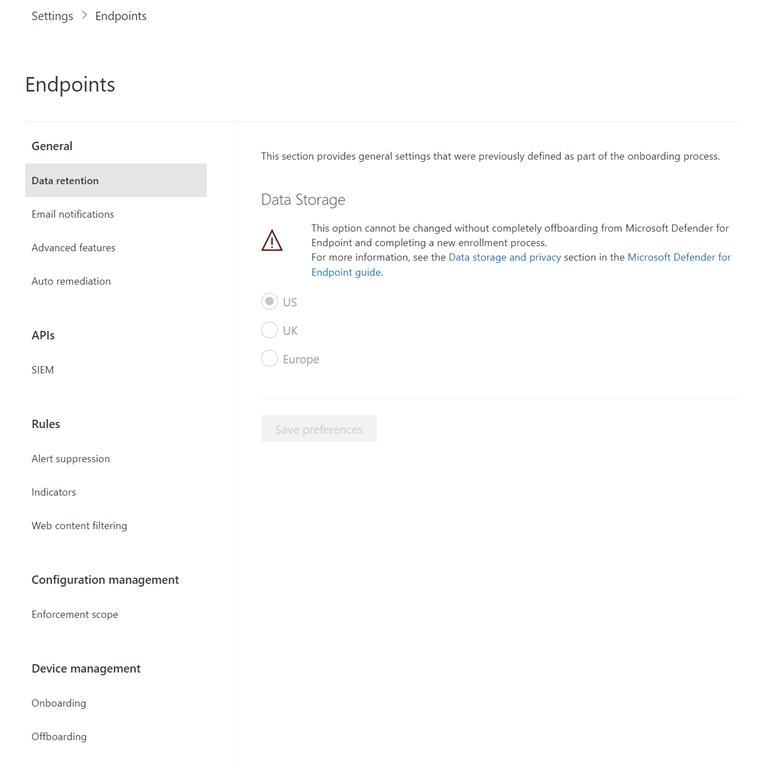
While in Defender for Business you only see:

image

Key items like Onboarding, Offboarding and Web content filtering etc. still appear but a significant amount of other don’t. This is where some of the confusion may lie with my previous content (sorry). Hopefully people aren’t too fazed by stuff not being there as they can still get to the stuff I do call out. However, it is on me to do a like for like if I do show screens. So, going forward I’ll do my best to do that to avoid the confusion around all these Defender for Endpoints.

Of course, this will change over time and I’ll try and update my future articles to reflect that.

Enabling web filtering with Microsoft Defender for Endpoint

One of ‘bonuses’ of Microsoft Defender for Endpoint is the inclusion of web filtering. This means that you can block a range of pre-configured sites as well as custom ones if needed. This article will cover how to set up this capability for pre-configured sites.

To get web filtering working you’ll basically need:

– Windows 10/11 devices onboarded to Defender for Endpoint

– Windows Defender Smartscreen and Network Protection enabled.

Web filtering for other platforms, like iOS and Android, is on the roadmap.

Please note that the options that appear may differ based on what version of Defender for Endpoint you are using (P2, P1 or Business)

image

Navigate to https://security.microsoft.com and scroll down the menu options on the left and select Settings. From the options that appear on the right select Endpoints.

image

Locate the Web content filtering option from the menu that now appears, and select + Add item on the right as shown above.

image

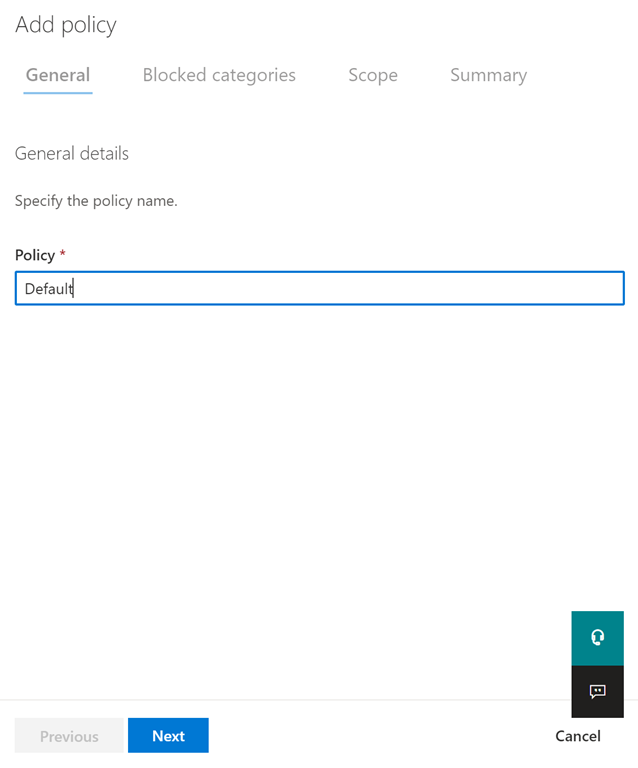
From the dialog that appears from the right, give the policy a name (here, Default) and select the Next button.

image

image

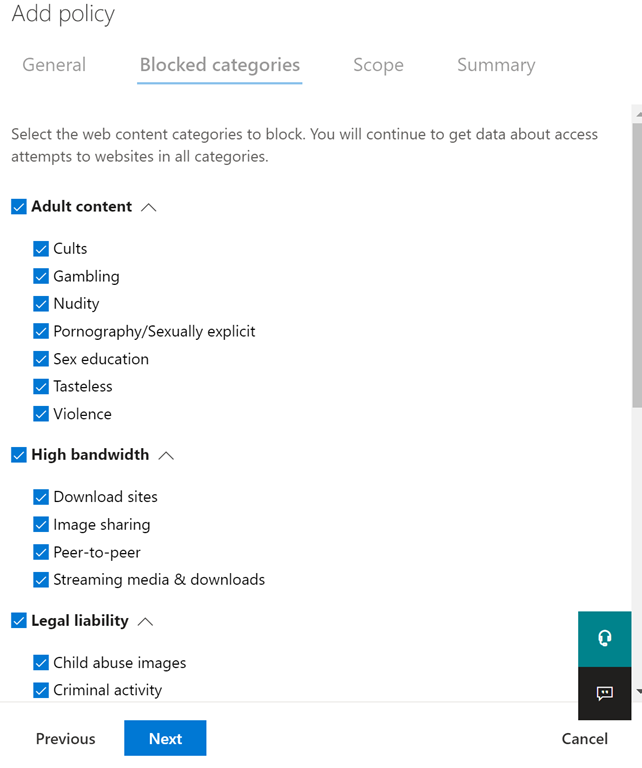
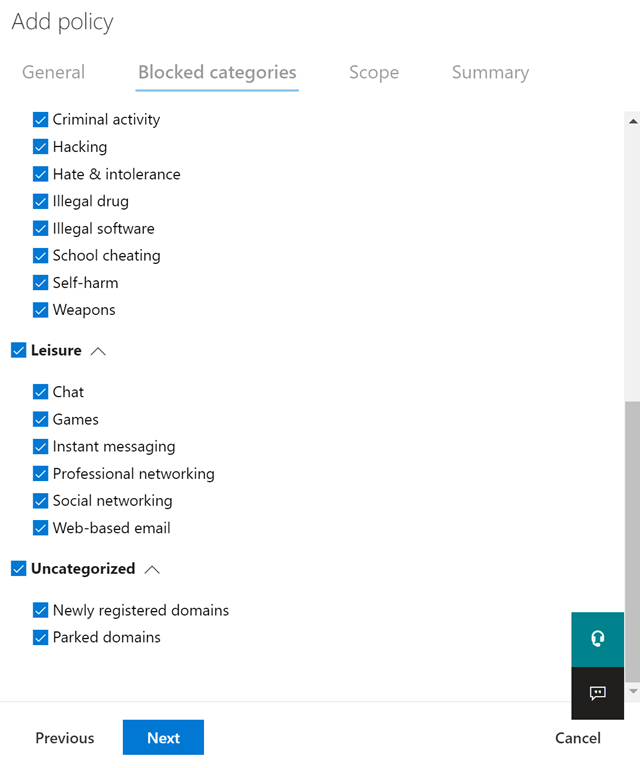
Select the Block categories required. You can expand the headings and select individual items insides these. Also note, that you can block both Newly registered domains and Parked domains.

Press the Next button when you have made you choices.

image

You can target this policy at specific Defender for Endpoint groups if you wish, depending on the version of Defender for Endpoint you use. In this case, no groups have been created, so All devices will be targeted. Note, that Device Groups does not currently appear with Defender for Business and thus all policies there will be scoped to all devices by default.

Press the Next button to continue.

image

image

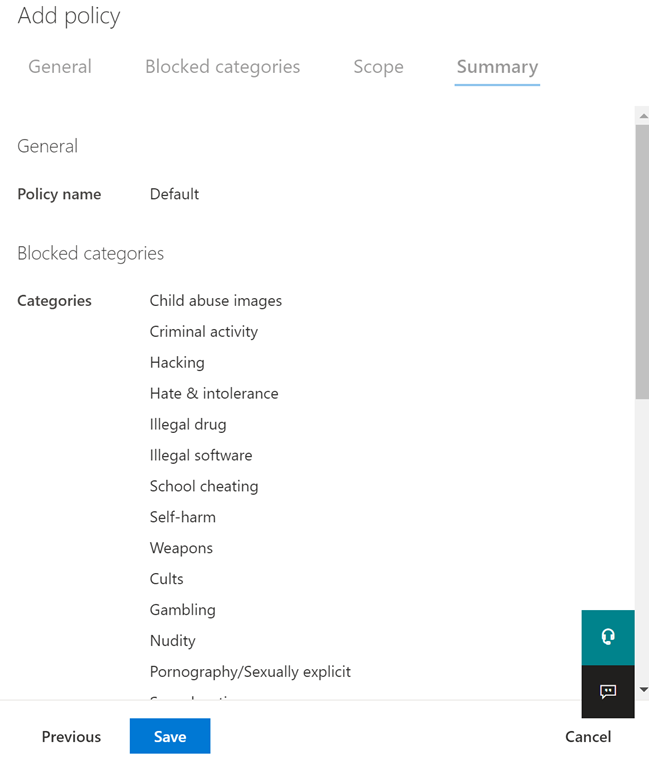
Review the policy summary and select the Save button to complete the creation process.

In my experience it takes around 40 – 45 minutes for this policy to be applied to Windows 10/11 device endpoints, so be patient.

image

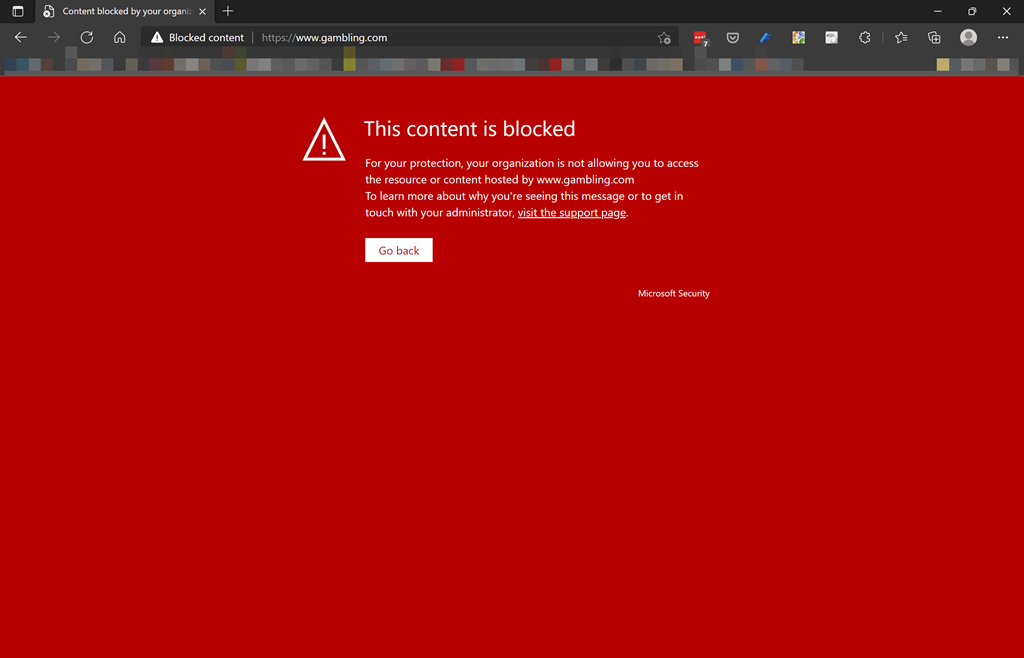
When a restricted site is visited using a Microsoft browser like Edge, you’ll very briefly see the restricted website flash up and then almost immediately be replaced with the content blocked message shown above.

image

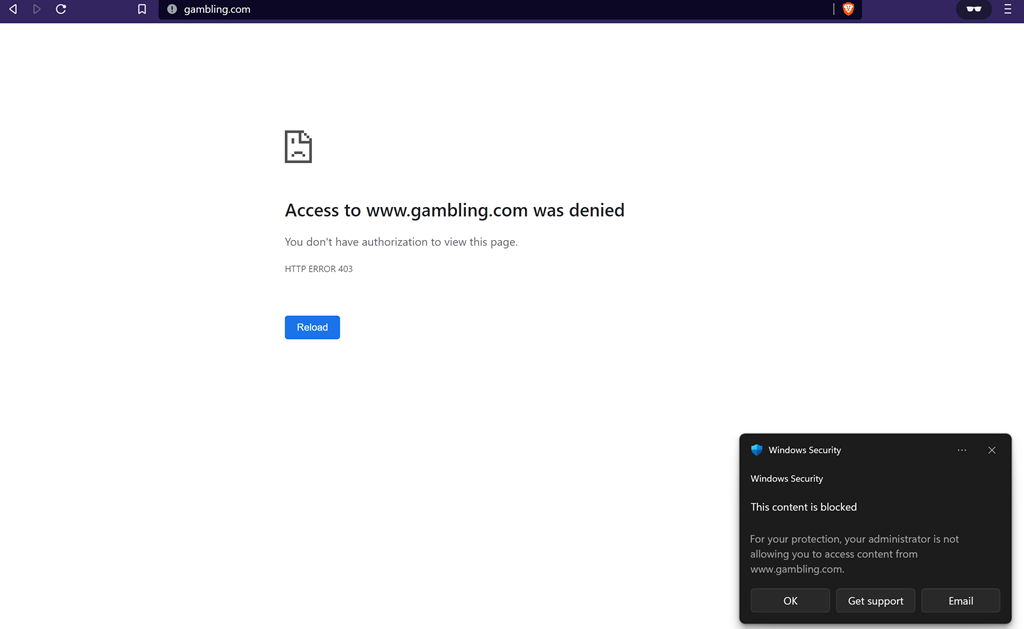
If you use a non-Microsoft browser, Brave in this case, then you will see a message saying that access is denied and you’ll also receive a Windows Security message as shown in the bottom right above.

If you wish to remove or edit a web filtering policy, simply navigate back to the web filtering option in the security console. Changes, including policy deletions, again take about 40 or so minutes to become evident on endpoint devices.

What’s covered here is just the basics. Look out for future article where I cover off how to filter custom sites and locations. You’ll also find lots more details in the Microsoft documentation here:

Web content filtering

At this stage (January 2022), as I said earlier, web filtering is only available on Windows 10/11 devices but more options are coming in the very near future.