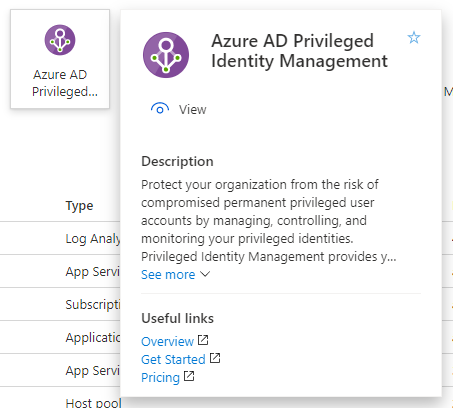
If you are managing a Microsoft 365 environment my recommendation is to do so using a Microsoft 365 E5 SKU, no matter what else in in that tenant. The reason for having at least one Microsoft 365 E5 SKU in your environment is that it provides a wealth of additional features that directly benefit administrators. One of these is Azure AD Privileged Identity Management (PIM).
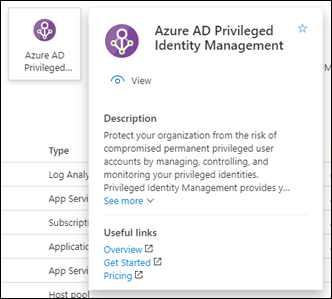
In a nutshell, PIM allows you to do just-in-time (JIT) role escalation. This means that users can be given the permissions they need to do things, only when the need them. It means that you don’t need to have users with standing global administrator access, they can be escalated only when they actually need those privileges. Standing elevated privileges is something that you should be looking to minimise or eliminate in your environment so that if an account does get compromised it won’t have access to the ‘family jewels’. PIM is also a way to potentially minimise the threat of a ‘rogue administrator’ given that it can have an approval process tied to it as well. Most important, all PIM actions are audited in detail which is always handy to have.
PIM is a feature of Azure AD P2 and as mentioned, included in Microsoft 365 E5. Best practice is to ensure you have an ‘emergency break-glass’ administration account tucked away as a backup before you start restricting existing administrators with PIM. Once you have both the license and a ‘get out of jail’ account you are ready to use PIM.
A good example to help you understand the benefits of PIM is to illustrate how I use it myself in my own production environment. The account that I use for my day to day work used to be a global administrator but best practices dictates that it really shouldn’t be. However, given the number of browser sessions I have open already I didn’t want to add yet another one to be checking administrative tenant level ‘stuff’. PIM to rescue! With PIM, my account can stay as a member account by default and I can escalate it to be a global administrator as needed.
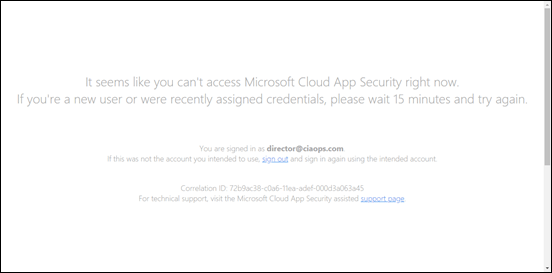
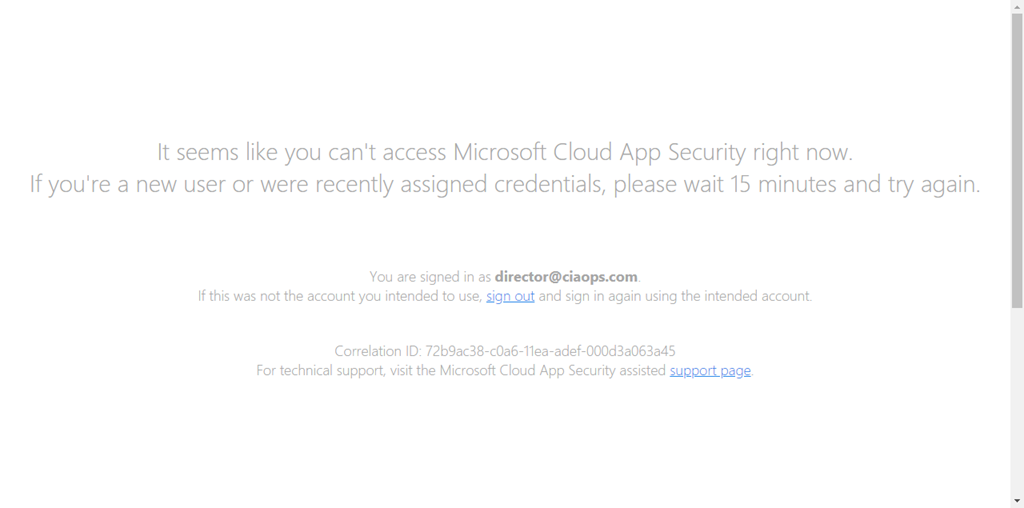
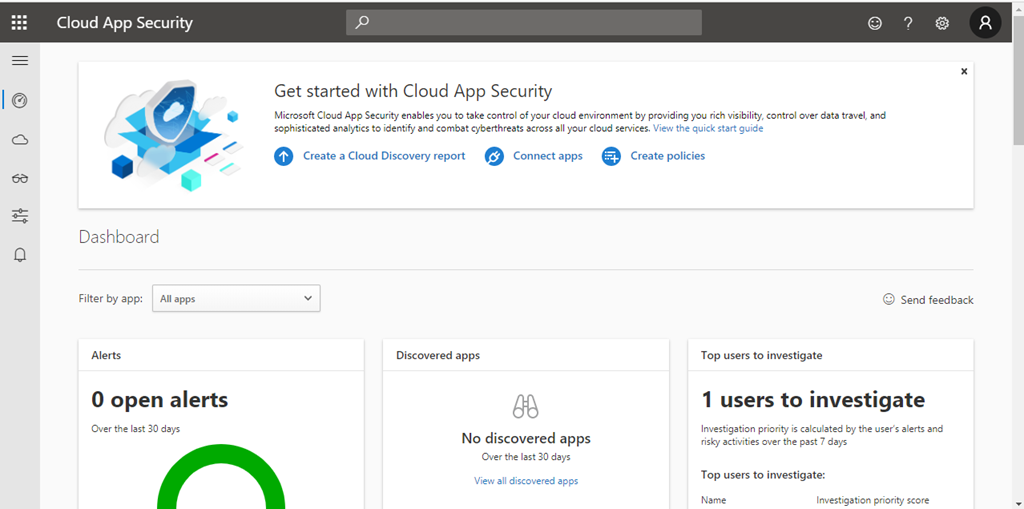
One of the things I like to check is Microsoft Cloud App Security for my tenant. As you can see above, by default, I now have no privileges.
To elevate my privileges I follow this process:
Activate my Azure resource roles in Privileged Identity Management
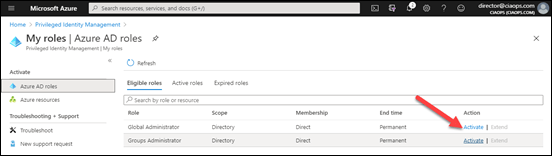
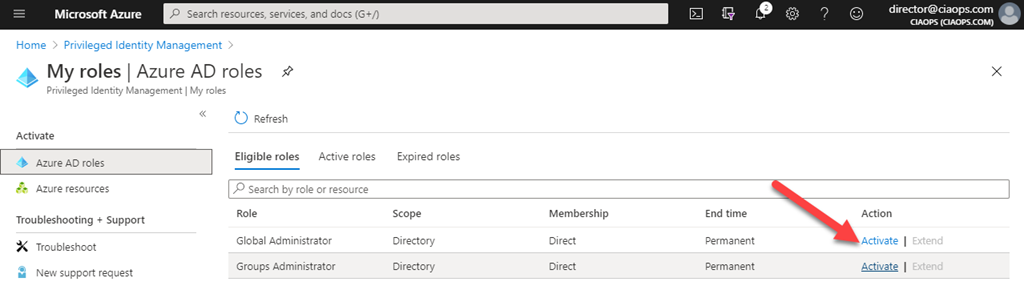
This means that I login to the Azure Portal and then navigate to Azure AD roles in PIM as shown above. Here I can see that I can activate the Global administrator role by selecting the Activate link as shown.
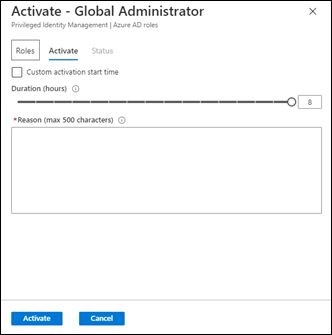
When I do this a dialog box appears and my credentials are verified. You can enable the requirement to again prompt for MFA during this validation process if you wish. That means, even if I am already logged in successfully, I need to complete an MFA challenge again to proceed.
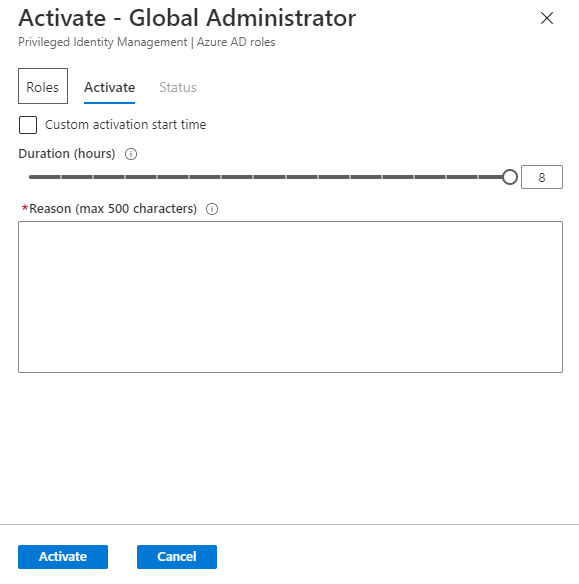
I can now select the time required to complete my work up to a pre-defined Duration limit. Here I’m going to select the full 8 hours for a full work day at my desk. I also need to provide a Reason for elevation. This information will be recorded and held with the auditing information. This means I can track when and why I elevated.
When complete, I press the Activate button at the bottom of the page to continue.
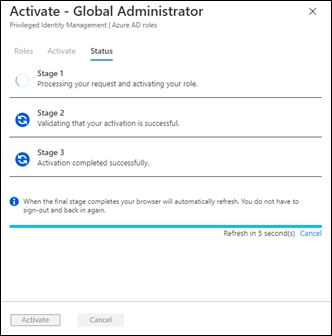
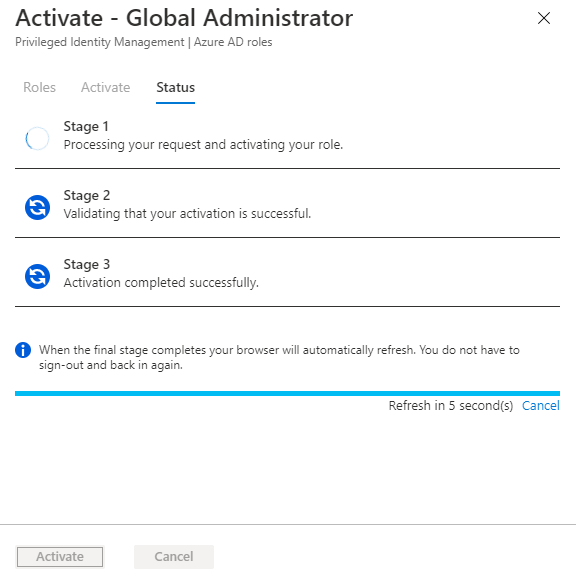
The activation request is then processed according to pre-define rules. In my case, I have elected to have automatic approvals but you can refer approvals to a third party if you wish for greater protection.
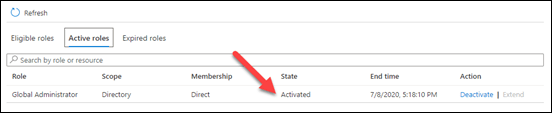
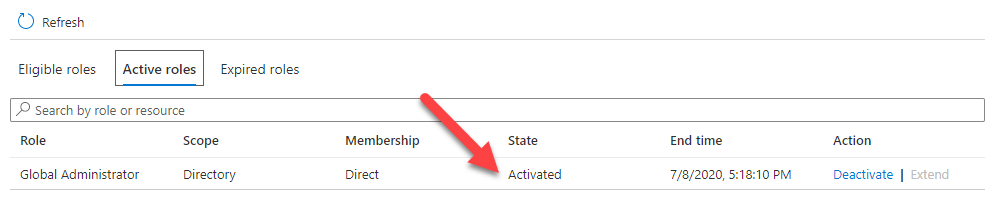
In about 30 seconds my activation is complete and if I now look in the Active roles area of the console I see that I am indeed a global administrator.
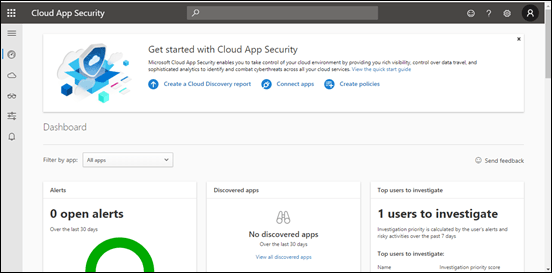
If I now refresh my Microsoft Cloud App Security page, you see that I can get access as a normal administrator. This is also the same with all the other administrator areas in the tenant thanks to undergoing the elevation to a Global Administrator thanks to PIM.
The good thing is now I can work using my normal account, check and monitor what I need to without using a different account. I can also rest easy that after the 8 hour time limit my account will again be de-activated back to being a member user. Thus, at the end of the day, I simply shut down and the account will automatically be de-activated for me without me needing to remember to do it. I can of course, manually de-activate the account at any time if I wish, say if I needed to go out somewhere. It is also easy enough for me to re-activate again if I need to do any additional work.
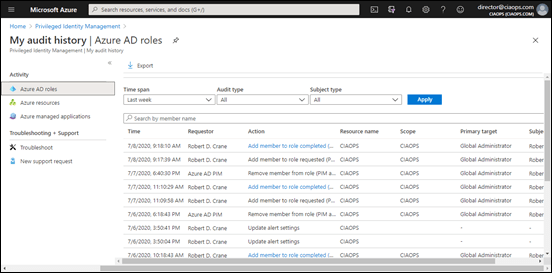
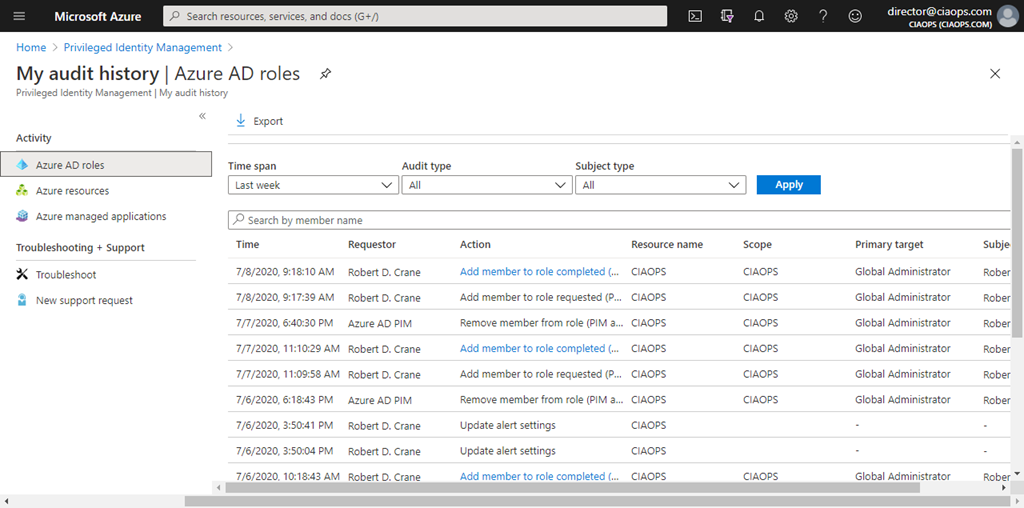
What I also like is the audit logging as shown above. Having it all in one place in the PIM console makes it easy for me to verify what has been happening with the process over time.
So in summary, I am using PIM to elevate my normal work account to an escalated level as needed during the day. This means that I don’t have to maintain standing administrator access for the account but I still have the convenience of using it to perform administrator roles as needed.
To set this up for yourself, you’ll need M365 E5 or Azure AD P2 as well as a ‘break-glass’ account. Then you’ll need to configure the roles you wish to escalate to via:
Configure Azure resource role settings in PIM
You can get quite granular here if you wish, but my advice is that you keep it simple to start with and go from there. For me, I just wanted the simple process of becoming a ‘normal’ global administrator.
You can have multiple roles, with different access for different users if you wish. In my case, I’m just focusing on the role of the tenant administrator. As I said, you can also have approvals sent to a third party or parties if you want for an extra level of protection if desired. There lots of settings you can customise with PIM.
Using PIM now gives me extra level of protection when it comes to administration rights. It means my production user isn’t a global administrator by default. I can however, use that same account as a global administrator, by going through a simple automated escalation process that requires MFA for greater security. Additional benefits include that I get great auditing and tracking, I can manually de-activate those rights at any point and those rights will also be automatically de-activated for me after a specified time limit and I also get alerting.
If you want to make your Microsoft 365 environment, especially you administrator logins, more secure then I suggest you take a look at PIM. Even for a small environment like mine, it is great value.