
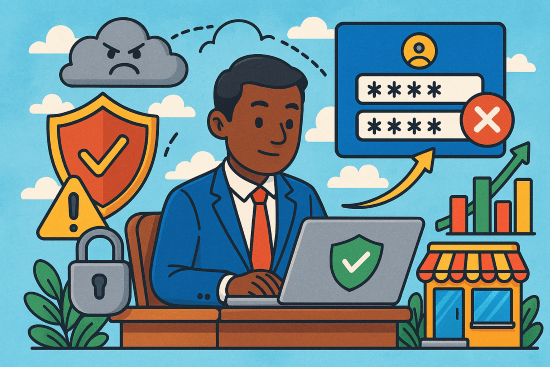
Risk-based Conditional Access policies provide adaptive security that automatically adjusts authentication requirements based on the risk level of sign-ins and user behavior, helping you maintain an optimal balance between security and productivity.
Prerequisites and Licensing
- Microsoft Entra ID P2 license required for risk-based policies (includes Identity Protection)
- Microsoft 365 Business Premium includes Conditional Access features for small businesses
- Users must be registered for Multi-Factor Authentication (MFA) before policy enforcement
- Configure trusted network locations to reduce false positives
Step-by-Step Implementation Guide
Phase 1: Foundation Setup (Week 1)
- Create Emergency Access Accounts
- Set up at least two break-glass accounts excluded from all policies
- These prevent complete lockout if policies are misconfigured
- Start with Report-Only Mode
- Deploy all new policies in report-only mode first
- Monitor for at least 7-14 days to understand impact
- Review sign-in logs to identify potential issues
Phase 2: Sign-in Risk Policy Configuration
- Navigate to Microsoft Entra admin center > Conditional Access
- Create new policy: “Require MFA for risky sign-ins”
- Configure settings:
- Users: Include all users, exclude emergency accounts
- Cloud apps: All cloud apps
- Conditions > Sign-in risk: Select Medium and High
- Grant: Require multi-factor authentication
- Session: Sign-in frequency – Every time
- Enable policy: Report-only (initially)
Phase 3: User Risk Policy Configuration
- Create new policy: “Require password change for high-risk users”
- Configure settings:
- Users: Include all users, exclude emergency accounts
- Cloud apps: All cloud apps
- Conditions > User risk: Select High
- Grant: Require password change + Require MFA
- Enable policy: Report-only (initially)
Microsoft’s Recommended Risk Levels for Small Business
- Sign-in Risk: Require MFA for Medium and High risk levels
- Provides security without excessive user friction
- Allows self-remediation through MFA completion
- User Risk: Require secure password change for High risk only
- Prevents account lockouts from overly aggressive policies
- Users can self-remediate compromised credentials
Balancing Security and Productivity
Enable Self-Remediation
- Sign-in risks: Users complete MFA to prove identity and continue working
- User risks: Users perform secure password change without admin intervention
- Reduces helpdesk tickets and minimizes productivity disruption
Progressive Deployment Strategy
- Pilot Group (Week 1-2)
- Start with IT staff and power users
- Monitor and gather feedback
- Adjust risk thresholds if needed
- Phased Rollout (Week 3-4)
- Expand to departments gradually
- Provide user communication and training
- Document self-remediation procedures
- Full Deployment (Week 5+)
- Switch policies from Report-only to On
- Monitor sign-in logs for blocked legitimate users
- Fine-tune based on real-world usage
PowerShell Implementation Example
Import-Module Microsoft.Graph.Identity.SignIns

# Create Sign-in Risk Policy
$signInRiskPolicy = @{
    displayName = "Require MFA for risky sign-ins"
    state = "enabledForReportingButNotEnforced"
    conditions = @{
        signInRiskLevels = @("high", "medium")
        applications = @{
            includeApplications = @("All")
        }
        users = @{
            includeUsers = @("All")
            excludeGroups = @("emergency-access-group-id")
        }
    }
    grantControls = @{
        operator = "OR"
        builtInControls = @("mfa")
    }
    sessionControls = @{
        signInFrequency = @{
            isEnabled = $true
            type = "everyTime"
        }
    }
}

New-MgIdentityConditionalAccessPolicy -BodyParameter $signInRiskPolicy
Key Monitoring and Success Metrics
- Sign-in Success Rate: Should remain above 95% for legitimate users
- MFA Prompt Frequency: Monitor for excessive prompting that impacts productivity
- Risk Detection Accuracy: Review false positive rates weekly
- Self-Remediation Rate: Track percentage of users successfully self-remediating
- Helpdesk Tickets: Should decrease after initial deployment
Best Practices for Small Business
- Start Conservative: Begin with High risk only, then add Medium risk after validation
- Communicate Clearly: Provide user guides explaining why MFA prompts occur
- Enable Modern Authentication: Block legacy authentication to prevent policy bypass
- Regular Reviews: Analyze risk detection patterns monthly and adjust as needed
- Document Exceptions: Maintain clear records of any policy exclusions
- Test Rollback Procedures: Know how to quickly disable policies if issues arise
 CIAOPS