

To explore Copilot activity in your environment open:
with a user with appropriate access. Select Solutions on the left and then DSPM for AI as shown above.
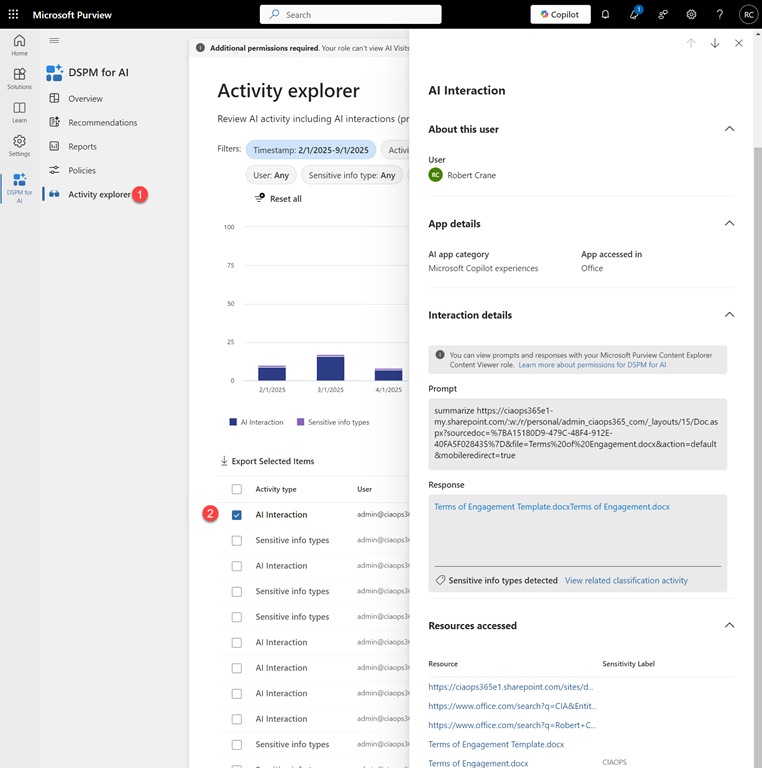
Then select Activity Explorer and from the list that appears on the right select an entry that says AI interaction as shown above.
You should now see a panel appear from the right with a range of details about that session. Towards the bottom you will find

both the Prompt and Response as shown above. You will also see an resources, for example files or links, used in that session.
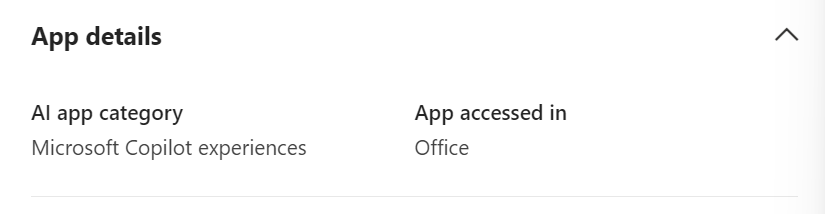
A little further up you will also find where that session took place, in this case from inside an Office app.
The Data Security Posture Security Management (DSPM) for AI has many other resources that you can also take advantage of but the above is the simplest method I’ve found to quickly see what a Microsoft 365 Copilot prompt and response in the environment was.
 CIAOPS