
After a recent incident, I decided that it would be a good idea to have an EntraID app that I could use to re-enable a users inside a tenant if I needed. This will allow me to login to EntraID without being depended on a user account as I would be logging in using this app directly.
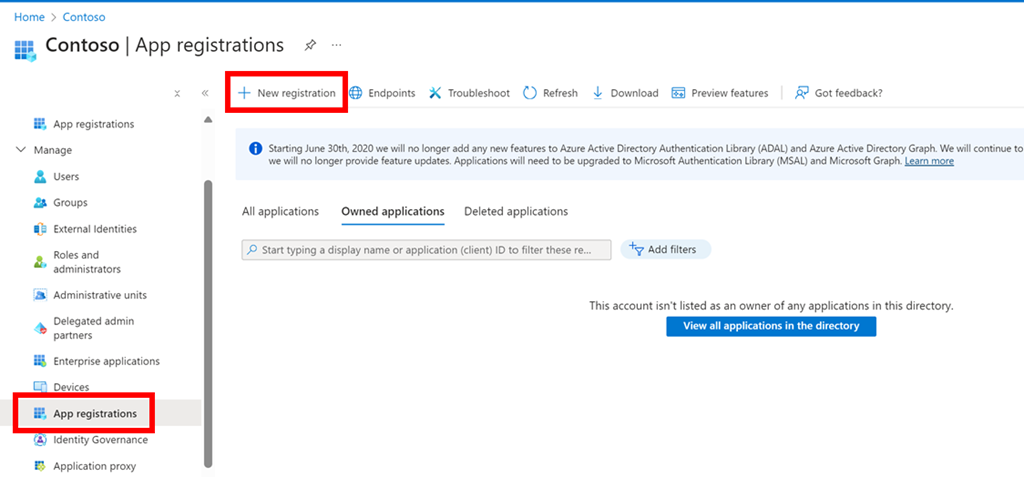
The first step in that process is to navigate to EntraID as an administrator in the Azure portal and select App registrations from the menu on the left and then New registration on the right as shown above.

Simply give the app a name and select Register as shown above.

When you will then be taken to new app overview page as shown above. Take a moment to record the:
– Application (client ID)
– Object ID
– Directory tenant ID
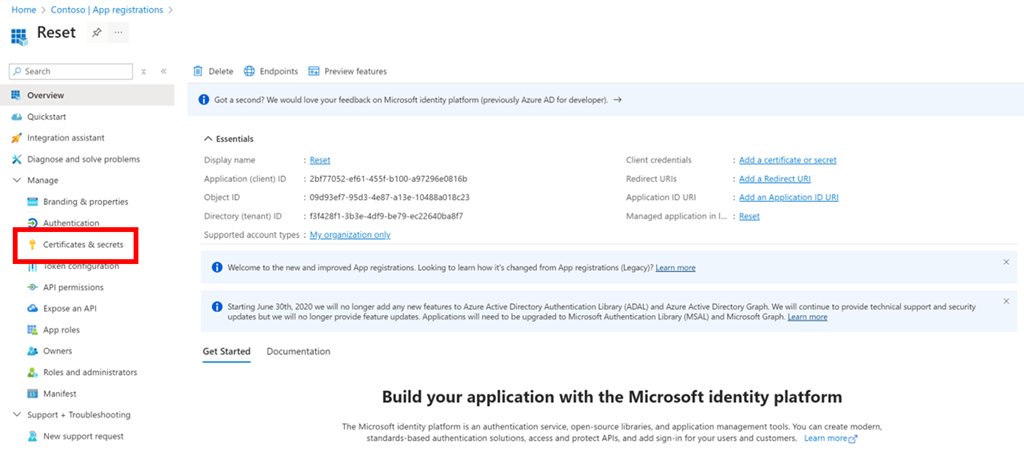
Next, select Certificates & secrets from the menu on the left as shown above.
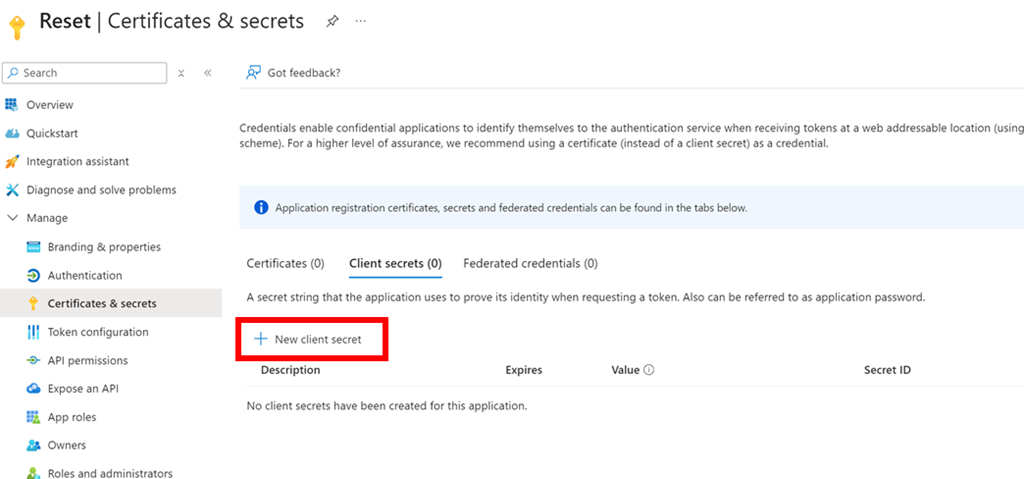
Select New client secret on the right as shown above.
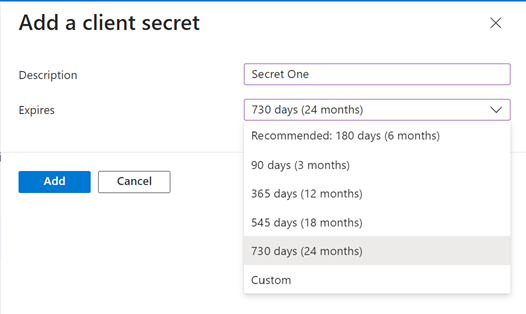
Give the secret a name and select the duration for that secret from the list available as shown.
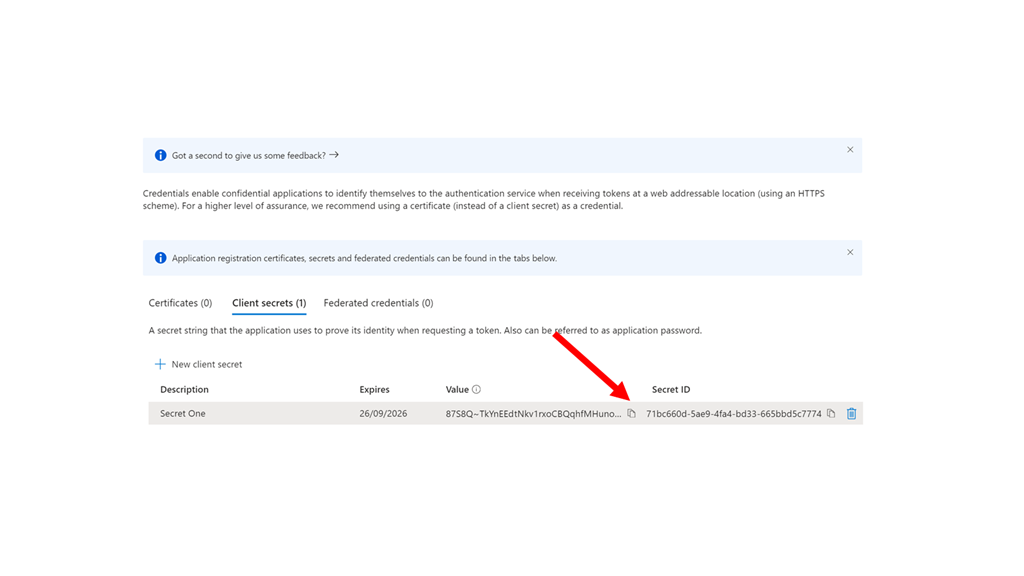
Take a moment to copy this secret as this is the only time that it will be available. If you don’t take a copy here you’ll need to generate a new secret.
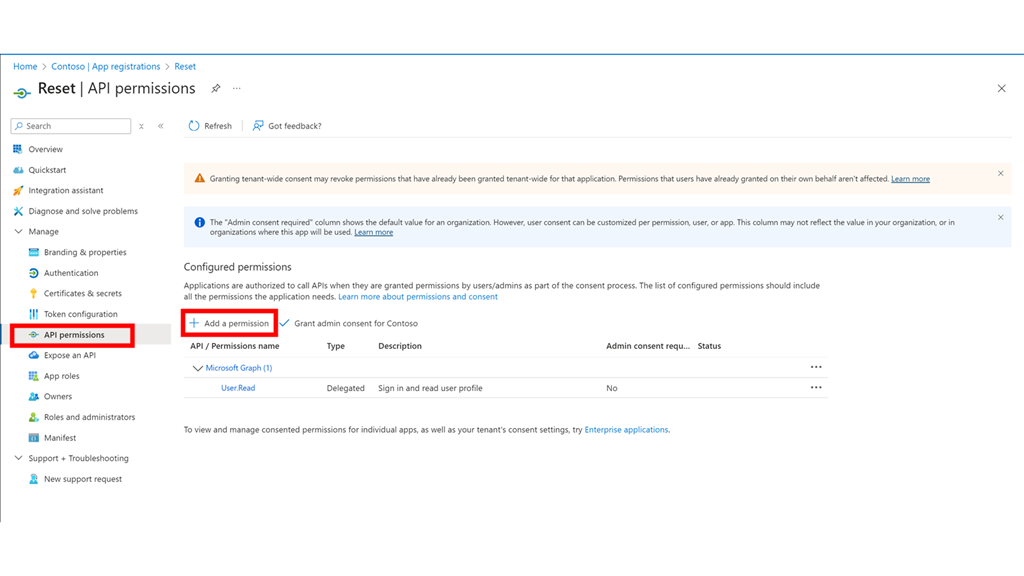
From the menu on the left select API permissions as shown above. Then select Add a permission on the right.
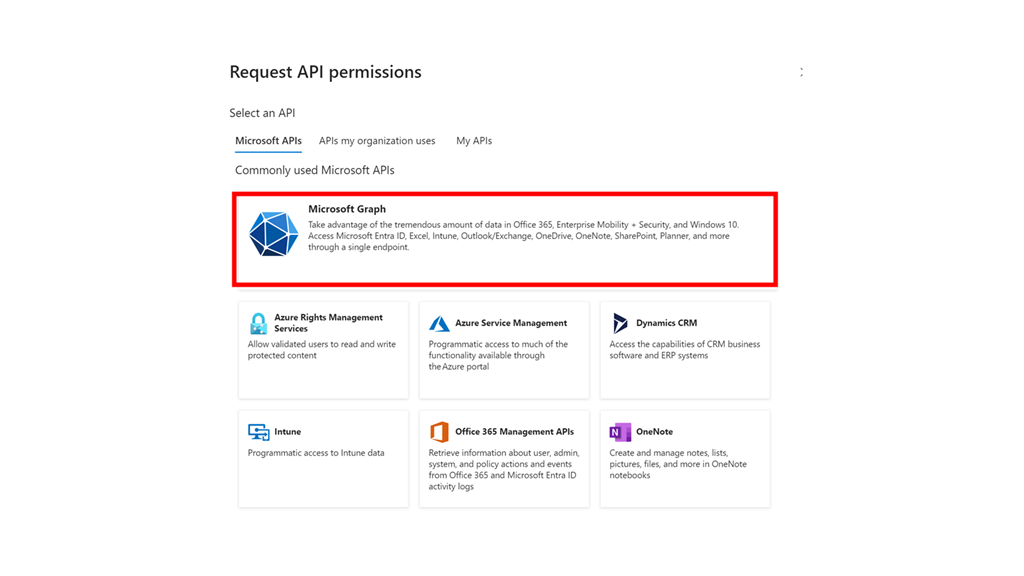
Select the option for the Microsoft Graph as shown.
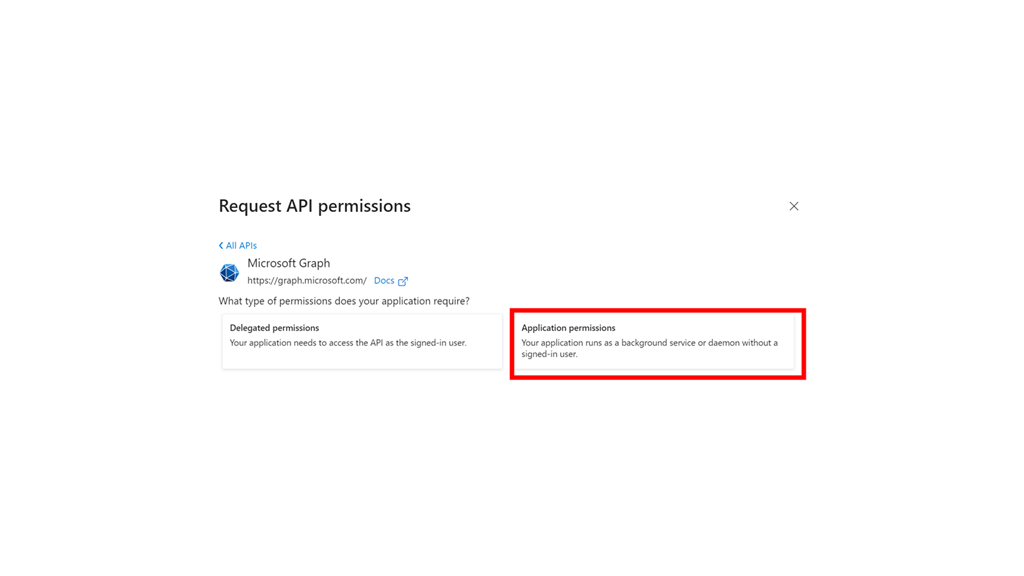
Select Application permissions.
Add the following permissions:
– User.ManageIdentities.All
– User.EnableDisableAccount.All
– User.ReadWrite.All
– Directory.ReadWrite.All
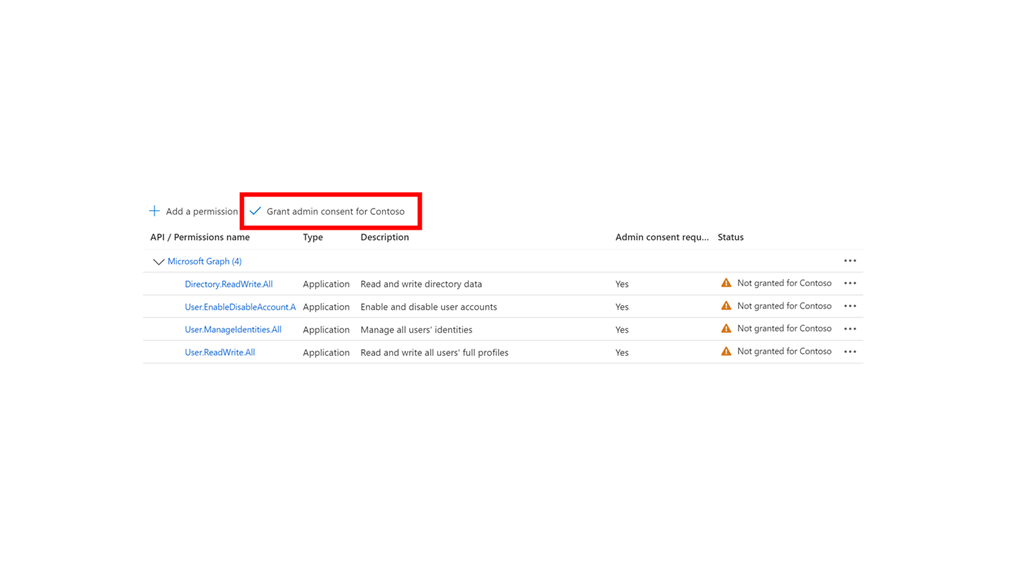
Select Grant admin consent.

Select Yes in the dialog that appears.
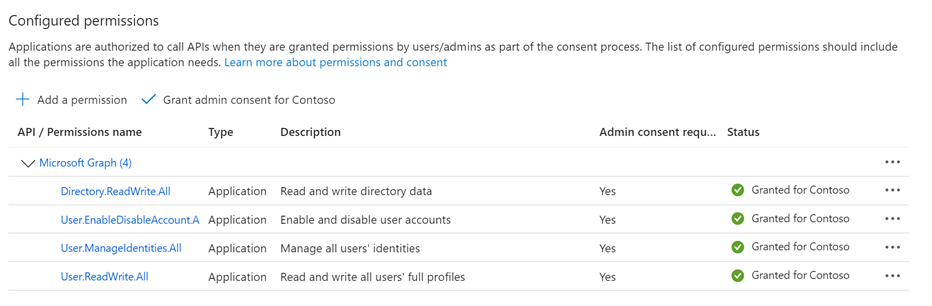
You should now see all the permissions have been consented to as shown above.
The EntraID app has now been created and is ready for use. This will used to login to with PowerShell and then enable any disabled user.
 CIAOPS
Very Useful.
Kind regards
Mike Hatfield
M: 0401 694 958
http://www.hatfields.com.auhttp://www.hatfields.com.au/
[cid:image001.png@01DB10C9.CF9F8310]
LikeLike