
After a recent incident, I decide to take a look at how I could exclude certain attacks from being automatically disable by Attack Disruption. More to understand how to disable this if I wanted rather than making it a standard setting as I think have automated Attack Disruption is a good thing.
To prevent Microsoft Defender XDR from automatically disabling accounts with automated attack disruption, you can configure exclusions within the Defender XDR settings. Here’s a general guide based on the information available:
1. Navigate to Settings in the Microsoft Security portal.
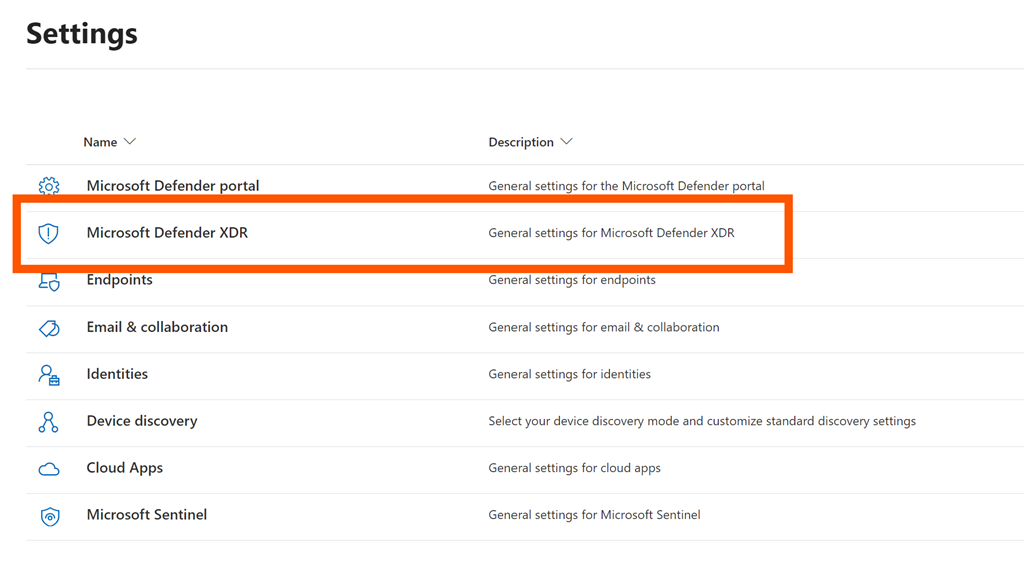
2. Select Microsoft Defender XDR as shown above.
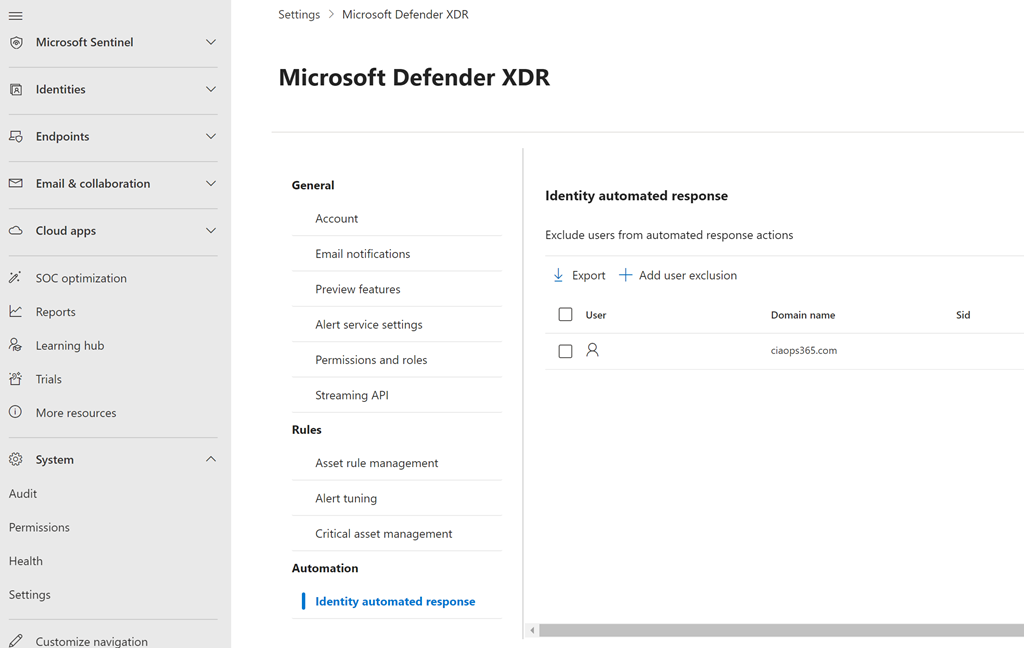
3. Select the Identity automated response option under the Automated section at the bottom of the page
4. On the right select the +Add user exclusion button to add a user you wish to exclude. That use should then appear in the list.
It’s important to note that while configuring exclusions can prevent automatic account disabling, it should be done with caution to ensure that it does not compromise your organization’s security posture. Always consider the potential risks and consult with your security team before making changes to the automated response settings.
For a detailed understanding and step-by-step instructions, you may refer to the documentation and resources provided by Microsoft, such as the Microsoft 365 Defender portal and Microsoft Learn articles on automatic attack disruption.
Automated response exclusions – Microsoft Defender for Identity | Microsoft Learn
 CIAOPS