
Many people have suspect emails sent to quarantine in Microsoft 365. This is achieved using a quarantine policy which you find at:
https://security.microsoft.com

You expand the options under Email & collaboration as shown above and select Policies and rules. On the right you select Threat policies as shown above.

If you scroll down the page a bit you’ll find Quarantine policies as shown above, which you should select.

The notification period is controlled in the GUI via the Global settings menu option as shown above.
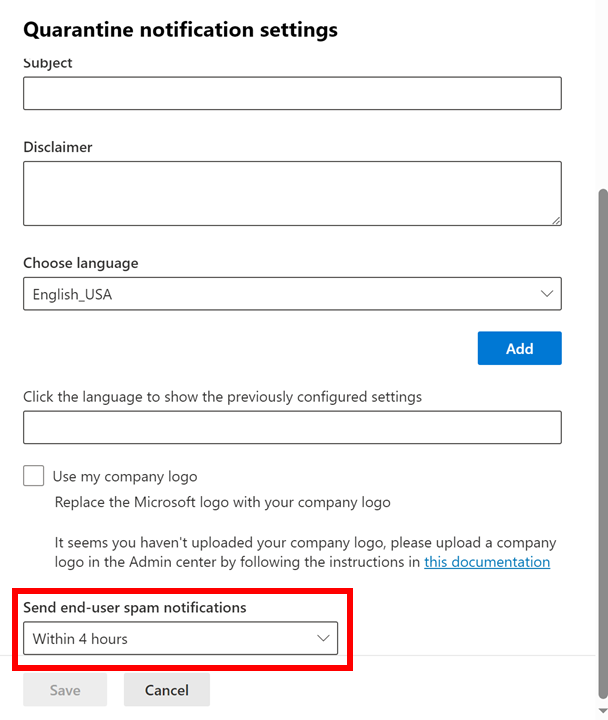
From the dialog that appears from the right, scroll down to the bottom of the page and you will find an option Send end-user spam notifications as shown above. Presently, the minimum you can configure this to is Within 4 hours.
After you make any changes here select the Save button at the very bottom to update these settings for all the quarantine policies you have.
 CIAOPS
One thought on “Set Exchange Online quarantine notification period”