

I have previously detailed how Copilot for Security is an excellent tool for SMB:
Copilot for Security – The lowdown for SMB
One of the major things that SMB need to pay very close attention to is the cost of Copilot for Security, given that it needs to be used in an ‘on-demand’ manner to be cost effective for smaller businesses. A good way to keep abreast of those costs is to use Budgets in Azure.
My recommendation is that you configure Copilot for Security in its own Azure Resource Group so that costs and permissions are easier to manage. Inside this dedicated Copilot for Security Resource Group you can attach a budget with notification. To this, navigate to the Azure Resource Group where Copilot for Security is provisioned. Locate the Budgets menu item on the left under the heading Cost Management as shown above. On the right, select +Add from the menu across the top.
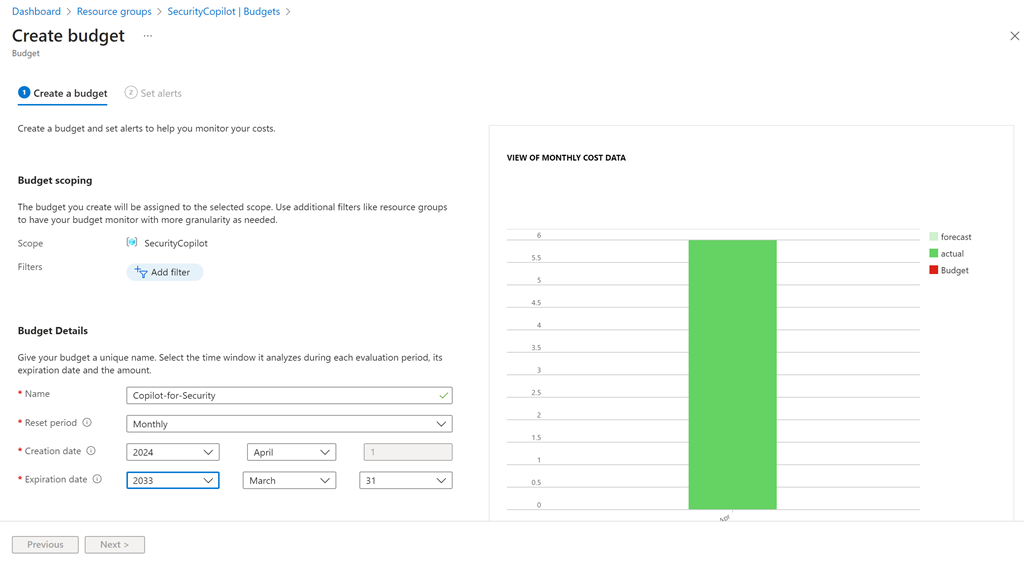
Give the budget a name, a reset period (typically monthly) and date range.

If you scroll down you’ll see that you can set a budget amount. Here I’m setting the budget to $150. Select the Next button at the bottom of the page to continue.
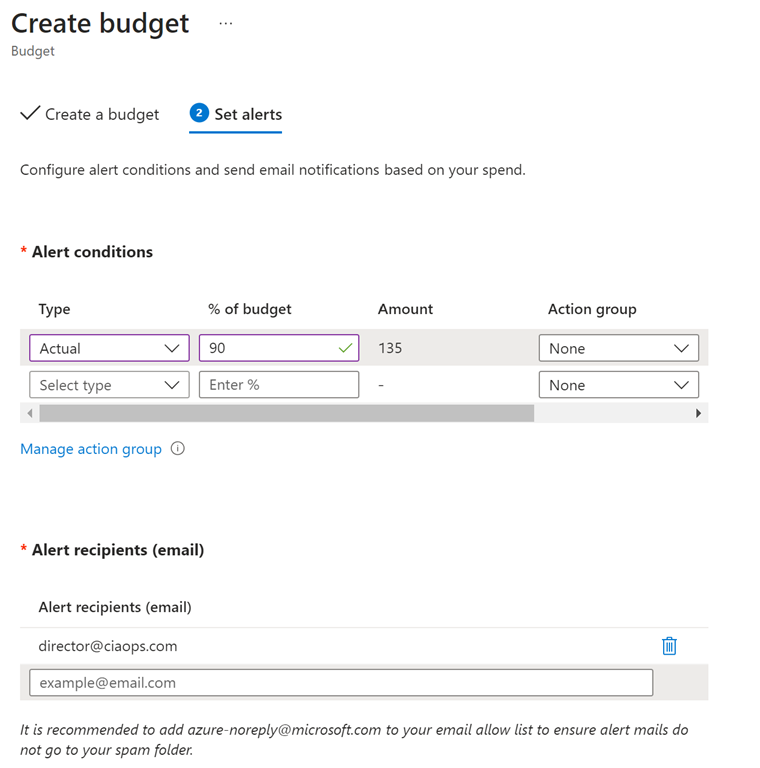
On the next screen you can configure a threshold alert level. Here I set that to 90% of my budget. This means I’ll start getting alerts about Copilot for Security when the cost reaches around $135. You can configure multiple thresholds if you wish.
You can also have the alert take automatic action via an Action Group (say shut down the resources), but I won’t cover this here.
A little further down you can configure the email you wish to receive the notification on. You can configure multiple emails to receive notifications if you wish.
Scroll to the bottom of the page and select the Create button.
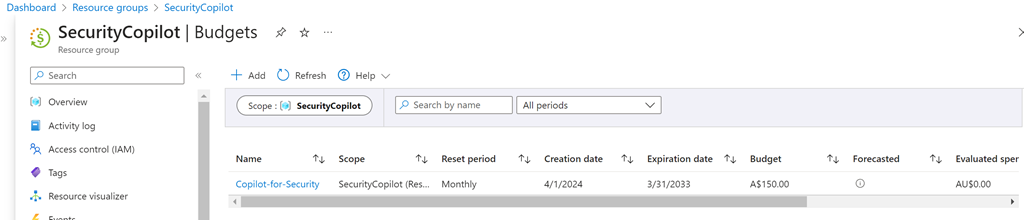
You should now see the budget you just created as shown above. You can click on the name for more details.
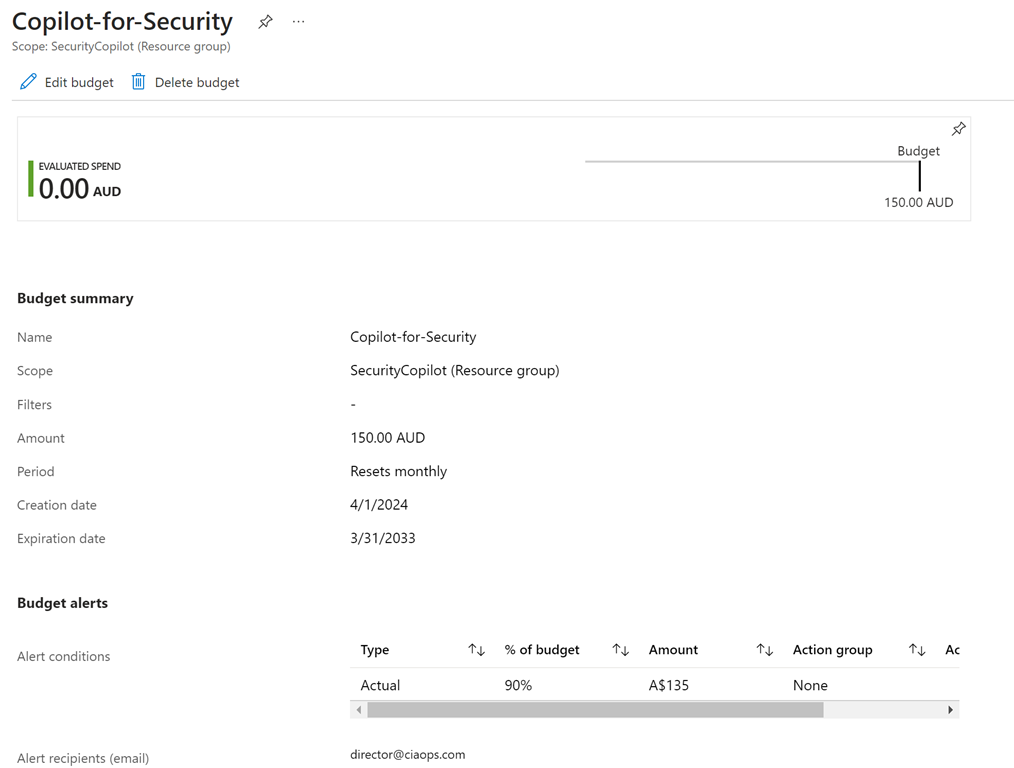
You can also edit and delete the configuration here if you wish.
Now, when you exceed the thresholds you set in this budget, you’ll get an email notification that your spending on Copilot for Security has reached the threshold you set.
 CIAOPS
One thought on “Configuring a budget for Copilot for Security”