
The biggest challenge for SMB with the AI offerings from Microsoft is to determine exactly which Copilot is being talked about. This is because there is a Copilot for just about everything now. From Copilot for Github, to Copilot for Security, Copilot for the Power Platform and so on. Job number one therefore is focusing on which Copilot will provide the most benefit for the organisation.
Before you rush in purchase any Copilot ensure you understand the financial commitment required as well. For example, currently, Copilot for Microsoft 365 is an annual up front commitment of around AU$45 per month paid in advance. So even though AU$45 per month may sound enticing, the billing is actually around AU$540 up front before you even get started! The cost of various Copilot licenses vary, so it is important to determine what you need and what the cost and cashflow of this investment will be ahead of time. With Copilot for Microsoft 365 remember that once you purchase it you’ll have it for at least 12 months. You should ask yourself the question as to whether it will be used for the full period that you have paid for? If implemented inside a business correctly I feel there is little doubt that the benefits will be forthcoming but importantly, just buying and assigning the licenses to users is no guarantee of success with any Copilot.
No matter which Copilot you do focus on, that Copilot will not be an ‘everyone’ license. What that means is that not all employees of the business will gain the benefits from the license. Thus, you need to target the Copilot you want at those who will get the most from it.
In this case I’ll focus on Copilot for Microsoft 365 which is targeted at improving the productivity of knowledge workers. The best candidates for this license are those users who ‘create’ things. Think of people who create reports, create marketing material and so on. Little benefit will be had providing Copilot for Microsoft 365 to those that merely ‘process’ information. That is those say entering accounts or stock information.
It important to appreciate that Copilot for Microsoft 365 is neither The Terminator or C3PO. This is because the actual work still needs to be done by a person. Copilot for Microsoft 365 will assist in this process and make it easier and faster but it will not do the complete job end to end just yet. This means it is important to see Copilot for Microsoft 365 as an intelligent assistant that works beside the individual who has access to it, rather than a replacement for that individual.
Copilot for Microsoft 365 surfaces itself in a variety of locations in the Microsoft 365 environment. One of those is chat like so:
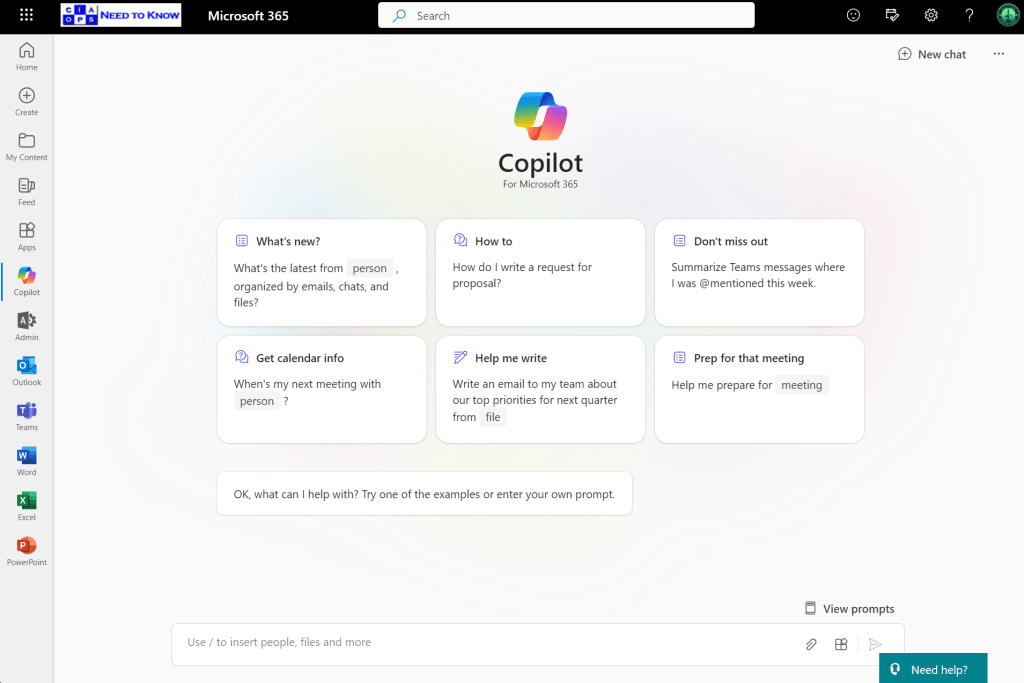
Here is probably the most general place you can use Copilot for Microsoft 365. Ask it any question and it will reason over your data as well as potentially from the web

Provided you enable the plugin as shown above first.
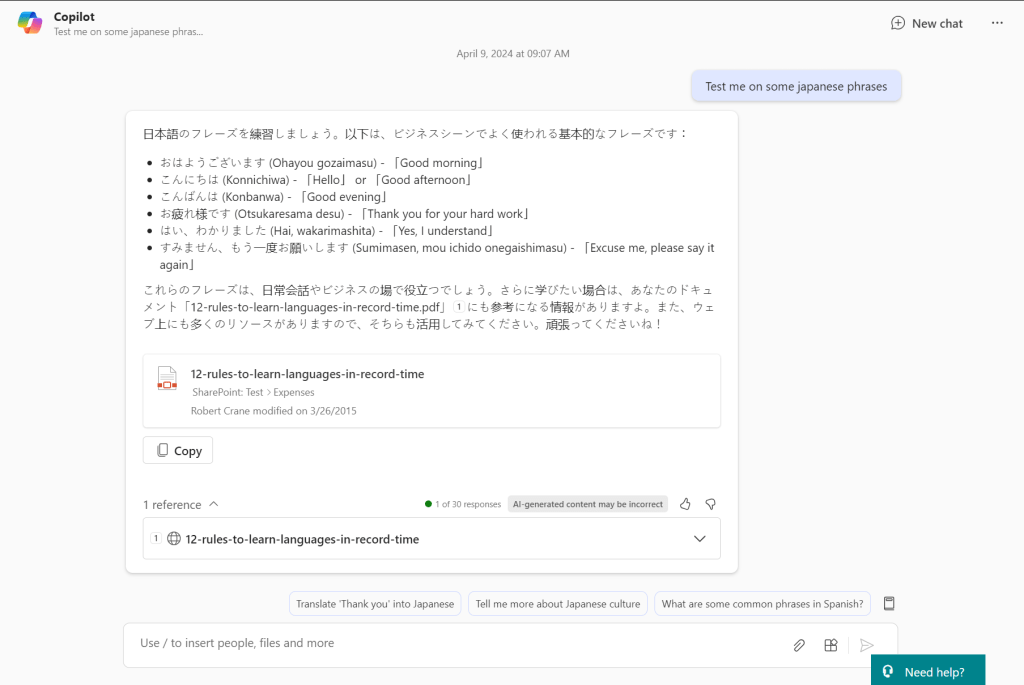
If prompt it with something generic like ‘Test me on some japanese phrases‘ you see the response it returns with above. If I expand the References you can see that Copilot for Microsoft 365 has returned material from the web (12-rules-to-learn-languages-in-record-time as well as referring a document that is in SharePoint. It is important to note that benefit this provides over other stand alone AI chat programs like ChatGPT that only return information from the web. Thus, the biggest different with Copilot for Microsoft 365 is that is works across the web and data in Microsoft 365.
The simplest way then to think about Copilot for Microsoft 365 is that it is a search engine on steroids. It is important to remember that what you see is largely based on search, that is, what it finds. This means that if you haven’t properly secured your Microsoft 365 environment Copilot for Microsoft 365 is going to find stuff you may not realise it can. That isn’t because Copilot for Microsoft 365 is doing something wrong, it is in fact that you have left the door open on your data and you need to tighten your permissions. The reality is that same information could have been found with standard Microsoft 365 search. Copilot for Microsoft 365 simply does a better job of finding and displaying it.
The takeaway here then is that your business needs to ensure you have appropriate permissions prior to implementing Copilot for Microsoft 365 or you maybe surprised at what pops out.

If I now ask chat to create an image for me based on a prompt you’ll see from the above that it can’t. It instead gives me a handy tip as to how to achieve this. Not only do you need the right Copilot for the job you also need to use Copilot in the right location to get the result you want. As I said, currently, Copilot for Microsoft 365 is not C3PO that can solve any task you give it from anywhere.
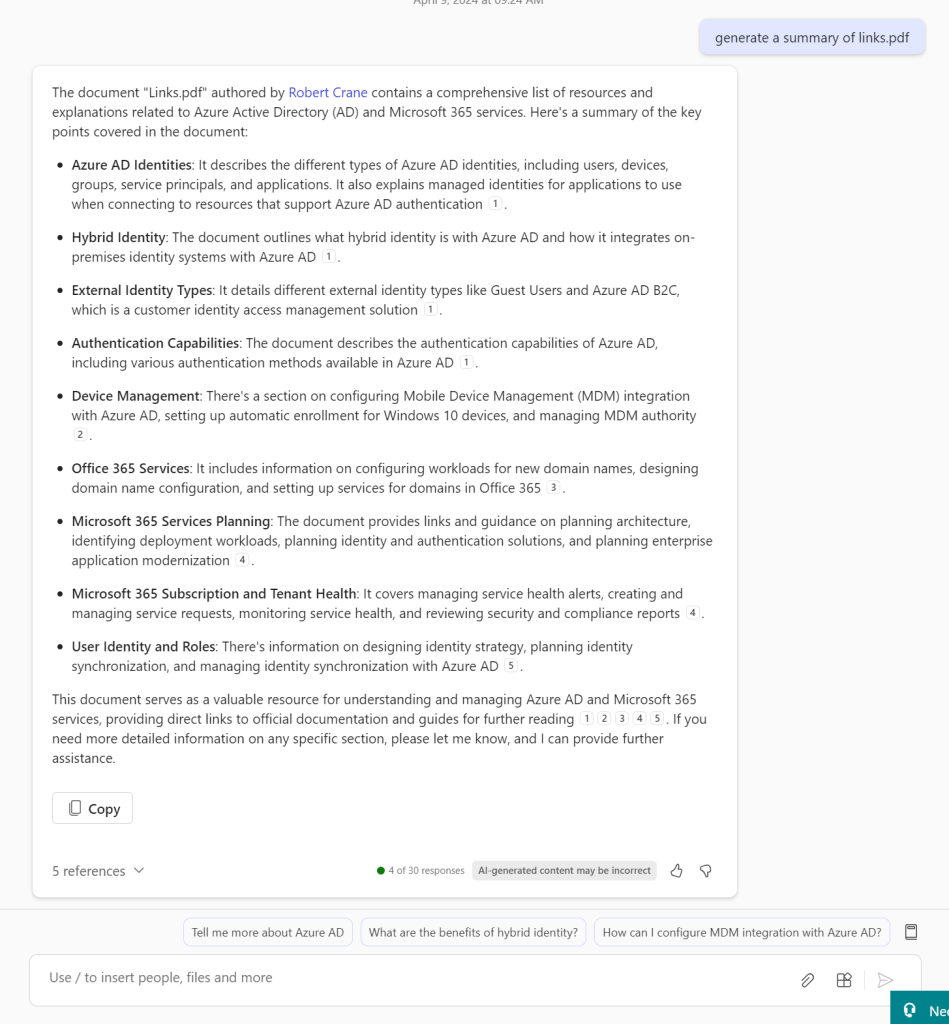
If I ask Copilot for Microsoft 365 to summarize a document by only giving it the name of the document it does an amazing job as you can see above.
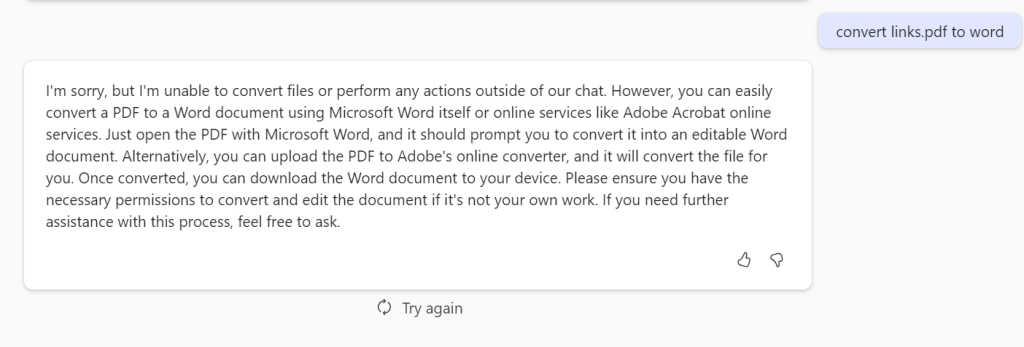
But if I ask it to convert this PDF to a Word document it again is not something that can be done here.
It is also important to remember that Copilot for Microsoft 365 responses are not immediate. They take a few moments to generate. That can be frustrating for people who are used to “immediate’ responses and are time challenged. Again, Copilot for Microsoft 365 is great research tool that you spend time with, it not a tool that you fire rapid questions at expecting an immediate response, just yet.
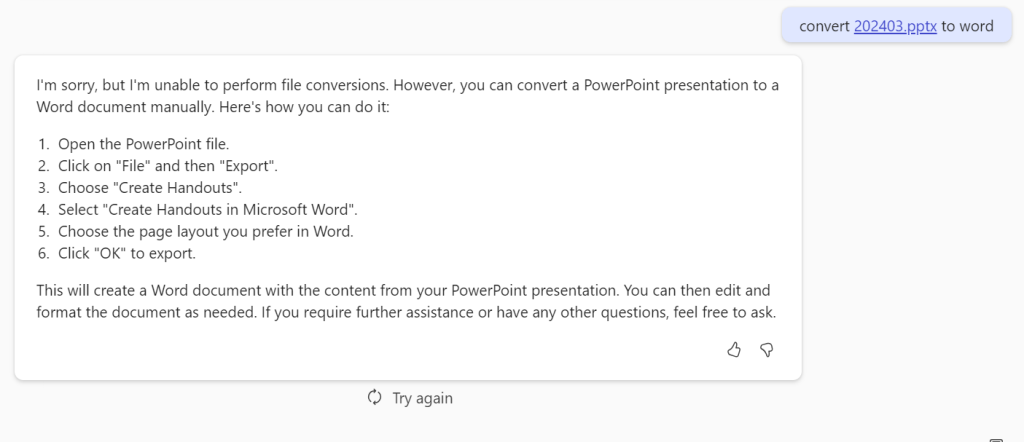
If I ask Copilot for Microsoft 365 to convert a PowerPoint document you’ll see I get a response that gives me a little more more information about what I should do.
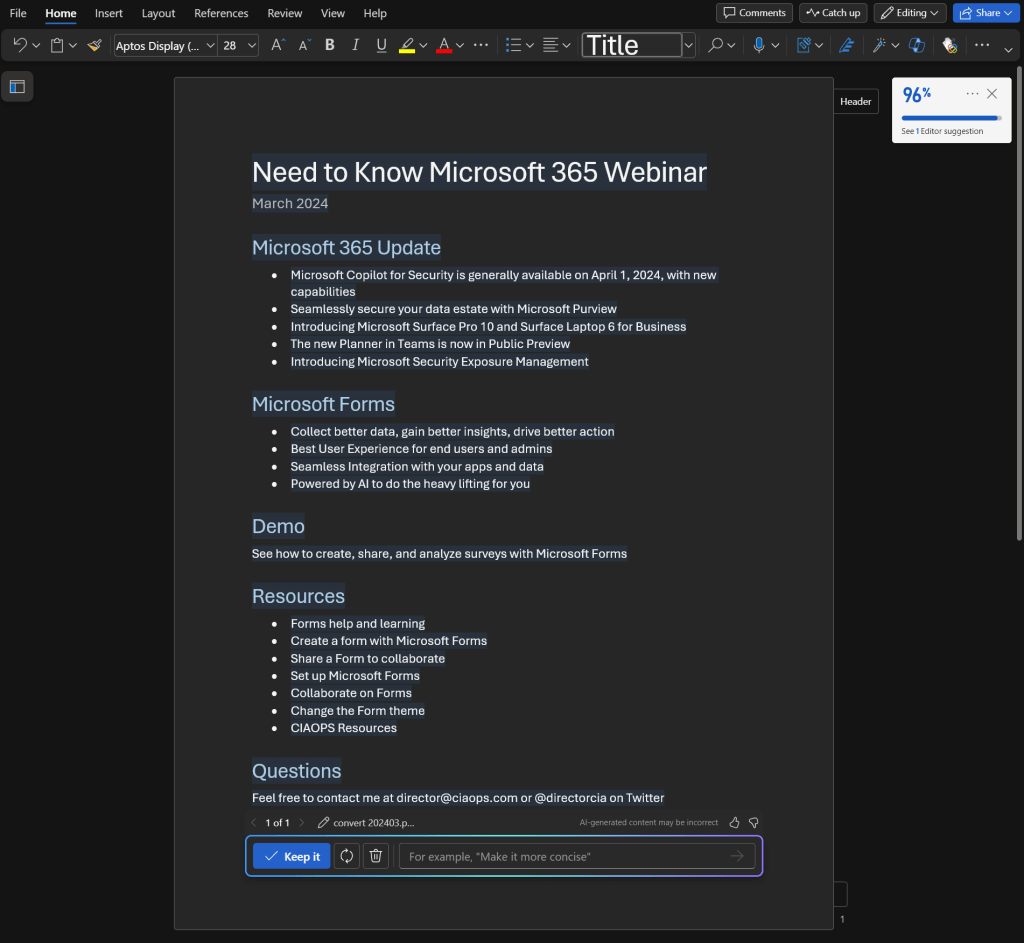
However, when I do the same thing in Word I get the result that I really wanted. The take away is that a large amount of Copilot for Microsoft 365 how and where you use it. Yes, it can convert stuff into Word but you need to use Copilot for Microsoft 365 inside Word to achieve that. I’m sure that will change over time, but for now, keep that in mind when using Copilot for Microsoft 365.

Where Copilot for Microsoft 365 really shines is in creating new content from scratch. If I start with a blank document in Word and prompt it with the above, the result is:
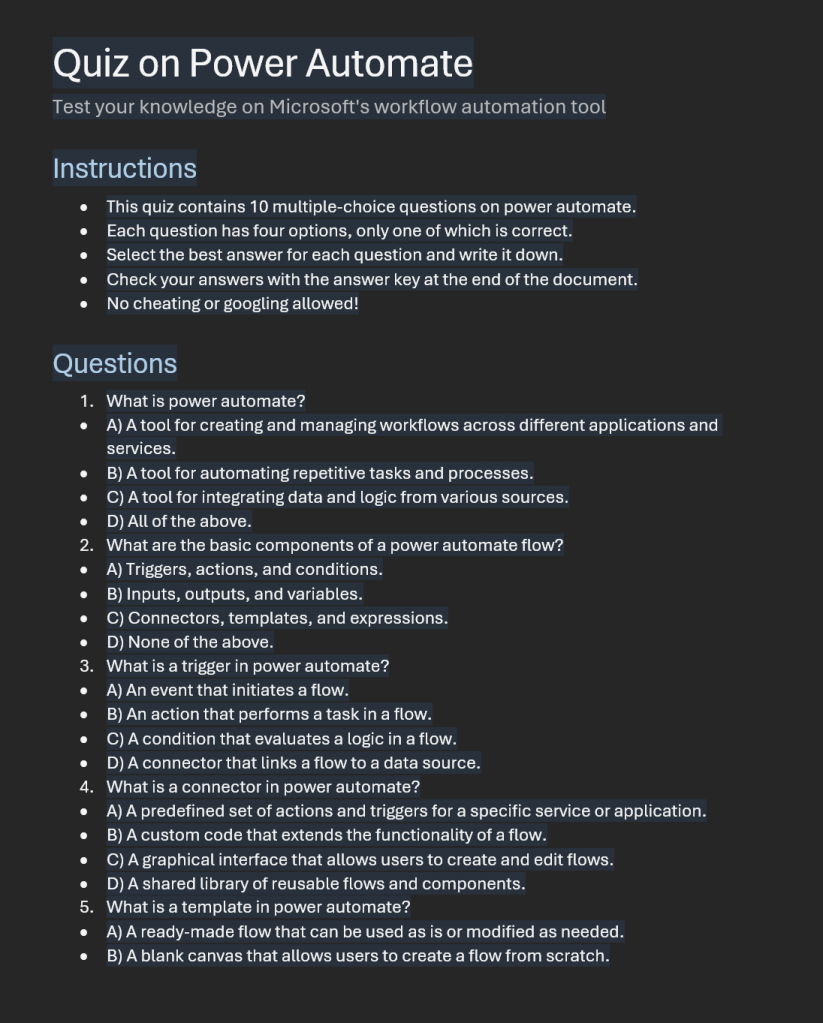
Which saves me hours and hours when I need to generate new content. Keep in mind however, generating new content constantly is not always the job of everyone inside a business.
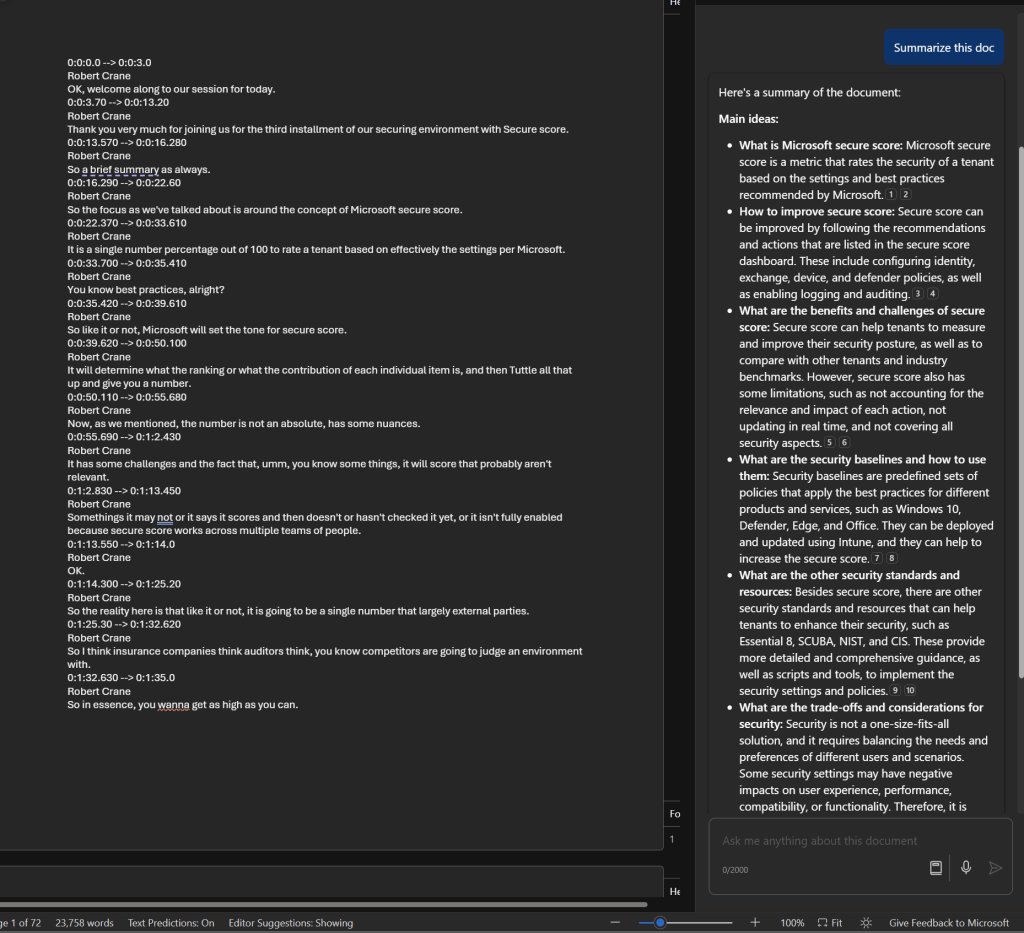
Another area where Copilot for Microsoft 365 really shines is summarizing information as seen above. Here, I’ve had it work on a 72 page document, which was a transcript of a webinar session, and produce the summary.
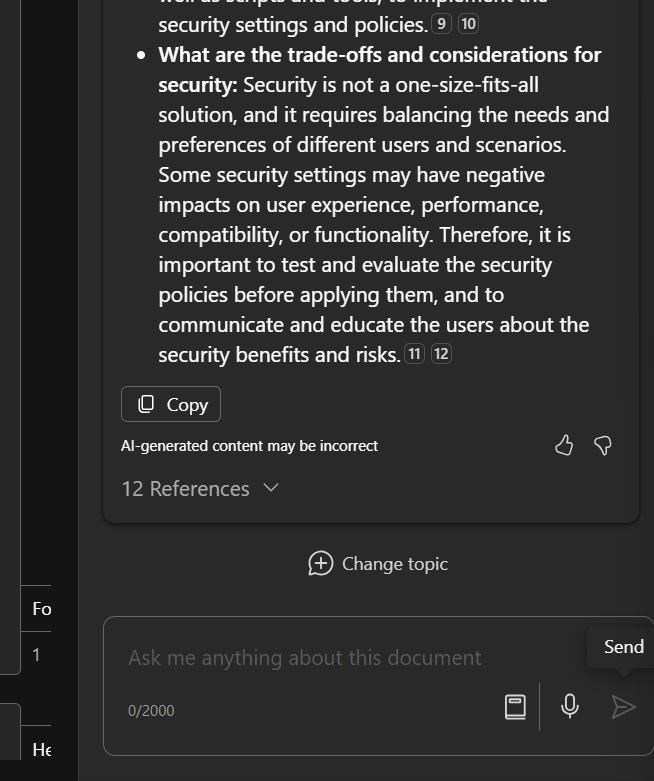
As you can see, that summary includes references and I can continue asking questions about that.
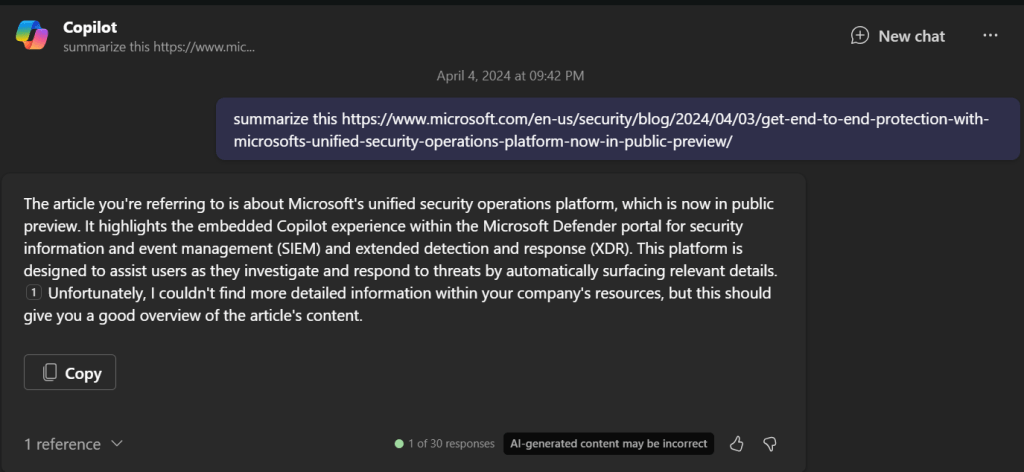
Summarization also works well in the chat interface, even with external websites like what is shown above. The same is also evident inside Teams.
If you plan to use Copilot for Microsoft 365 with Teams you’ll typically have to enable both recording and transcriptions on the meetings to get the benefits. There is the option to automatically a recording with every Teams meeting but my question is, are the really all worth recording?
Thus, a reason you may want to consider it for more people inside your organization is if they are required to wade through a lot of information as part of their role.
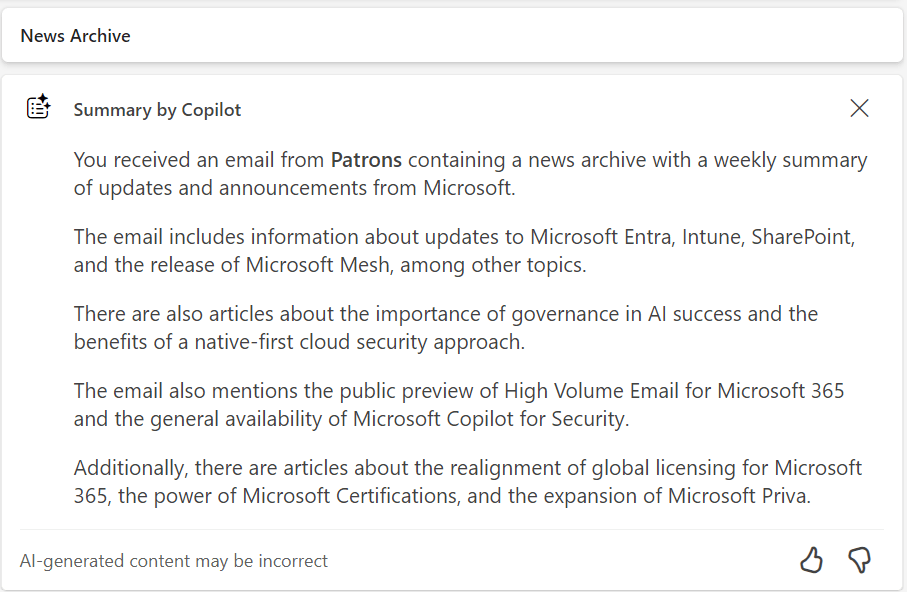
The same summarization capability is surfaced in Outlook as shown above.
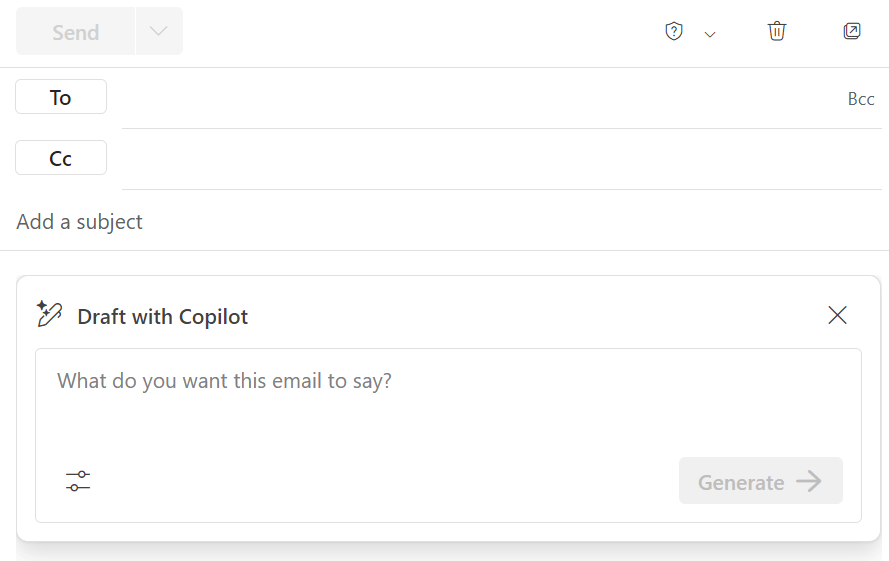
As well as generating new content for emails. The current limitation here is that to get the most benefit from Copilot for Microsoft 365 you’ll need to be using the New Outlook, which I feel is still missing many important features that the classic desktop version has (e.g. drag and drop of attachments to Windows Explorer). I’m sure these will come to classic Outlook over time and it is easy enough to switch back and forth but, for now, New Outlook is where Copilot for Microsoft 365 really works best.
Without doubt Copilot for Microsoft 365 has big benefits with email, however it again comes down to how people use Outlook. In my experience, most people do not need to write or read long complex emails. They simply send and reply using brief responses. For these people Copilot for Microsoft 365 isn’t going to provide huge benefits but if your role does involve working with long and complex subject matter in emails (think lawyers for example) the Copilot for Microsoft 365 would be a huge productivity benefit for them.
The summary would be that you firstly need to define exactly what processes in you business you want to make more productive (email processing, document creation, etc). You then need to select the appropriate Copilot for that (typically Copilot for Microsoft 365 to work with emails, documents, etc). Then, you need to identify those users in the business who will gain the most from using Copilot, and this typically will not be every user initially. With all that identified you should then ensure you have permissioned your data appropriately and then purchase the appropriate licenses and assign them to those selected users. The last task will be to train those selected users on how to use the Copilot you have selected because you cannot and should not assume they will natively know how to get the most out of it. You need to train them to help them understand the most effective method for them to use in their day to day work and when it is appropriate use and when it is not.
The Copilot for Microsoft 365 you see today is only the beginning of how AI will become infused throughout Microsoft 365. Today, it is like you manually needing to run spell checker, soon spell checker will happen on the fly. That is what we can expect sooner rather than later when it comes to Copilot for Microsoft 365.
 CIAOPS