
Given that a number of upcoming articles will discuss Azure Key Vaults, I thought a good place to start was to show you how to set one up. It is pretty easy, so let’s do it!

You’ll need a paid Azure subscription and administrator access to your Azure portal.
In the Azure portal, search for Key Vaults as shown and select Key Vaults from the results.
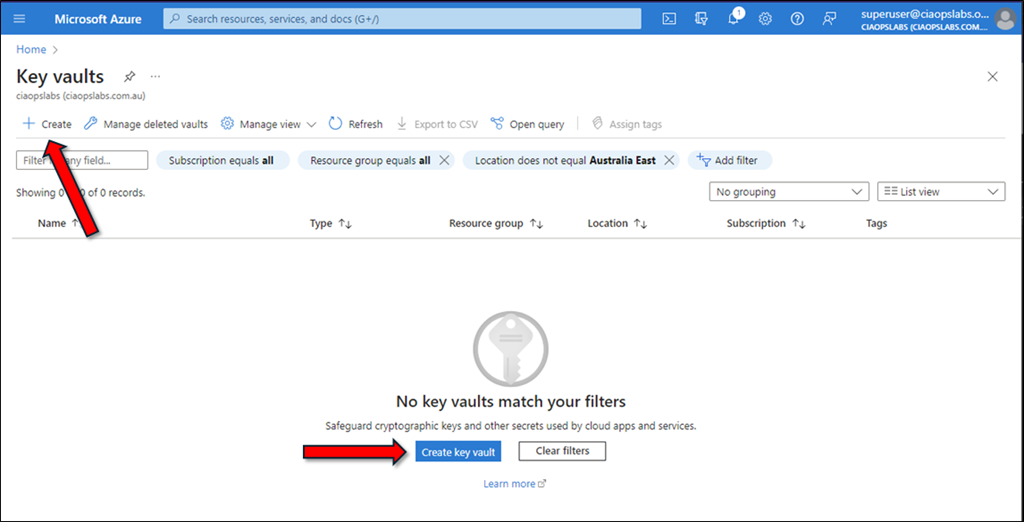
Then select the option to Create a new vault as shown above.
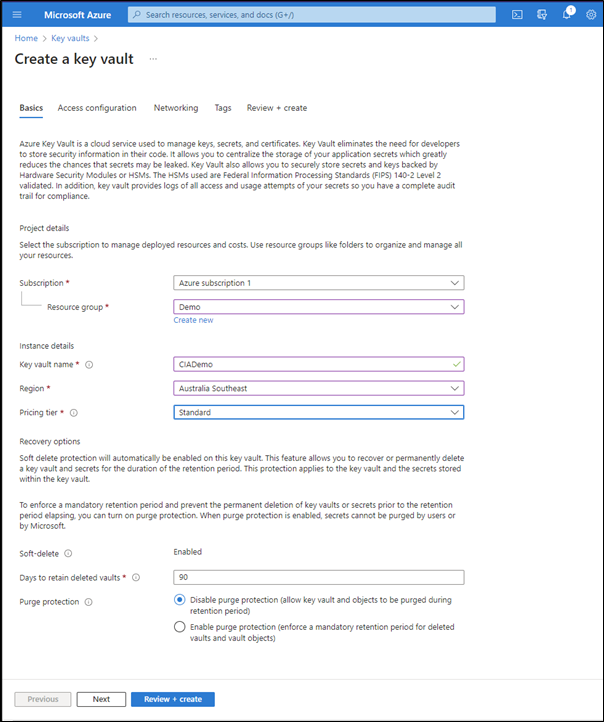
Complete the details for the vault, including:
– Azure subscription
– Resource group
– Key vault name
– Region
– Pricing tier
most of the other options can be left at their defaults. Select the Next button at the bottom of the window to continue.

In this case the default Permissions model of Azure role-based access control is desired setting.
Generally, no further changes are required. Select Next at the bottom of the windows to continue.

Typically, no changes need to be made here as we will want this new vault to be available publicly via something like PowerShell. However, you can make whatever changes you desire and select the Next button at the bottom of the screen to continue.

Add tags if you wish and then select the Next button at the bottom of the window.
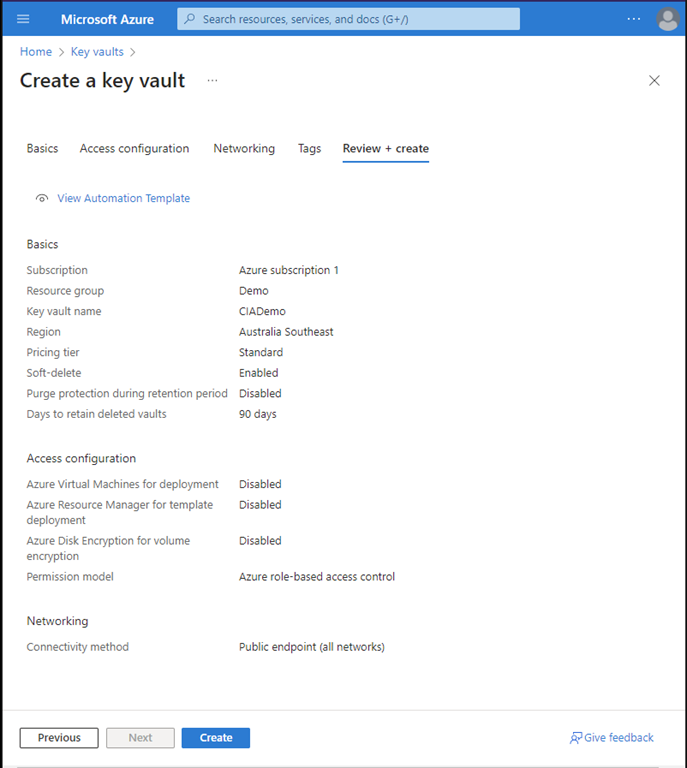
Review the settings you have made and select the Create button.
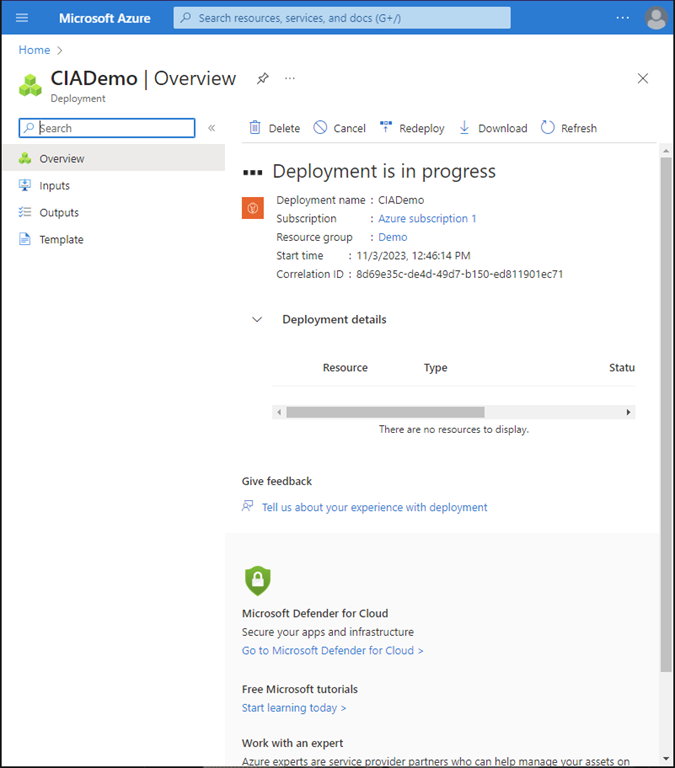
You should now see the new vault being provisioned as shown above.
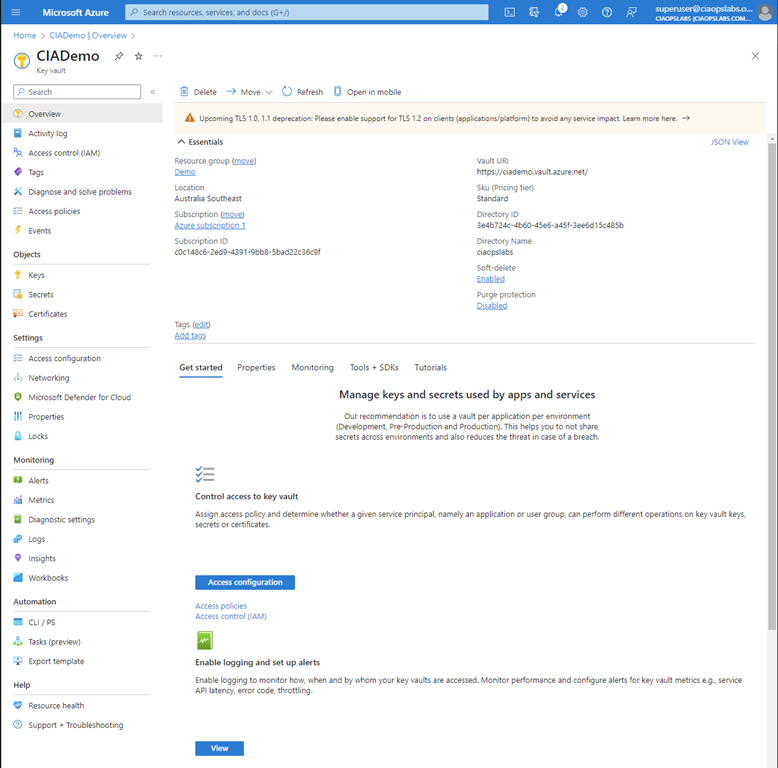
When the provisioning you can select the option to view the result as shown above.

You can return to your new vault at any time by navigating to Key Vaults in the Azure portal where you should see the vault just created as shown above.
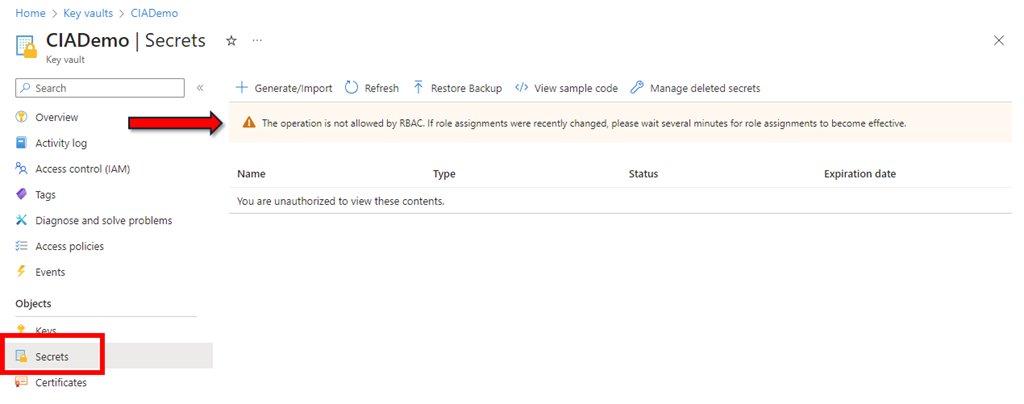
I’d also suggest you check some permissions before you leave. Open the newly created vault and select Secrets from the menu on the left. If you see the banner across the top as shown above the reads This operation is not allowed by RBAC then you’ll probably need to change some permissions.
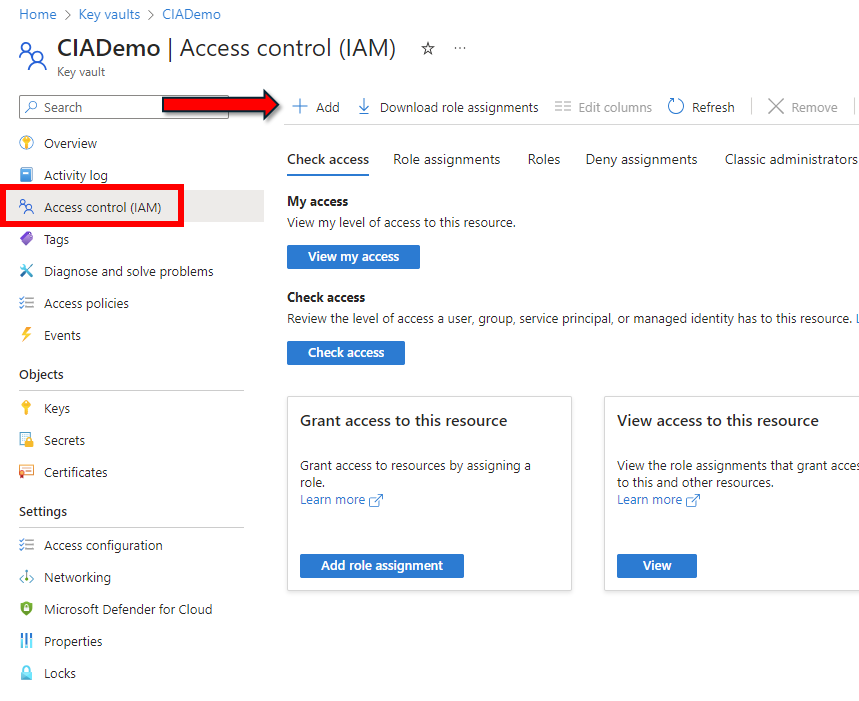
Navigate to the Access Control (IAM) option from the menu on the left as shown above. Then on the right select +Add.
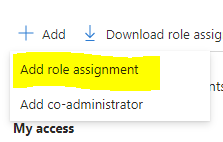
From the menu that appears select the Add role assignment as shown above.
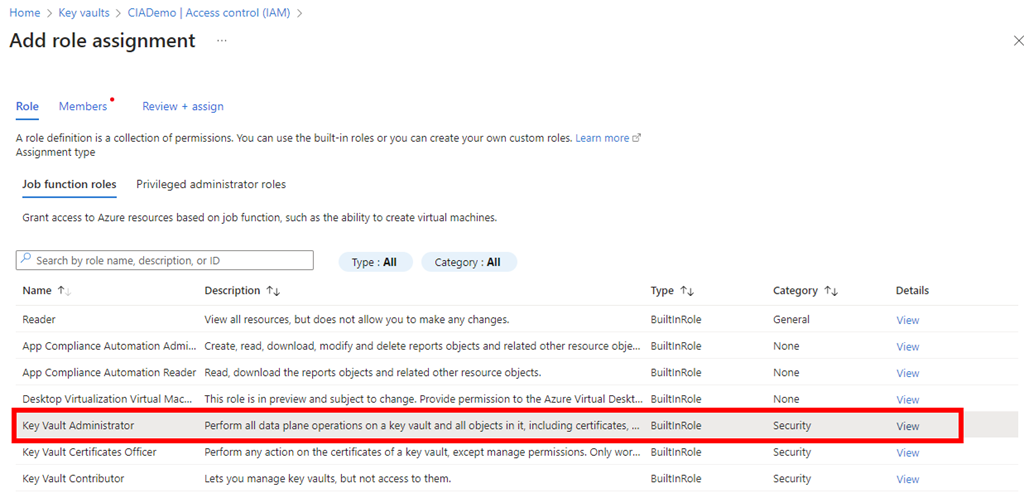
Locate and select the Key Vault Administrator job function role as shown.
Select Next at the bottom of the screen to continue.
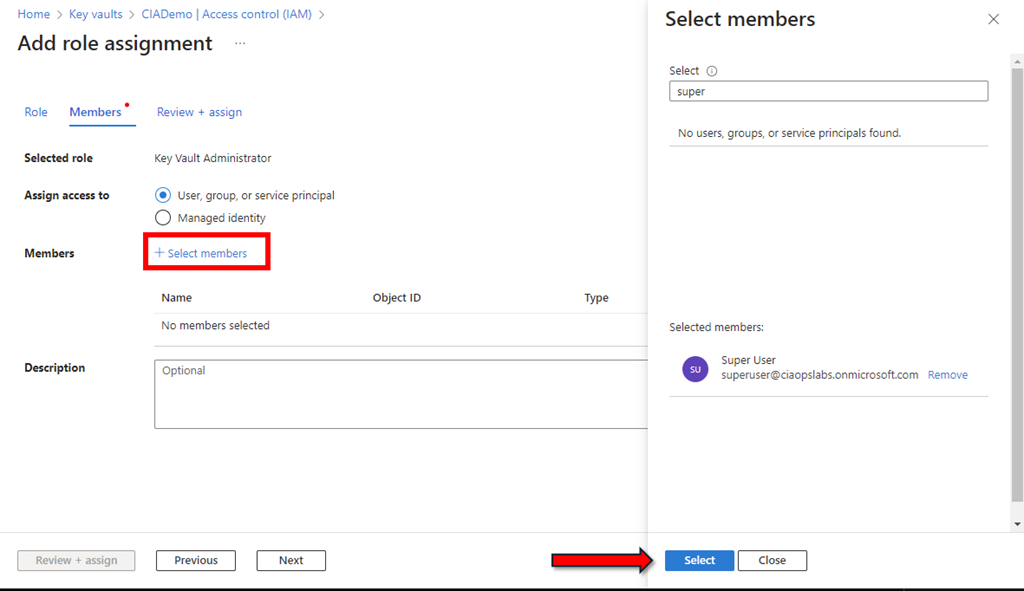
Click the +Select members hyperlink as shown above.
From the window that appears on the right, search for the user whom you want to have rights over the vault (typically the same user that is currently logged in). Press the Select button at the bottom of the window to continue.
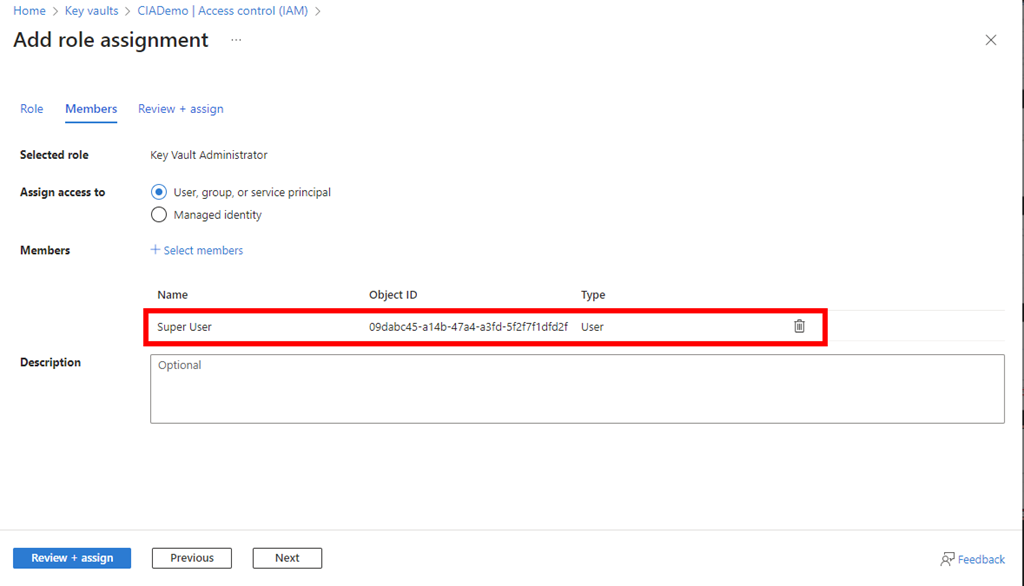
The selected user(s) should now appear under the Members section as shown above.
Press the Next button to continue.
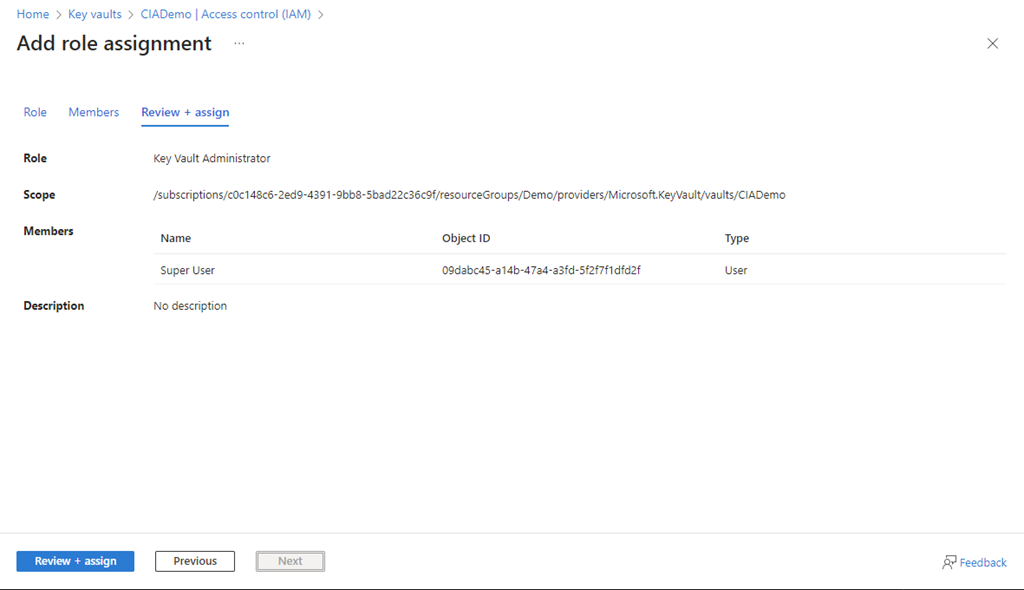
Select the Review + assign button at the bottom of the screen to complete the process.

If you now return to the Secrets area that displayed the original RBAC warning, after a minute or two, you should see that message is longer displayed. The user that you just added now has administrative rights to the vault.
If you want to learn more about what Azure Key Vaults are all about take a look at:
Azure Key Vault basic concepts
however, in essence they are going to place to store stuff you want kept secure, like configurations details, including passwords and then access them programmatically.
 CIAOPS
2 thoughts on “Create a new Azure Key Vault”