I’ve detailed how to use an API with Power Automate to inject some engaging content automatically into Microsoft Teams.
Adoption with fund and astronomy
Thanks to API’s I want to extend this to use OpenAI and ChatGPT.
What I want to achieve is to ask a question of ChatGPT via an API everyday something like this:
“Tell me about 1 May as a list”
When I do this interactively at chat.openai.com I see:

I now want something like that to appear in Microsoft Teams daily for each day.
You’ll need to head over to OpenAI and get an API key. Here’s how to do that:
How to get an OpenAI API key in just 5 easy steps
I’d also suggest signing up for an OpenAI API subscription if you want to continue using this service. Here’s an idea of the costs.

Create a new Scheduled cloud flow. Don’t forget to change the repeat option to 1 day typically.
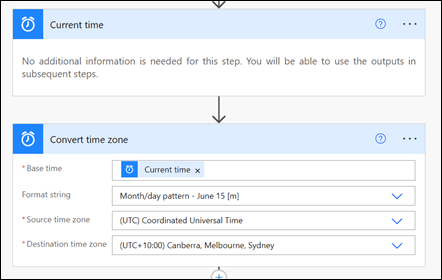
Add the Current Time action.
Add the Convert time zone action to get the time in your location. Set the format string to Month/day pattern (i.e. May 1).
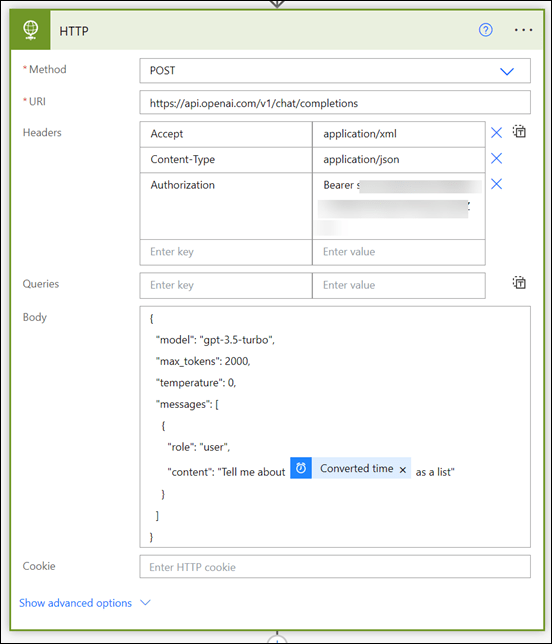
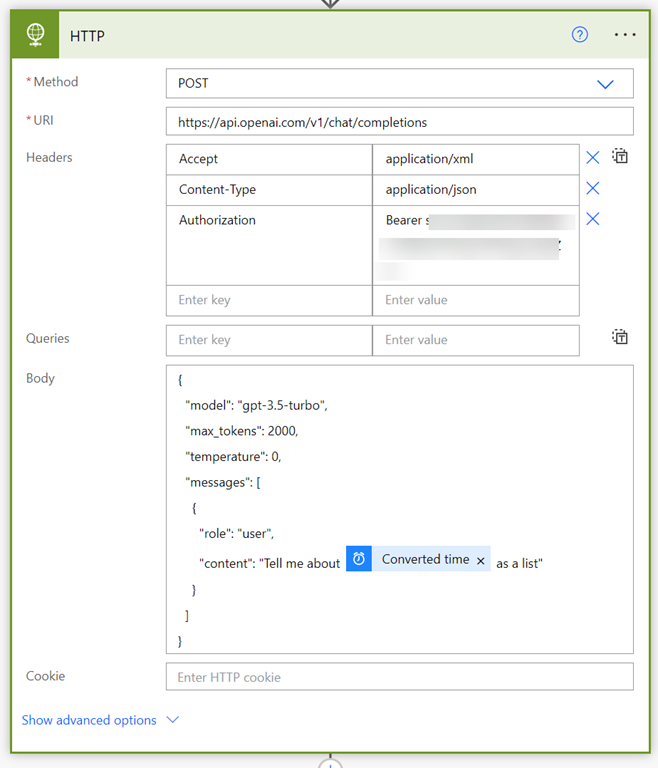
Add the HTTP action. Remember, this is a Premium connector. Set teh following options here:
Method = POST
URI = https://api.openai.com/v1/chat/completions
Accept = application/xml
Content-Type = application/json
Authorization = Bearer (your OpenAI API key)
Body:
{
“model”: “gpt-3.5-turbo”,
“max_tokens”: 2000,
“temperature”: 0,
“messages”: [
{
“role”: “user”,
“content”: “Tell me about @{body(‘Convert_time_zone’)} as a list”
}
]
}
Ensure you double check all these settings as it is easy to make a mistake.
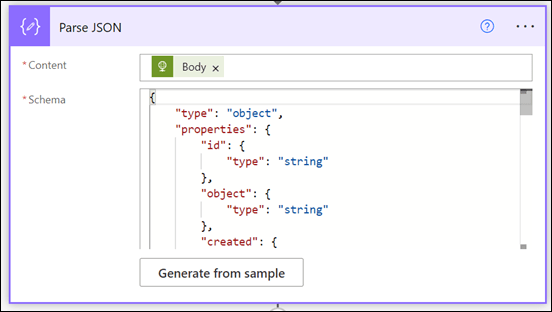
Add the Parse JSON action.
I’ve put the JSON schema you need here:
https://github.com/directorcia/general/blob/master/Power%20Platform/OpenAI/JSON-for-GPT
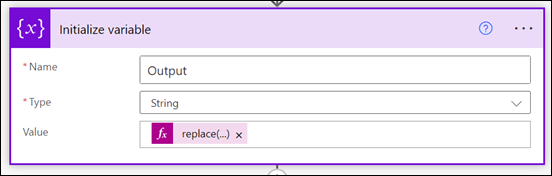
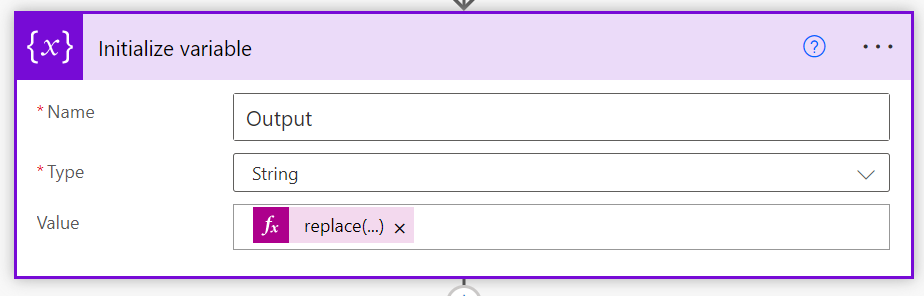
Add the Initialize variable action. We need to extract the returned text and format it so it will display in Teams. That means replacing the ‘/n’ string ‘<br>’. That can be done via this expression:
replace(body(‘Parse_JSON’)?[‘choices’][0]?[‘message’]?[‘content’],’/n’,’<br>’)
NOTE: if you copy and paste this expression and receive an error when you try and save it, you’ll most likely have to change the apostrophe from ‘ to ‘. It’s subtle, but you need to use the one to the left of the ENTER key on most keyboards to get it to work in Power Automate.
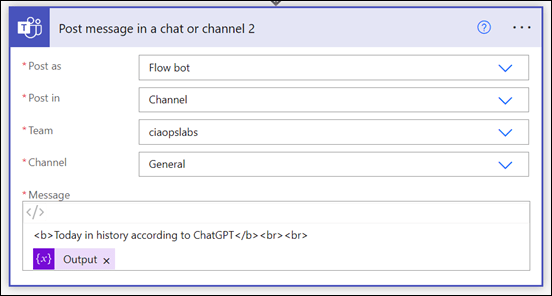
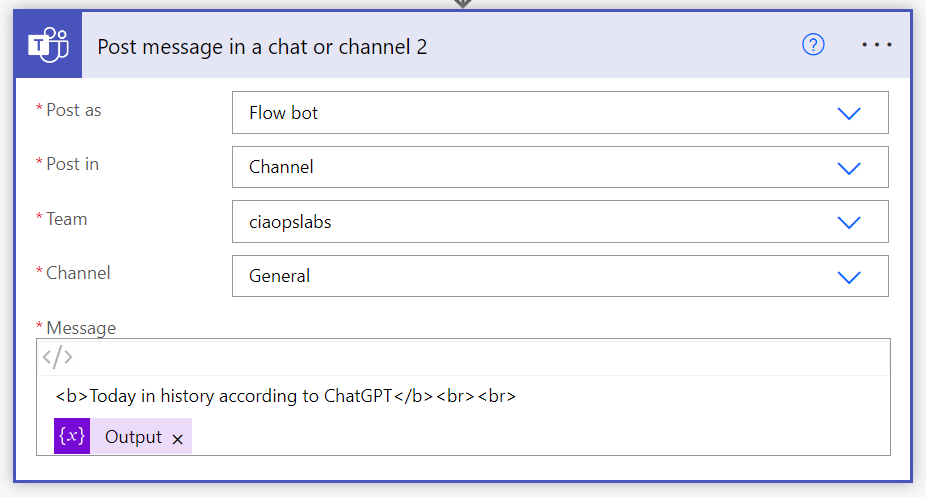
Finally add the Post message in chat or channel action.
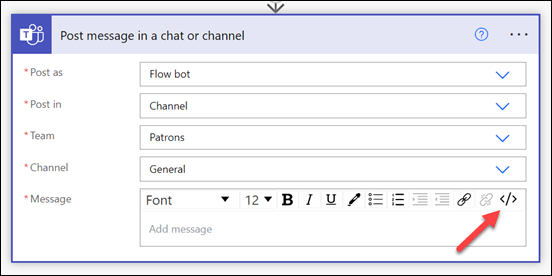
Ensure you swap to the HTML editor using the </> item in the top right of the message as shown above.
Format the message the way you want to and insert variable created previously as shown.
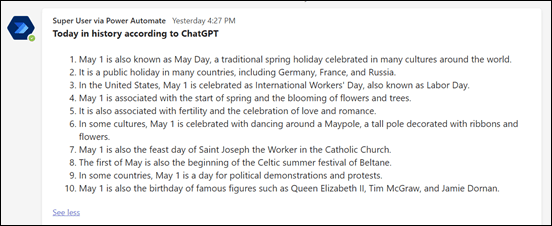
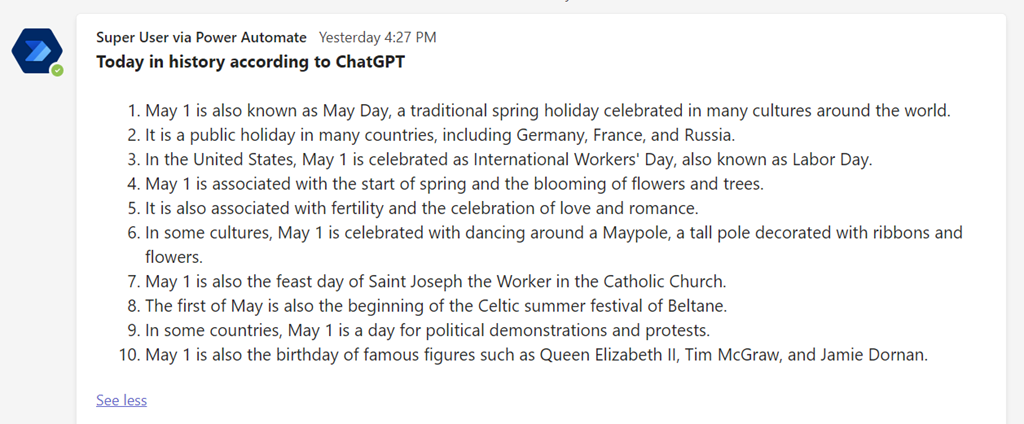
When the Flow executes the output should look something like the above.
Note that GPT isn’t always right! You can also change the AI models if you wish, but remember they have different prices.
Typically, I’d suggest you run this Flow once a day to promote more engagement in your Microsoft Team. Better yet, you can show everyone how you are integrating AI into Teams. Yet another point of engagement in your Microsoft Team and perhaps a way to spark ideas for how you can expand the use of OpenAI in yoru business.






 CIAOPS