Getting Endpoint Privilege Management rule policies working

In a recent article:

Getting Endpoint Privilege Management working

I detailed how to get the basics of Endpoint Privilege Management working using settings policies.

The next step in the process is to get the rules policies working in conjunction with this. The scenario will be that we want to only allow a single application to be run with elevated privileges on a device. Here, that application will be Adobe Acrobat installer.
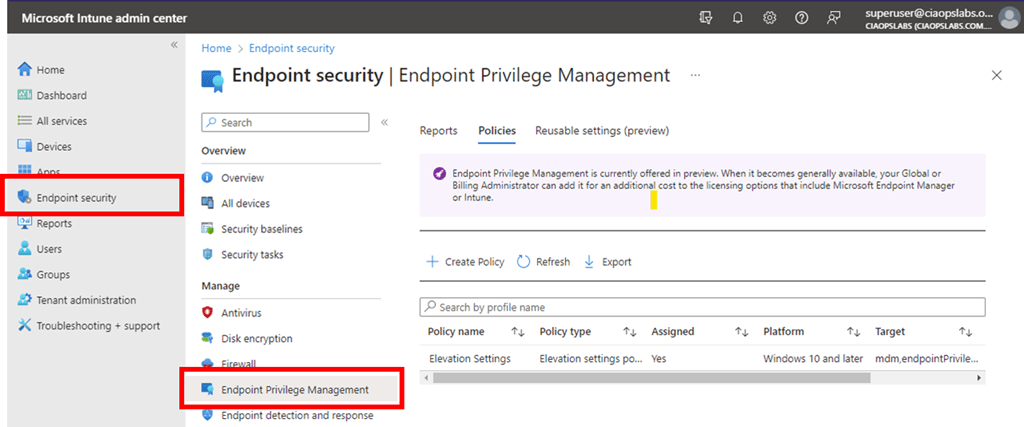
As before, we’ll need to go back into https://intune.microsoft.com under the Endpoint Security menu option as shown above.
image

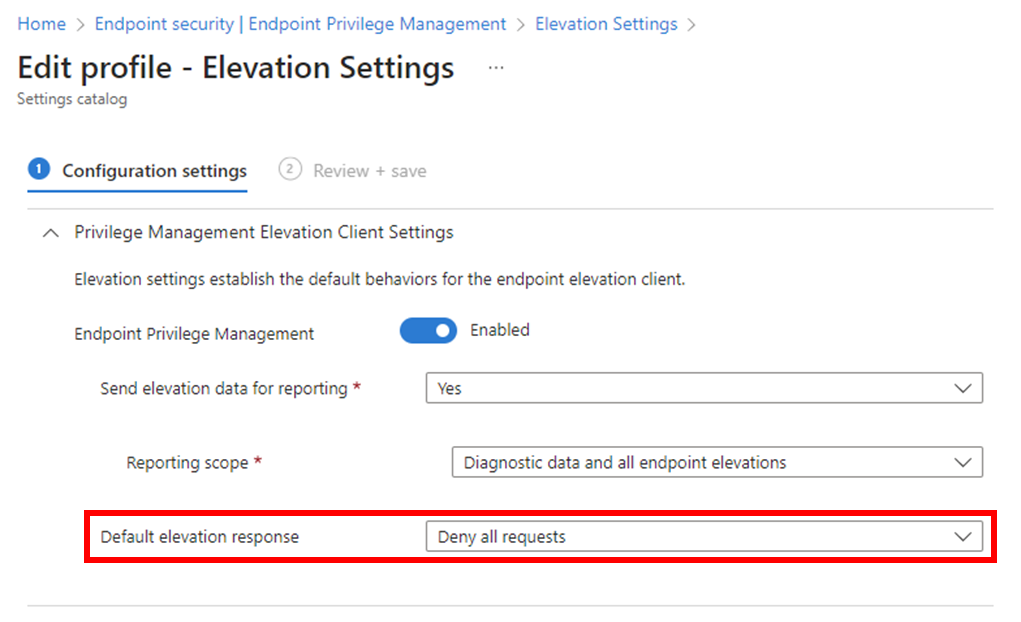
We’ll firstly need to edit the original Settings policy from the previous article and change the Default elevation response to Deny all requests as shown above. This will block any request to elevate by default.
image

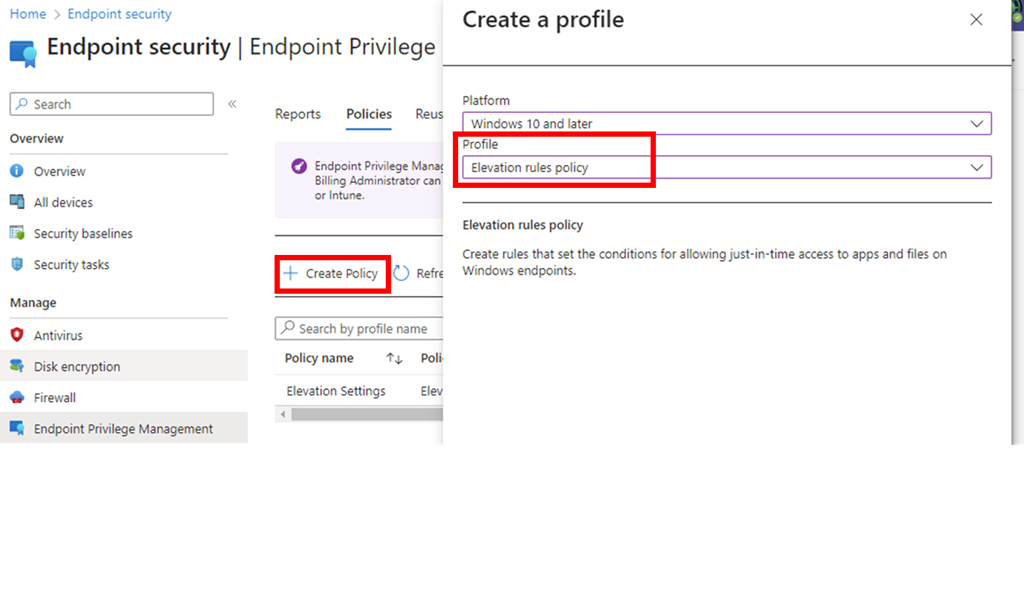
Next, we’ll need to create a new policy with the Profile set to Elevation rules policy as shown above.
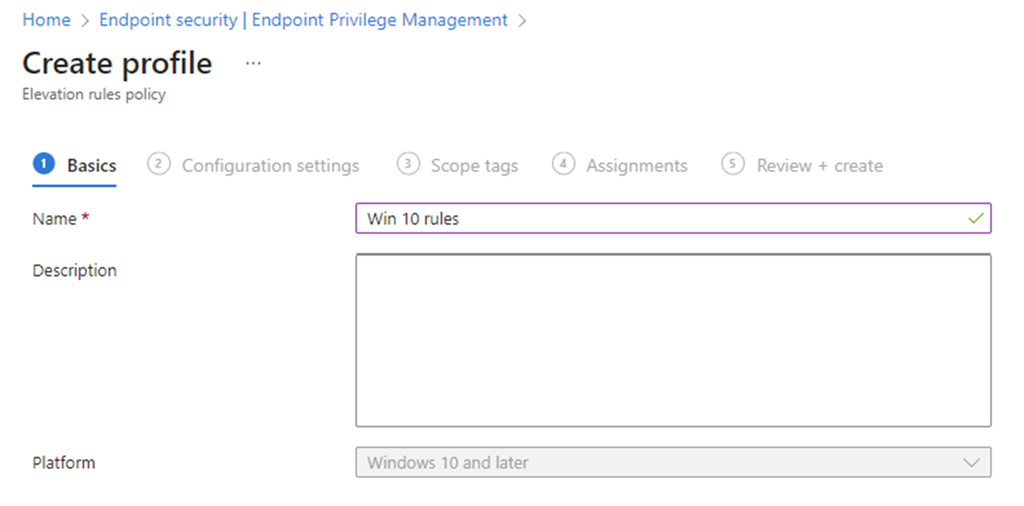
image

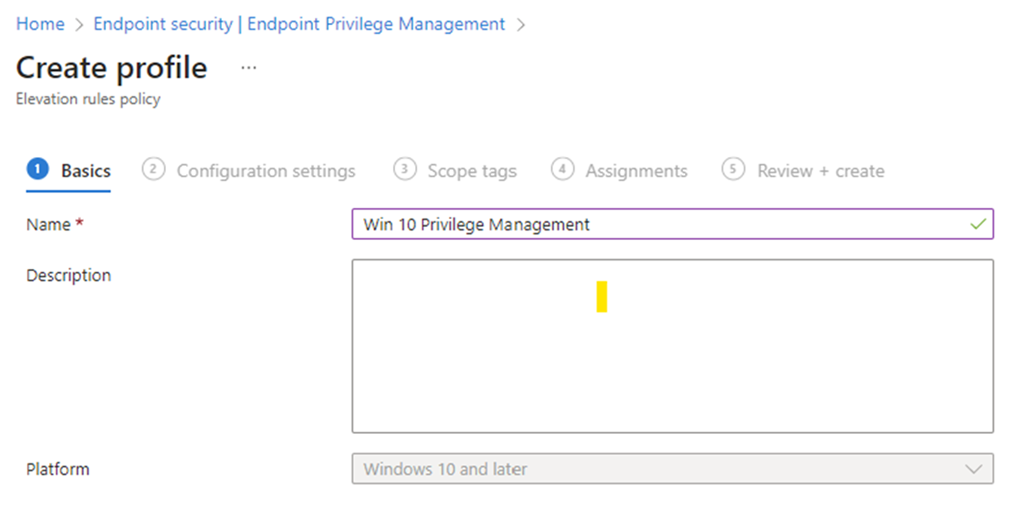
As always, we need to give this new policy a name.

image

On the following screen select Edit instance on the right as shown above.

image

On the blade that appears from the right, you’ll need to give the Rule a name and then a description if you wish.

For the Elevate type I have selected User confirmed rather than automatic as well as requiring Validation to be a Business justification as shown.

Next is the actual file name for the Acrobat Reader installer which is acrordr2300120064_en_US.exe in the File name field.

Screenshot 2023-04-04 180747

To get the file hash I used the PowerShell command get-filehash as shown above.
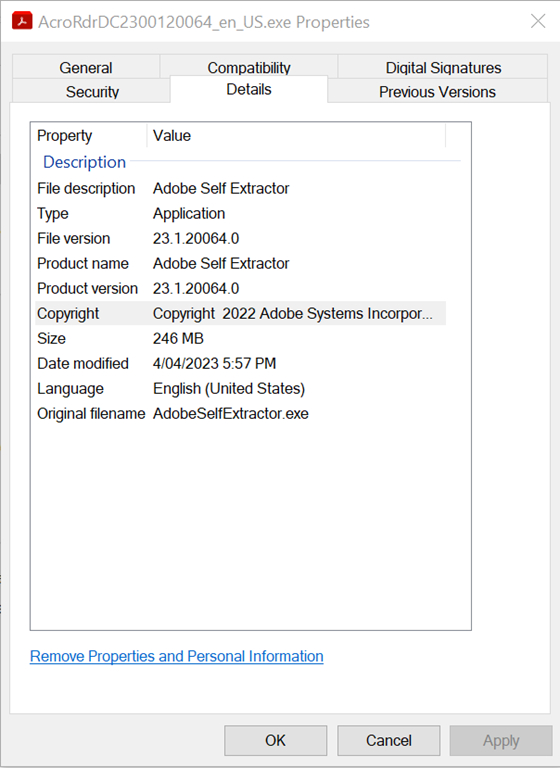
Screenshot 2023-04-04 180929

The remaining details were obtained from the properties of the file, as shown above.

I then saved this Rule and completed the creation of the policy using the standard process, ensuring I applied it to teh appropriate group in my environment.

Once again, you need to wait until the policies have been pushed out to all devices.

Screenshot 2023-04-04 180525

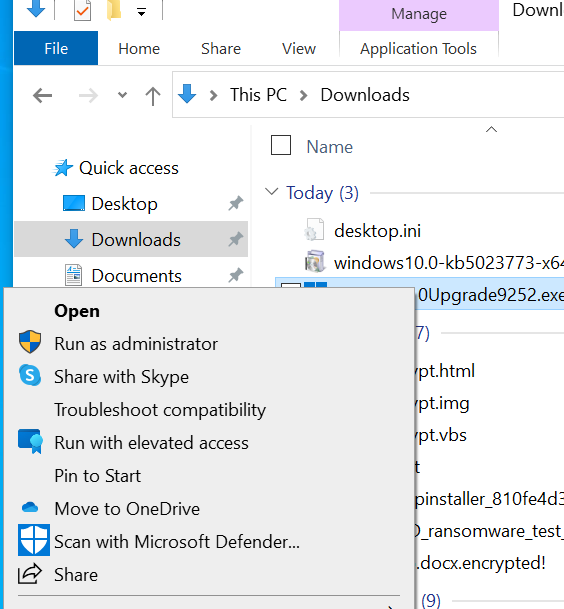
With the policies deployed, if I now right mouse click on the Acrobat Reader installation file and select Run with elevated privileges I see,
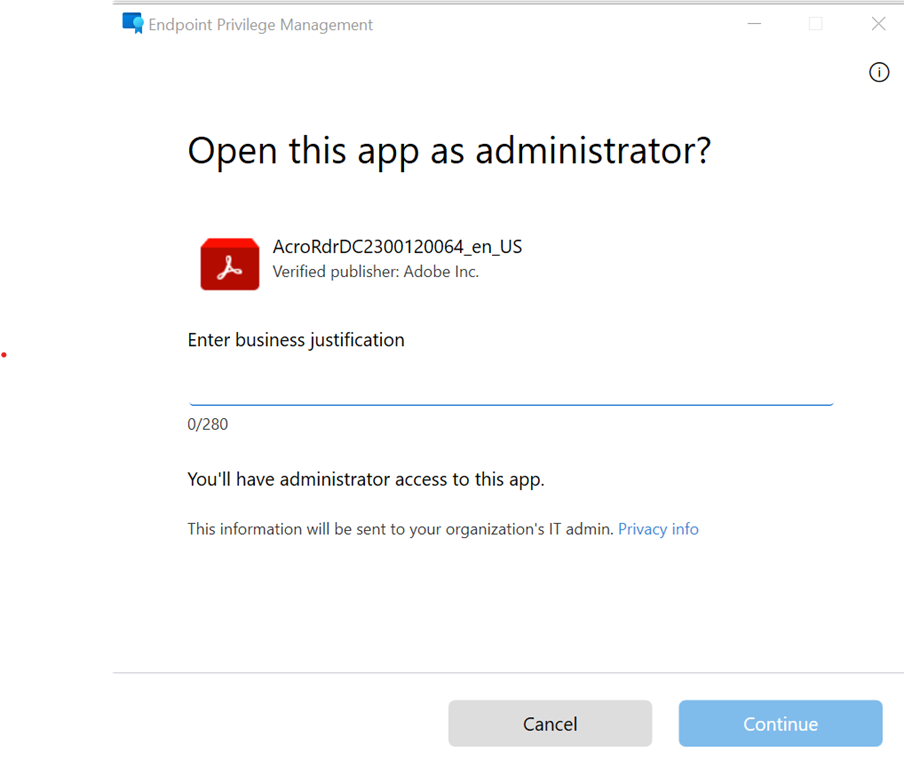
Screenshot 2023-04-04 181930

that the configured app is identified in the dialog and I need to provide a business justification for the installation as was configured in the rules policy.
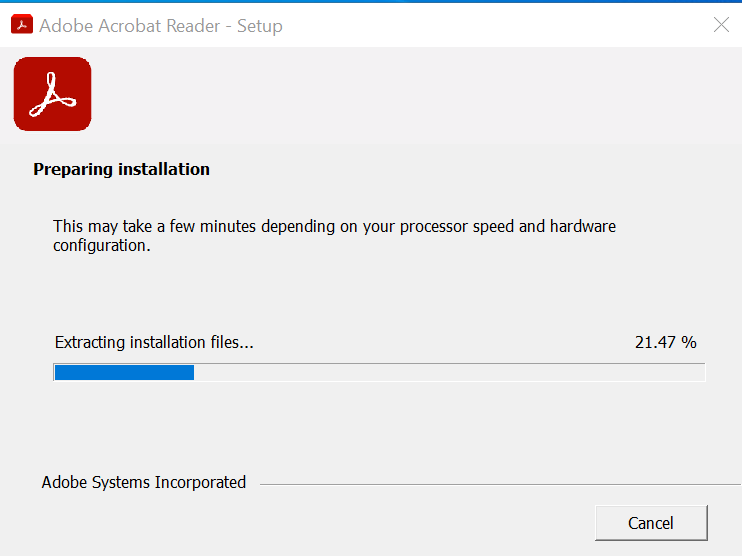
Screenshot 2023-04-04 182041

Screenshot 2023-04-04 182221

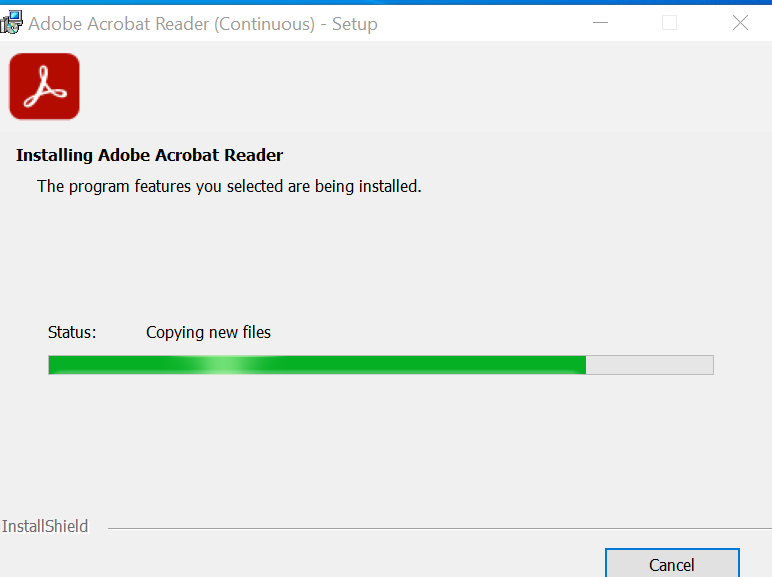
Once that has been completed the application installs as normal.
Screenshot 2023-04-04 182359

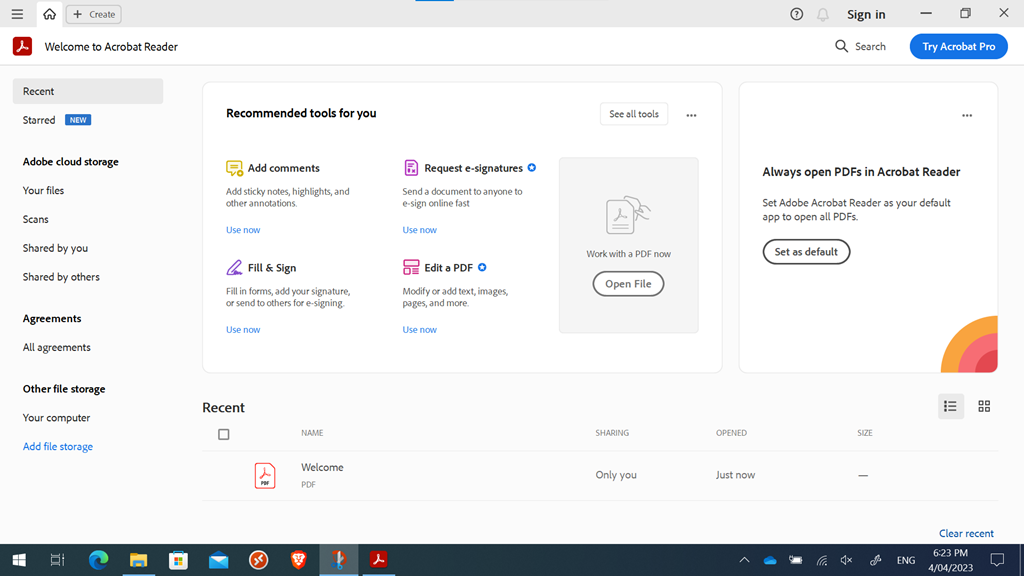
The Adobe Reader application runs on the device once the installation is completed as shown above.
Screenshot 2023-04-04 182512

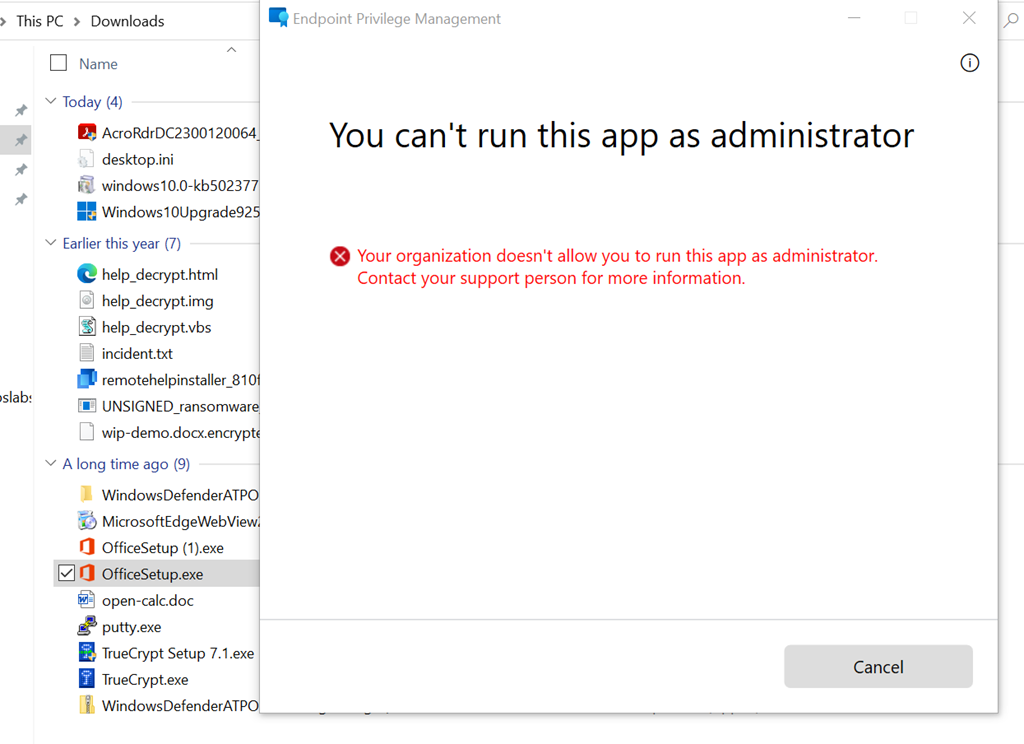
If I try and install another application by using the run with elevated privileges option (here, on the file officesetup.exe), it is blocked as shown above because the default setting policy is deny all. To allow this, another rule for that specific file would need to be created in the policy.

This means that you can now create a default Privilege Management settings policy to deny all requests to elevate and then have specific rules to only allow pre-defined applications to be run as administrator on the device. Remember, all this can be done without needing to have a local administrator on the device.

Getting Endpoint Privilege Management working

If you are not aware yet, Endpoint Privilege Management is now available in public preview.

image

You can find it in https://intune.microsoft.com under the Endpoint Security menu option as shown above.

image

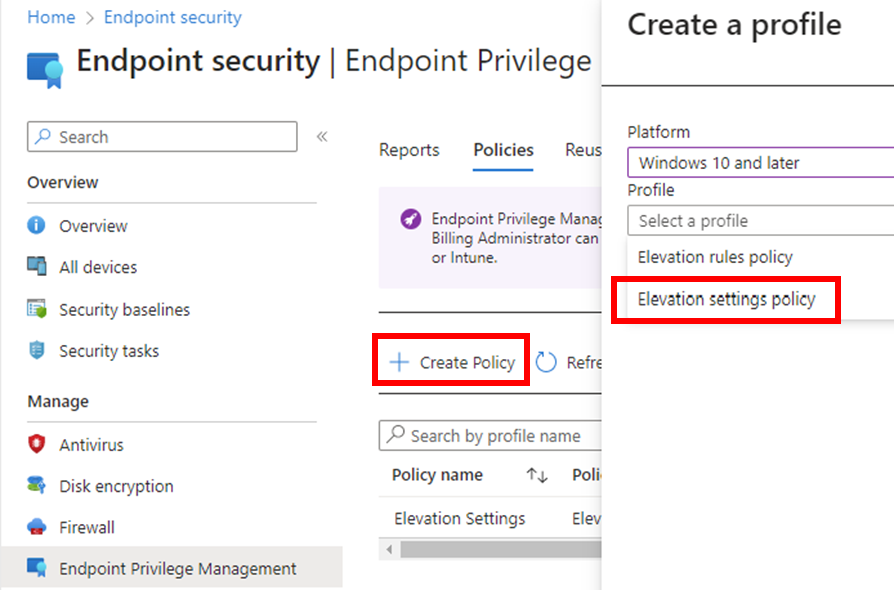
You’ll firstly need to use the Create Policy menu option, as shown to create a policy for your environment.

Select Windows 10 and later for the Platform (only option currently available).

Select Elevation settings policy for the Profile.

Select Create to continue.

image

As always, give the new policy a name and select Next to continue.

image

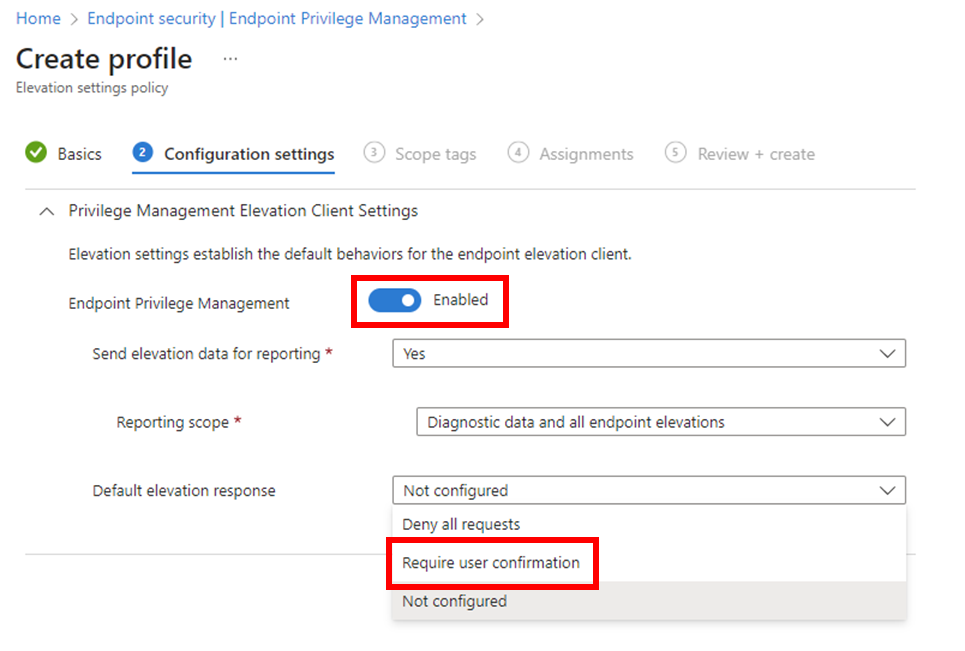
The most important thing here is to ensure that the option Endpoint Privilege Management is set to Enabled as shown above.

In this case, the Default elevation response is set to Require user confirmation.

Select Next to continue.

Continue through the rest of the policy as normal, ensuring you assign this policy to an appropriate group in your organisation.

image

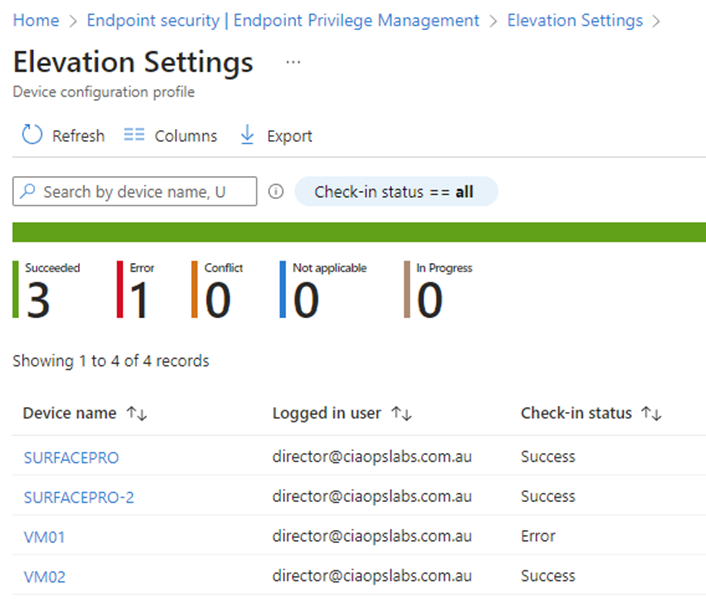
You can then select on the new policy to view it and then select View report to see the results of how the policy has been applied in your environment.

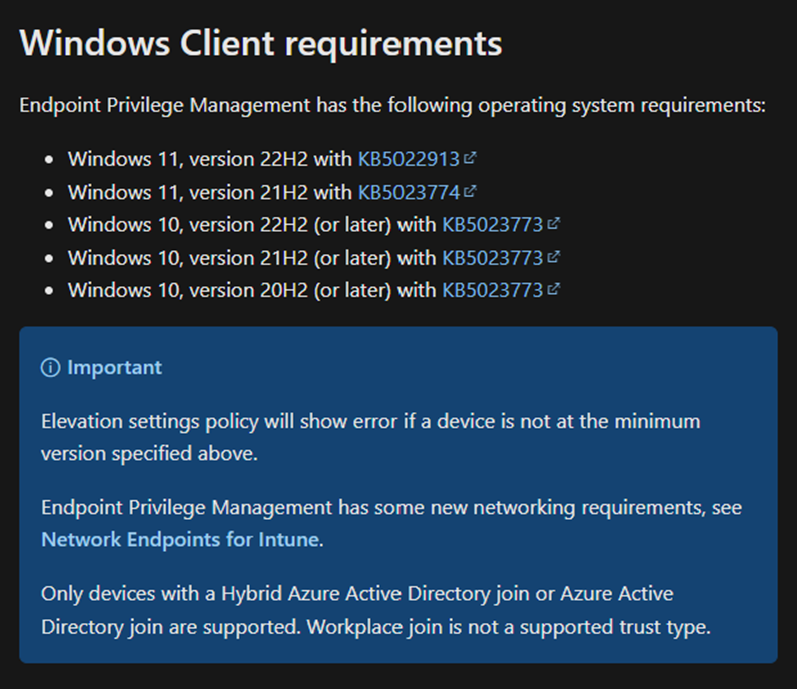
It is important to ensure your workstations are at the appropriate update level. At the moment that is:

image

The policy will NOT work until you are at this level.

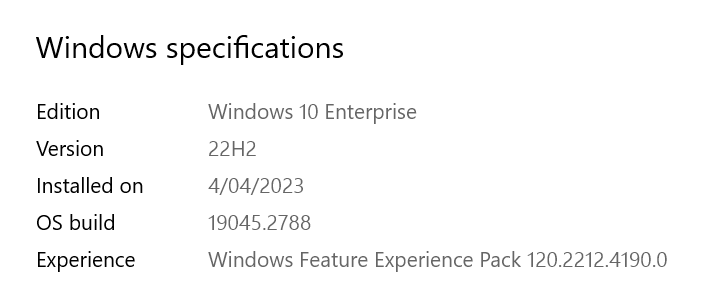
Screenshot 2023-04-04 153526

The above shows the client I used was Win 10 22H2 Build 19045.2788.

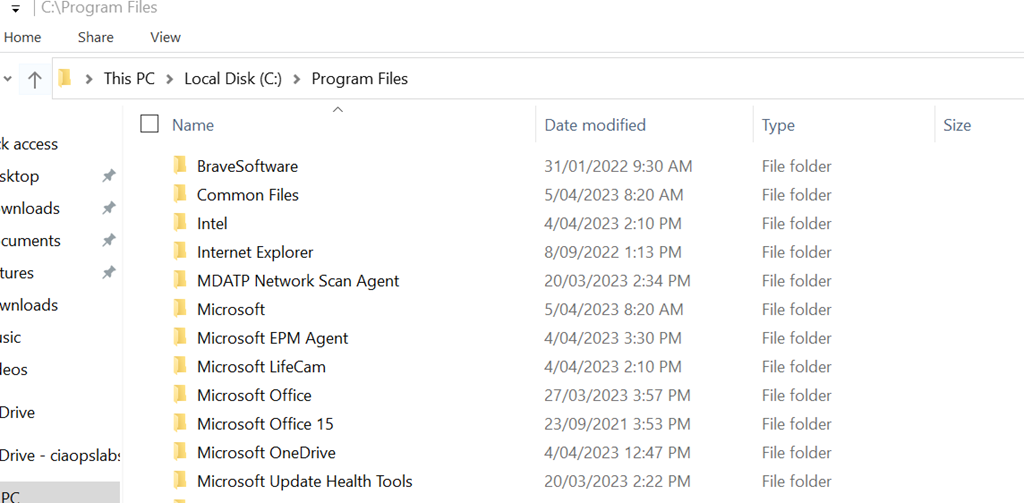
Screenshot 2023-04-04 153056
When the policy is applied successfully to the device you will find a new directory C:\Programs Files\Microsoft EPM agent is created as shown above.

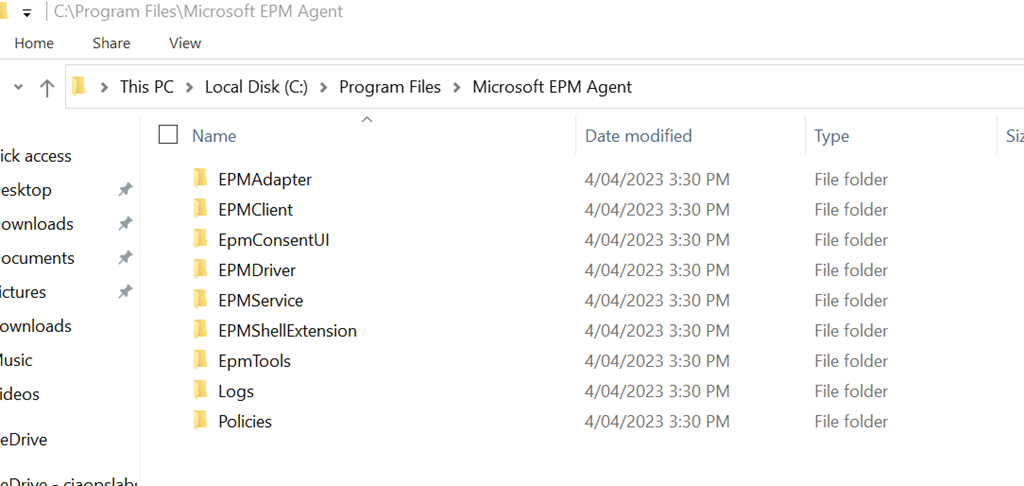
Screenshot 2023-04-04 153137

If you look inside that directory you will see the above structure.

Screenshot 2023-04-04 153323

With these files now on the device, you can right mouse click on an executable and you should now see the option Run with elevated access as shown above.

Screenshot 2023-04-04 153409

When you select that option you will now be prompted, per the policy options, to enter a confirmation as shown above.

You can find documentation from Microsoft here:

Use Endpoint Privilege Management with Microsoft Intune

CIAOPS Need to Know Microsoft 365 Webinar – April

laptop-eyes-technology-computer

Join me for the free monthly CIAOPS Need to Know webinar. Along with all the Microsoft Cloud news we’ll be taking a look at Microsoft Defender for Cloud Apps.

Shortly after registering you should receive an automated email from Microsoft Teams confirming your registration, including all the event details as well as a calendar invite.

You can register for the regular monthly webinar here:

April Webinar Registrations

(If you are having issues with the above link copy and paste – https://bit.ly/n2k2304

The details are:

CIAOPS Need to Know Webinar – April 2023
Friday 28th of April 2023
11.00am – 12.00am Sydney Time

All sessions are recorded and posted to the CIAOPS Academy.

The CIAOPS Need to Know Webinars are free to attend but if you want to receive the recording of the session you need to sign up as a CIAOPS patron which you can do here:

http://www.ciaopspatron.com

or purchase them individually at:

http://www.ciaopsacademy.com/

Also feel free at any stage to email me directly via director@ciaops.com with your webinar topic suggestions.

I’d also appreciate you sharing information about this webinar with anyone you feel may benefit from the session and I look forward to seeing you there.